
UI/UX Designer Interview Questions Preparation Guide
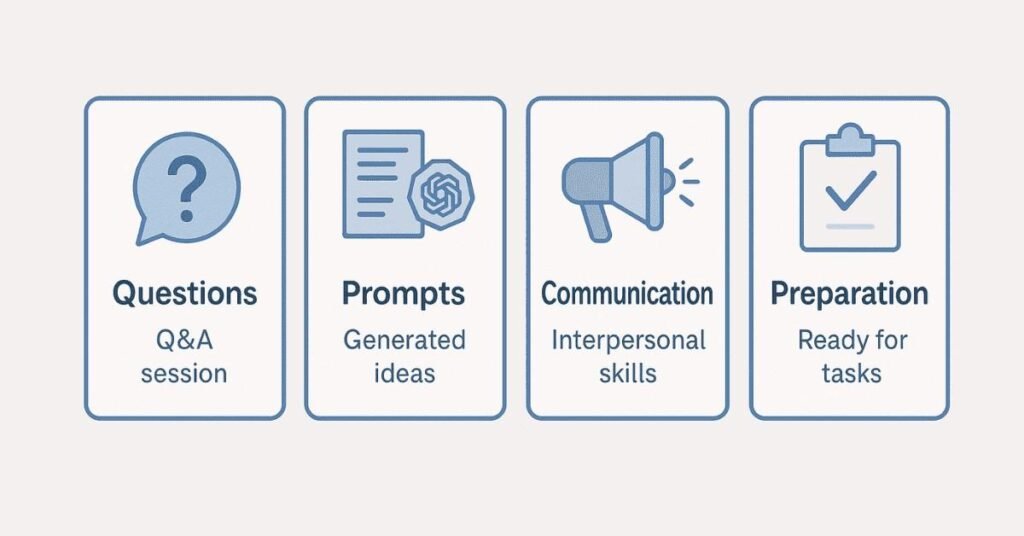
✅ Module 1: 210+ Technical Interview Questions & Answers
✅ Module 2: 50 Self-Preparation Prompts Using ChatGPT
✅ Module 3: Communication Skills and Behavioral Interview Preparation
✅ Module 4: Additional Preparation Elements (Pre-Interview, During, Post-Interview, Resume Tips, Common Mistakes)
1. 210+ Technical Interview Questions & Answers
- Foundations of UX Design (40 Questions)
- Design Thinking & User-Centered Design (25 Questions)
- User Research Methods (30 Questions)
- User Personas & Journey Mapping (25 Questions)
- Ideation Techniques (20 Questions)
- Wireframing & Prototyping (30 Questions)
- Design Tools & Software – Figma Mastery (25 Questions)
- Usability Testing & Evaluation (20 Questions)
- Advanced UX Design Principles (25 Questions)
- Design Systems & Scalability (20 Questions)
- Stakeholder Management & Collaboration (15 Questions)
- Design Handoff & Developer Collaboration (10 Questions
Become a Job-Ready UI/UX Designer — Join the UI/UX Course Today!
Section 1: Foundations of UX Design (40 Questions)
Q1. What is UX Design?
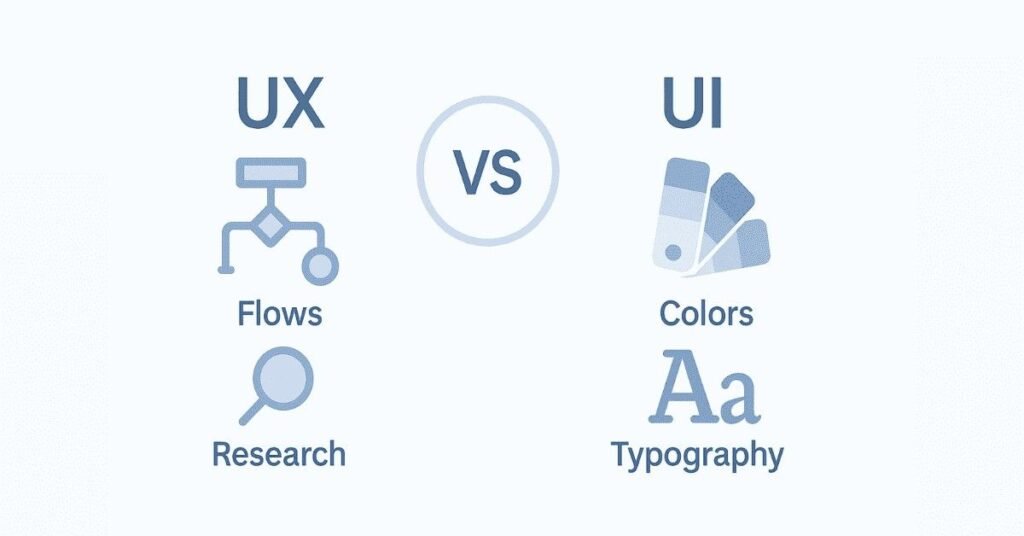
UX Design stands for User Experience Design. It’s all about creating products that give users meaningful and enjoyable experiences. Think of it like this: when you use an app and everything feels smooth, easy to find, and makes sense—that’s good UX design at work. It covers everything from how a product feels, how easy it is to use, and whether it solves the user’s problem effectively.
Q2. What is UI Design?
UI Design means User Interface Design. It focuses on the visual aspects of a product—colors, buttons, fonts, images, spacing, and overall look. While UX is about how something works, UI is about how something looks. A UI designer makes sure the product is visually appealing and the interface elements are easy to interact with.
Q3. What’s the main difference between UX and UI?
UX is about the overall experience and journey a user has with a product. UI is about the visual presentation and interactive elements. For example, if you’re designing a food delivery app, UX decides how users will order food step-by-step, while UI decides what color the “Order Now” button should be and where it should appear on the screen.
Q4. Why is UX Design important?
Good UX design directly impacts whether users will continue using your product or abandon it. Studies show that users decide within seconds if they like an app or website. If they face confusion or frustration, they’ll simply leave. Good UX design increases user satisfaction, reduces bounce rates, improves conversion rates, and ultimately helps businesses succeed.
Q5. What are the core principles of UX Design?
The main principles include usability (making things easy to use), accessibility (ensuring everyone can use it, including people with disabilities), desirability (making it appealing), value (providing real solutions), and findability (helping users locate what they need quickly).
Q6. What does “User-Centered Design” mean?
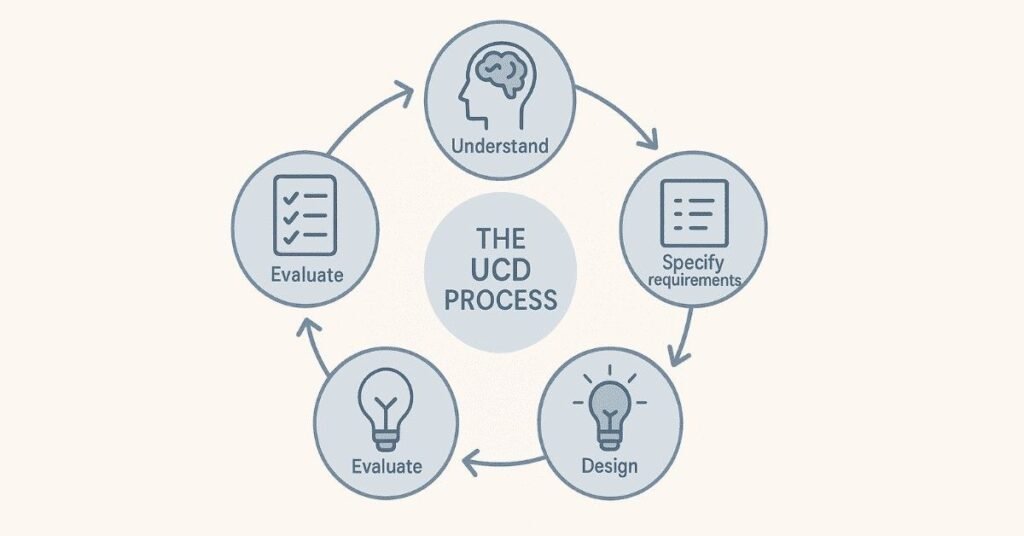
User-Centered Design means putting the user at the heart of every design decision. Instead of designing what you think looks cool, you design based on what users actually need and want. This involves talking to real users, understanding their problems, and testing your designs with them throughout the process.
Q7. Can you explain the history of UX Design?
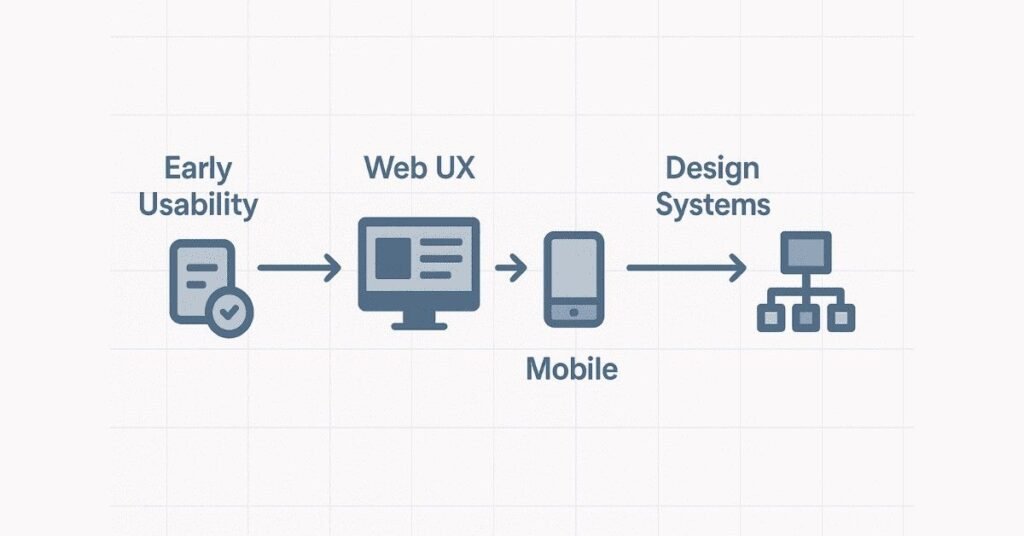
UX Design became popular in the 1990s when Don Norman, working at Apple, coined the term “User Experience.” But the concept goes back even further—think about how factories designed tools that workers could use comfortably. As computers and the internet grew, companies realized that easy-to-use interfaces would attract more customers, and that’s when UX became a proper career field.
Q8. What is usability?
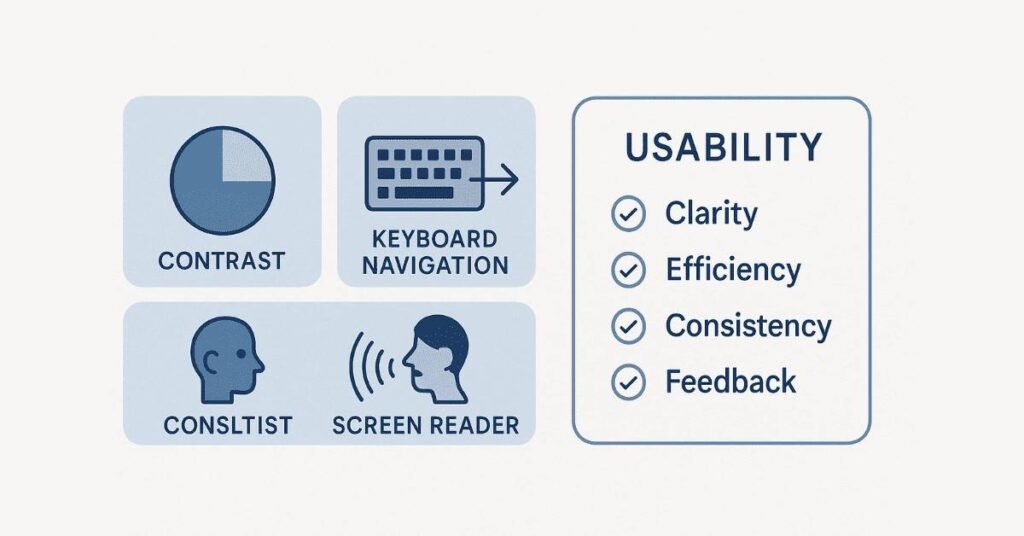
Usability means how easy and intuitive a product is to use. A highly usable product lets people achieve their goals quickly without confusion or errors. For example, if someone can book a train ticket in just three clicks without getting lost, that’s good usability.
Q9. What is accessibility in UX Design?
Accessibility means designing products that everyone can use, including people with disabilities like visual impairment, hearing loss, or mobility challenges. This includes adding features like screen reader support, keyboard navigation, sufficient color contrast, and captions for videos.
Q10. What roles does a UX Designer have in product companies?
In product companies, UX designers research user needs, create user personas, design user flows, build wireframes and prototypes, conduct usability testing, collaborate with developers and product managers, and continuously improve the product based on user feedback.
Q11. What roles does a UX Designer have in service companies?
In service companies (agencies or consultancies), UX designers work with multiple clients on different projects. They need to quickly understand various industries, adapt to different brand guidelines, present ideas to clients, and deliver complete design solutions within tight deadlines.
Q12. What are the different job titles in the UX field?
Common titles include UX Researcher, UX Designer, UI Designer, Interaction Designer, Information Architect, UX Writer, Product Designer, UX Strategist, and Service Designer. Each focuses on different aspects of the user experience.
Q13. What are the responsibilities of entry-level UX Designers?
Entry-level designers typically create wireframes and mockups, assist in user research activities, help with usability testing, organize design files, participate in design reviews, learn and apply design systems, and support senior designers on larger projects.
Q14. What is a UX Specialist?
A UX Specialist focuses deeply on one specific area of UX, like user research or interaction design. They become experts in that particular field and are brought in when projects need deep knowledge in that specialty.
Q15. What is a UX Generalist?
A UX Generalist has skills across multiple areas of UX design—they can do research, wireframing, prototyping, and visual design. They’re versatile and can handle different parts of a project, which makes them valuable in small teams or startups.
Q16. What is a T-Shaped Designer?
A T-shaped designer has broad knowledge across many UX areas (the horizontal part of the T) but deep expertise in one or two specific skills (the vertical part). For example, they might know a bit about research, testing, and visual design, but they’re exceptionally skilled in interaction design.
Q17. Why should someone choose a career in UX Design?
UX Design is creative, meaningful, and in high demand. You get to solve real problems for real people, see your work impact millions of users, work with diverse teams, and enjoy good career growth. Plus, every industry needs UX designers—from healthcare to gaming to e-commerce.
Q18. What soft skills are important for UX Designers?
Communication, empathy, collaboration, problem-solving, time management, openness to feedback, curiosity, and patience are crucial. UX designers work with many different people and need to explain their ideas clearly while understanding others’ perspectives.
Q19. What technical skills should UX Designers have?
UX designers should know wireframing, prototyping, user research methods, usability testing, information architecture, interaction design, basic understanding of HTML/CSS, and proficiency in design tools like Figma, Sketch, or Adobe XD.
Q20. What is the difference between Product Designers and UX Designers?
Product Designers typically have a broader scope—they think about the entire product strategy, business goals, and technical constraints, along with user experience. UX Designers focus specifically on the user experience aspect. In many companies, these titles are used interchangeably.
Q21. How do you explain UX Design to someone who doesn’t know about it?
Imagine you’re using an app to order food. If everything is clear, you find what you want easily, the checkout is smooth, and you feel happy using it—that’s good UX Design. My job is to make sure every interaction people have with digital products feels easy, logical, and enjoyable.
Q22. What makes a design “user-friendly”?
A user-friendly design is simple, clear, consistent, forgiving of mistakes, fast, and helps users accomplish their goals without frustration. It anticipates what users need and guides them naturally through the experience.
Q23. What is the goal of UX Design?
The ultimate goal is to create products that meet user needs effectively while also achieving business objectives. It’s about finding the sweet spot where user satisfaction and business success overlap.
Q24. How has UX Design evolved over the years?
UX Design has evolved from basic usability testing in the early computing days to a strategic business function today. Now it includes emotional design, ethical design, inclusive design, and considers the entire ecosystem of touchpoints users interact with—not just one app or website.
Q25. What industries hire UX Designers?
Almost every industry needs UX Designers: technology companies, e-commerce, healthcare, banking and finance, education, entertainment, travel, gaming, automotive, real estate, government services, and more. Every business with a digital presence needs good UX.
Q26. What’s the difference between UX Design and Graphic Design?
Graphic Design focuses on visual communication—creating logos, posters, brochures, and visual identities. UX Design focuses on how users interact with digital products and whether those interactions are smooth and satisfying. UX includes research, testing, and strategic thinking beyond just visuals.
Q27. Do UX Designers need to know coding?
Not necessarily, but understanding basic HTML, CSS, and how developers work helps you create more realistic designs and communicate better with development teams. Some companies prefer designers who can code, but it’s not always mandatory.
Q28. What is Design Thinking in UX?
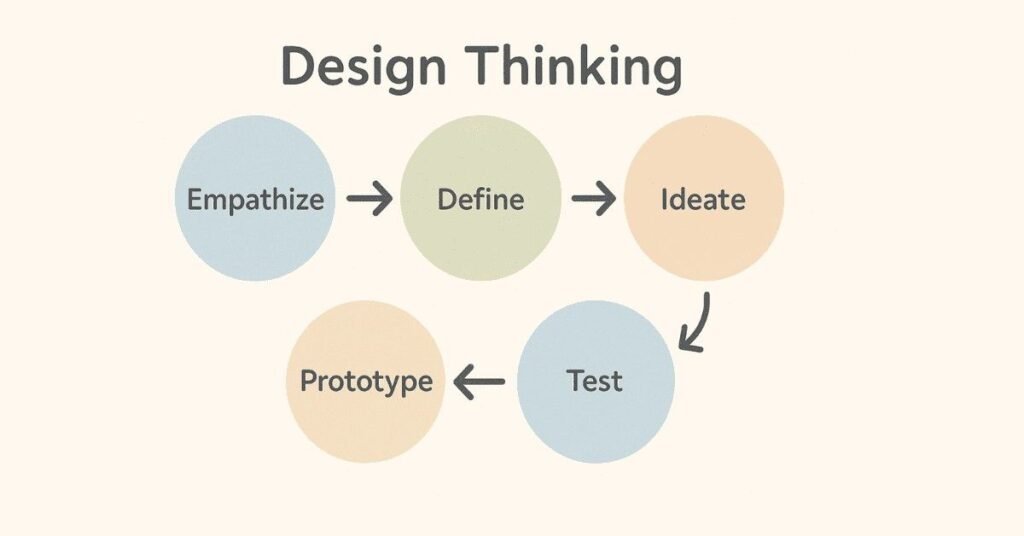
Design Thinking is a problem-solving approach with five stages: Empathize (understand users), Define (clarify the problem), Ideate (brainstorm solutions), Prototype (create test versions), and Test (gather feedback). It’s a structured way to solve complex problems creatively.
Q29. What is empathy in UX Design?
Empathy means putting yourself in the user’s shoes and genuinely understanding their feelings, frustrations, and needs. It’s not about what you would want, but about what your users truly need. Empathy helps you design solutions that actually solve real problems.
Q30. Why is user research important in UX?
User research prevents you from making assumptions. Instead of guessing what users want, you actually talk to them, observe them, and understand their behavior. This saves time and money because you build the right thing from the start instead of redesigning later.
Q31. What is the difference between qualitative and quantitative research?
Qualitative research gives you detailed insights through methods like interviews and observations—it answers “why” and “how” questions. Quantitative research gives you numbers and statistics through surveys and analytics—it answers “how many” and “how much” questions.
Q32. What does “iterate” mean in UX Design?
Iterate means continuously improving your design based on feedback and testing. You create a version, test it with users, learn what works and what doesn’t, make changes, and test again. Design is never really “finished”—it’s always evolving.
Q33. What are pain points in UX?
Pain points are specific problems or frustrations users experience when using a product. For example, a confusing checkout process, slow loading times, or hard-to-read text are all pain points. Identifying and fixing these is a major part of UX work.
Q34. What is the role of psychology in UX Design?
Psychology helps us understand how people think, make decisions, and behave. UX designers use principles from cognitive psychology, behavioral psychology, and social psychology to create designs that align with how human brains naturally work.
Q35. What is cognitive load?
Cognitive load is the mental effort required to use a product. High cognitive load means users have to think too hard, which leads to frustration and errors. Good UX design reduces cognitive load by making things simple and intuitive.
Q36. How does UX Design impact business?
Good UX increases customer satisfaction, reduces support costs, improves conversion rates, increases user retention, builds brand loyalty, and gives companies a competitive advantage. Companies that invest in UX see better ROI because happy users become paying customers.
Q37. What’s the difference between UX Design and Marketing?
Marketing focuses on attracting users and communicating value, while UX Design focuses on the actual experience once users interact with the product. Both work together—marketing brings people in, and UX keeps them happy and engaged.
Q38. Can you work as a UX Designer remotely?
Yes, many UX designers work remotely. The job requires collaboration tools, design software, and communication platforms—all of which work well online. Many companies now hire UX designers from anywhere in the world.
Q39. What is the future of UX Design?
The future includes voice interfaces, augmented reality (AR), virtual reality (VR), artificial intelligence-powered personalization, ethical design practices, and more focus on inclusive design. UX will expand beyond screens to include all kinds of digital interactions.
Q40. How do you stay updated in the UX field?
Follow design blogs like Nielsen Norman Group and UX Collective, join design communities on LinkedIn and Twitter, attend webinars and conferences, take online courses, read books by industry experts, experiment with new tools, and most importantly, observe how people interact with products in real life.
Section 2: Design Thinking & User-Centered Design (25 Questions)
Q41. What is Design Thinking?
Design Thinking is a creative problem-solving method that puts users first. It has five stages: Empathize with users, Define the problem clearly, Ideate multiple solutions, Prototype your best ideas, and Test them with real users. It’s popular because it helps teams solve complex problems in a structured yet creative way.
Q42. What happens in the “Empathize” stage?
In the Empathize stage, you try to deeply understand your users. You conduct interviews, observe how they use existing products, ask about their frustrations, and really listen without judging. The goal is to see the world from their perspective.
Q43. What happens in the “Define” stage?
In the Define stage, you take all the insights from your research and clearly state the problem you’re solving. You create a problem statement that focuses on user needs, not business goals. For example: “Busy parents need a faster way to pack healthy school lunches because mornings are chaotic.”
Q44. What happens in the “Ideate” stage?
In the Ideate stage, you brainstorm many possible solutions without judging ideas too quickly. The goal is quantity over quality at first—get all ideas out, even wild ones. Later you’ll narrow down to the most promising concepts.
Q45. What happens in the “Prototype” stage?
In the Prototype stage, you create quick, simple versions of your ideas to test. These don’t have to be perfect or fully functional—they can be paper sketches, clickable wireframes, or basic models. The point is to make something tangible that users can interact with.
Q46. What happens in the “Test” stage?
In the Test stage, you put your prototypes in front of real users and watch how they interact with them. You gather feedback, observe struggles, and learn what works and what doesn’t. Then you go back and refine your design.
Q47. What is User-Centered Design (UCD)?
User-Centered Design is an approach where every design decision is based on user needs, behaviors, and feedback. Instead of designing what you think is best, you involve users throughout the entire process and let their needs guide your choices.
Q48. What’s the difference between Design Thinking and User-Centered Design?
They’re very similar and often overlap. Design Thinking is a specific framework with five stages, while User-Centered Design is a broader philosophy of always prioritizing users. You can practice User-Centered Design using the Design Thinking framework.
Q49. What is the UX Design Research Framework?
The UX Research Framework is a structured approach to conducting research. It includes defining research goals, choosing appropriate methods, recruiting participants, conducting research, analyzing findings, and presenting insights to stakeholders in a way that leads to action.
Q50. What is the Double Diamond process?
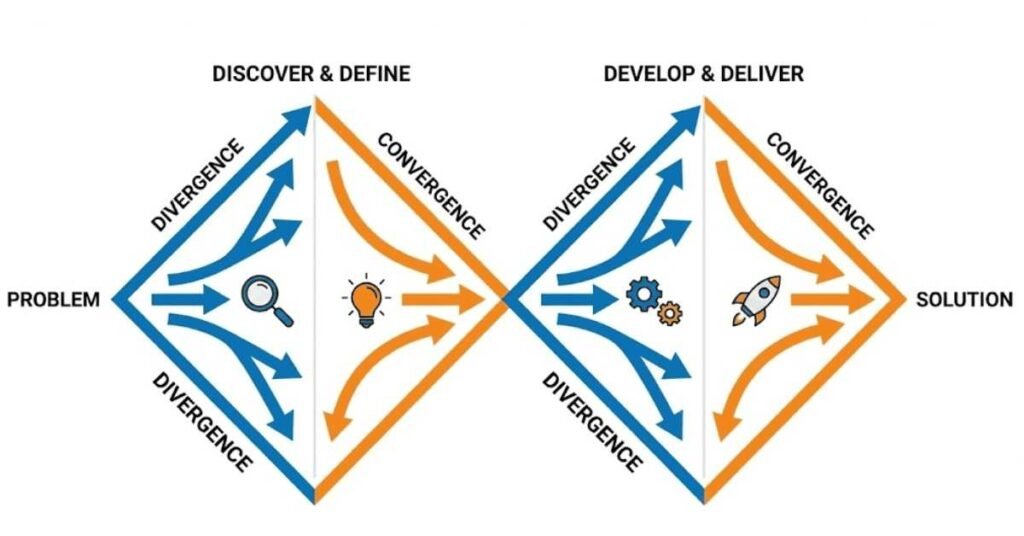
The Double Diamond has four phases: Discover (explore the problem widely), Define (narrow down to the specific problem), Develop (explore many solutions), and Deliver (narrow down to the best solution). The “diamonds” represent diverging (exploring) and converging (focusing) thinking.
Q51. What is Agile UX?
Agile UX combines UX design practices with Agile software development methods. Instead of designing everything upfront, you work in short cycles (sprints), create small pieces, test quickly, and iterate based on feedback. It’s flexible and collaborative.
Q52. How is Agile UX different from traditional UX?
Traditional UX often follows a linear process: research, then design, then develop, then test. Agile UX happens in cycles where research, design, and testing happen continuously throughout the project. Changes can be made quickly based on learnings.
Q53. What are User-Centered Testing Methods?
These are testing approaches that involve real users, like usability testing, A/B testing, prototype testing, card sorting, and first-click testing. The key is getting actual feedback from the people who will use your product.
Q54. Why do we use the Design Thinking process?
Design Thinking helps teams avoid common pitfalls like building features nobody wants, making assumptions about users, or getting stuck in analysis paralysis. It keeps the focus on users while encouraging creative solutions.
Q55. Can Design Thinking be used outside of digital products?
Absolutely! Design Thinking is used to solve problems in education, healthcare, social issues, business strategy, and more. Any time you need to solve a complex problem with creative solutions, Design Thinking can help.
Q56. What makes a good problem statement?
A good problem statement is specific, user-focused, and actionable. It describes who the user is, what they need, and why. For example: “College students need an affordable meal planning app because they’re on tight budgets and don’t know how to cook healthy meals.”
Q57. How many ideas should you generate in the Ideate phase?
There’s no magic number, but aim for quantity. Generate 20, 50, or even 100 ideas before evaluating them. The more ideas you have, the more likely you’ll find an innovative solution. Wild ideas can spark practical ones.
Q58. What’s the difference between divergent and convergent thinking?
Divergent thinking is about exploring widely and generating many possibilities without judgment. Convergent thinking is about narrowing down, evaluating options, and choosing the best solution. Both are important in design.
Q59. How do you know when to move from prototyping to testing?
Move to testing once your prototype is good enough to get meaningful feedback. It doesn’t have to be perfect—even rough sketches can be tested. The sooner you test, the sooner you learn what needs improvement.
Q60. What is Lean UX?
Lean UX focuses on rapid experimentation and learning. Instead of creating detailed documentation, you build minimum viable products (MVPs), test them quickly with users, learn from the results, and iterate. It’s about being efficient and avoiding waste.
Q61. How does Lean UX differ from Agile UX?
Lean UX and Agile UX are very similar and often used together. Lean UX emphasizes learning through experimentation and removing waste, while Agile UX emphasizes working in flexible sprints. Both prioritize collaboration and iteration.
Q62. What is a design sprint?
A design sprint is an intense 5-day process where teams rapidly prototype and test solutions to a specific problem. Each day has a focus: Map, Sketch, Decide, Prototype, and Test. It was popularized by Google Ventures and helps teams make progress quickly.
Q63. What are the benefits of User-Centered Design?
Benefits include higher user satisfaction, fewer design errors, reduced development costs (because you build the right thing the first time), increased user retention, better accessibility, and products that truly meet user needs.
Q64. How do you convince stakeholders to invest in User-Centered Design?
Show them the business impact: user-centered products have higher conversion rates, lower support costs, better customer retention, and competitive advantages. Share case studies and data that prove good UX drives business results.
Q65. Can you skip any stage in the Design Thinking process?
While you technically can, it’s not recommended. Each stage builds on the previous one. Skipping Empathize means you might solve the wrong problem. Skipping Test means you won’t know if your solution actually works. Following all stages leads to better outcomes.
Section 3: User Research Methods (30 Questions)
Q66. What is user research?
User research is the process of studying your target users to understand their behaviors, needs, motivations, and problems. It involves various methods like interviews, surveys, observation, and testing to gather insights that inform design decisions.
Q67. Why is user research important?
User research ensures you’re designing based on real user needs, not assumptions. It saves time and money by preventing costly mistakes, reveals opportunities you might not have considered, and builds empathy for the people you’re designing for.
Q68. What’s the difference between qualitative and quantitative research?
Qualitative research provides deep, detailed insights through methods like interviews and observations. It answers “why” and “how.” Quantitative research provides measurable data through surveys and analytics. It answers “how many” and “how much.” Both are valuable.
Q69. What is a user interview?
A user interview is a one-on-one conversation where you ask users about their experiences, needs, and challenges. You prepare open-ended questions, listen actively, and probe deeper when interesting topics come up. Interviews reveal motivations and pain points.
Q70. How do you conduct a good user interview?
Prepare questions in advance but stay flexible. Start with easy, non-threatening questions to build rapport. Ask open-ended questions like “Tell me about…” instead of yes/no questions. Listen more than you talk, and follow up on interesting points. Record the session (with permission) so you can focus on listening.
Q71. What are focus groups?
Focus groups are moderated discussions with 5-10 users where you explore their opinions and experiences. They’re useful for gathering diverse perspectives quickly and observing how people discuss topics in a group setting. The moderator guides the conversation and ensures everyone participates.
Q72. What are diary studies?
Diary studies ask users to record their experiences over time—days or weeks. Users log their activities, thoughts, and feelings in a diary (digital or physical). This method captures real-life context and behavior patterns that interviews might miss.
Q73. What are participatory sessions?
Participatory sessions involve users directly in the design process. You might have them sketch ideas, rearrange elements, or co-create solutions with you. This makes users active collaborators rather than passive subjects and reveals their mental models.
Q74. What are surveys?
Surveys are questionnaires sent to many users to gather quantitative data. They’re useful for measuring attitudes, preferences, and demographics across a large group. Surveys can be quick and inexpensive but provide less depth than interviews.
Q75. How do you write good survey questions?
Keep questions clear and simple. Avoid leading questions that suggest a “right” answer. Use consistent rating scales. Mix question types (multiple choice, ratings, open-ended). Keep surveys short—people abandon long surveys. Test your survey before sending it widely.
Q76. What is analytics data?
Analytics data comes from tools like Google Analytics that track how users interact with your product. It shows metrics like page views, time on page, bounce rates, click patterns, and conversion rates. This data reveals what users actually do (versus what they say they do).
Q77. What metrics should UX Designers track?
Important metrics include task completion rates, time on task, error rates, user satisfaction scores, Net Promoter Score (NPS), conversion rates, bounce rates, and feature adoption rates. Choose metrics that align with your specific goals.
Q78. What is empathy mapping?
Empathy mapping is a visual tool where you document what users say, think, feel, and do. You create four quadrants and fill them with insights from research. It helps teams build a shared understanding of users and identify gaps in knowledge.
Q79. How do you identify user pain points?
Listen for words like “frustrated,” “confusing,” “annoying,” or “takes too long” during interviews. Observe where users struggle or make errors. Analyze support tickets and customer complaints. Look at where users abandon tasks in analytics. These all signal pain points.
Q80. What is competitive analysis?
Competitive analysis involves studying similar products in the market to understand what they do well and where they fall short. You identify opportunities to differentiate your product and learn from others’ successes and failures.
Q81. How do you conduct competitive analysis?
List your main competitors. Use their products as a regular user would. Document their features, user flows, strengths, and weaknesses. Note what users say in reviews. Compare your product to theirs. Create a comparison matrix to visualize findings.
Q82. What are user personas?
User personas are fictional characters that represent different user types. They include demographics, goals, frustrations, behaviors, and motivations based on research. Personas help teams keep real users in mind when making design decisions.
Q83. How many users should you interview?
For qualitative research, Nielsen Norman Group suggests 5 users per user group reveals about 85% of usability issues. For broader research, aim for 8-12 interviews. More is better, but even a few interviews provide valuable insights—more than zero interviews.
Q84. What is contextual inquiry?
Contextual inquiry means observing and interviewing users in their natural environment while they perform tasks. You see how their surroundings, tools, and routines affect their behavior. It reveals context that lab testing misses.
Q85. What are the benefits of observing users?
People don’t always remember or accurately describe their behavior. Observation shows what they actually do, revealing unconscious habits, workarounds, and struggles they might not mention in interviews.
Q86. How do you recruit research participants?
Use your existing user base, post on social media, use recruitment agencies, offer incentives (gift cards or payment), reach out to relevant communities, or use platforms like UserTesting.com. Clearly communicate time commitment and compensation.
Q87. What questions should you ask in user interviews?
Ask about their goals, current workflows, frustrations, tools they use, what works well, what doesn’t, recent experiences with similar products, and their needs. Example: “Walk me through the last time you tried to book a doctor’s appointment.”
Q88. What is the difference between B2B and B2C research?
B2B (business-to-business) research involves professional users making decisions for their company. They focus on efficiency, ROI, and team needs. B2C (business-to-consumer) research involves individual users making personal decisions, focusing more on ease and enjoyment.
Q89. What is remote user research?
Remote research is conducted online rather than in person. You use video calls for interviews, online tools for usability testing, and digital surveys. Remote research is faster, cheaper, and reaches geographically diverse participants.
Q90. What’s the difference between formative and summative research?
Formative research happens during design to shape and improve the product. Summative research happens after launch to evaluate how well the product performs. Think of it as “design in progress” versus “final grade.”
Q91. How do you analyze research data?
For qualitative data, look for patterns and themes across interviews. Group similar feedback together. Create affinity diagrams. For quantitative data, calculate averages, identify trends, and create visualizations. Document key findings and actionable insights.
Q92. What is an affinity diagram?
An affinity diagram organizes research findings by grouping similar ideas together. You write insights on sticky notes, then sort them into categories that emerge naturally. It helps teams make sense of large amounts of qualitative data.
Q93. What are research goals?
Research goals define what you want to learn. They guide your research method choice and questions. Examples: “Understand why users abandon the checkout process” or “Discover how users organize their digital files.”
Q94. How do you present research findings to stakeholders?
Tell a story with your data. Start with key findings, support them with quotes and data, include user personas, highlight pain points, and end with actionable recommendations. Use visuals like journey maps and empathy maps. Focus on insights that drive decisions.
Q95. What is triangulation in research?
Triangulation means using multiple research methods to study the same question. If interviews, surveys, and analytics all point to the same conclusion, you can be more confident in your findings. It provides a more complete picture than any single method
Section 4: User Personas & Journey Mapping (25 Questions)
Q96. What is a user persona?
A user persona is a fictional character based on research that represents a specific type of user. It includes their name, photo, demographics, goals, frustrations, behaviors, and motivations. Personas help teams understand and empathize with users.
Q97. How do you create a user persona?
Start with user research—interviews, surveys, and analytics. Look for patterns in goals, behaviors, and pain points. Group similar users together. For each group, create a persona with a name, photo, background, goals, frustrations, and behaviors. Base personas on real data, not stereotypes.
Q98. How many personas should you create?
Most projects need 3-5 personas. More than that becomes hard to manage, and fewer might miss important user segments. Focus on primary personas (main users) and secondary personas (less frequent but still important users).
Q99. What’s included in a persona?
A complete persona includes a name, photo, age, occupation, background story, goals (what they want to achieve), frustrations (what prevents success), behaviors (how they interact with similar products), tech comfort level, motivations, and a memorable quote.
Q100. What is a problem statement?
A problem statement clearly defines the user problem you’re solving. It’s typically formatted as: “[User persona] needs a way to [need] because [insight].” Example: “Busy parents need a way to quickly find healthy dinner recipes because they have limited time after work.”
Q101. What are “How Might We” (HMW) questions?
HMW questions reframe problems as opportunities. Instead of “Users can’t find the search function,” ask “How might we make search more discoverable?” The format encourages optimism and brainstorming without suggesting specific solutions.
Q102. How do you write good HMW questions?
Start with “How might we…” Keep them broad enough to allow creative solutions but specific enough to be actionable. Focus on user needs, not solutions. Generate multiple HMW questions for each problem. Example: “How might we help new users feel confident using our app?”
Q103. What’s the difference between user goals and business goals?
User goals are what users want to achieve (e.g., “find affordable flights quickly”). Business goals are what the company wants (e.g., “increase booking conversions by 20%”). Great design finds solutions that satisfy both.
Q104. How do you balance user goals and business goals?
Look for overlap where user satisfaction drives business results. For example, reducing checkout steps helps users complete purchases faster (user goal) while increasing conversion rates (business goal). Prioritize user needs because happy users are profitable users.
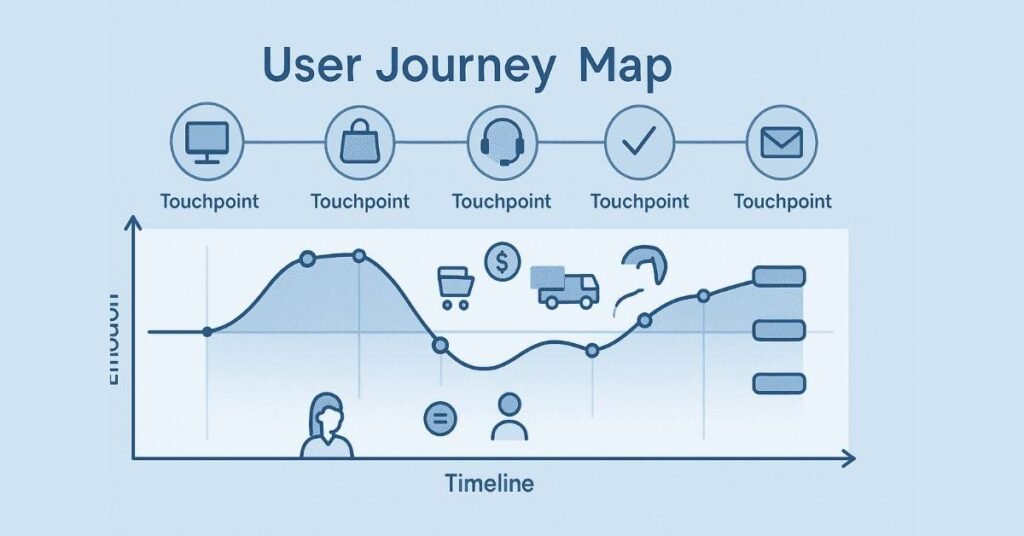
Q105. What is user journey mapping?
User journey mapping visualizes the complete experience a user has with your product, from first awareness through post-purchase. It shows their actions, thoughts, emotions, pain points, and opportunities at each stage.
Q106. What’s included in a user journey map?
A journey map includes user actions (what they do), touchpoints (where they interact), thoughts (what they’re thinking), emotions (how they feel at each stage), pain points (frustrations), and opportunities (where you can improve). It’s typically shown as a timeline.
Q107. Why create user journey maps?
Journey maps help teams see the big picture, identify pain points you might miss when focusing on individual features, build empathy by showing emotional highs and lows, reveal opportunities for improvement, and align teams around the user experience.
Q108. What are the stages of a typical user journey?
Common stages are: Awareness (learning about the product), Consideration (evaluating options), Purchase/Signup (committing), Onboarding (first use), Regular Use (ongoing interaction), and Loyalty/Advocacy (becoming a fan). Stages vary by product.
Q109. What is Information Architecture?
Information Architecture (IA) is how you organize and structure content so users can find what they need easily. It includes navigation systems, labeling, categorization, and hierarchies. Good IA makes complex systems feel simple.
Q110. What are types of Information Architecture?
Common IA structures include hierarchical (tree structure with parent-child relationships), sequential (linear flow like checkout), matrix (users choose their own path), and database (search-driven). Most products combine multiple structures.
Q111. What’s the difference between Information Architecture and User Flow?
Information Architecture is the overall structure and organization of content. User Flow is the specific path a user takes to complete a task. IA is like the map of a city; user flow is the route you take to get somewhere specific.
Q112. What is a user flow?
A user flow is a diagram showing the steps a user takes to complete a specific task, like signing up or making a purchase. It includes decision points, actions, and possible paths, helping you design efficient experiences.
Q113. How do you create a user flow?
Start with the user’s goal. Map each step they need to take. Include decision points (“Do they have an account?” leads to different paths). Show different screens or states. Identify where users might get stuck or confused. Keep it simple and focused on one task.
Q114. What is scope definition?
Scope definition determines what features and functionality to include in your product. It involves analyzing feasibility (can we build it?), viability (is it profitable?), and desirability (do users want it?). This prevents feature creep and focuses effort.
Q115. What is feasibility in product design?
Feasibility asks: Can we technically build this with our resources, time, and technology? It considers technical constraints, development complexity, and available expertise. Sometimes great ideas aren’t feasible with current capabilities.
Q116. What is viability in product design?
Viability asks: Does this make business sense? Will it generate revenue, reduce costs, or achieve strategic goals? A feature might be desirable and feasible but not viable if it’s too expensive or doesn’t fit the business model.
Q117. What is desirability in product design?
Desirability asks: Do users want this? Will it solve their problems or meet their needs? You determine desirability through user research, testing, and validation. High desirability means users will actually use the feature.
Q118. How do you prioritize features?
Use frameworks like RICE (Reach, Impact, Confidence, Effort) or MoSCoW (Must have, Should have, Could have, Won’t have). Consider user impact, business value, technical complexity, and urgency. Focus on features that deliver maximum value with reasonable effort.
Q119. What are pain points in a user journey?
Pain points are moments of frustration, confusion, or difficulty in the user journey. Examples: confusing navigation, long wait times, unclear error messages, or having to repeat information. Identifying and fixing pain points improves the overall experience.
Q120. What are touchpoints?
Touchpoints are any place where users interact with your brand or product—website, mobile app, customer service, social media, emails, physical stores, etc. Journey maps include all touchpoints to show the complete experience.
Follow the Complete 90 Days UI/UX Roadmap — Learn the Right Way →
Section 5: Ideation Techniques (20 Questions)
Q121. What is ideation?
Ideation is the creative process of generating, developing, and communicating ideas. In UX design, it’s the phase where you brainstorm many possible solutions to a problem before narrowing down to the best ones.
Q122. Why is ideation important?
Ideation helps you explore many possibilities instead of settling for the first idea that comes to mind. It encourages creativity, reduces the risk of missing better solutions, and gets diverse perspectives from team members.
Q123. What is brainstorming?
Brainstorming is a group creativity technique where team members share ideas freely without judgment. The goal is quantity—generate as many ideas as possible first, then evaluate them later. Wild ideas are encouraged because they can spark practical ones.
Q124. What are the rules of good brainstorming?
Key rules: defer judgment (no criticism during ideation), encourage wild ideas, build on others’ ideas, stay focused on the topic, aim for quantity, and allow one conversation at a time. These rules create a safe space for creativity.
Q125. What is Crazy 8s?
Crazy 8s is a rapid sketching exercise where you fold a paper into 8 sections and sketch 8 different ideas in 8 minutes—one minute per idea. The time pressure forces you to think quickly and prevents overthinking. It generates many ideas fast.
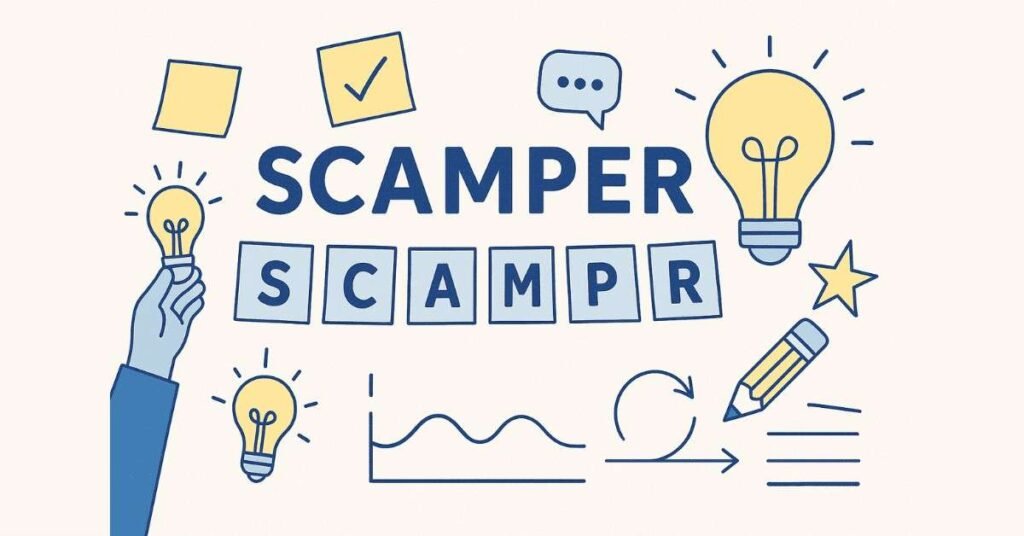
Q126. What is the SCAMPER technique?
SCAMPER is a brainstorming method with prompts for generating ideas: Substitute (what can you replace?), Combine (what can you merge?), Adapt (what can you adjust?), Modify (what can you change?), Put to another use, Eliminate (what can you remove?), Reverse (what can you flip?).
Q127. How do you use SCAMPER in UX design?
Apply each prompt to your design challenge. For example, if designing a task management app: Substitute paper lists with digital ones, Combine calendar and tasks, Adapt productivity methods from other apps, Modify the interface for mobile, etc.
Q128. What is an affinity diagram?
An affinity diagram organizes brainstorming ideas by grouping similar concepts together. Write each idea on a sticky note, then sort them into themes that emerge naturally. This helps make sense of many ideas and identify patterns.
Q129. What are rapid ideas?
Rapid ideas are quick concept explorations without detailed execution. You quickly sketch or describe multiple approaches to see what resonates. The goal is breadth before depth—explore many directions before committing to one.
Q130. What is divergent thinking?
Divergent thinking is generating many different ideas and exploring all possibilities. It’s about expanding options and being creative without limiting yourself. It happens during brainstorming and early ideation.
Q131. What is convergent thinking?
Convergent thinking is narrowing down options and choosing the best solution. It’s about evaluation, analysis, and decision-making. After divergent thinking generates many ideas, convergent thinking helps select which to pursue.
Q132. When do you use divergent vs convergent thinking?
Use divergent thinking early in the ideation phase to explore possibilities. Use convergent thinking after you have many ideas to evaluate, prioritize, and select the most promising concepts for prototyping.
Q133. How many ideas should you generate before choosing one?
There’s no fixed number, but aim for abundance. Generate 20-50+ ideas if possible. The more options you explore, the more likely you’ll find innovative solutions. Quantity often leads to quality.
Q134. What is “yes, and…” thinking?
“Yes, and…” is an improvisation technique used in brainstorming. Instead of saying “yes, but…” which shuts down ideas, you say “yes, and…” to build on others’ suggestions. It keeps creativity flowing and makes people feel heard.
Q135. How do you involve stakeholders in ideation?
Invite them to brainstorming sessions, share ideas early for input, conduct co-design workshops, or gather feedback on concepts. Involving stakeholders early builds buy-in and ensures their perspectives are considered.
Q136. What is dot voting?
Dot voting is a prioritization method where team members place dots (physical or virtual) on their favorite ideas. Each person gets a limited number of votes. The ideas with the most dots are prioritized for further development.
Q137. How do you evaluate which ideas to prototype?
Consider user impact (does it solve the problem?), feasibility (can we build it?), innovation (is it differentiated?), alignment with goals, and team excitement. Select a mix of safe bets and ambitious ideas to explore.
Q138. What is mind mapping?
Mind mapping is a visual brainstorming technique where you start with a central concept and branch out with related ideas. It helps explore connections between concepts and generates ideas in a non-linear way.
Q139. Can you ideate alone or does it require a group?
Both work. Group ideation benefits from diverse perspectives and builds on others’ ideas. Individual ideation allows deep thinking without group dynamics influencing you. The best approach often combines both—individual idea generation followed by group sharing.
Q140. What should you do with ideas you don’t pursue?
Keep an idea backlog or parking lot. Don’t delete them—they might become relevant later, or parts of rejected ideas might spark new solutions. Document why you chose not to pursue them so future teams understand the decision.
Section 6: Wireframing & Prototyping (30 Questions)

Q141. What is a wireframe?
A wireframe is a basic visual representation of a page or screen layout. It shows where elements like headers, buttons, images, and text will go without detailed design. Think of it as a blueprint for a house—it shows structure without decoration.
Q142. Why do we create wireframes?
Wireframes let you explore layouts and structures quickly without getting distracted by colors and visual details. They’re fast to create and easy to change, making them perfect for early-stage design and getting feedback on structure.
Q143. What’s the difference between low-fidelity and high-fidelity wireframes?
Low-fidelity wireframes are rough sketches or simple boxes showing basic layout. High-fidelity wireframes include more detail—specific content, actual button labels, and closer-to-final layouts. Low-fi is for early exploration; high-fi is for detailed planning.
Q144. What is a paper prototype?
A paper prototype is a hand-drawn version of your interface on paper. Users can interact with it by pointing at buttons while you manually change the “screens” (papers). It’s incredibly cheap and fast for testing basic concepts.
Q145. What are the benefits of paper prototyping?
Paper prototypes are fast to create, require no special tools, encourage experimentation, make iteration easy (just draw new paper), and remove the temptation to polish too early. They’re great for initial idea validation.
Q146. What is a digital wireframe?
A digital wireframe is created using design software like Figma, Sketch, or Adobe XD. It’s more polished than paper but still focuses on structure over visual design. Digital wireframes are easier to share and modify than paper ones.
Q147. What should you include in a wireframe?
Include layout structure, navigation, content hierarchy, placeholder text (labels and headings), buttons and interactive elements, and image placeholders. Don’t include final colors, exact fonts, or detailed imagery yet.
Q148. What are the elements of design?
The basic elements of design are line, shape, form, space, texture, and color. These are the building blocks designers use to create all visual compositions. Understanding these helps you make intentional design choices.
Q149. What are the principles of design?
Design principles include balance, contrast, emphasis (focal points), unity (cohesion), rhythm, proportion, and hierarchy. These principles guide how you arrange elements to create effective, aesthetically pleasing designs.
Q150. What is balance in design?
Balance is the distribution of visual weight in a composition. Symmetrical balance mirrors elements on both sides. Asymmetrical balance uses different elements of similar weight. Radial balance emanates from a center point. Good balance creates visual stability.
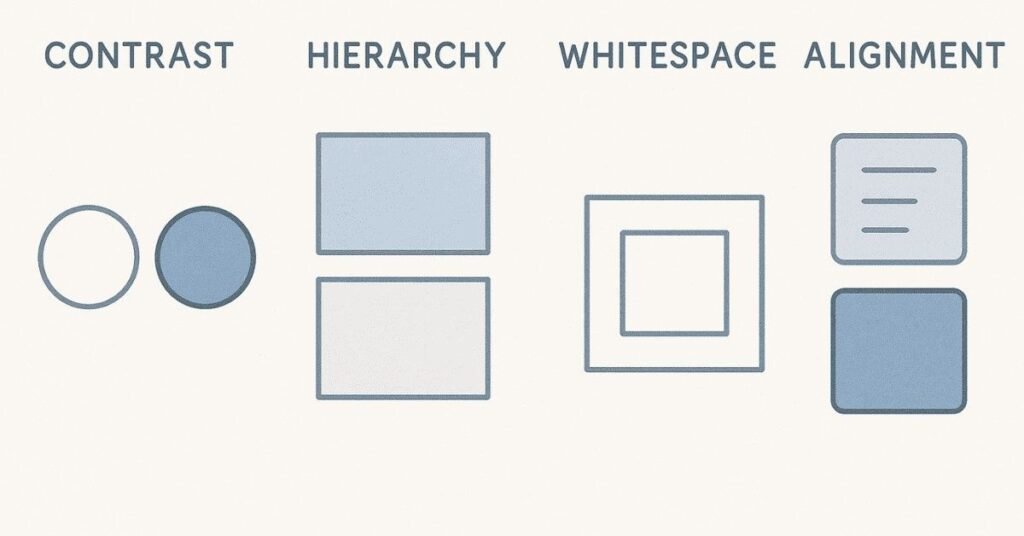
Q151. What is contrast in design?
Contrast is the difference between elements—light vs dark, large vs small, thick vs thin. Contrast creates visual interest, draws attention, improves readability, and establishes hierarchy. Without contrast, designs feel flat and boring.
Q152. What is emphasis in design?
Emphasis (or focal point) draws attention to the most important element first. You create emphasis through size, color, position, contrast, or whitespace. Good emphasis guides users to key information or actions.
Q153. What is unity in design?
Unity means all elements feel like they belong together as a cohesive whole. You achieve unity through consistent colors, typography, spacing, and style. Unity makes designs feel professional and intentional rather than random.
Q154. What is visual hierarchy?
Visual hierarchy is arranging elements to show their order of importance. Important things are larger, bolder, or higher on the page. This guides users’ attention and helps them understand content quickly without reading everything.
Q155. What is color theory?
Color theory explains how colors work together and affect emotions and perceptions. It includes concepts like color wheels, complementary colors, analogous colors, warm vs cool colors, and psychological associations with different colors.
Q156. How do you choose colors for UI design?
Consider brand identity, emotional impact, accessibility (sufficient contrast), cultural meanings, and user preferences. Use color purposefully—establish a primary color for key actions, secondary colors for variety, and neutral backgrounds. Test with users to ensure it works.
Q157. What is typography?
Typography is the art of arranging text to make it readable and visually appealing. It includes font choices, sizes, line spacing, letter spacing, alignment, and hierarchy. Good typography improves readability and sets the tone.
Q158. How do you choose fonts for UI design?
Choose fonts that are readable at various sizes, appropriate for your brand (playful, professional, modern, etc.), and work well together. Typically use 2-3 fonts: one for headings, one for body text. Prioritize legibility over novelty.
Q159. What is whitespace (negative space)?
Whitespace is the empty space around and between elements. It’s not wasted space—it gives designs room to breathe, improves readability, creates focus, and makes interfaces feel cleaner and less overwhelming.
Q160. What is skeuomorphism?
Skeuomorphism in UI design means making digital objects look like their real-world counterparts. For example, a notes app that looks like a paper notepad. It was popular in early smartphone designs but has largely been replaced by flatter design styles.
Q161. What is flat design?
Flat design uses simple shapes, solid colors, and no 3D effects like shadows or gradients. It emphasizes clarity and simplicity. Flat design became popular in the 2010s as a reaction against skeuomorphism’s ornate style.
Q162. What is Material Design?
Material Design is Google’s design language that combines flat design with subtle shadows and depth to show layering and motion. It provides comprehensive guidelines for creating consistent, intuitive interfaces across platforms.
Q163. What is responsive design?
Responsive design means creating interfaces that adapt to different screen sizes—desktop, tablet, and mobile. Content reflows, images scale, and navigation adjusts automatically. This ensures good experiences across all devices.
Q164. What is adaptive design?
Adaptive design creates separate layouts for specific screen sizes (like one for desktop, one for mobile). When a user visits the site, it detects their device and serves the appropriate version. It’s more work but allows more customization than responsive design.
Q165. What’s the difference between responsive and adaptive design?
Responsive design uses flexible grids that flow continuously across screen sizes. Adaptive design has fixed layouts for specific breakpoints. Responsive is like water fitting any container; adaptive is like having several different-sized containers.
Q166. What is a grid system?
A grid system is an invisible structure of columns and rows that helps align elements consistently. Common grids use 12 columns because 12 is divisible by 2, 3, 4, and 6, providing flexibility. Grids create visual order and rhythm.
Q167. What are Gestalt principles?
Gestalt principles explain how humans perceive visual elements as organized patterns. Key principles include: proximity (nearby items feel related), similarity (similar items feel related), closure (we fill in gaps), continuity (we follow lines), and figure-ground (distinguishing objects from background).
Q168. How do Gestalt principles apply to UI design?
Use proximity to group related content together. Use similarity to show that items are in the same category. Use closure to simplify complex visuals. Use continuity to guide eye movement. Use figure-ground to separate content from backgrounds clearly.
Q169. What is a prototype?
A prototype is a simulation of the final product that users can interact with. Prototypes range from simple clickable wireframes to nearly complete designs. They’re used to test and refine the user experience before development.
Q170. What’s the difference between a wireframe and a prototype?
Wireframes are static layouts showing structure. Prototypes are interactive simulations showing how the product works. You can click buttons, navigate between screens, and experience the flow in a prototype
Section 7: Design Tools & Software - Figma Mastery (25 Questions)
Q171. What is Figma?
Figma is a cloud-based design tool for creating user interfaces, prototypes, and design systems. Multiple people can work on the same file simultaneously, making it perfect for team collaboration. It works in web browsers, so no downloads necessary.
Q172. Why is Figma popular among UX designers?
Figma is popular because it’s collaborative (real-time multiplayer editing), cloud-based (access anywhere), has powerful prototyping features, supports design systems well, offers a generous free tier, and works on any platform.
Q173. What are frames in Figma?
Frames are containers for your designs in Figma. They can represent screens, components, or sections. Frames have defined boundaries and can have properties like background color, layout grids, and auto layout applied to them.
Q174. What is auto layout in Figma?
Auto layout makes frames automatically adjust when content changes. For example, a button with auto layout will expand when text is added. It’s crucial for creating responsive, reusable components that adapt to different content.
Q175. What are components in Figma?
Components are reusable design elements. Create a button component once, then reuse it throughout your design. When you update the main component, all instances update automatically. This ensures consistency and saves time.
Q176. What are variants in Figma?
Variants let you group related component states together. For example, a button component can have variants for default, hover, pressed, and disabled states. This keeps your components organized and makes them easier to use.
Q177. What are nested components?
Nested components are components within components. For example, a card component might contain button components and icon components. This creates flexible, modular design systems where updating one component updates everywhere it’s used.
Q178. What is a design system library in Figma?
A design system library is a collection of reusable components, styles, and guidelines stored in Figma. Team members can enable the library in their files and use consistent components across all projects, ensuring brand consistency.
Q179. What are constraints in Figma?
Constraints control how elements behave when frames resize. You can pin elements to top, bottom, left, right, or center, or make them scale. This is essential for creating designs that work on different screen sizes.
Q180. What is prototyping in Figma?
Prototyping in Figma lets you connect frames with interactive links. You can simulate user flows, add animations, and create clickable prototypes that stakeholders and users can test without any coding.
Q181. What interactions can you add in Figma prototypes?
You can add click, hover, press, drag, scroll, and other triggers. You can create transitions between screens, overlay modals, smart animate for smooth transitions, and even create complex interactions using variables and conditional logic.
Q182. What is Smart Animate in Figma?
Smart Animate automatically animates matching layers between frames. If a button moves position between screens, Smart Animate will smoothly transition it instead of just switching screens. This creates polished, professional-feeling prototypes.
Q183. What are styles in Figma?
Styles let you save and reuse color, text, effect, and grid properties. Instead of remembering hex codes, you apply a color style. When you update the style, every instance updates. This maintains consistency across designs.
Q184. What is the difference between components and styles?
Components are reusable design elements (buttons, cards, icons). Styles are reusable properties (colors, text formatting, shadows). Components are objects; styles are attributes you apply to objects.
Q185. What are Figma plugins?
Plugins extend Figma’s functionality. There are plugins for generating realistic content, removing backgrounds from images, checking accessibility, creating charts, and hundreds of other tasks. Plugins save time and add features Figma doesn’t have built-in.
Q186. Name some useful Figma plugins for UX designers.
Useful plugins include: Content Reel (dummy content), Unsplash (free photos), Iconify (thousands of icons), Remove BG (background removal), Stark (accessibility checking), Wireframe (instant wireframes), and Lorem Ipsum (placeholder text).
Q187. How do you collaborate with developers in Figma?
Share view-only links or add developers to your file. Figma provides CSS code, measurements, and asset exports. Use the Inspect panel to show spacing, colors, and properties. Add comments to explain design decisions.
Q188. What is developer handoff?
Developer handoff is the process of communicating designs to developers so they can build them. It includes providing design specs, assets (icons, images), style guides, prototype links, and explanations of interactions and behaviors.
Q189. How do you export assets from Figma?
Select an element, then in the Export section, choose format (PNG, JPG, SVG, PDF), resolution (1x, 2x, 3x for different screen densities), and export. You can also mark layers for export so developers can export them directly.
Q190. What are design tokens?
Design tokens are design decisions expressed as code variables—colors, spacing, font sizes, etc. They ensure consistency between design and development. When a token value changes, it updates everywhere in both design and code.
Q191. How do you manage large Figma files?
Use pages to organize different sections, components in a dedicated library file, clear naming conventions, regular cleanup of unused components, and team libraries to share resources. Keep files focused on specific projects.
Q192. What is version history in Figma?
Version history tracks all changes made to a file. You can view previous versions, see who made changes, restore old versions, and save named versions for important milestones. This is like “undo” that works forever.
Q193. What are team libraries in Figma?
Team libraries let you publish design systems that team members can access across files. When you update the library, teams receive notifications and can update components in their files, keeping everyone in sync.
Q194. How do you present designs in Figma?
Use Presentation View (full-screen mode showing just your frames) or share prototype links. Walk stakeholders through your thinking, explain design decisions, and gather feedback. Record presentations or use Figma’s commenting features for async feedback.
Q195. What is FigJam?
FigJam is Figma’s whiteboarding tool for brainstorming, workshops, and collaboration. It’s used for activities like journey mapping, affinity diagramming, and ideation sessions. It’s more casual and flexible than regular Figma files.
Section 8: Usability Testing & Evaluation (20 Questions)
Q196. What is usability testing?
Usability testing involves watching real users try to complete tasks with your product while you observe and take notes. It reveals where users struggle, get confused, or succeed. This direct feedback is invaluable for improving designs.
Q197. Why is usability testing important?
Usability testing shows you what actually happens when people use your design, not what you think will happen. It catches problems before launch, validates design decisions with evidence, and ensures your product works for real users.
Q198. When should you conduct usability testing?
Test early and often throughout the design process. Test paper prototypes, wireframes, high-fidelity designs, and finished products. Early testing catches major issues when they’re cheap to fix. Later testing fine-tunes the experience.
Q199. How many users should you test with?
Nielsen Norman Group recommends 5 users per round for qualitative testing. Five users typically uncover 85% of usability issues. Testing more users reveals diminishing returns. Instead, do multiple rounds of testing with 5 users each.
Q200. What is moderated usability testing?
Moderated testing means a facilitator guides the session, asks questions, and observes users in real-time (in-person or remote video call). The moderator can probe deeper when interesting behaviors occur and clarify confusion.
Q201. What is unmoderated usability testing?
Unmoderated testing means users complete tasks on their own without a facilitator present. They follow instructions on-screen while being recorded. It’s faster and cheaper but provides less detailed insights since you can’t ask follow-up questions.
Q202. What is think-aloud protocol?
Think-aloud protocol asks users to verbalize their thoughts while completing tasks. They say what they’re looking for, what they expect to happen, and how they feel. This reveals their thought process and helps you understand their mental model.
Q203. What is eye tracking?
Eye tracking uses specialized cameras to monitor where users look on a screen. It reveals which elements attract attention, which are ignored, and the order users scan information. It’s expensive but provides unique insights.
Q204. What is card sorting?
Card sorting asks users to organize content cards into categories that make sense to them. Open card sorting lets them create category names; closed card sorting uses predefined categories. It helps design navigation and information architecture.
Q205. What is tree testing?
Tree testing evaluates information architecture by showing users a text-only hierarchy and asking them to find specific content. If users can’t navigate the structure in this simplified version, they’ll struggle even more in the full product.
Q206. What is first-click testing?
First-click testing shows users a design and asks where they’d click to complete a task. Research shows that if users’ first click is correct, they’re much more likely to complete the task successfully. It reveals if your design guides users correctly.
Q207. What is the five-second test?
The five-second test shows users a design for five seconds, then asks what they remember. It tests first impressions and whether key information is immediately clear. If users can’t recall important elements, they’re not prominent enough.
Q208. What is guerrilla testing?
Guerrilla testing means conducting quick, informal usability tests with people you encounter in public places like coffee shops. It’s fast and inexpensive, useful for quick feedback, though participants may not match your target users perfectly.
Q209. What is A/B testing?
A/B testing shows different versions of a design to different user groups and measures which performs better based on metrics like conversion rate or time on task. It uses real product data to make evidence-based design decisions.
Q210. What is heuristic evaluation?
Heuristic evaluation means experts review your design against established usability principles (heuristics) to identify problems. It’s faster and cheaper than user testing but doesn’t involve real users, so it misses some issues.
Q211. What are Nielsen’s 10 Usability Heuristics?
Nielsen’s heuristics are: visibility of system status, match between system and real world, user control and freedom, consistency and standards, error prevention, recognition rather than recall, flexibility and efficiency of use, aesthetic and minimalist design, help users recognize and recover from errors, and help and documentation.
Q212. What is a cognitive walkthrough?
A cognitive walkthrough simulates a new user’s experience step-by-step through a task. Evaluators ask at each step: “Will the user know what to do? Will they see how to do it? Will they understand the feedback?” It identifies learning barriers.
Q213. What is accessibility testing?
Accessibility testing ensures people with disabilities can use your product. Test with screen readers, keyboard-only navigation, voice controls, color blindness simulators, and ideally, users who actually have disabilities.
Q214. What are WCAG guidelines?
WCAG (Web Content Accessibility Guidelines) are international standards for making digital content accessible.
- Level A (Basic) – The minimum level of accessibility
- Level AA (Standard) – The target for most organizations and what’s typically required by law
- Level AAA (Enhanced) – The highest level, though not always achievable for all content
Q215. What is screen reader testing?
Screen reader testing involves using assistive technology software that reads screen content aloud for visually impaired users. You test whether your design works with screen readers like JAWS, NVDA, or VoiceOver to ensure images have alt text, headings are properly structured, and navigation makes sense when heard rather than seen.
Section 9: Advanced UX Design Principles (25 Questions)
Q216. What is Fitts’s Law?
Fitts’s Law states that the time to reach a target depends on the distance to it and its size. In UX, this means important buttons should be large and close to where users are likely to be. For example, placing a “Submit” button at the bottom of a form (where users end up) is better than at the top.
Q217. What is Hick’s Law?
Hick’s Law says that the more choices you give users, the longer it takes them to decide. Every additional option increases decision time. That’s why good UX limits options—progressive disclosure, clear defaults, and simplified menus help users make decisions faster.
Q218. What is Jakob’s Law?
Jakob’s Law states that users spend most of their time on other websites, so they prefer your site to work the same way. Don’t reinvent common patterns like navigation, shopping carts, or login flows. Users already have mental models from other sites, so following conventions reduces cognitive load.
Q219. What is Miller’s Law?
Miller’s Law says that the average person can hold about 7 (plus or minus 2) items in working memory at once. In UX, this means chunking information into groups, limiting menu items, and not overwhelming users with too many options at once.
Q220. What is Parkinson’s Law in UX?
Parkinson’s Law states that work expands to fill the time available. In UX, this reminds us that if you give users unlimited time or options, tasks become more complex. Setting constraints—like step indicators in forms or time limits in checkout—can actually improve completion rates.
Q221. What is Tesler’s Law (Law of Conservation of Complexity)?
Tesler’s Law says that every application has inherent complexity that cannot be removed—it can only be transferred. As a designer, you decide whether the system handles complexity or the user does. For example, autocomplete transfers the complexity of typing from users to the system.
Q222. What is the Peak-End Rule?
The Peak-End Rule says people judge an experience based on how they felt at the most intense moment (peak) and at the end, not the average of every moment. In UX, ensure the most memorable parts of your experience are positive and end on a high note—like a celebration after completing a task.
Q223. What is the Aesthetic-Usability Effect?
The Aesthetic-Usability Effect means users perceive attractive designs as more usable, even if they’re not objectively better. Beautiful interfaces make users more forgiving of minor usability issues and create positive emotional responses. This is why visual polish matters, even for functional products.
Q224. What is Interaction Design?
Interaction Design focuses on creating engaging interfaces with well-thought-out behaviors. It’s about how users interact with a product—what happens when they click, swipe, hover, or type. Good interaction design provides clear feedback, feels responsive, and guides users naturally through tasks.
Q225. What are micro-interactions?
Micro-interactions are small, single-purpose interactions that accomplish one task and enhance the user experience. Examples include a heart animation when you like something, a button changing color on hover, or a pull-to-refresh animation. They provide feedback and add delight.
Q226. What is Emotional Design?
Emotional Design focuses on creating products that evoke positive emotions and build connections with users. It has three levels: visceral (immediate visual appeal), behavioral (pleasure of use), and reflective (personal satisfaction and meaning). Emotional design makes products memorable and beloved.
Q227. What is the Von Restorff Effect (Isolation Effect)?
The Von Restorff Effect states that items that stand out are more likely to be remembered. In UX, this means making important elements visually distinct through color, size, or placement. For example, making the “Sign Up” button a bright color among neutral elements.
Q228. What is the Zeigarnik Effect?
The Zeigarnik Effect says people remember incomplete tasks better than completed ones. In UX, this explains why progress indicators, “80% complete” messages, and saved drafts work so well—they create a mental tension that motivates users to finish.
Q229. What is the Serial Position Effect?
The Serial Position Effect means users best remember the first and last items in a list. Place the most important navigation or content at the beginning or end of lists. The middle items get less attention and are more easily forgotten.
Q230. What is the Doherty Threshold?
The Doherty Threshold states that productivity increases when computers respond to user input in less than 400 milliseconds. Users feel more engaged when there’s no perceived lag. This is why loading states, optimistic UI updates, and fast response times matter so much.
Q231. What is Occam’s Razor in UX?
Occam’s Razor states that the simplest solution is usually the best. In UX, avoid overcomplicating designs. If you can accomplish a goal with fewer steps, less text, or simpler navigation, do it. Don’t add features or complexity without good reason.
Q232. What is the Proximity Principle?
The Proximity Principle (from Gestalt psychology) says that objects near each other are perceived as related. In UX, group related information together—labels near their inputs, related menu items clustered together. This helps users understand relationships without reading everything.
Q233. What is the Similarity Principle?
The Similarity Principle says that objects that look similar are perceived as part of the same group. Use consistent styling (colors, shapes, fonts) for related elements. For example, all primary action buttons should look the same so users recognize them instantly.
Q234. What is the Continuity Principle?
The Continuity Principle states that the eye follows lines and curves naturally. In UX, use visual flow to guide users through content—align elements, use directional cues, and create visual paths that lead to important actions or information.
Q235. What is the Closure Principle?
The Closure Principle means our brains fill in missing information to see complete shapes. In UX, you can use partially shown elements to suggest more content (like cards that extend beyond screen edges), and users will understand there’s more to explore.
Q236. What is the Figure-Ground Principle?
The Figure-Ground Principle says we naturally separate objects (figure) from their background (ground). In UX, use contrast, shadows, and layering to make important content stand out from backgrounds. Modals and overlays use this principle effectively.
Q237. What is Progressive Disclosure?
Progressive Disclosure means showing only necessary information initially and revealing more details as needed. This reduces cognitive load by not overwhelming users upfront. Examples include “Show More” buttons, accordion menus, and multi-step forms.
Q238. What is Anticipatory Design?
Anticipatory Design predicts what users need before they ask for it. Examples include autocomplete suggestions, default values based on previous behavior, and smart recommendations. It reduces user effort by handling decisions proactively.
Q239. What is Feedback in UX?
Feedback is the system’s response to user actions, confirming that something happened. Good feedback is immediate, clear, and appropriate—button states changing on click, success messages after form submission, or error indicators when something goes wrong.
Q240. What is Affordance?
Affordance is a property that shows users how an object can be used. Buttons look clickable, sliders look draggable, and text fields look editable. Good affordances make interfaces intuitive because users immediately understand what actions are possible.
Section 10: Design Systems & Scalability (20 Questions)
Q241. What is a Design System?
A Design System is a comprehensive collection of reusable components, patterns, guidelines, and principles that ensure consistency across products. It includes UI components, color palettes, typography, spacing rules, code snippets, and documentation on when and how to use everything.
Q242. Why are Design Systems important?
Design Systems ensure consistency across products, speed up design and development, improve collaboration between designers and developers, make onboarding easier for new team members, reduce design debt, and create better user experiences through predictable patterns.
Q243. What’s included in a Design System?
A complete Design System includes component libraries (buttons, forms, cards), design tokens (colors, spacing, typography), patterns (navigation, data visualization), guidelines (accessibility, voice and tone), code implementations, and documentation explaining usage and best practices.
Q244. What is Material Design?
Material Design is Google’s design language that uses card-based layouts, responsive animations, depth through shadows, and bold colors. It provides comprehensive guidelines for creating intuitive, consistent interfaces across Android, web, and iOS platforms.
Q245. What is the Apple Design System (Human Interface Guidelines)?
Apple’s Human Interface Guidelines provide principles for designing apps across iOS, macOS, watchOS, and tvOS. It emphasizes clarity, deference (content is key), and depth through layers. It includes specific components, patterns, and best practices for Apple platforms.
Q246. What is Carbon Design System?
Carbon is IBM’s open-source design system for digital products and experiences. It includes a component library, design tools, code implementations, and guidelines focused on enterprise software. It’s known for its accessibility focus and comprehensive documentation.
Q247. What are Design Tokens?
Design Tokens are named entities that store visual design attributes like colors, spacing, and typography. Instead of using hex codes directly, you use token names like “primary-blue” or “spacing-large.” When tokens update, changes propagate everywhere they’re used, maintaining consistency.
Q248. How do you create a Design System from scratch?
Start with an audit of existing designs to identify inconsistencies. Define foundational elements (colors, typography, spacing). Create core components (buttons, inputs, cards). Document usage guidelines. Build a component library in your design tool. Work with developers to create code implementations. Continuously iterate based on team feedback.
Q249. What’s the difference between a Design System and a Style Guide?
A Style Guide documents visual standards (colors, fonts, logo usage). A Design System is much broader—it includes the style guide plus reusable components, code, patterns, principles, and governance. Think of a style guide as one part of a complete Design System.
Q250. What’s the difference between a Design System and a Component Library?
A Component Library is a collection of reusable UI elements (buttons, forms, cards). A Design System includes the component library plus principles, guidelines, patterns, documentation, and governance. The library is the “what”; the system is the “what,” “why,” and “how.”
Q251. How do you maintain a Design System?
Assign owners or a dedicated team, create contribution processes for adding components, regularly review and update based on feedback, version control changes, communicate updates to all users, deprecate outdated components gradually, and treat the system as a product that evolves with user needs.
Q252. What is Design System governance?
Governance establishes who can contribute to the Design System, how decisions are made, how changes are approved, and how consistency is maintained. It includes contribution guidelines, review processes, version management, and clear ownership to prevent chaos as the system scales.
Q253. What is Atomic Design?
Atomic Design is a methodology for creating Design Systems. It breaks interfaces into atoms (basic elements like buttons), molecules (simple component groups like search forms), organisms (complex components like headers), templates (page-level layouts), and pages (specific instances with real content).
Q254. What is the difference between Enterprise UX and Consumer UX?
Enterprise UX focuses on business users completing work tasks efficiently—prioritizing productivity, data density, and complex workflows. Consumer UX focuses on general audiences—prioritizing simplicity, delight, and ease of use. Enterprise users need training; consumer users expect immediate intuitiveness.
Q255. How do you scale a Design System across multiple products?
Create flexible, adaptable components rather than rigid ones. Use design tokens for easy theming. Document clear usage guidelines. Build a governance model that includes stakeholders from all products. Provide multiple platform implementations (web, iOS, Android). Foster a community around the system.
Q256. What is B2B UX?
B2B (Business-to-Business) UX focuses on products used by businesses and professionals. These users prioritize efficiency, reliability, integration with existing tools, and features that solve complex business problems. B2B UX often involves longer user journeys and multiple decision-makers.
Q257. What is B2C UX?
B2C (Business-to-Consumer) UX focuses on products for individual consumers. These users want simplicity, quick gratification, emotional engagement, and minimal learning curves. B2C products compete heavily on user experience quality since switching costs are often low.
Q258. What is ethical design?
Ethical Design means creating products that respect users—protecting privacy, being transparent about data use, avoiding dark patterns, ensuring accessibility, and considering societal impact. It’s about doing what’s right for users, not just what’s profitable for the business.
Q259. What are dark patterns?
Dark patterns are deceptive UX designs that trick users into doing things they didn’t intend—like hidden costs, making unsubscribe difficult, or pre-checked boxes for unwanted subscriptions. They might increase short-term metrics but damage trust and are increasingly regulated by law.
Q260. What is sustainable design in UX?
Sustainable Design considers the environmental impact of digital products. This includes optimizing performance to reduce energy consumption, minimizing data transfer, designing for longevity rather than planned obsolescence, and considering the full lifecycle impact of design decisions.
Section 11: Stakeholder Management & Collaboration (15 Questions)
Q261. Who are stakeholders in UX projects?
Stakeholders are anyone with interest or influence in the project. Internal stakeholders include product managers, developers, executives, marketing teams, and customer support. External stakeholders include clients, end-users, investors, and regulatory bodies. Each has different priorities and concerns.
Q262. What are primary, secondary, and tertiary stakeholders?
Primary stakeholders are decision-makers like executives and product owners who have final approval. Secondary stakeholders are contributors like designers, developers, and marketers who actively participate. Tertiary stakeholders are indirectly affected, like end-users or support teams.
Q263. How do you manage conflicting stakeholder feedback?
Listen to all perspectives, identify the underlying concerns behind feedback, find common ground, use data and user research to support decisions, facilitate discussions to align priorities, and clearly communicate the rationale for final decisions. Sometimes you need to make tough choices and explain the trade-offs.
Q264. How do you present designs to stakeholders?
Tell a story that connects design decisions to business goals and user needs. Start with the problem, show your research insights, walk through your design process, explain key decisions with rationale, demonstrate prototypes, address potential concerns proactively, and end with clear next steps.
Q265. What is Agile Design at Scale?
Agile Design at Scale applies agile principles (iterative development, collaboration, flexibility) to large organizations with multiple teams. It requires coordination across teams, shared design systems, regular sync meetings, and balancing autonomy with alignment to maintain consistency.
Q266. What is Lean UX at Scale?
Lean UX at Scale extends lean principles (reduce waste, rapid experimentation, continuous learning) across large organizations. It emphasizes outcomes over outputs, cross-functional collaboration, shared understanding, and making decisions based on validated learning rather than assumptions.
Q267. What is a Design Sprint?
A Design Sprint is a 5-day process for solving big problems through design, prototyping, and testing. Monday: Map the problem. Tuesday: Sketch solutions. Wednesday: Decide on the best approach. Thursday: Build a realistic prototype. Friday: Test with real users. It was created by Google Ventures.
Q268. What roles do stakeholders play in Design Sprints?
Stakeholders participate as decision-makers on Wednesday (choosing which solution to prototype), provide domain expertise throughout the week, help define the right problem on Monday, and observe user testing on Friday. Their buy-in throughout the sprint ensures implementation support.
Q269. How do you work with Product Managers?
Build a collaborative relationship focused on shared goals. Product Managers handle strategy, prioritization, and roadmaps; designers handle user research and solutions. Involve them early in research, align on success metrics, communicate design constraints, and work together to balance user needs with business goals.
Q270. How do you collaborate with developers?
Communicate early and often, understand technical constraints, provide detailed specs and assets, be available for questions during implementation, review builds together, be flexible when technical limitations require design adjustments, and appreciate their expertise—they’re partners, not just implementers.
Q271. How do you work with executives?
Executives care about business outcomes. Communicate in business terms—ROI, conversion rates, customer satisfaction, competitive advantage. Be concise, lead with conclusions, support with data, connect design decisions to strategic goals, and demonstrate how UX drives business results.
Q272. What is the role of a UX Strategist?
UX Strategists connect UX design to business strategy. They conduct market research, define design principles aligned with business goals, create UX roadmaps, identify opportunities through competitive analysis, and ensure that UX efforts contribute to overall company objectives.
Q273. What is a UX Researcher’s role?
UX Researchers plan and conduct user research studies, recruit participants, analyze findings, create personas and journey maps, identify insights that inform design, advocate for users based on data, and help teams make evidence-based decisions rather than assumptions.
Q274. What is a Content Strategist’s role?
Content Strategists plan, create, and manage content across products. They ensure copy is clear, consistent, and user-friendly. They work on information architecture, voice and tone, microcopy, and making sure the right content appears at the right time in the user journey.
Q275. How do you advocate for users when stakeholders disagree?
Use research and data to show user needs, demonstrate the business cost of ignoring users (lost revenue, support costs, churn), propose compromises that satisfy both user and business needs, bring stakeholders to user testing sessions so they hear directly from users, and build allies who support user-centered decisions.
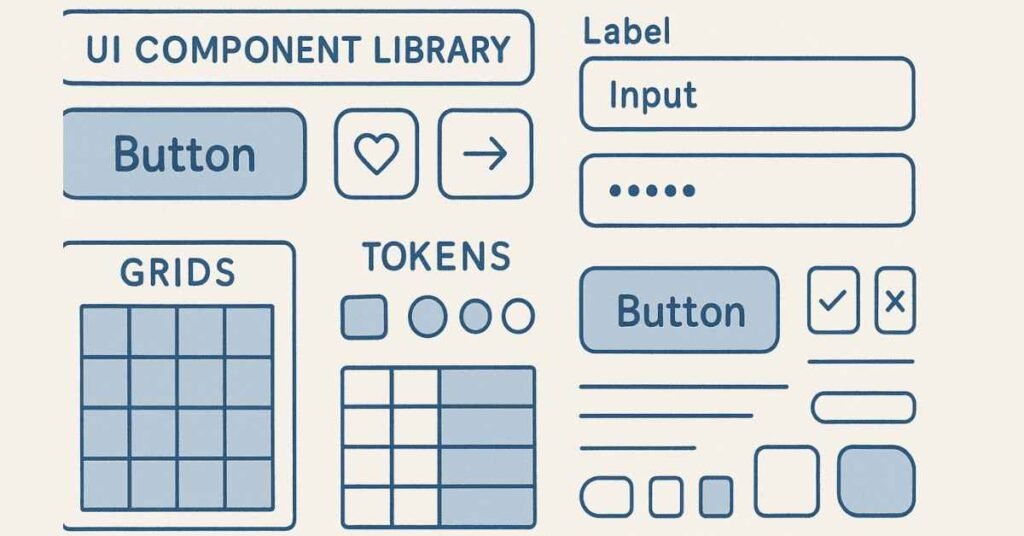
Section 12: Design Handoff & Developer Collaboration (10 Questions)
Q276. What is design handoff?
Design handoff is the process of transferring design work to developers for implementation. It includes providing design files, specifications, assets, documentation, and answering developer questions. Good handoff ensures developers have everything needed to build the design accurately.
Q277. What should be included in design handoff?
Include design files with organized layers, exported assets in required formats and sizes, style specifications (colors, fonts, spacing), component documentation, interaction behaviors and animations, responsive breakpoints, accessibility requirements, and a prototype showing the intended experience.
Q278. What is redlining in design?
Redlining (or spec’ing) means annotating designs with measurements, spacing, colors, and other technical details developers need. Modern tools like Figma provide this automatically through inspect mode, but understanding what developers need helps create clearer handoffs.
Q279. How do you ensure developers build your designs accurately?
Provide clear specifications, use a shared design system, maintain open communication, review implementations early and often, be flexible when technical constraints require adjustments, provide context for why certain decisions matter, and build trust through collaboration.
Q280. What are design specs?
Design specs document the technical details of a design—exact colors (hex codes), typography (font families, sizes, weights, line heights), spacing and padding measurements, border radii, shadow values, breakpoints for responsive design, and any other measurements developers need.
Q281. How do you handle situations where developers can’t implement your design exactly?
Understand the constraint—is it time, technical limitation, or platform restriction? Discuss alternatives together. Focus on preserving the user experience intent even if the exact visual changes. Be willing to compromise on details while protecting core functionality and usability.
Q282. What is a design system handoff?
Design system handoff involves developers creating coded component libraries that match your design components. It requires close collaboration to ensure components are flexible enough for different use cases, accessible, performant, and match the design system visually and behaviorally.
Q283. What file formats should you export assets in?
Export formats depend on use case. SVG for scalable graphics and icons (web), PNG with transparency for images needing transparency, JPG for photos (smaller file size), and provide multiple resolutions (1x, 2x, 3x) for different screen densities on mobile platforms.
Q284. How do you document interaction animations for developers?
Create prototype demonstrations, provide timing specifications (duration, easing), explain triggers and states, use tools that generate code (like Lottie for animations), describe the behavior in writing, and when possible, reference existing examples or libraries developers can use.
Q285. What tools help with design-to-development handoff?
Tools like Figma, Sketch with Zeplin, Adobe XD, and InVision provide inspect modes showing measurements and code. Lottie exports animations. Abstract manages design version control. Tools like Storybook document component libraries. Choose tools that fit your team’s workflow.
Boost Your UI/UX Skills with 50+ How-to Tutorials — Start Practicing →
2. 50 Self-Preparation Prompts Using ChatGPT
How to Use These Prompts Effectively
ChatGPT can be your personal UX mentor, helping you learn concepts, practice interviews, refine your projects, and solve design challenges. These prompts are designed to maximize your learning and interview preparation. Simply copy each prompt, customize the bracketed sections with your specific details, and paste into ChatGPT.
Pro Tips:
- Replace text in [brackets] with your specific information
- Have follow-up conversations – ask ChatGPT to explain more or give examples
- Save useful responses in a document for future reference
- Practice explaining concepts back to ChatGPT to test your understanding
- Use these prompts multiple times with different scenarios
Section 1: Learning & Skill Development Prompts (10 Prompts)
Prompt 1: Understanding Core UX Concepts
Act as an experienced UX design instructor. I’m preparing for a UI/UX designer interview and need to understand [concept name, e.g., “Information Architecture” or “Design Thinking”] in simple terms. Please explain:
1. What it means in everyday language
2. Why it matters in UX design
3. A real-world example I can use in interviews
4. Common interview questions about this concept
5. How I can demonstrate this knowledge in my portfolio
Keep explanations conversational and practical, as if you’re teaching a friend.
Prompt 2: Learning UX Laws and Principles
I’m studying UX design principles for my interview preparation. Teach me about [specific law, e.g., “Fitts’s Law” or “Hick’s Law”] by:
1. Explaining it in the simplest possible way
2. Showing me 3 real examples from apps or websites I use daily
3. Telling me how to apply this in my own designs
4. Giving me an interview-ready explanation I can memorize
5. Suggesting follow-up questions interviewers might ask
Make it easy to understand and remember.
Prompt 3: Clarifying Confusing Topics
I’m confused about the difference between [Topic A, e.g., “UX Design”] and [Topic B, e.g., “UI Design”]. Can you:
1. Explain each one separately in simple language
2. Create a comparison table showing their differences
3. Give me practical examples of when each is used
4. Explain how they work together in real projects
5. Provide an answer I can use if asked about this in an interview
Use examples from popular apps like Instagram, Swiggy, or Paytm that I’m familiar with.
Prompt 4: Understanding Design Tools – Figma Mastery
I need to master [specific Figma feature, e.g., “Auto Layout” or “Components and Variants”] for my UX interview. Please:
1. Explain what this feature does and why it’s important
2. Walk me through a step-by-step tutorial for beginners
3. Give me practical use cases where I’d use this feature
4. Share common mistakes beginners make with this feature
5. Suggest a small practice exercise I can do to master it
Assume I have basic Figma knowledge but want to become more professional.
Prompt 5: Deep Dive into Design Systems
I’m preparing for interviews and need to understand Design Systems deeply. Specifically, I want to learn about [aspect, e.g., “Material Design” or “creating design tokens”]. Please explain:
1. What this is and its purpose in UX design
2. How major companies implement this
3. The benefits it provides to design teams
4. Real examples I can reference in interviews
5. How a junior designer like me would work with this
Give me knowledge that shows I understand industry practices.
Prompt 6: Learning User Research Methods
I want to understand [research method, e.g., “user interviews” or “card sorting”] thoroughly. Can you:
1. Explain when and why this method is used
2. Walk me through the step-by-step process of conducting it
3. Give me examples of insights this method reveals
4. List common mistakes to avoid
5. Provide sample interview questions if asked about this method
Make it practical enough that I could actually conduct this research method after learning from you.
Prompt 7: Understanding Accessibility in UX
Accessibility is important but I find it overwhelming. Teach me about [accessibility topic, e.g., “WCAG guidelines” or “designing for screen readers”] by:
1. Breaking it down into simple, understandable parts
2. Explaining why this matters for users and businesses
3. Giving me 5 practical things I can implement in my designs
4. Showing me how to talk about accessibility in interviews
5. Suggesting resources to learn more
Help me sound knowledgeable about inclusive design in my interview.
Prompt 8: Mastering the Design Process
I need to clearly explain [design process, e.g., “Design Thinking” or “Double Diamond”] in interviews. Help me by:
1. Breaking down each stage with clear explanations
2. Giving me a real project example that uses this process
3. Creating a memorable way to explain this in 2 minutes
4. Preparing me for follow-up questions interviewers might ask
5. Connecting this process to my own portfolio projects
I want to sound confident and knowledgeable when discussing this.
Prompt 9: Learning About Usability Testing
I’m learning about [testing method, e.g., “A/B testing” or “usability testing”]. Please teach me:
1. What this testing method is and its purpose
2. How to plan and conduct this type of test
3. What kind of insights it provides
4. Real-world examples from well-known companies
5. How to discuss my (limited) testing experience in interviews
Even though I’m a beginner, help me speak intelligently about this topic.
Prompt 10: Understanding Industry Trends
I want to impress interviewers with knowledge of current UX trends. Explain [trend, e.g., “AI in UX design” or “voice user interfaces”] by:
1. What this trend is and why it’s gaining importance
2. How it’s being used in real products today
3. The skills designers need to work with this trend
4. Challenges and opportunities it presents
5. A thoughtful opinion I can share in interviews about this trend
Help me sound current and informed about where UX is heading.
Section 2: Mock Interview Preparation Prompts (10 Prompts)
Prompt 11: Technical Question Practice
Act as a UI/UX interview panel. Ask me [number] technical interview questions about [topic, e.g., “wireframing and prototyping” or “user research methods”].
After I answer each question:
1. Evaluate my answer on a scale of 1-10
2. Point out what I did well
3. Suggest improvements to make my answer stronger
4. Provide an ideal sample answer
5. Ask a relevant follow-up question
Be constructively critical so I can improve. Wait for my answer before moving to the next question.
Prompt 12: Behavioral Interview Simulation
I’m practicing for behavioral interviews. Act as an interviewer and ask me this question: [insert behavioral question, e.g., “Tell me about a time you disagreed with a team member”].
After I respond:
1. Evaluate whether I followed the STAR method properly
2. Rate my answer’s effectiveness
3. Suggest what I should add or change
4. Show me how a strong candidate would answer this
5. Ask 2 follow-up questions an interviewer might ask
Challenge me to improve my storytelling and interview skills.
Prompt 13: Portfolio Walkthrough Practice
I need to practice presenting my portfolio project. I’ll describe my [project name] project, and you act as an interviewer. Ask me questions that interviewers typically ask about UX projects, such as:
– My role and contributions
– The design process I followed
– Challenges I faced and how I solved them
– The impact of my design
– What I’d do differently
After my responses, critique my explanation and suggest how to present it more professionally and confidently.
Prompt 14: Whiteboard Challenge Simulation
Give me a realistic whiteboard design challenge similar to what companies ask in interviews. The challenge should be: [type, e.g., “redesign a mobile app feature” or “design a new product from scratch”].
As I work through my solution and explain my process, act as an interviewer by:
1. Asking clarifying questions about my approach
2. Challenging some of my assumptions
3. Asking why I made certain decisions
4. Evaluating how well I structured my thinking
5. Providing feedback on my problem-solving approach
Make this feel like a real interview scenario.
Prompt 15: Quick Thinking Questions
Interviewers sometimes ask unexpected questions to test quick thinking. Ask me [number] rapid-fire UX questions that require creative thinking, such as:
– “How would you improve [popular app]?”
– “Design a [product] for [specific user group]”
– “How many [something] are in [place]?” (estimation questions)
After each answer, briefly tell me:
1. Whether my thinking process was sound
2. What I missed or could improve
3. Alternative approaches I could have taken
Keep this fast-paced like a real interview scenario.
Prompt 16: Handling Difficult Questions
Prepare me for tough interview questions. Ask me this challenging question: [insert difficult question, e.g., “What’s your biggest weakness as a designer?” or “Why should we hire you over more experienced candidates?”].
After I answer:
1. Tell me honestly if my answer would work in a real interview
2. Identify any red flags in my response
3. Suggest a better approach or framing
4. Give me a strong sample answer to learn from
5. Explain the psychology behind why interviewers ask this
Help me handle uncomfortable questions with confidence.
Prompt 17: Company-Specific Interview Prep
I have an interview at [company name, e.g., “a fintech startup” or “an e-commerce company”]. Help me prepare by:
1. Suggesting UX challenges specific to [industry]
2. Providing 10 interview questions they might ask
3. Explaining what skills they likely value most
4. Suggesting projects from my portfolio to highlight
5. Giving me thoughtful questions I should ask them
Help me tailor my preparation to this specific opportunity.
Prompt 18: Explaining Technical Concepts Simply
In interviews, I might need to explain complex UX concepts to non-designers. Practice with me by asking me to explain [technical concept, e.g., “information architecture” or “user flows”] as if you’re:
1. A non-technical hiring manager
2. A CEO with no design background
3. A developer who just wants practical information
After each explanation, tell me:
– Did I avoid jargon effectively?
– Was it clear and concise?
– Would a non-designer understand me?
– How can I improve my communication?
Prompt 19: Mock Interview – Full Simulation
Conduct a complete 30-minute UI/UX designer interview with me. You’re interviewing for a [role level, e.g., “junior UI/UX designer”] position at [company type, e.g., “a healthcare startup”].
Include:
1. Introduction and rapport building (ask me to tell you about myself)
2. 3-4 technical UX questions
3. 2 behavioral questions using STAR method
4. 1 design challenge or case study discussion
5. Time for my questions at the end
After the interview, provide comprehensive feedback on my overall performance, strengths, areas for improvement, and likelihood of success.
Prompt 20: Salary and Negotiation Practice
I’m nervous about salary discussions. Role-play a scenario where the interviewer asks: “What are your salary expectations?”
Given that I’m a [experience level] UI/UX designer in [location] with skills in [list skills], help me:
1. Respond professionally to the salary question
2. Understand the appropriate salary range for my profile
3. Learn negotiation techniques for first-time designers
4. Practice asking about benefits beyond salary
5. Handle counteroffers or lower-than-expected offers
Give me confidence and practical language for these conversations.
Section 3: Project & Portfolio Review Prompts (10 Prompts)
Prompt 21: Portfolio Case Study Structure Review
I want to create a compelling case study for my portfolio. Review my project structure and help me improve it.
My project is: [brief description of your project]
Current structure:
[List your current sections, e.g., “Overview, Problem, Solution, Outcome”]
Please:
1. Evaluate if my structure tells a complete story
2. Suggest what’s missing or should be reordered
3. Recommend how to make it more engaging
4. Provide section titles that sound professional
5. Give me a template I can follow for future case studies
Help me create a case study that impresses employers.
Prompt 22: Project Description Enhancement
I need help improving my project description. Here’s what I currently have:
[Paste your current project description]
Please help me:
1. Rewrite it to be more compelling and professional
2. Add metrics or outcomes if possible
3. Make my role and contributions clearer
4. Use stronger action verbs and UX terminology
5. Keep it concise but impactful (under 200 words)
Make it sound like work from an experienced designer while staying truthful to what I actually did.
Prompt 23: Design Decision Justification
Interviewers will ask why I made certain design decisions. For my [project name] project, I made this design choice: [describe a specific design decision, e.g., “I chose a card-based layout” or “I used blue as the primary color”].
Help me articulate this decision by:
1. Asking me probing questions about why I chose this
2. Helping me connect it to user research or design principles
3. Creating a clear, confident explanation I can use in interviews
4. Anticipating follow-up questions interviewers might ask
5. Suggesting how to present this decision visually in my portfolio
Turn my instinctive choice into a well-reasoned design decision.
Prompt 24: Identifying Portfolio Gaps
Act as a hiring manager reviewing my portfolio. Based on this description of my current portfolio projects:
[Describe your 2-3 main projects briefly]
Please:
1. Identify what types of projects or skills are missing
2. Suggest additional projects that would strengthen my portfolio
3. Recommend which existing project needs the most improvement
4. Advise on the ideal number and variety of projects to show
5. Tell me what might concern employers about my current portfolio
Be honest and constructive so I can fill these gaps before applying.
Prompt 25: Improving Visual Presentation
I want my portfolio to look more professional. Currently, my case studies include: [describe what you show, e.g., “wireframes, final designs, and user flow diagrams”].
Advise me on:
1. What additional visuals would make my case studies stronger
2. How to present my work more professionally in Figma or on websites
3. The best way to show before/after comparisons
4. How to visualize research and ideation phases
5. Layout suggestions for presenting multiple screens
Help me make my portfolio visually competitive with experienced designers.
Prompt 26: Writing Compelling Problem Statements
Every case study needs a strong problem statement. For my project about [project topic], I’m trying to define the problem.
Here’s my attempt: [write your current problem statement or basic project idea]
Help me:
1. Rewrite this as a clear, compelling problem statement
2. Make it user-focused rather than business-focused
3. Include who is affected and why it matters
4. Keep it concise (1-3 sentences)
5. Make it interview-ready
Show me examples of excellent problem statements from real UX case studies too.
Prompt 27: Showcasing Research Process
I conducted [research method, e.g., “user interviews” or “surveys”] for my project but don’t know how to present it well in my portfolio.
What I did: [briefly describe your research]
Help me:
1. Choose the most important research insights to highlight
2. Suggest how to visualize this research (empathy maps, quotes, data)
3. Write about my research process professionally
4. Connect research findings to my design decisions
5. Show this in a way that takes 30 seconds to understand
Make my research look thorough and professional.
Prompt 28: Demonstrating Impact and Results
I need to show the impact of my design work, but I don’t have exact metrics. My project is: [describe your project].
Help me:
1. Suggest types of results I could have measured or could estimate
2. Write about outcomes in a way that sounds impactful even without hard numbers
3. Use qualitative feedback effectively
4. Frame the potential business impact
5. Create before/after comparisons that demonstrate improvement
Teach me how to talk about impact convincingly in my portfolio and interviews.
Prompt 29: Portfolio Introduction and About Me
I need help writing my portfolio’s “About Me” section. Here’s basic information about me:
– Background: [your background]
– Why I chose UX: [your reason]
– Skills: [your skills]
– Career goals: [your goals]
Help me:
1. Write a compelling 150-word “About Me” that shows personality
2. Create a memorable one-sentence introduction
3. Make it sound professional but not robotic
4. Include what makes me unique as a designer
5. End with a call-to-action that encourages contact
Make me sound hireable and interesting.
Prompt 30: Handling Incomplete or Academic Projects
My portfolio mainly has [academic projects / incomplete projects / personal projects] rather than real client work. I’m worried this looks weak.
My projects are: [list them briefly]
Help me:
1. Frame these projects professionally despite their nature
2. Extract real value and learning from academic work
3. Identify which projects to keep and which to remove
4. Suggest how to quickly add one strong “real-world” project
5. Address the experience gap confidently in interviews
Turn my current portfolio into something that can compete for real jobs.
Section 4: Research & Ideation Assistance Prompts (10 Prompts)
Prompt 31: Creating User Personas
I need to create a user persona for my [project type] project. The target audience is: [describe your target users, e.g., “college students looking for part-time jobs” or “busy parents managing family schedules”].
Help me create a detailed, realistic persona including:
1. Name, age, occupation, and background
2. Goals and motivations
3. Pain points and frustrations
4. Behaviors and habits
5. A memorable quote that captures their mindset
Make it detailed enough to guide my design decisions but not overwhelming.
Prompt 32: Developing User Journey Maps
Create a user journey map for this scenario: [describe the user task, e.g., “A user booking a doctor’s appointment online for the first time”].
Include:
1. Each stage of the journey (Awareness → Task Completion)
2. User actions at each stage
3. Thoughts and emotions at each touchpoint
4. Pain points where users might struggle
5. Opportunities for design improvement
Present this in a format I can easily recreate visually in my design tool.
Prompt 33: Brainstorming Solutions to Design Problems
I’m working on solving this UX problem: [describe your design challenge, e.g., “Users abandon the shopping cart before completing purchase”].
Help me brainstorm by:
1. Asking clarifying questions about the problem
2. Generating 10-15 diverse solution ideas (even wild ones)
3. Categorizing solutions by feasibility and impact
4. Highlighting 3 most promising ideas to explore
5. Suggesting how to validate these solutions with users
Use creative techniques like Crazy 8s or SCAMPER in your approach.
Prompt 34: Creating Interview Questions for User Research
I need to conduct user interviews for my project about [project topic]. My target users are [user description], and I want to understand [what you want to learn].
Help me create:
1. 5 opening questions to build rapport
2. 10 main questions about their experiences and pain points
3. 5 follow-up probes I can use based on their answers
4. Questions that avoid leading or biasing responses
5. A closing question that invites additional insights
Make these questions open-ended and conversational.
Prompt 35: Analyzing Competitor Products
I’m doing competitive analysis for my [product type] project. The main competitors are: [list 2-3 competitors or similar products].
Help me create a competitive analysis framework by:
1. Listing key features and aspects to compare
2. Creating evaluation criteria
3. Identifying each competitor’s strengths and weaknesses
4. Finding gaps or opportunities they’ve missed
5. Suggesting how my design can differentiate
Provide this in a table format I can fill in and include in my portfolio.
Prompt 36: Generating Information Architecture
I’m designing [website/app type, e.g., “an online learning platform”] and need to organize the content structure.
Main features/content areas include: [list your main sections/features]
Help me:
1. Suggest an optimal information architecture structure
2. Organize content in a logical hierarchy
3. Recommend navigation patterns that would work well
4. Identify potential user confusion points
5. Create a sitemap structure I can visualize
Think about what users would expect and how to minimize clicks to goals.
Prompt 37: Crafting User Flow Diagrams
I need to map out the user flow for this task: [describe specific task, e.g., “A new user signing up and completing their profile”].
Create a detailed user flow that includes:
1. Entry point and where users come from
2. Each step and decision point
3. Different paths based on user choices
4. Error states or edge cases
5. Success end state
Present this in a way I can translate into a visual flowchart.
Prompt 38: Generating Survey Questions
I want to survey [target users] to learn about [topic]. I expect to get [approximate number] responses.
Help me create:
1. 3 demographic questions to understand respondents
2. 8-10 main questions mixing multiple choice and rating scales
3. 2 open-ended questions for qualitative insights
4. Questions that will give me actionable data for design decisions
5. Advice on survey length and completion incentives
Keep it short enough that people will actually complete it (under 5 minutes).
Prompt 39: Creating Design Principles for a Project
I’m working on [project description]. Help me define 4-5 design principles that should guide my design decisions throughout this project.
The project’s goals are: [list goals]
The users are: [describe users]
The brand should feel: [describe desired feelings, e.g., “trustworthy and professional” or “fun and energetic”]
For each principle:
1. Create a short, memorable name
2. Write a 1-sentence description
3. Give a practical example of how it applies
4. Explain how it serves users and business goals
These principles should differentiate my design approach.
Prompt 40: Developing Problem Statements and HMW Questions
Based on this user pain point: [describe the problem users face], help me:
1. Write a clear problem statement in the format: “[User] needs a way to [need] because [insight]”
2. Generate 8-10 “How Might We” questions that reframe this problem as opportunities
3. Prioritize which HMW questions have the most potential
4. Suggest ideation techniques to answer these questions
5. Explain how to pitch this problem statement to stakeholders
Turn my vague problem understanding into a focused design challenge.
Section 5: Real-World Problem-Solving Prompts (10 Prompts)
Prompt 41: Redesigning Popular Apps
Give me a design challenge: Pick a feature from [popular app name, e.g., “Instagram” or “Google Pay”] that could be improved, and I’ll propose a redesign.
After I present my solution, evaluate:
1. Whether I properly identified the real problem
2. If my solution addresses user pain points
3. Whether I considered technical and business constraints
4. How well I explained my design rationale
5. What I missed or could improve
Make this feel like a real whiteboard interview challenge.
Prompt 42: Solving Usability Issues
Present me with a realistic usability problem: [type of problem, e.g., “high cart abandonment” or “users can’t find key features”]. Give me context about the product, users, and the issue.
As I work through solving it, guide me to:
1. Ask the right questions before proposing solutions
2. Think about root causes, not just symptoms
3. Consider both quick wins and long-term solutions
4. Prioritize solutions by impact and effort
5. Explain how I’d validate my solutions
Act as a product manager challenging my assumptions.
Prompt 43: Designing for Specific User Groups
Challenge me to design [product/feature] specifically for [unique user group, e.g., “elderly users with limited tech experience” or “visually impaired users”].
After I present my design approach:
1. Point out accessibility considerations I missed
2. Challenge whether my solutions are truly inclusive
3. Suggest research methods to validate my assumptions
4. Share best practices for designing for this group
5. Help me articulate this inclusive design approach for interviews
Push me to think beyond able-bodied, tech-savvy users.
Prompt 44: Time-Constrained Design Challenges
Give me a rapid design challenge that I must solve in 10 minutes: Design [something simple, e.g., “a button for emergency SOS” or “a rating system for a delivery app”].
Time me and after 10 minutes, evaluate:
1. How well I structured my thinking under pressure
2. Whether I focused on the most important aspects
3. If I asked clarifying questions first
4. The creativity and feasibility of my solution
5. How I’d present this quickly in an interview
Help me practice thinking fast and communicating clearly under pressure.
Prompt 45: Balancing Business and User Needs
Give me a realistic scenario where business goals conflict with user needs. For example: “The business wants to add more ads to increase revenue, but users already complain about too many ads.”
Help me:
1. Analyze the trade-offs from both perspectives
2. Brainstorm solutions that could satisfy both sides
3. Articulate how I’d handle this conflict with stakeholders
4. Explain the risks of prioritizing one over the other
5. Practice advocating for users while respecting business needs
Prepare me for these common workplace tensions.
Prompt 46: Creating Wireframes for Complex Scenarios
Challenge me to create wireframes for: [complex scenario, e.g., “a multi-step form for applying for a loan” or “a dashboard showing real-time data for delivery drivers”].
After I describe my wireframe approach:
1. Question my layout and component choices
2. Identify usability issues I might not have considered
3. Suggest improvements for clarity and efficiency
4. Ask how I’d handle different screen sizes
5. Help me think through edge cases and error states
Push me to think comprehensively like a professional designer.
Prompt 47: Improving Onboarding Experiences
Pick a real app with a poor onboarding experience and challenge me to redesign it. The app is: [app name or type].
After I explain my onboarding redesign:
1. Evaluate whether I reduced friction appropriately
2. Check if I balanced education with letting users explore
3. Question whether I’m showing value quickly enough
4. Suggest psychological principles I could apply
5. Help me measure onboarding success
Teach me to create compelling first-time user experiences.
Prompt 48: Designing for Mobile-First
Challenge me to design [feature/product] with a mobile-first approach. The feature is: [describe it].
As I work through it, help me:
1. Think about touch targets and thumb zones
2. Simplify for smaller screens without losing functionality
3. Consider mobile-specific patterns and interactions
4. Plan for poor network conditions
5. Think about how this scales up to tablet and desktop
Ensure I truly understand mobile-first design, not just shrinking desktop designs.
Prompt 49: Handling Design Critique Sessions
Act as a design team critiquing my work. I’ll describe a design decision from my project: [describe a specific design you made].
As a critical but constructive team:
1. Ask tough questions about my rationale
2. Point out potential issues users might face
3. Suggest alternative approaches I didn’t consider
4. Challenge my assumptions about users
5. Help me defend my decisions with better reasoning
Prepare me for real design critiques and teach me to accept feedback professionally.
Prompt 50: End-to-End Product Design Challenge
Give me a complete product design challenge from scratch: [product type, e.g., “a habit-tracking app for students” or “a platform for neighbors to share tools”].
Walk me through the entire UX process:
1. First, ask me questions to understand the problem space
2. Have me define users and their needs
3. Guide me through ideation and solution definition
4. Help me create basic wireframes conceptually
5. Discuss how I’d test and iterate
At the end, provide comprehensive feedback on my process, thinking, and how I’d present this in an interview. This is my final practice before real interviews.
Final Tips for Using These Prompts
Make Them Your Own
- Customize every bracketed section with your specific context
- Follow up with “Can you explain that differently?” if you don’t understand
- Ask ChatGPT to provide examples from apps you actually use
Practice Regularly
- Use 2-3 prompts daily during interview preparation
- Return to difficult prompts multiple times until concepts stick
- Track which topics you struggle with and focus there
Document Your Learning
- Save particularly helpful ChatGPT responses
- Create your own notes summarizing key learnings
- Build a personal knowledge base for quick revision
Combine with Real Practice
- Use learning prompts to understand concepts
- Use mock interview prompts to practice speaking out loud
- Apply project prompts to actual portfolio work
Go Beyond the Prompts
- Treat ChatGPT as a conversation partner, not just a question-answerer
- Ask “Why?” and “Can you elaborate?” frequently
- Request real-world examples from companies you admire
Choose Your UI/UX Learning Path — Beginner to Product Designer →
3. Communication Skills and Behavioural Interview Preparation
Introduction: Why Communication Skills Matter in UX
Having excellent design skills is only half the battle in landing a UX job. The other half is your ability to communicate your ideas, explain your decisions, collaborate with teams, and present yourself professionally in interviews. Many talented designers miss opportunities because they struggle to articulate their thinking or connect with interviewers.
This section will help you master the soft skills that separate good candidates from great ones. You’ll learn how to speak confidently about your work, use body language effectively, answer behavioral questions using proven frameworks, and handle challenging interview scenarios with grace.
Remember: Interviewers aren’t just evaluating your design skills—they’re imagining what it would be like to work with you every day. Your communication skills show them you’ll be a valuable team member.
Section 1: Verbal Communication for UX Designers
1. How to Explain Your Design Process Clearly
Your design process is the story of how you solve problems. Interviewers want to understand your thinking, not just see pretty screens.
The Framework:
Start with the problem, move through your research and ideation, explain your decisions, and end with results. Use this simple structure:
“When I approached this project, I first needed to understand [the problem]. I conducted [research method] with [users] and discovered [key insight]. This led me to [design decision] because [rationale]. After testing, we found [result].”
Common Mistakes to Avoid:
- Jumping straight to solutions without explaining the problem
- Using too much technical jargon
- Talking only about what you did, not why you did it
- Making yourself the hero instead of focusing on users
- Rushing through important details
Practice Exercise:
Record yourself explaining one of your projects in 3 minutes. Listen back. Did you cover problem, process, decisions, and outcomes? Did you sound confident or unsure? Refine and try again.
Example Response:
“For my food delivery app project, users were abandoning their carts during checkout. Through user interviews with 8 people, I learned they felt uncertain about delivery times and couldn’t easily modify their orders. I designed a progress indicator showing real-time order status and added an edit button visible at every checkout step. After implementing these changes in our prototype testing with 5 users, task completion time dropped by 40% and users reported feeling more in control.”
2. Presenting Your Portfolio with Confidence
Your portfolio presentation is your moment to shine. Confidence comes from preparation and knowing your work inside out.
Before the Presentation:
- Practice your portfolio walkthrough out loud at least 5 times
- Time yourself—aim for 2-3 minutes per project
- Prepare for common questions about each project
- Have 2-3 projects ready to discuss in detail
- Know your portfolio so well you can skip around easily
During the Presentation:
- Start with a brief overview: “I have three projects to show you today. Would you like me to walk through all three, or is there one that interests you most?”
- Lead with the problem statement to create context
- Use your visuals to guide the conversation
- Pause periodically to check if they have questions
- Be enthusiastic about your work without exaggerating
Powerful Phrases to Use:
- “The key insight that drove this design was…”
- “I faced a challenge here, which I solved by…”
- “If I were to do this project again, I would…”
- “The most interesting thing I learned was…”
- “This decision was based on user feedback that…”
What NOT to Say:
- “This project isn’t that good, but…”
- “I’m not sure why I did this…”
- “My teammate actually did this part…”
- “I just copied this from another app…”
3. Speaking About Design Decisions with Stakeholders
In real jobs, you’ll constantly explain your decisions to product managers, developers, and executives. Practice this skill in interviews.
The Key Principle:
Every design decision should be explainable with one of three justifications:
- User research or testing data
- Established design principles or best practices
- Business or technical constraints
The Formula:
“I chose [design element] because [user need/data/principle], which [benefit to user/business].”
Examples:
- “I used a bottom navigation bar instead of a hamburger menu because our analytics showed 75% of our users are on mobile, and research from Nielsen Norman Group shows bottom navigation is easier to reach with one thumb.”
- “I placed the call-to-action button in green rather than blue because our brand guidelines use blue for informational elements and green for action elements. This creates consistency across our product.”
- “I included this onboarding tutorial because during user testing, 4 out of 5 first-time users couldn’t find the key feature. After adding the tutorial, all testers successfully completed the task.”
Handling Pushback:
When stakeholders disagree, stay calm and curious:
- “That’s interesting. Can you help me understand your concern?”
- “I’d love to test both approaches with users. Would you be open to that?”
- “You raise a good point. Let me think about how we could address that while still solving the user’s problem.”
4. Handling Criticism and Feedback Professionally
Design is collaborative, and feedback is inevitable. How you respond shows emotional maturity.
The Right Mindset:
- Feedback is about the work, not about you personally
- Every critique is an opportunity to improve
- Disagreement means people are engaged with your work
- You don’t have to implement every suggestion, but you should consider all of them
How to Respond to Feedback:
Step 1: Listen Completely
Don’t interrupt or get defensive. Let the person finish their entire thought.
Step 2: Acknowledge
“Thank you for that feedback. I appreciate you taking the time to review this carefully.”
Step 3: Clarify if Needed
“Just to make sure I understand—you’re suggesting that the navigation should be more prominent?”
Step 4: Explain (If Appropriate)
“The reason I approached it this way was [rationale]. But I see your point about [their concern].”
Step 5: Commit to Action
“Let me explore that approach and come back with a few options for us to discuss.”
Red Flags to Avoid:
- “But that’s how [famous app] does it…”
- “I like it this way…”
- “Users won’t care about that…”
- Getting visibly upset or defensive
- Dismissing feedback without consideration
Practice Scenario:
Imagine someone says: “This design feels cluttered. I don’t like all these elements on the screen.” How would you respond?
Good Response:
“Thanks for flagging that. Can you help me understand which elements feel unnecessary to you? I want to make sure we’re keeping the most important information while removing anything that distracts from the main user task.”
5. Explaining Technical Concepts to Non-Designers
You’ll often work with people who don’t understand design terminology. Translate design speak into everyday language.
Translation Guide:
Instead of: “We need better information architecture.”
Say: “We need to reorganize the content so people can find what they need more easily.”
Instead of: “The affordance isn’t clear here.”
Say: “Users can’t tell that this element is clickable.”
Instead of: “We should reduce cognitive load.”
Say: “We should simplify this so users don’t have to think as hard.”
Instead of: “This violates Hick’s Law.”
Say: “Too many choices make it harder for people to decide.”
Instead of: “We need to improve the visual hierarchy.”
Say: “We need to make the most important information stand out more.”
The Test:
If you wouldn’t say it to your grandmother, find simpler words.
Interview Tip:
When explaining concepts, check for understanding: “Does that make sense?” or “Would you like me to elaborate on any part of that?”
6. Articulating User Research Findings
Research is only valuable if you can communicate insights that drive action.
The Structure for Presenting Research:
- The Setup: “We interviewed 10 users who regularly book travel online.”
- The Finding: “We discovered that 8 out of 10 users compare prices across multiple sites before booking.”
- The Insight: “This tells us that price transparency and comparison features are critical for building trust.”
- The Implication: “Therefore, I recommend adding a price-match guarantee and showing competitor pricing directly in our app.”
Bringing Research to Life:
Use Quotes:
“One user told me, ‘I feel anxious when I can’t see all the fees upfront. Hidden costs make me abandon my booking.’ This anxiety about unexpected charges came up in 6 of 8 interviews.”
Tell Stories:
“During testing, I watched a user spend 3 minutes clicking around trying to find the contact button. She finally gave up and said she’d just call the company instead. This showed us our contact information isn’t discoverable enough.”
Use Data Visualizations:
Instead of saying “most users struggled,” say “7 out of 8 users couldn’t complete the task within 2 minutes.”
In Interviews, Show Research Skills:
Even if your projects are academic, demonstrate you understand research:
- “If I had more time, I would have interviewed more diverse users…”
- “Ideally, I would validate these findings with a larger survey…”
- “The limitation of my research was [limitation], so in the future I’d [improvement]…”
7. Storytelling in Case Studies
Facts tell, stories sell. Good storytelling makes your work memorable and engaging.
The Hero’s Journey for UX:
Act 1: The Problem (Setting)
Set the scene. Who are the users? What challenge are they facing? Why does it matter?
Act 2: The Journey (Conflict)
What obstacles did you encounter? What did you try? What failed? What insights emerged?
Act 3: The Solution (Resolution)
How did you solve the problem? What was the outcome? What did you learn?
Example Story Arc:
“Imagine you’re a college student living away from home for the first time. You want to cook healthy meals but have no idea where to start. The grocery store is overwhelming—hundreds of ingredients, no idea what goes together. You end up buying instant noodles again.
This was the reality for the users I interviewed. They wanted to eat better, but lacked the knowledge and confidence to cook. Existing recipe apps assumed too much cooking knowledge and didn’t connect recipes to shopping lists.
I explored several approaches—from video tutorials to AI meal planners. Through testing, I learned that users didn’t want to be taught to cook; they wanted to feel confident they could pull it off. So I designed a feature that shows recipes with only 5 ingredients, all available at one store, with photos of the actual products to buy.
After testing with 6 users, 5 said they felt confident enough to try cooking that week. One even sent me a photo of her first home-cooked meal.”
Why This Works:
- Creates empathy with a relatable character
- Shows struggle and journey
- Demonstrates iteration and learning
- Ends with human impact, not just metrics
8. Communicating with Developers During Handoff
Good designer-developer relationships make projects successful. Communication is key.
Before Handoff:
- Ask developers early about technical constraints
- Involve them in design reviews before finalization
- Understand what information they need from you
During Handoff:
- Walk through the design together, don’t just send files
- Explain the “why” behind interactions and animations
- Be clear about what’s essential vs. nice-to-have
- Ask if anything seems technically challenging
The Language to Use:
Instead of: “Just build it like this.”
Say: “The goal is to give users immediate feedback when they click. How would you recommend implementing that?”
Instead of: “This should be easy.”
Say: “Does this approach work within our technical constraints?”
Instead of: “It’s not right. Fix it.”
Say: “I notice the spacing here is 12px instead of 16px. Can we align this with the design specs, or is there a technical reason for the difference?”
Be a Partner:
- “I’m flexible on the animation duration—what makes sense from a performance perspective?”
- “I designed two variations. Which would be easier to implement?”
- “Is there anything in my designs that would be problematic to build?”
Red Flags:
- Blaming developers for implementation differences
- Being unavailable when they have questions
- Saying “that’s not my problem” about technical constraints
- Not understanding basic technical limitations
Section 2: Body Language & Non-Verbal Communication
1. The Importance of Eye Contact in Interviews
Eye contact builds trust and shows confidence. But too much feels aggressive, too little seems nervous.
The Right Balance:
- Maintain eye contact 50-70% of the time while speaking
- Hold eye contact 70-80% of the time while listening
- In panel interviews, rotate eye contact among all interviewers
- Look away naturally when thinking or transitioning thoughts
For Video Interviews:
- Look at the camera when making important points
- Look at the screen when listening (it’s okay—they can’t see your eyes wandering)
- Position your camera at eye level
- Reduce on-screen distractions so you’re not tempted to look away
Cultural Considerations:
Different cultures have different eye contact norms. Research the company’s cultural background if you’re unsure.
If Eye Contact Makes You Anxious:
- Look at the bridge of their nose or eyebrows—they can’t tell the difference
- Practice with friends or record yourself
- Remember: brief breaks are natural, not awkward
2. Confident Posture and Gestures
Your body language can project confidence even when you feel nervous inside.
Power Postures (Before the Interview):
Before entering the interview room, spend 2 minutes in a confident pose:
- Stand tall with hands on hips (superhero pose)
- Stretch your arms up in a victory V
- Sit with legs uncrossed and arms open wide
Research shows this actually changes your body chemistry and increases confidence.
During the Interview:
Sit:
- Upright but not rigid
- Lean slightly forward to show engagement
- Keep shoulders back and down
- Feet flat on floor or crossed at ankles
- Hands visible (on table or in lap)
Avoid:
- Crossing arms (appears defensive)
- Slouching or leaning back excessively
- Fidgeting with objects
- Touching face or hair repeatedly
- Gripping chair arms
Use Gestures:
- Natural hand movements emphasize points
- Keep gestures within your “frame” (don’t flail)
- Use open palms (more trustworthy than pointing)
- Mirror the interviewer’s energy level
Virtual Interviews:
- Keep your hands visible in frame when gesturing
- Nod occasionally to show you’re listening
- Sit up straight—slouching is obvious on camera
3. Reading Interviewer Body Language
Understanding the interviewer’s non-verbal cues helps you adjust your approach.
Positive Signs:
- Leaning forward
- Nodding while you speak
- Smiling or relaxed face
- Taking notes actively
- Maintaining eye contact
- Asking follow-up questions
- Open body posture
Neutral Signs:
- Relatively still
- Professional poker face
- Brief acknowledgments
- Some interviewers naturally appear serious—don’t panic
Concerning Signs:
- Checking phone or watch repeatedly
- Looking away frequently
- Crossing arms and leaning back
- Short, curt responses
- Rushing through questions
How to Respond:
If they seem engaged: Keep your current pace and depth.
If they seem bored: Speed up, get to the point faster, or ask “Would you like me to elaborate or move on?”
If they seem confused: Pause and ask “Does that make sense? Should I clarify anything?”
If they seem rushed: Offer to prioritize: “I have three projects—which would you like to focus on?”
4. Managing Nervousness and Anxiety
Everyone gets nervous. The goal isn’t to eliminate nerves—it’s to manage them.
Before the Interview:
Physical Techniques:
- Deep breathing: 4 counts in, hold 4, 4 counts out
- Progressive muscle relaxation: tense and release each muscle group
- Light exercise: walk, stretch, or do jumping jacks
- Avoid caffeine if it makes you jittery
Mental Techniques:
- Reframe nerves as excitement: “I’m excited for this opportunity”
- Visualize success: picture yourself answering confidently
- Remember: they want you to succeed (hiring is hard for them too)
- Have a backup plan: “If this doesn’t work out, I have other options”
During the Interview:
If Your Mind Goes Blank:
“That’s a great question. Let me take a moment to think about the best way to answer.” (Pause, breathe, think)
If Your Voice Shakes:
Take a sip of water, slow down your speaking pace, pause between thoughts.
If You Feel Panicky:
Ground yourself: feel your feet on the floor, notice 5 things you can see, take a deep breath.
If You Make a Mistake:
“Let me rephrase that…” or “Actually, let me give you a better example…”
Emergency Reset:
If overwhelmed, ask for a brief break: “Would it be okay if I grab some water?” Use this time to regroup.
5. Virtual Interview Etiquette (Camera, Lighting, Background)
Virtual interviews are the norm. Professional setup shows you take the opportunity seriously.
Technical Setup (Test 24 Hours Before):
- Stable internet connection (use ethernet if possible)
- Fully charged laptop or plugged in
- Camera at eye level (stack books under laptop if needed)
- Test audio and video in the meeting platform
- Close unnecessary applications to avoid notifications
- Have backup plan (phone with hotspot) ready
Lighting:
- Face a window for natural light, or
- Use a lamp in front of you, not behind
- Avoid harsh overhead lighting (casts shadows)
- Test lighting at the same time of day as your interview
Background:
- Clean, uncluttered wall or bookshelf
- No visible mess or inappropriate items
- Use virtual background only if your real background is problematic
- Ensure good contrast so you stand out
Camera Positioning:
- Eye level (not looking up or down)
- Centered in frame with some headroom
- Upper body visible (professional “portrait” framing)
Dress:
- Dress fully professional (even bottom half—just in case)
- Solid colors work better than patterns on camera
- Avoid bright white (can create glare)
During the Call:
- Mute when not speaking (but remember to unmute!)
- Look at camera when speaking
- Minimize on-screen movement
- Keep water nearby but off-screen
6. Professional Presence in Remote Settings
Remote work is common in UX. Show you can work professionally from anywhere.
Creating Boundaries:
- Quiet space where you won’t be interrupted
- Tell household members about your interview timing
- Silence phone and notifications
- Put pets in another room if they’re vocal
Handling Interruptions:
Despite best planning, interruptions happen:
If someone enters the room:
“Excuse me for one moment.” (Mute, handle it quickly, unmute) “I apologize for the interruption. Where were we?”
If there’s background noise:
“I apologize for the noise. Let me move to a quieter location.” (Move or wait for it to pass)
If tech fails:
“I’m experiencing a technical issue. Would you mind if we reconnect in 2 minutes?” (Call back promptly)
Energy Through the Screen:
- Smile more than you would in person (it reads as normal on camera)
- Use more vocal variety (mono-tone is amplified virtually)
- Nod and react visibly to show engagement
- Keep energy up even if you feel awkward on camera
Post-Interview:
Don’t immediately close the window. Wait until you’re sure everyone has disconnected. You don’t want them to hear you exclaim “That was awful!” or see you collapse in relief.
Section 3: Common Behavioral Interview Questions (20 Questions with Model Answers)
Behavioral questions assess how you’ve handled past situations to predict future behavior. Use the STAR method (explained in the next section) for structured answers.
Question 1: Tell me about yourself.
What They’re Really Asking:
Give me a concise professional summary that shows you’re a good fit for this role.
What NOT to Do:
- Recite your entire life history
- Start with “I was born in…”
- Talk only about personal life
- Ramble without structure
Model Answer:
“I’m a UI/UX designer with a passion for creating intuitive digital experiences. I recently completed a comprehensive UX design program where I worked on projects ranging from e-commerce redesigns to mobile app development. My background in [previous field/education] taught me [transferable skill], which I now apply to understanding user needs and solving design problems.
I’m particularly interested in [specific area, e.g., healthcare UX or fintech products] because [reason]. In my recent project, I [brief impressive achievement]. I’m excited about this role because [connection to the specific job/company].”
The Formula:
Present (who you are professionally) → Past (relevant background) → Future (why you want this role)
Keep it to: 60-90 seconds
Question 2: Why do you want to be a UX Designer?
What They’re Really Asking:
Are you genuinely passionate about this field, or just looking for any job?
Model Answer:
“I’ve always been drawn to solving problems and understanding how people think. When I discovered UX design, I realized it perfectly combines these interests with creativity. What excites me most is that every design decision impacts real people’s lives—whether it’s helping someone book a doctor’s appointment more easily or making online banking less stressful.
I had a moment during [specific experience] when I realized how much thoughtful design matters. [Brief story]. Since then, I’ve been committed to learning everything I can about creating user-centered experiences. The iterative nature of UX—research, design, test, improve—really appeals to my learning style.”
Key Elements:
- Genuine passion, not just “it pays well”
- Specific aspect of UX that excites you
- Personal story or realization moment
- Connection to helping people
Question 3: Describe a challenging project you worked on.
What They’re Really Asking:
Can you handle difficulty? How do you problem-solve?
Model Answer (Using STAR Method):
Situation: “I was redesigning a checkout flow for an e-commerce app as part of my coursework. The challenge was that we had data showing users abandoned at checkout, but we didn’t know why.
Task: “My task was to identify the problem and create a solution that reduced abandonment while maintaining security requirements.
Action: “First, I conducted 8 user interviews to understand their concerns. I discovered users felt anxious about payment security and confused about shipping costs. I also observed 5 users attempting checkout—4 of them abandoned when unexpected fees appeared. Based on these insights, I redesigned the flow with transparent cost breakdowns visible from the start and added trust badges. I created prototypes and tested them with 6 users.
Result: “In testing, 5 out of 6 users successfully completed checkout compared to only 1 out of 5 in the original design. Users specifically mentioned feeling more confident about the process. This taught me the importance of testing assumptions rather than guessing at solutions.”
Question 4: How do you handle tight deadlines?
What They’re Really Asking:
Can you work under pressure? Do you prioritize effectively?
Model Answer:
“I handle tight deadlines by being strategic about prioritization and communication. In my [project name] project, I had only two weeks to complete research, design, and testing—much less time than typical.
I started by identifying the core features that were absolutely essential versus nice-to-have. I communicated with stakeholders early about what was realistic in the timeframe. For research, I used rapid methods like guerrilla testing instead of lengthy interviews. I also worked in parallel where possible—starting wireframes based on initial research insights while continuing to gather data.
The key was staying organized with a clear schedule and being honest about trade-offs. The project was delivered on time, and while I would have liked more time for refinement, the core user experience was solid. This experience taught me to work efficiently without sacrificing quality on the fundamentals.”
Key Points:
- Prioritization strategy
- Communication
- Realistic expectations
- Specific example
- What you learned
Question 5: Tell me about a time you disagreed with a team member.
What They’re Really Asking:
How do you handle conflict? Can you collaborate despite disagreements?
Model Answer:
“In a group project, a teammate and I disagreed about the navigation structure. I wanted a bottom tab bar for mobile while they insisted on a hamburger menu.
Rather than arguing, I suggested we both research and present our cases. I found data from Nielsen Norman Group showing bottom navigation has higher engagement on mobile, while they found examples of apps using hamburger menus successfully. We realized we were solving for different priorities—I was focused on discoverability, they were focused on screen space.
We decided to prototype both approaches and test them with users. The user testing revealed that users completed tasks faster with the bottom navigation, but some felt the screen was cluttered. We compromised by using a bottom bar with fewer items and moving secondary features to a profile menu.
This taught me that disagreements often stem from different priorities, and data-driven testing can resolve debates objectively. The solution was actually better than either original idea.”
Key Elements:
- Respectful approach to conflict
- Data and research over opinions
- Compromise and collaboration
- Better outcome than either position
- Learning and growth
Question 6: How do you prioritize tasks in a project?
What They’re Really Asking:
Can you manage multiple responsibilities? Do you understand what matters most?
Model Answer:
“I prioritize based on impact to users and business goals. At the start of any project, I identify the core problem we’re solving and what success looks like. Then I categorize tasks as must-have, should-have, or nice-to-have.
For example, in my food delivery app project, the must-haves were features directly related to placing and tracking orders since that’s the core user journey. Should-haves included features like saving favorites. Nice-to-haves were social sharing features.
I also consider dependencies—some tasks must be completed before others can start. When time is limited, I focus on the minimum viable solution that solves the user’s problem, then iterate with enhancements.
I use project management tools to stay organized and regularly check in with stakeholders to ensure priorities haven’t shifted. This approach has helped me deliver projects on time while ensuring the most critical user needs are addressed first.”
Question 7: Describe a time you received negative feedback.
What They’re Really Asking:
Can you handle criticism? Do you learn and improve?
Model Answer:
“During a design review, my instructor pointed out that my wireframes looked visually appealing but didn’t actually solve the user problem I’d identified. Initially, I felt defensive because I’d worked hard on them. But after reflecting, I realized they were right—I’d gotten caught up in making things look nice instead of focusing on functionality.
I went back to my research findings and mapped out the actual user flow needed to solve the problem. The redesigned wireframes were simpler and less polished visually, but they actually addressed user needs. When I tested them with users, they performed much better.
This experience taught me a valuable lesson about ego versus effectiveness in design. Now, when I receive critical feedback, I take a day to process it emotionally, then evaluate it objectively. Some of my best work has come from incorporating tough feedback.”
Key Elements:
- Honest about initial reaction
- Reflection and action taken
- Concrete improvement
- Growth mindset
- How you handle feedback now
Question 8: How do you stay updated with design trends?
What They’re Really Asking:
Are you committed to continuous learning? Do you understand the industry?
Model Answer:
“I stay current through a combination of reading, practice, and community engagement. I follow design publications like Nielsen Norman Group, UX Collective on Medium, and Smashing Magazine for research-backed articles. I’m active in design communities on LinkedIn where professionals share real-world challenges and solutions.
I also learn by doing—I regularly challenge myself with design prompts and analyze popular apps to understand their UX decisions. For example, I recently studied how different food delivery apps handle the checkout process and documented patterns I observed.
I take online courses when I want to dive deep into specific topics. Recently I completed a course on accessibility because I noticed that’s increasingly important to companies. I also attend webinars and watch design conference talks on YouTube.
But I’m careful not to just chase trends—I focus on understanding the principles behind design decisions so I can apply them thoughtfully rather than copying what’s trendy.”
Question 9: What’s your design process from start to finish?
What They’re Really Asking:
Do you have a structured approach? Do you understand the full UX process?
Model Answer:
“My design process follows user-centered design principles with five main phases:
First, research and empathize. I start by understanding the problem through user interviews, surveys, or analytics. I create empathy maps and personas to really understand who I’m designing for.
Second, define the problem. I synthesize research into clear problem statements and identify the key pain points to address.
Third, ideate solutions. I brainstorm multiple approaches using techniques like Crazy 8s, then narrow down to the most promising concepts through discussion and evaluation.
Fourth, design and prototype. I start with low-fidelity wireframes to test concepts quickly, then iterate to higher fidelity. I create interactive prototypes to demonstrate the experience.
Fifth, test and iterate. I conduct usability testing with real users, gather feedback, identify issues, and refine the design. This cycle repeats until the design meets user needs.
Throughout all phases, I collaborate with stakeholders and document my decisions. I’m flexible—sometimes I need to revisit earlier phases based on what I learn.”
Question 10: How do you handle scope creep or changing requirements?
What They’re Really Asking:
Are you flexible? Can you manage stakeholder expectations?
Model Answer:
“Changing requirements are common in design, so I try to stay flexible while protecting project goals. When new requirements emerge, I first seek to understand why they’re being added and whether they address a real user need or business goal.
If the new requirement is valuable, I discuss the impact on timeline and scope. I might say, ‘We can add this feature, but it means we’ll need to push the deadline by a week or deprioritize this other feature. What’s most important?’
In one project, a stakeholder wanted to add a social sharing feature late in the process. I explained that while it was a good idea, it wasn’t solving our core problem of improving checkout. I suggested we note it for phase two. They agreed once they understood the trade-off.
The key is documenting the original scope, communicating impacts clearly, and helping stakeholders make informed decisions about changes. I’ve found that being honest about constraints builds trust more than just saying yes to everything.”
Question 11: Tell me about a time you advocated for the user.
What They’re Really Asking:
Do you truly prioritize user needs? Can you influence decisions?
Model Answer:
“In my capstone project, the hypothetical business stakeholder wanted to add mandatory account creation before users could browse products. Their reasoning was that it would help them collect user data.
However, my research showed that forced registration is one of the top reasons users abandon websites. I presented data from the Baymard Institute showing that 25% of users abandon purchases due to forced account creation.
I proposed a compromise: let users browse and add items to cart without registration, then offer account creation at checkout with clear benefits like faster future purchases and order tracking. I showed how other successful e-commerce sites use this pattern.
I created two prototypes and tested both with users. The results clearly showed users preferred optional registration. The business still got accounts from users who saw value, but we didn’t lose browsers to unnecessary friction.
This taught me that advocating for users isn’t about ignoring business needs—it’s about finding solutions that work for both.”
Question 12: Describe your experience with cross-functional teams.
What They’re Really Asking:
Can you work with people from different disciplines? Do you understand collaborative design?
Model Answer:
“Even in academic projects, I’ve experienced working with diverse skill sets. In my final project, I collaborated with a developer, a copywriter, and a product strategist. Each brought different perspectives.
Early on, I learned to involve the developer in design reviews before finalizing. This helped me understand technical constraints—for instance, one animation I designed would have been difficult to implement, so we found a simpler alternative that achieved the same goal.
Working with the copywriter taught me that UX copy is different from marketing copy. Their expertise in microcopy made our error messages and button labels much clearer.
The product strategist kept us focused on business goals when we got too focused on design details. They’d ask ‘How does this help users achieve their goal faster?’ which kept us user-centered.
I learned that good design happens when everyone’s expertise is valued. My role was to facilitate collaboration, not dictate solutions. The best ideas often came from combining different perspectives.”
Key Elements:
- Specific examples of collaboration
- What you learned from other disciplines
- Your role in facilitating teamwork
- Respect for different expertise
Question 13: How do you measure the success of your designs?
What They’re Really Asking:
Do you think about impact? Can you define and track success metrics?
Model Answer:
“I measure success both quantitatively and qualitatively, depending on project goals.
Quantitatively, I look at metrics like task completion rate, time on task, error rates, and conversion rates. For example, in my e-commerce redesign, success meant reducing cart abandonment and increasing completed purchases.
Qualitatively, I measure through user feedback, satisfaction scores, and observation. I ask users to rate their experience and explain their ratings. I also watch for behavioral cues—do they seem confident or confused? Frustrated or delighted?
Before starting any project, I define success criteria with stakeholders. For a healthcare app, success might be ‘users can book an appointment in under 2 minutes with 90% success rate.’ For a banking app, it might be ‘users feel confident and secure throughout the process.’
In academic projects, I measure success through usability testing—comparing before and after metrics. While I don’t have access to real analytics, I simulate what those metrics might be based on testing results.
Ultimately, the best measure is: does this design solve the user’s problem better than before?”
Question 14: What’s your biggest strength as a designer?
What They’re Really Asking:
What unique value do you bring? What are you confident about?
Model Answer:
“My biggest strength is empathy and user research. I genuinely enjoy talking to users and understanding their perspectives. While some designers want to jump straight to solutions, I invest time in really understanding the problem first.
This strength showed in my [project name] where my research revealed that the problem wasn’t what we initially thought. Users weren’t confused by the interface—they were anxious about the outcome. This insight completely changed our design approach.
I’m also strong at translating research into actionable insights. I can take hours of interview data and distill it into clear problem statements and design principles that guide the entire team.
Another strength is my willingness to iterate. I don’t get attached to my first ideas. When testing shows something isn’t working, I’m excited to try different approaches. I see design as an ongoing conversation with users, not a one-time creation.
I’m still developing my visual design skills and animation expertise, but my foundation in user-centered thinking means I can collaborate effectively with UI specialists while ensuring the experience serves user needs.”
Tips:
- Be specific and authentic
- Give examples
- Connect to real value for employers
- Briefly acknowledge areas you’re developing (shows self-awareness)
Question 15: What’s your biggest weakness?
What They’re Really Asking:
Are you self-aware? How do you handle your limitations?
What NOT to Say:
- “I’m a perfectionist” (cliché and sounds fake)
- “I work too hard” (not a real weakness)
- “I don’t have any weaknesses” (shows lack of self-awareness)
- A weakness that’s critical for the job (“I hate working with people”)
Model Answer:
“I sometimes spend too much time in the research and exploration phase because I find it so interesting. I want to talk to one more user or explore one more solution. Early in my learning, this meant I’d sometimes have beautiful research but run out of time for polishing the final designs.
I’ve worked on this by setting clear time boundaries for each phase of a project. I now allocate specific days for research, ideation, and design, then stick to those limits. I remind myself that done is better than perfect, and I can always iterate later.
I also ask teammates or mentors to check in on my progress, which creates accountability. In my recent project, this structure helped me deliver on time while still doing thorough research.
Another area I’m developing is visual design and illustration. My strength is in UX strategy and flows, but I want to improve my UI polish. I’m taking online courses in typography and color theory, and I practice by doing daily UI challenges. I know this will come with experience and deliberate practice.”
The Formula:
Real weakness + What you’re doing about it + Evidence of improvement
Question 16: Where do you see yourself in 5 years?
What They’re Really Asking:
Are you ambitious? Will you stay at the company? Do you have realistic goals?
What NOT to Say:
- “I want your job” (comes off wrong)
- “I don’t know” (shows lack of direction)
- “I plan to start my own company” (suggests you’ll leave quickly)
Model Answer:
“In 5 years, I see myself as a senior UX designer who’s known for creating excellent user experiences and mentoring junior designers. I want to deepen my expertise in [specific area like healthcare UX, design systems, or research], becoming someone the team relies on for thoughtful, user-centered solutions.
I’m interested in gradually taking on more strategic responsibilities—not just executing designs but helping shape product direction based on user insights. I’d love to lead design sprints, establish research practices, and contribute to design system development.
I also want to give back to the design community by mentoring newcomers and perhaps speaking at design events about [topic you’re passionate about].
That said, I know the path isn’t always linear. I’m open to opportunities that challenge me and help me grow, even if they take me in slightly different directions. Right now, I’m focused on proving myself as a strong junior designer and learning as much as I can from experienced team members.”
Key Elements:
- Realistic and ambitious
- Shows commitment to growth
- Aligned with typical career progression
- Flexible, not rigid
- Focuses on adding value
Question 17: Why should we hire you?
What They’re Really Asking:
What makes you different from other candidates? Convince me you’re worth hiring.
Model Answer:
“You should hire me because I bring a unique combination of strong user research skills, genuine passion for design, and eagerness to learn.
My background in [previous experience/education] taught me [transferable skill like analytical thinking, communication, or problem-solving], which I now apply to understanding users and solving design problems. In my projects, I’ve demonstrated that I can take complex problems, break them down through research, and create simple solutions that work for real users.
What sets me apart is my learning agility. I’m at the stage in my career where I’m absorbing everything like a sponge. I actively seek feedback, study successful designs, and practice continuously. I’ve completed [specific achievements like courses, projects, certifications] on my own initiative, showing I’m self-motivated.
I’m also genuinely excited about [specific aspect of this company/role]. [Company research finding—their product, mission, or design approach]. I’ve studied your product and have ideas about [brief insight], which I’d love to discuss further.
While I’m early in my career, I’m confident that my strong foundation, work ethic, and enthusiasm would make me a valuable addition to your team. I’m ready to contribute and grow with your company.”
Tips:
- Research the company beforehand
- Connect your strengths to their needs
- Show enthusiasm for their specific work
- Be confident but not arrogant
- Offer value, not just what you want
Question 18: Tell me about a failed project and what you learned.
What They’re Really Asking:
Can you be honest about failures? Do you learn from mistakes?
Model Answer:
“In one of my early projects, I designed a budgeting app feature without doing enough user research first. I assumed I knew what users needed because I’d read articles about personal finance. I created what I thought was an elegant solution—a detailed expense tracking system with multiple categories.
When I finally tested it with users, I discovered they found it overwhelming. They didn’t want to categorize every expense meticulously; they just wanted to know if they were on track with their budget. My solution was solving a problem they didn’t have.
This taught me three critical lessons:
First, assumptions are dangerous in design. No matter how logical something seems, you must validate with real users.
Second, simpler is often better. Users don’t want features—they want their problems solved with minimum effort.
Third, test early and often. If I’d shown even rough sketches to users before investing in detailed designs, I would have caught this issue immediately.
I redesigned the feature with a simple traffic light system—green for on track, yellow for caution, red for over budget. Users understood it immediately and found it helpful. This ‘failure’ made me a better designer because now user research is always my starting point, not an afterthought.”
Key Elements:
- Genuine failure (not “I’m too perfect”)
- Take responsibility (don’t blame others)
- Specific lessons learned
- How you applied the learning
- Growth mindset
Question 19: How do you handle feedback from multiple stakeholders with conflicting opinions?
What They’re Really Asking:
Can you navigate politics? How do you make decisions when people disagree?
Model Answer:
“Conflicting feedback is common in design, and I handle it by focusing on underlying needs rather than specific solutions.
When stakeholders disagree, I first seek to understand what each person is trying to achieve. Often, conflicting feedback comes from different priorities—one person cares about business metrics, another about user experience, another about technical feasibility.
I reframe the conversation around goals. Instead of ‘Should the button be blue or green?’ I ask ‘What are we trying to communicate to users, and what would help them take action?’
When possible, I use data and testing to resolve disagreements objectively. I might propose creating prototypes of both approaches and testing with users. Data removes subjective debates.
If consensus isn’t possible, I escalate thoughtfully. I summarize each perspective, explain the tradeoffs, and recommend a solution with my rationale. Then I defer to whoever has decision-making authority.
In a team project, two members disagreed about navigation structure. I facilitated a discussion about user goals, created prototypes of both approaches, tested them, and the data clearly favored one solution. The person whose idea wasn’t chosen appreciated that we made a data-driven decision.”
Question 20: Do you have any questions for us?
What They’re Really Asking:
Are you genuinely interested? Did you research the company? Are you thinking critically about fit?
Why This Matters:
Interviews are two-way. You’re also evaluating if this company is right for you. Always have questions prepared.
Great Questions to Ask:
About the Role:
- “What does success look like for this role in the first 3-6 months?”
- “What’s the biggest challenge the design team is facing right now?”
- “How does the UX team collaborate with product and engineering?”
- “What design tools and processes does the team use?”
- “Would I be working on one product or multiple projects?”
About Growth:
- “What opportunities are there for professional development and learning?”
- “How does the company support designers in building their skills?”
- “Is there a mentorship program or regular design critiques?”
About Culture:
- “What do you enjoy most about working here?”
- “Can you describe the team dynamic?”
- “How does the company support work-life balance?”
About the Product:
- “What user problems is the team most excited about solving?”
- “How does the company incorporate user research into design decisions?”
- “What’s the product roadmap for the next year?”
Questions to Avoid:
- Anything easily found on their website
- Only about salary/benefits (save for later)
- “Do you have any concerns about my qualifications?” (puts them on the spot)
- Nothing at all (shows disinterest)
If Your Questions Were Already Answered:
“Actually, you’ve answered most of my questions throughout our conversation! I do have one follow-up: [specific question based on something they mentioned].”
Section 4: The STAR Method for Behavioral Answers
The STAR method is a framework for answering behavioral questions with clear, compelling stories.
What is STAR?
S = Situation: Set the context for your story. When and where did this happen? What was the challenge?
T = Task: What was your responsibility? What goal were you trying to achieve?
A = Action: What specific steps did you take? This is the longest part—explain your thought process and actions in detail.
R = Result: What happened? What was the outcome? What did you learn?
Why STAR Works
Without structure, answers ramble. STAR keeps you focused and demonstrates your impact clearly. It shows cause-and-effect: you did X, which led to Y result.
The Complete Formula
Situation (10% of answer): 1-2 sentences setting context
Task (10%): 1 sentence about your goal
Action (60%): 3-5 sentences about what you did
Result (20%): 2-3 sentences about outcomes and learning
Example 1: “Tell me about a time you solved a difficult problem.”
Situation: “In my capstone project, we discovered through testing that users couldn’t complete a critical task—searching for products. Only 2 out of 5 users successfully found what they were looking for.”
Task: “My task was to figure out why search wasn’t working and redesign it so users could find products easily.”
Action: “First, I watched recordings of user tests to identify patterns. I noticed users weren’t using the search bar at all—they were trying to browse by categories, which weren’t organized intuitively. I conducted card sorting with 8 users to understand how they naturally categorized products. Based on this, I reorganized the categories and added visual icons. I also made the search bar more prominent and added auto-complete suggestions. I created two prototypes—one with the new categories and one with enhanced search—and tested both.”
Result: “In the second round of testing, 5 out of 5 users successfully found products. Users specifically mentioned that the categories made sense to them and the search suggestions were helpful. This taught me that the obvious solution (fixing the search bar) wasn’t the right one—I needed to understand the underlying user behavior first.”
Example 2: “Describe a time you worked under pressure.”
Situation: “During my final project, I had to present my work to a panel of evaluators in two weeks, but I was still in the wireframing phase with no high-fidelity designs completed.”
Task: “I needed to complete user research validation, create high-fidelity mockups, build a prototype, and prepare a presentation—all in two weeks.”
Action: “I immediately created a detailed schedule breaking the project into daily milestones. I prioritized ruthlessly—focusing on core screens that demonstrated my process rather than trying to design every possible screen. I conducted quick guerrilla usability tests at a coffee shop rather than recruiting formal participants, which saved time. I used existing UI kits to speed up visual design while ensuring the UX decisions were thoughtful. I also asked a classmate to review my work midway to catch issues early.”
Result: “I delivered the presentation on time with a functional prototype. The evaluators praised my research process and problem-solving. I received an A on the project. Most importantly, I learned that working under pressure requires focus on what truly matters—in UX, that’s demonstrating strong thinking and user-centered decisions, not pixel-perfect polish.”
Example 3: “Tell me about a time you received criticism.”
Situation: “During a peer review session, a classmate criticized my design for being ‘too busy and confusing.’ I had spent hours on it and initially felt defensive.”
Task: “I needed to objectively evaluate whether the criticism was valid and, if so, improve the design.”
Action: “I took a day to cool down emotionally, then looked at my design with fresh eyes. I realized they were right—I had added too many visual elements trying to make it look sophisticated, but it actually distracted from the core user task. I went back to my user flow and asked myself: ‘What’s the one thing users need to accomplish here?’ I simplified the design dramatically, removing decorative elements and focusing on clarity. I tested both versions with users.”
Result: “Users unanimously preferred the simpler version, completing tasks 30% faster. I thanked my classmate for the honest feedback. This experience taught me to separate ego from work—criticism of my design isn’t criticism of me as a person. Now I actively seek critical feedback because it makes my work stronger.”
Practice Exercise
Take any behavioral question and write out your answer using STAR. Then practice saying it out loud. Time yourself—aim for 1.5 to 2 minutes per answer.
Common Mistakes to Avoid
Too much Situation, not enough Action: Don’t spend 75% of your answer on setup. Get to what you did quickly.
Vague Actions: Don’t say “I worked hard” or “I did research.” Be specific: “I interviewed 8 users and created an empathy map.”
No Result: Always end with the outcome. If you don’t know exact metrics, estimate or use qualitative results.
Making it about the team: Use “I” not “we.” What did YOU specifically contribute?
Forgetting the learning: Always end with what you learned or would do differently.
Section 5: Situational & Ethical Scenarios (10 Scenarios)
These scenarios test your judgment, values, and problem-solving approach. There’s often no single “right” answer—they want to see how you think through complex situations.
Scenario 1: Conflicting Stakeholder Feedback
Situation: The product manager wants to add more features to increase engagement. The developer says it will take too long. Users in testing said the current app already feels overwhelming. What do you do?
How to Approach:
“This is a common tension between business goals, technical constraints, and user needs. I’d handle this by:
First, understanding the product manager’s goal. What specific engagement metric are they trying to improve? Is there data showing users want more features, or is this an assumption?
Second, discussing with the developer what’s feasible within the timeline. Are there simpler alternatives that achieve similar goals?
Third, returning to user research. If users already feel overwhelmed, adding features could make things worse. I’d look at analytics to see if users are actually engaging with existing features.
My recommendation would be to focus on improving the usability of current features rather than adding new ones. Often, better design of existing features increases engagement more
than adding new ones. I’d propose testing this hypothesis with users.
The key is facilitating a conversation where all parties feel heard, using data to guide decisions, and finding solutions that serve both users and business goals.”
Scenario 2: User Research Contradicts Business Goals
Situation: Your research shows users want a simple, free version of the product. But the business needs to monetize through subscriptions and premium features. How do you proceed?
How to Approach:
“This is actually a common and healthy tension. User needs and business viability must both be satisfied for a product to succeed.
I’d start by digging deeper into the research. Do users object to paying entirely, or do they object to the current pricing structure? What value would make them willing to pay? Sometimes the issue isn’t payment itself but perceived value.
I’d explore freemium models that give users basic functionality for free while offering premium features for paying customers. The key is ensuring the free version solves a real problem while premium features provide clear additional value.
I’d also look at competitors—how are similar products balancing free and paid offerings? What can we learn from their approach?
My recommendation would focus on transparency and value. Design an experience where users understand what they’re getting for free, see clear benefits of premium features, and feel respected rather than manipulated into upgrading.
The solution shouldn’t trick users or create artificial limitations just to force payment. That damages trust and long-term retention.”
Scenario 3: Accessibility Requirements Under Budget Constraints
Situation: You discover the design isn’t accessible to screen reader users, but the product manager says there’s no budget to fix it. What do you do?
How to Approach:
“Accessibility isn’t optional—it’s a legal and ethical requirement. I would approach this seriously but constructively.
First, I’d educate stakeholders on the implications. Inaccessible products exclude millions of users, expose the company to legal risk, and hurt brand reputation. I’d share examples of accessibility lawsuits and their costs—often far exceeding the cost of building accessibly.
Second, I’d identify quick wins. Many accessibility improvements are actually simple—adding alt text, ensuring proper heading structure, improving color contrast. I’d propose implementing these immediately at minimal cost.
Third, I’d frame it as a business opportunity. The disability market represents significant purchasing power. Making products accessible expands the customer base.
If budget is truly constrained, I’d propose phased implementation, prioritizing the most critical accessibility issues first. I’d also advocate for including accessibility requirements from the start in future projects, which is cheaper than retrofitting.
I wouldn’t accept ‘no budget’ as a final answer for something this important. I’d escalate to leadership if necessary, presenting the business case clearly.”
Scenario 4: Developers Not Following Your Designs
Situation: You handed off designs, but when you see the implementation, it doesn’t match. Colors are different, spacing is off, and key interactions are missing. What do you do?
How to Approach:
“This happens more often than it should, and the response depends on why it happened.
First, I’d approach the developers with curiosity, not accusation. I’d say something like: ‘I noticed some differences between the design and implementation. Can you help me understand what happened?’
Often there are valid reasons—technical limitations, performance concerns, or time constraints I wasn’t aware of. Maybe I designed something that was extremely difficult to build. Understanding their perspective is crucial.
If it was a miscommunication or oversight, I’d work with them to correct critical issues. Not everything needs to be pixel-perfect, but user experience fundamentals—clear hierarchy, usability, accessibility—are non-negotiable.
For the future, I’d improve the handoff process. Maybe I need to be more explicit in documentation, attend implementation kickoffs, or do periodic check-ins during development.
I’d also self-reflect: Did I involve developers early enough? Were my specs clear? Was I available when they had questions?
The goal is building a collaborative relationship where we’re partners in creating great experiences, not adversaries where I design and ‘throw it over the wall.'”
Scenario 5: Unrealistic Client/Manager Expectations
Situation: A client wants you to “make it like Apple” but in one week with no research budget and no design system. How do you manage expectations?
How to Approach:
“Managing expectations is one of the most important skills in UX. I’d handle this with honesty and education.
First, I’d acknowledge their aspiration: ‘I love that you’re inspired by Apple’s design. Their attention to detail and user focus is definitely something we should strive for.’
Then I’d educate them on what makes Apple’s design excellent: years of iteration, extensive user testing, dedicated design teams, comprehensive design systems, and significant resources. It’s not just about making something look pretty—it’s about deep user understanding and refinement.
I’d propose what IS achievable in one week: ‘In this timeframe, I can create clean, user-friendly designs based on best practices and existing design patterns. While we won’t have custom research, I’ll apply established UX principles and test with quick methods like guerrilla testing.’
I’d set clear expectations: ‘To truly achieve Apple-level design, we’d need additional time for user research, iteration based on testing, and refinement. I recommend we deliver a strong V1 in one week, then improve it in phases as we learn from users.’
I’d show them the trade-offs clearly: fast, good, and cheap—pick two. They can’t have all three. This helps them make informed decisions about priorities.”
Scenario 6: Bias in User Research Data
Situation: You’re conducting user research but realize you’ve only interviewed users who love your product. Your data is biased. What do you do?
How to Approach:
“Recognizing bias is the first step—many people never catch it. Here’s how I’d address it:
First, I’d acknowledge the limitation in my findings. In any presentation of this research, I’d be transparent: ‘Our research sample consisted primarily of satisfied users, which is a limitation. To get a complete picture, we need to hear from frustrated or churned users as well.’
Second, I’d proactively seek out dissatisfied users. This might mean:
- Reaching out to users who cancelled subscriptions
- Recruiting from support ticket lists
- Posting in communities where people discuss product frustrations
- Conducting surveys that reach a broader audience
Third, I’d look for existing data that provides balance—analytics showing where users drop off, support tickets revealing complaints, negative reviews online.
Fourth, I’d adjust my recommendations to account for this bias. I wouldn’t make sweeping claims based on limited data. I’d say: ‘Based on conversations with satisfied users, they value X. However, we need to understand why users leave to get the full story.’
This shows integrity and critical thinking—qualities that build trust with stakeholders. It’s better to acknowledge limitations than present biased research as complete truth.”
Scenario 7: Unethical Design Requests
Situation: Your manager asks you to make the unsubscribe button harder to find and use dark patterns to keep users from canceling subscriptions. What do you do?
How to Approach:
“This is an ethical boundary I wouldn’t cross. Dark patterns damage user trust and are increasingly illegal in many jurisdictions.
I’d first try to educate: ‘I understand the goal is to reduce cancellations, but dark patterns typically backfire. They create user resentment, damage brand reputation, and expose us to legal risk. Many regions now have laws against deliberately obscuring cancellation processes.’
I’d propose ethical alternatives: ‘Instead of making cancellation difficult, let’s understand WHY users cancel and address those reasons. We could conduct exit interviews, offer pause options instead of full cancellation, or improve the product value. Retaining users through deception doesn’t work long-term.’
If the request persists despite my concerns, I’d escalate: ‘I’m not comfortable implementing this design because it intentionally harms user experience and may violate consumer protection laws. Can we discuss this with [higher leadership] to explore alternatives?’
If the company culture consistently pressures unethical design, I’d seriously reconsider whether this is the right workplace for me. There are many companies that value ethical design, and I’d rather work somewhere that respects both users and designers.
My professional reputation and integrity matter more than any single job.”
Scenario 8: Balancing Aesthetics with Usability
Situation: The UI designer created a beautiful interface, but your testing shows users can’t figure out how to use it. The designer is resistant to changes. How do you handle this?
How to Approach:
“This is a classic tension between beauty and functionality. Here’s how I’d navigate it:
First, I’d approach it collaboratively, not combatively: ‘Your design is visually stunning. The aesthetic really elevates the brand. However, when I tested it with users, some struggled with [specific usability issues]. Let’s figure out how we can maintain the beautiful aesthetic while making it more intuitive.’
Second, I’d show them the user testing footage or findings. Seeing real users struggle is powerful and hard to dismiss. I’d focus on specific issues: ‘Users couldn’t tell this element was clickable’ or ‘They missed this key feature entirely.’
Third, I’d frame it as an opportunity for collaboration: ‘How can WE solve this together? What if we kept the overall visual approach but adjusted [specific element] to be more discoverable?’
I’d propose solutions that preserve the aesthetic intent while improving usability—perhaps a subtle hover state, slight increase in button contrast, or small affordance changes that maintain the design language.
If they remain resistant, I’d involve stakeholders: ‘We have a beautiful design that tests show users can’t effectively use. What’s more important for this launch—aesthetic innovation or task completion? Both are valuable, but if users can’t complete key tasks, the design isn’t successful.’
The goal is finding the intersection of beautiful AND usable.”
Scenario 9: Imposter Syndrome as a Junior Designer
Situation: You’re in your first UX job, and you feel like everyone else knows more than you. You’re afraid to speak up in meetings because you think your ideas aren’t good enough. How do you handle this?
How to Approach:
“Imposter syndrome is incredibly common among designers at all levels, but especially when starting out. Here’s how I’m learning to manage it:
First, I remind myself that I was hired for a reason. The company saw something valuable in my skills, perspective, and potential. They don’t expect me to know everything—they expect me to learn and contribute my unique viewpoint.
Second, I reframe my ‘inexperience’ as an asset. I bring fresh eyes and can ask ‘stupid questions’ that more experienced people might be too embarrassed to ask. Often these questions reveal assumptions the team hasn’t examined.
Third, I prepare for meetings. I review the agenda, think through my thoughts beforehand, and write them down. This gives me confidence to speak up when relevant.
Fourth, I observe and learn from senior designers. How do they present ideas? How do they handle criticism? I model successful behaviors I see.
Fifth, I remind myself that everyone was junior once. The senior designers I admire made mistakes and felt uncertain when they started. Growth happens through trying, failing, and learning.
Finally, I focus on demonstrating value through my work. I may not have all the answers, but I can be reliable, curious, ask good questions, and continuously improve.
Confidence comes from doing, not from waiting to feel ready.”
Scenario 10: When Your Design is Rejected
Situation: You spent weeks on a design, presented it to stakeholders, and they rejected it entirely. They want you to start over with a completely different approach. How do you respond?
How to Approach:
“This is painful but happens to every designer. Here’s how I’d process and respond:
Emotionally: I’d give myself time to feel disappointed—it’s a normal reaction. But I’d separate my ego from my work. The design was rejected, not me as a person.
Analytically: I’d seek to understand why. I’d ask questions: ‘What specifically didn’t work about this approach? What are you hoping to achieve that this didn’t deliver? Can you show me examples of what you’re envisioning?’
Often, rejection isn’t about the design being bad—it’s about misalignment on goals, misunderstood requirements, or changed circumstances. Understanding the ‘why’ is crucial.
Professionally: I’d respond graciously: ‘Thank you for the feedback. I want to make sure I understand your concerns fully so I can create something that meets your needs. Let me ask a few clarifying questions…’
Practically: Before starting over, I’d verify we’re aligned on:
- The problem we’re solving
- Success criteria
- User needs vs. business needs
- Any constraints I wasn’t aware of
- Examples of what ‘good’ looks like
I’d also salvage what I can. Perhaps parts of the rejected design are still valuable—research insights, component patterns, or specific interactions.
Philosophically: Every rejection is a learning opportunity. Maybe I didn’t involve stakeholders enough during the process. Maybe I made assumptions I should have validated. Each ‘failure’ makes me a better designer if I extract the lesson.
This experience would teach me to share work earlier and more often, getting feedback throughout the process rather than presenting a complete design that might miss the mark.”
Train with Industry Designers & Crack UI/UX Interviews Faster — Enroll Now!
4. Additional Preparation Elements
Section 1: Resume Building for UX Designers
Your resume is often the first impression you make on potential employers. In the competitive UX field, your resume needs to quickly demonstrate your skills, showcase relevant experience, and pass through Applicant Tracking Systems while remaining visually clean and professional.
How to Structure a UX Designer Resume
The Ideal Structure:
1. Header (Contact Information)
- Full name in larger font
- Professional title: “UI/UX Designer” or “Junior UX Designer”
- Phone number
- Professional email address
- Portfolio website URL
- LinkedIn profile URL
- Location (city, state – no full address needed)
2. Professional Summary (2-3 sentences)
This is your elevator pitch. Focus on what makes you unique and valuable.
Example:
“UI/UX Designer with a passion for creating intuitive digital experiences through user-centered design. Skilled in user research, wireframing, prototyping, and usability testing using Figma and Adobe XD. Completed comprehensive UX training with 5+ portfolio projects ranging from e-commerce to healthcare applications.”
3. Skills Section
Organize into clear categories:
Design Skills: User Research, Wireframing, Prototyping, Usability Testing, Information Architecture, User Journey Mapping, Persona Development, A/B Testing
Tools: Figma, Adobe XD, Sketch, InVision, Photoshop, Illustrator, Miro, Maze
Technical: HTML/CSS (basic), Responsive Design, Design Systems, Accessibility (WCAG), Agile/Scrum
Soft Skills: Collaboration, Communication, Problem-Solving, Critical Thinking, Time Management
4. Projects/Portfolio Highlights (For Entry-Level)
If you lack professional experience, showcase your strongest 2-3 projects:
E-Commerce Mobile App Redesign | Personal Project | May – July 2025
- Conducted user interviews with 10 participants to identify pain points in the checkout process
- Redesigned checkout flow reducing steps from 6 to 3, improving task completion by 45% in usability testing
- Created high-fidelity prototypes in Figma with micro-interactions and responsive layouts
- Applied Material Design principles to ensure consistency and usability
5. Experience Section
Even without UX jobs, include relevant experience:
Freelance UX Designer | Self-Employed | March 2025 – Present
- Designed website mockups for 3 local businesses focusing on user-friendly navigation and conversion optimization
- Conducted competitor analysis and user research to inform design decisions
- Delivered complete design systems including typography, color palettes, and reusable components
- Degree and institution
- Relevant coursework or projects
- GPA (if above 3.5)
- Honors or awards
- Google UX Design Certificate
- Interaction Design Foundation Courses
- Nielsen Norman Group UX Certification
- Any relevant online certifications
Key Sections to Include
Must-Have Sections:
- Contact information
- Professional summary
- Skills
- Experience or Projects
- Education
Optional but Recommended:
- Certifications
- Awards/Recognition
- Publications or Speaking Engagements
- Languages (if relevant to the job)
- Volunteer work (if design-related)
What NOT to Include:
- Unrelated hobbies
- References (provide when asked)
- Photo (unless common in your region)
- Outdated skills
- Salary expectations
- Full address
- Personal information (age, marital status)
Action Verbs and Keywords for ATS Optimization
Powerful Action Verbs for UX Resumes:
Research: Conducted, Analyzed, Investigated, Discovered, Evaluated, Assessed, Studied, Examined
Design: Created, Designed, Developed, Prototyped, Wireframed, Conceptualized, Crafted, Illustrated
Testing: Tested, Validated, Measured, Optimized, Improved, Enhanced, Refined, Iterated
Collaboration: Collaborated, Partnered, Coordinated, Facilitated, Presented, Communicated, Aligned
Leadership: Led, Spearheaded, Initiated, Managed, Directed, Guided, Mentored
Impact: Increased, Reduced, Improved, Enhanced, Achieved, Delivered, Drove, Generated
ATS-Friendly Keywords to Include:
General UX Terms:
User Experience (UX), User Interface (UI), User-Centered Design, Human-Computer Interaction, Interaction Design, Visual Design, Product Design
Process Terms:
Design Thinking, User Research, Usability Testing, Wireframing, Prototyping, Information Architecture, User Flows, Journey Mapping, Personas, Empathy Maps
Tools (Match to Job Description):
Figma, Sketch, Adobe XD, InVision, Axure, Balsamiq, Photoshop, Illustrator, Miro, Marvel, Principle, Framer
Methods:
A/B Testing, Card Sorting, Tree Testing, Heuristic Evaluation, Contextual Inquiry, Surveys, Interviews, Focus Groups
Deliverables:
Mockups, Prototypes, Design Systems, Style Guides, User Stories, Sitemaps, Personas, Wireframes
Tailoring Your Resume for Different Job Roles
For Junior UX Designer Roles:
- Emphasize learning agility and eagerness to grow
- Highlight academic projects and personal work
- Focus on foundational skills and knowledge of UX processes
- Show passion through side projects and continuous learning
For UX Research-Focused Roles:
- Emphasize research methodologies and data analysis
- Highlight qualitative and quantitative research experience
- Include any statistics or research-related coursework
- Focus on insights and how they informed design decisions
For UI Designer Roles:
- Emphasize visual design skills and tools
- Highlight typography, color theory, and layout expertise
- Show knowledge of design systems and component libraries
- Include links to visually polished work
For Product Designer Roles:
- Balance UX research and UI design equally
- Emphasize business thinking and impact metrics
- Show end-to-end ownership of projects
- Highlight collaboration with product managers and developers
Common Mistakes to Avoid
- Generic Resumes
Don’t send the same resume to every job. Customize keywords and emphasis based on the job description. - Too Much Text
Keep bullet points concise. Use 1-2 lines maximum per point. - Weak Bullet Points
Bad: “Worked on mobile app design”
Good: “Designed mobile app interface serving 10,000+ users, increasing engagement by 30% based on analytics” - Missing Metrics
Whenever possible, quantify your impact:
- “Conducted user interviews with 12 participants”
- “Reduced checkout steps from 5 to 3”
- “Improved task completion rate by 40% in usability testing”
- Poor Visual Design
Your resume IS a design sample. Keep it:
- Clean and professional
- Easy to scan
- Properly aligned
- Consistent typography
- Adequate whitespace
- Typos and Errors
Proofread multiple times. Have someone else review it. Use spell-check. - Too Long or Too Short
Ideal length: 1 page for entry-level, 2 pages maximum for experienced designers.
Quick Resume Checklist
Before submitting, verify:
- [ ] Contact information is correct and professional
- [ ] Portfolio link works and opens to your best work
- [ ] Resume is ATS-friendly (no complex formatting, tables, or images)
- [ ] Keywords from job description are included naturally
- [ ] Action verbs start each bullet point
- [ ] Metrics and outcomes are included where possible
- [ ] No typos or grammatical errors
- [ ] File is named professionally: “FirstName_LastName_UX_Designer_Resume.pdf”
- [ ] Saved as PDF (unless otherwise requested)
- [ ] Fits on one page (for entry-level)
Section 2: Portfolio Building Best Practices
Your portfolio is THE most important asset in your UX job search. It’s where you prove you can do the work, demonstrate your thinking process, and show your unique approach to design challenges.
What Makes a Great UX Portfolio?
Essential Qualities:
- Tells a Story
Each project should have a clear narrative: problem → process → solution → impact - Shows Your Process
Employers want to see HOW you think, not just final designs. Include research, sketches, iterations, and testing. - Demonstrates Impact
Show results: “Increased conversion by 25%” or “Users completed tasks 40% faster” - Is Easy to Navigate
Your portfolio UX should be excellent. If visitors can’t find your projects easily, that’s a red flag. - Showcases Variety
Include different types of projects (mobile, web, desktop), industries, and problem types. - Looks Professional
Clean design, good typography, proper image quality, and consistent branding. - Is Concise
Quality over quantity. 3-5 strong projects are better than 10 mediocre ones.
Choosing the Right Projects to Showcase
What to Include:
Your Best Work First
Lead with your strongest project. Many reviewers only look at the first one.
Diverse Problem Types
- E-commerce/shopping experience
- Dashboard/data visualization
- Mobile app
- Responsive website
- Redesign of existing product
- New product from scratch
Different Stages of Polish
Don’t only show pixel-perfect final designs. Include:
- Rough sketches and wireframes
- User research findings
- Multiple iterations
- Testing results
Real Impact When Possible
Prioritize projects with measurable outcomes over purely aesthetic exercises.
What NOT to Include:
- Projects you can’t explain confidently
- Work that violates NDAs without permission
- Outdated work that doesn’t represent your current skills
- Too many similar projects
- Incomplete projects without clear outcomes
- Work you didn’t substantially contribute to
Structuring Compelling Case Studies
The Winning Case Study Structure:
1. Project Overview (Above the Fold)
- Project name and one-sentence description
- Your role
- Timeline
- Tools used
- Key visual or hero image
2. The Challenge/Problem Statement
- What problem were you solving?
- Who was affected?
- Why did it matter?
- What constraints existed?
Example:
“Busy professionals struggle to maintain healthy eating habits due to lack of time and cooking knowledge, leading to reliance on expensive takeout and unhealthy fast food options.”
3. Research & Discovery
- Research methods used (interviews, surveys, analytics)
- Number of participants
- Key insights discovered
- User personas
- Empathy maps or journey maps
- Competitive analysis findings
Visual Elements:
- Quotes from users
- Photos from research sessions
- Data visualizations
- Persona cards
- Journey maps
4. Ideation & Exploration
- How Might We questions
- Brainstorming sessions
- Crazy 8s or sketches
- Multiple solution approaches considered
- Why you chose the direction you did
Visual Elements:
- Sketches
- Concept exploration
- Affinity diagrams
- Decision matrices
5. Design Process
- Information architecture
- User flows
- Low-fidelity wireframes
- Iterations based on feedback
- Design system or style guide
- High-fidelity mockups
Visual Elements:
- Sitemap
- User flow diagrams
- Before/after wireframes
- Design system components
- Key screens
6. Testing & Iteration
- Testing method used
- Number of participants
- Key findings
- Changes made based on testing
- Before and after comparisons
Visual Elements:
- Testing session photos
- User quotes
- Metrics comparisons
- Iteration examples
7. Final Solution
- Interactive prototype or final designs
- Key features highlighted
- Design decisions explained
- How it solved the original problem
Visual Elements:
- High-quality mockups
- Prototype demo or video
- Key interaction flows
- Multiple device views
8. Results & Impact
- Quantitative metrics (if available)
- Qualitative feedback
- Business impact
- User satisfaction improvements
Examples:
- “Increased conversion rate by 32%”
- “Reduced task completion time from 4 minutes to 90 seconds”
- “Received 4.8/5 star rating from test users”
- “Design was implemented and launched to 50,000+ users”
9. Reflection & Learning
- What you learned
- What you’d do differently
- Next steps or future improvements
Example:
“This project taught me the importance of testing assumptions early. Initially, I designed complex features that users didn’t need. Early testing would have saved weeks of work. In future projects, I’ll validate concepts with users before investing in detailed design.”
Storytelling Techniques for Each Project
Hook Them Early
Start with a compelling problem statement or surprising insight that makes people want to read more.
Use Visuals Strategically
Break up text with relevant images. Every few paragraphs should have a visual element.
Write Conversationally
Avoid jargon. Write like you’re explaining the project to a friend.
Show Your Personality
Let your unique voice come through. Don’t sound like a corporate robot.
Focus on “Why” Not Just “What”
Don’t just say what you did. Explain WHY you made those decisions.
Make It Scannable
Use headers, bullet points, and short paragraphs. Many reviewers skim first.
End Strong
Finish with impact and reflection. Leave readers impressed.
Balancing Visuals and Text
The Right Ratio:
Aim for 60% visuals, 40% text
Visual Best Practices:
- High-quality images (retina resolution)
- Consistent image sizes and spacing
- Captions explaining what readers are seeing
- Mix of wide and focused shots
- Screenshots should be clear and readable
- Use annotations to highlight specific elements
Text Best Practices:
- Short paragraphs (2-4 sentences maximum)
- Clear section headers
- Bullet points for lists
- Bold key terms sparingly
- No walls of text
- Concise and purposeful writing
Tools for Building Online Portfolios
Website Builders:
Behance
- Free, easy to use
- Design-focused community
- Good for visibility
- Limited customization
Dribbble
- Popular in design community
- Invitation-only for full access
- Great for UI-focused work
- More about individual shots than case studies
Personal Website (Recommended)
- Full control and customization
- Professional appearance
- Can include blog/about sections
- Platforms: Webflow, Squarespace, Wix, Cargo, WordPress
Notion
- Quick and easy
- Free tier available
- Clean, minimal look
- Growing in popularity
Figma (Portfolio in Figma)
- Shows off your Figma skills
- Free
- Can embed prototypes
- Unique approach
Adobe Portfolio
- Free with Creative Cloud subscription
- Clean templates
- Integrates with Behance
Recommendation: Have both a personal website (main portfolio) and a Behance/Dribbble presence for discovery.
How to Present Your Portfolio in Interviews
Before the Interview:
- Know exactly where each project is located
- Practice your 2-minute summary of each project
- Have your portfolio open and ready to screen share
- Test that all links and prototypes work
During the Presentation:
- Ask: “Would you like me to walk through a specific project, or would you prefer to choose?”
- Start with context: problem and goals
- Don’t read directly from the screen
- Point out specific design decisions
- Invite questions throughout
- Have backup projects ready if they want to see more
What to Emphasize:
- Your unique contributions
- How you handled challenges
- User research and testing
- Measurable outcomes
- What you learned
Common Questions to Prepare For:
- “What was your specific role on this project?”
- “How did you validate this design decision?”
- “What would you do differently if you could redo this?”
- “How did stakeholders respond to this?”
- “What constraints did you face?”
Section 3: LinkedIn Profile Optimization
LinkedIn is a powerful tool for job searching, networking, and building your professional brand. A well-optimized profile helps recruiters find you and makes a strong impression.
Crafting a Strong Headline and Summary
Your Headline (220 characters)
This appears everywhere on LinkedIn and in search results. Make it count.
Weak Headlines:
- “Student”
- “Seeking opportunities”
- “Unemployed”
Strong Headlines:
- “UI/UX Designer | Creating Intuitive Digital Experiences Through User-Centered Design | Figma, Adobe XD”
- “Junior UX Designer | Passionate About Solving User Problems | Available for Full-Time Roles”
- “UI/UX Designer Specializing in Healthcare Applications | User Research & Interaction Design”
Formula: [Title] | [What You Do] | [Key Skills/Tools] | [Availability/Goal]
Your Summary/About Section (2,600 characters)
This is your story. Make it compelling, personal, and professional.
Structure:
Paragraph 1: Who You Are
“I’m a UI/UX designer passionate about creating digital experiences that make people’s lives easier. I believe great design is invisible—it just works.”
Paragraph 2: What You Do
“I specialize in user research, wireframing, and prototyping. My process always starts with understanding user needs through interviews and testing, then iterating designs based on real feedback.”
Paragraph 3: Your Background/Journey
“My journey into UX began when I struggled to use a healthcare app and wondered why it was so complicated. That experience sparked my interest in designing products that prioritize users over complexity.”
Paragraph 4: Skills and Tools
“I’m proficient in Figma, Adobe XD, and Sketch, with a strong foundation in user research methodologies, information architecture, and design thinking. I also understand HTML/CSS basics, which helps me collaborate effectively with developers.”
Paragraph 5: What You’re Looking For
“I’m currently seeking a junior UX designer role where I can contribute to meaningful projects while learning from experienced designers. I’m particularly interested in [industries/types of products].”
Closing:
“Let’s connect! I’d love to hear about opportunities or just chat about design.”
Tips:
- Write in first person (“I” not “he/she”)
- Be conversational, not corporate
- Show personality
- Include keywords for searchability
- End with a call to action
Showcasing Projects and Skills Effectively
Featured Section:
Pin your best projects, articles, or portfolio at the top of your profile.
What to Feature:
- Link to your portfolio website
- Case studies published on Medium or your blog
- Design work on Behance or Dribbble
- Presentations or talks you’ve given
- Relevant certifications
Experience Section:
For Each Role/Project:
- Use action verbs
- Include metrics and outcomes
- Highlight specific contributions
- Add media (images, links, documents)
Example:
Freelance UX Designer
Self-Employed | March 2025 – Present
- Designed responsive websites for 3 local businesses, improving mobile user engagement by an average of 35%
- Conducted user research including interviews and usability testing to validate design decisions
- Created comprehensive design systems with reusable components in Figma
- Collaborated with developers to ensure accurate implementation of designs
Skills Section:
Endorse Your Skills Strategically:
Pin your top 3 most important skills to the top:
- User Experience (UX)
- User Interface Design
- Figma
Add up to 50 skills total, prioritizing:
- Core UX skills
- Design tools
- Research methods
- Soft skills
Get Endorsements:
Ask classmates, instructors, and colleagues to endorse your top skills. Return the favor for them.
Using Keywords for Recruiter Visibility
How Recruiters Search:
They use Boolean searches with keywords like:
- “UX Designer” AND “Figma” AND “User Research”
- “UI Designer” OR “Product Designer”
Keywords to Include Throughout Your Profile:
In Headline:
UI/UX Designer, Product Designer, User Experience, User Interface
In About Section:
User-centered design, design thinking, wireframing, prototyping, usability testing, user research, information architecture
In Skills:
List all relevant tools and methodologies
In Experience:
Use natural language that includes keywords
Location:
Set to cities where you want to work
Increase Discoverability:
- Turn on “Open to Work” feature
- Set job preferences
- Be specific about roles you want
- Add location preferences
Building Your Network and Engaging with Content
Who to Connect With:
Priority Connections:
- Classmates and instructors
- UX designers at companies you admire
- Recruiters in your target industry
- People you’ve met at events or meetups
- Alumni from your school
- Professionals in your local area
Connection Request Strategy:
Always add a personalized note:
“Hi [Name], I came across your profile and was impressed by your work at [Company]. I’m a UX designer interested in [industry/topic], and I’d love to connect and learn from your experience. Thanks!”
Engagement Strategy:
Like and Comment:
- Engage with posts from your connections
- Leave thoughtful comments (not just “Great post!”)
- Share relevant articles with your perspective
Post Regularly:
Share content 2-3 times per week:
- Project updates or case studies
- Design insights you’ve learned
- Articles you found helpful with your takeaways
- Thoughts on UX trends
- Behind-the-scenes of your design process
What to Post:
Case Study Snippets:
“Just completed a project redesigning a food delivery app. The biggest learning: users cared more about delivery time transparency than flashy UI. Sometimes solving the real problem means restraint, not addition.”
Design Learnings:
“Today I learned about Fitts’s Law in UX. Placing important buttons where users naturally expect them reduces friction. Simple principle, massive impact. #UXDesign #UIDesign”
Sharing Articles:
“Great article about accessibility in design. The reminder that 1 in 4 adults has some form of disability really drives home why accessible design isn’t optional. What accessibility practices do you prioritize? [link]”
Behind the Scenes:
Share sketches, wireframes in progress, or your workspace. People love seeing the process.
Requesting Recommendations and Endorsements
Recommendations (More Valuable):
Ask instructors, project teammates, or clients to write recommendations.
How to Ask:
“Hi [Name], I really valued working with you on [project]. Would you be willing to write a brief LinkedIn recommendation about our collaboration? I’d be happy to return the favor. Thanks so much!”
Who Should Recommend You:
- Instructors who can speak to your skills
- Classmates who worked with you closely
- Anyone you freelanced or volunteered for
- Previous managers (even if not design-related, they can speak to work ethic)
What Should They Highlight:
- Specific skills (research, wireframing, collaboration)
- Your work ethic and reliability
- Results or impact you created
- What it’s like to work with you
Endorsements (Lower Effort):
Reciprocate endorsements. When someone endorses you, endorse them back for relevant skills.
Section 4: Mock Interview Practice Guide
Practice is the key to interview confidence. Mock interviews help you refine answers, improve delivery, and reduce anxiety.
How to Practice Mock Interviews Alone
Method 1: Record Yourself
- Set up your phone or laptop camera
- Read interview questions from a list
- Answer each one as if in a real interview
- Watch the recording and critique yourself
What to Look For:
- Filler words (um, like, you know)
- Eye contact (look at camera)
- Nervous habits (touching face, fidgeting)
- Clarity and structure of answers
- Time length (too short or rambling?)
Method 2: Mirror Practice
- Stand or sit in front of a mirror
- Practice answering questions while watching yourself
- Focus on facial expressions and gestures
- Refine your delivery
Method 3: Voice Recording
- Record audio of your answers
- Listen for:
- Speaking pace (too fast?)
- Vocal variety (monotone?)
- Confidence in tone
- Filler words
Method 4: Write Then Speak
- Write out full answers to common questions
- Practice delivering them naturally (not reading)
- Internalize the key points
- Adapt to sound conversational, not memorized
Using Video Recording for Self-Review
Setup:
- Position camera at eye level
- Use good lighting
- Dress as you would for the real interview
- Simulate the actual environment
Questions to Practice:
- Tell me about yourself
- Walk me through your portfolio
- Describe your design process
- Tell me about a challenging project
- How do you handle feedback?
- Why do you want to work here?
- Where do you see yourself in 5 years?
- Do you have questions for us?
Self-Evaluation Checklist:
- [ ] Did I make eye contact with the camera?
- [ ] Was my body language open and confident?
- [ ] Did I speak clearly and at a good pace?
- [ ] Were my answers structured (not rambling)?
- [ ] Did I use the STAR method for behavioral questions?
- [ ] Did I avoid filler words?
- [ ] Did I seem enthusiastic and genuine?
- [ ] Would I hire me based on this performance?
Improvement Plan:
Watch the recording 2-3 times. Note specific improvements needed. Practice again focusing on those areas.
Finding Mock Interview Partners or Mentors
Where to Find Practice Partners:
Classmates:
Exchange mock interviews with peers. Rotate being interviewer and interviewee.
Online Communities:
- UX Design subreddit
- Designer Hangout Slack
- ADPList (free mentorship platform)
- LinkedIn UX groups
Career Services:
If you attended a bootcamp or university, use their career support services.
UX Mentorship Platforms:
- ADPList.org (free)
- MentorCruise
- Careerfoundry mentors
- Design Lab mentor sessions
How to Ask:
“Hi! I’m preparing for UX interviews and would love to practice. Would you be willing to conduct a 30-minute mock interview with me? I’m happy to return the favor or help in another way. Thanks!”
Common Interview Formats
Phone Screen (15-30 minutes)
- Usually with recruiter, not hiring manager
- Focus: Basic qualifications, salary expectations, availability
- Prepare: Elevator pitch, why you want the role, availability
Video Interview (45-60 minutes)
- Similar to in-person but remote
- Focus: Portfolio review, technical questions, cultural fit
- Prepare: Test tech setup, have portfolio ready to screen share
In-Person Interview (1-3 hours)
- May include multiple rounds with different people
- Focus: Deep dive into process, team fit, problem-solving
- Prepare: Bring portfolio on laptop or tablet, dress professionally
Panel Interview
- Multiple interviewers at once
- Focus: Seeing how you handle pressure, getting consensus
- Prepare: Make eye contact with all panelists, address each person
Whiteboard Challenge
- Design something in real-time
- Focus: Problem-solving process, thinking aloud, collaboration
- Prepare: Practice common design challenges, talk through your process
Take-Home Assignment (1-3 days)
- Complete a design project on your own time
- Focus: Design skills, process documentation, attention to detail
- Prepare: Clarify requirements, document process, present thoughtfully
What to Expect in Each Interview Round
Round 1: Recruiter Screen
- 15-30 minutes
- Basic qualification check
- Salary range discussion
- Availability and logistics
- Outcome: Pass to hiring manager or reject
Round 2: Hiring Manager Interview
- 45-60 minutes
- Portfolio review
- Technical UX questions
- Design process discussion
- Outcome: Pass to team interview or reject
Round 3: Team Interview
- 1-2 hours, possibly multiple sessions
- Meet potential teammates
- Deeper project discussions
- Cultural fit assessment
- Whiteboard challenge or design exercise
- Outcome: Pass to final round or reject
Round 4: Final Interview
- Meet senior leadership or director
- Big picture thinking
- Career goals alignment
- Final questions and concerns
- Outcome: Job offer or reject
Timeline: Expect 2-4 weeks from application to offer, sometimes longer.
Section 5: Whiteboard & Design Challenge Preparation
Whiteboard challenges test your ability to think on your feet, communicate your process, and solve problems in real-time. They’re stressful but learnable.
Understanding Whiteboard Challenges
What They Are:
You’re given a design problem and asked to solve it in 30-60 minutes, often with just a whiteboard and markers (or digital equivalent).
What They’re Testing:
- Problem-solving approach
- Ability to ask clarifying questions
- How you think through constraints
- Communication skills (thinking aloud)
- Collaboration and receptiveness to feedback
- Prioritization and time management
What They’re NOT Testing:
- Pixel-perfect visual design
- Complete, polished solutions
- Knowledge of every UX pattern
- Speed over thoughtfulness
How to Structure Your Approach in Real-Time
The 5-Step Framework:
Step 1: Clarify the Problem (5-10 minutes)
Don’t jump to solutions. Ask questions:
- Who are the users? What are their goals?
- What problem are we solving?
- What constraints exist (platform, time, tech)?
- What does success look like?
- Are there any existing solutions to consider?
Step 2: Define Users and Goals (5 minutes)
- Quickly sketch a simple persona
- Define 2-3 key user goals
- Identify main pain points to address
Step 3: Ideate and Prioritize (5-10 minutes)
- Quickly brainstorm 3-5 different approaches
- Explain trade-offs of each
- Choose one direction and explain why
- Get interviewer’s input
Step 4: Design Core Experience (20-30 minutes)
- Sketch key screens or flows
- Focus on solving the core problem
- Show information hierarchy
- Explain design decisions as you go
- Don’t worry about visual polish
Step 5: Reflect and Iterate (5-10 minutes)
- Summarize your solution
- Discuss what you’d test
- Explain what you’d do with more time
- Address obvious limitations
- Invite feedback
Thinking Aloud and Explaining Your Process
Why It Matters:
Interviewers can’t read your mind. Verbalizing your thinking helps them understand your process even if the solution isn’t perfect.
How to Think Aloud:
Narrate What You’re Doing:
“I’m starting with a user flow because I want to understand all the steps before designing individual screens.”
Explain Your Decisions:
“I’m placing the search bar at the top because users expect it there based on convention.”
Voice Your Considerations:
“I’m debating between a hamburger menu and bottom navigation. Let me think through the trade-offs…”
Ask for Input:
“Does this approach make sense so far, or should I consider other options?”
Acknowledge Uncertainties:
“I’m not sure if users would understand this icon, so I’d want to test it.”
Practice This:
Design something while narrating your entire process out loud. It feels awkward at first but becomes natural with practice.
Common Whiteboard Challenge Topics
Category 1: Redesign Existing Products
- “Improve the Instagram story creation experience”
- “Redesign the Uber ride-booking flow”
- “Improve Amazon’s product search experience”
Category 2: Design New Features
- “Add a wishlist feature to Netflix”
- “Design a dark mode for a banking app”
- “Create a collaborative feature for Google Docs”
Category 3: Design for Specific Users
- “Design an app for elderly users to order groceries”
- “Create a fitness tracker for children”
- “Design a banking app for visually impaired users”
Category 4: Design for Specific Contexts
- “Design a mobile experience for ordering food at an airport”
- “Create a navigation system for an autonomous vehicle”
- “Design a check-in experience for a hotel”
Category 5: Broad Product Design
- “Design a productivity app for remote workers”
- “Create a platform for freelancers to find work”
- “Design a mental health support app”
Time Management During Design Challenges
For a 60-Minute Challenge:
- Clarify & Ask Questions: 10 minutes
- Define Problem & Users: 5 minutes
- Ideate & Prioritize: 10 minutes
- Design Solution: 25 minutes
- Present & Reflect: 10 minutes
Time Management Tips:
- Set mental checkpoints (e.g., “By minute 20, I should be sketching”)
- Don’t get stuck on one detail
- Use simple sketches, not detailed drawings
- If running behind, prioritize the core flow over edge cases
- Leave time to summarize at the end
If You Run Out of Time:
“I’m running short on time, so let me quickly summarize what I’d include if I had more time…” Then outline your thinking.
What to Do When You’re Stuck
If You Don’t Understand the Problem:
“Can you clarify what you mean by [aspect]? I want to make sure I’m solving the right problem.”
If You’re Unsure of an Approach:
“I’m considering two approaches: [Option A] and [Option B]. Option A would be better for [reason], while Option B would solve [different aspect]. Which direction interests you more?”
If You Make a Mistake:
“Actually, thinking about this more, I realize [issue]. Let me adjust my approach to address that.”
If Your Mind Goes Blank:
Take a breath. “Let me take a moment to think through this.” Pause, collect your thoughts, then continue.
If You’re Really Struggling:
Be honest: “I’m finding this aspect challenging. In a real project, I’d [do research/talk to users/consult with team]. Can we discuss this together?”
Practice Exercises You Can Do
Daily 15-Minute Practice:
- Pick a random product or app
- Identify one UX problem
- Sketch a solution in 15 minutes
- Time yourself
Weekly Full Challenge:
- Have a friend give you a prompt
- Do a full 60-minute whiteboard session
- Get their feedback
- Reflect on what to improve
Study Real Solutions:
- Use popular apps and analyze their UX decisions
- Screenshot flows and annotate why they work
- Practice explaining design decisions you see
Common Prompts to Practice:
- Design a better parking app
- Improve the experience of booking a doctor’s appointment
- Create a feature to help people donate to charity
- Design a platform for neighbors to share tools
- Improve the airline check-in experience
Section 6: Salary Negotiation & Job Offer Evaluation
Negotiating salary can be uncomfortable, especially for your first UX job. But it’s a crucial skill that can significantly impact your earnings over your career.
Researching Salary Ranges for UX Roles
Where to Find Salary Data:
Online Resources:
- Glassdoor (company-specific)
- Levels.fyi (tech companies)
- Payscale
- Salary.com
- LinkedIn Salary Insights
- UX Designer subreddit salary threads
India-Specific Resources:
- AmbitionBox
- Glassdoor India
- Naukri.com salary tool
- Industry reports
Typical Salary Ranges in India (2025):
Entry-Level/Junior UX Designer (0-2 years):
- Startups: ₹3.5-6 LPA
- Service Companies: ₹3-5 LPA
- Product Companies: ₹5-8 LPA
- Top Tech Companies: ₹8-12 LPA
Mid-Level UX Designer (2-5 years):
- ₹6-15 LPA depending on company and location
Location Impact:
- Bangalore, Hyderabad, Pune: Higher salaries
- Tier 2 cities: 20-30% lower
- Remote roles: Varied, often negotiable
Factors Affecting Salary:
- Company size and funding stage
- Your education and bootcamp/program prestige
- Portfolio quality
- Technical skills (coding, design systems)
- Industry (fintech/healthcare often pay more)
- Previous work experience (even non-UX)
How to Negotiate Your First Salary
The Golden Rules:
1. Don’t Give a Number First
When asked “What are your salary expectations?”
Instead of: “I want ₹5 LPA”
Say: “I’m flexible and open to a fair offer based on the market rate for this role. Can you share the budgeted range for this position?”
2. Do Your Research
Know the market rate. Be prepared to cite sources if needed.
3. Consider Total Compensation
Salary isn’t everything:
- Health insurance
- Learning budget
- Work-from-home flexibility
- Stock options/ESOP
- Performance bonuses
- Vacation days
- Growth opportunities
4. Express Enthusiasm First
“I’m really excited about this opportunity and I can see myself contributing significantly to the team…”
Then negotiate.
5. Give a Range, Not a Single Number
“Based on my research and the value I’ll bring, I was thinking in the range of ₹5.5-6.5 LPA. Is that aligned with your budget?”
6. Be Willing to Walk Away
Know your minimum acceptable offer. If they can’t meet it, it’s okay to decline respectfully.
The Negotiation Process:
Step 1: They Make an Offer
“We’d like to offer you ₹4.5 LPA.”
Step 2: Thank Them and Buy Time
“Thank you so much! I’m very excited. Could I have a couple of days to review the complete offer package?”
Step 3: Evaluate the Offer
Is it fair? Is it your minimum? What’s missing?
Step 4: Respond with Counter (If Needed)
“I’m very excited about this role. Based on my research of market rates and the value I’ll bring, I was hoping for something closer to ₹5.5 LPA. Is there flexibility in the offer?”
Step 5: Negotiate or Accept
They might:
- Accept your counter
- Meet halfway
- Stay firm but add benefits
- Stay firm with no changes
Step 6: Get It in Writing
Once agreed, ask for an updated offer letter with the final terms.
Scripts for Salary Conversations:
When Asked Your Expected Salary Early:
“I’m open to discussing compensation once we’ve determined I’m a strong fit for the role. Can we revisit this after the interview process?”
Or: “I’m looking for a competitive offer based on market rates for junior UX designers in [city]. Could you share the budgeted range for this position?”
When the Offer Is Too Low:
“I really appreciate the offer. I’m very excited about the role. However, based on my research, the market rate for this position in [city] is closer to [range]. Additionally, I bring [unique value: skills, education, portfolio]. Would you be able to increase the offer to ₹[amount]?”
When You Want to Accept But Ask for More:
“I’m thrilled about this opportunity and ready to accept. Before I do, I wanted to check if there’s any flexibility to increase the base salary to ₹[amount]. If not, I understand and I’m still excited to join the team.”
When You Need to Decline:
“Thank you so much for the offer. I’ve given it careful consideration, and unfortunately, the compensation doesn’t align with my requirements at this time. I really enjoyed learning about the company and wish you all the best.”
Evaluating Job Offers Beyond Salary
Create a Comparison Matrix:
When evaluating multiple offers, consider:
Financial:
- Base salary
- Bonus potential
- Stock options/ESOP
- Raises and performance reviews
- Health insurance coverage
- Retirement benefits
Growth:
- Mentorship opportunities
- Learning budget
- Conference attendance
- Career progression path
- Skill development opportunities
Work Environment:
- Team culture
- Manager’s leadership style
- Work-life balance
- Remote/hybrid flexibility
- Office location and commute
- Team size and structure
Impact:
- Projects you’ll work on
- User base impact
- Industry interest
- Portfolio building potential
- Product stage (early startup vs established)
Long-Term:
- Company stability
- Growth trajectory
- Industry reputation
- Exit opportunities it opens
Red Flags to Watch For:
- High turnover in the design team
- No clear career progression
- Unrealistic workload expectations
- Poor glassdoor reviews
- Vague job responsibilities
- Low investment in design/UX
When to Accept or Decline an Offer
Accept When:
- Compensation meets your minimum requirements
- Growth and learning opportunities are strong
- Company culture aligns with your values
- The work excites you
- You feel respected and valued in the process
- No major red flags emerged
Decline When:
- Compensation is significantly below market and non-negotiable
- Red flags about culture or work environment
- Role doesn’t align with career goals
- You have a better offer
- Gut feeling says it’s wrong
Ask for More Time If:
- Waiting on other offers
- Need to discuss with family
- Want to negotiate but need data
- Something feels uncertain
Most companies allow 3-7 days to decide. If you need more time, ask politely.
Section 7: Post-Interview Follow-Up
What you do after the interview matters. Proper follow-up shows professionalism and can influence hiring decisions.
Writing Thank-You Emails After Interviews
Why It Matters:
- Shows professionalism and courtesy
- Reinforces your interest
- Opportunity to address anything you missed
- Keeps you top of mind
- Demonstrates good communication skills
When to Send:
Within 24 hours of the interview
How to Structure:
Subject Line:
“Thank you for the interview – [Your Name]”
or
“Following up on [Position] interview”
Email Template:
Dear [Interviewer’s Name],
Thank you for taking the time to speak with me today about the [Position] role at [Company]. I really enjoyed learning about [specific project/initiative they mentioned] and discussing how my background in [relevant experience] could contribute to the team.
Our conversation reinforced my excitement about this opportunity, particularly [specific aspect that interests you]. I’m especially drawn to [company value/project/team dynamic they mentioned].
[Optional: Address something from the interview]
I’ve been thinking more about [topic you discussed], and I wanted to mention [additional insight or clarification].
Please let me know if you need any additional information from me. I look forward to hearing about the next steps in the process.
Thank you again for your time and consideration.
Best regards,
[Your Name]
Tips:
- Personalize each email (don’t use templates obviously)
- Reference specific conversation points
- Keep it concise (under 200 words)
- Proofread carefully
- Send individual emails if you met multiple people
How to Follow Up if You Don’t Hear Back
Timeline:
- If they said “1 week,” wait 7-8 days
- If no timeline given, wait 1-2 weeks
- For very interested roles, follow up after the stated timeline
Follow-Up Email Template:
Subject: Following up on [Position] application
Dear [Recruiter/Hiring Manager],
I hope this email finds you well. I wanted to follow up on my application for the [Position] role that I interviewed for on [date].
I remain very interested in the opportunity and excited about the possibility of joining [Company]. If there are any updates on the timeline or next steps, I’d greatly appreciate hearing from you.
Please let me know if you need any additional information from my side.
Thank you for your time and consideration.
Best regards,
[Your Name]
How Many Times to Follow Up:
- First follow-up: After stated timeline
- Second follow-up: 1 week later
- After 2 follow-ups with no response, move on
Requesting Feedback After Rejection
Why It’s Valuable:
- Helps you improve for future interviews
- Shows professionalism
- Keeps the door open for future opportunities
- Builds your network
When to Ask:
Within 1-2 days of receiving the rejection
Email Template:
Subject: Thank you and request for feedback
Dear [Hiring Manager],
Thank you for informing me of your decision regarding the [Position] role. While I’m disappointed, I truly appreciate the time you and the team spent interviewing me.
I’m always looking to improve, and I’d be grateful if you could share any feedback about my interview performance or application. Any insights you can provide would be incredibly helpful as I continue my job search.
I really enjoyed learning about [Company], and I’d love to stay connected for potential future opportunities.
Thank you again for your consideration.
Best regards,
[Your Name]
Important:
- Most companies won’t provide detailed feedback (legal reasons)
- Be gracious even if they don’t respond
- Don’t argue or get defensive if they do share feedback
- Thank them for any feedback received
Staying Connected with Interviewers on LinkedIn
When to Connect:
- After a positive interview (wait 1-2 days)
- After receiving feedback
- After accepting or declining an offer
Connection Request Message:
“Hi [Name], thank you for taking the time to interview me for the [Position] role. I really enjoyed our conversation about [topic]. I’d love to stay connected regardless of the outcome. Thanks again!”
Why Stay Connected:
- They might have future opportunities
- They could refer you elsewhere
- They might become mentors
- Networking is relationship-building
After Accepting an Offer:
Connect with your new team members and hiring manager before your start date.
Section 8: Continuous Learning Resources
UX design is constantly evolving. Continuous learning keeps your skills sharp and makes you more competitive.
Top UX Design Blogs and Websites
Essential Reading:
Nielsen Norman Group (NN/g)
Evidence-based UX research and articles. The gold standard for UX knowledge.
UX Collective (Medium)
Daily curated articles from UX practitioners covering all topics.
Smashing Magazine
Web design and development articles, many UX-focused.
A List Apart
Long-form articles about design, development, and content.
UX Planet
Community-driven UX content on Medium.
Laws of UX
Visual explanations of UX principles and laws.
UX Matters
In-depth articles on UX strategy and research.
Boxes and Arrows
Peer-written journal on design, strategy, and user experience.
Recommended Books for UX Designers
Essential Reading:
“Don’t Make Me Think” – Steve Krug
The classic on web usability. Easy to read, immediately applicable.
“The Design of Everyday Things” – Don Norman
Fundamental principles of design. Required reading for all designers.
“Sprint” – Jake Knapp
Google’s design sprint methodology explained.
“Lean UX” – Jeff Gothelf
Practical approach to user experience in agile environments.
“Rocket Surgery Made Easy” – Steve Krug
Simple, practical guide to usability testing.
“About Face: The Essentials of Interaction Design” – Alan Cooper
Comprehensive guide to interaction design.
“100 Things Every Designer Needs to Know About People” – Susan Weinschenk
Psychology principles for designers.
“Designing with the Mind in Mind” – Jeff Johnson
Cognitive psychology for UX designers.
YouTube Channels and Podcasts
YouTube Channels:
Flux (Ran Segall)
Portfolio reviews, design career advice, freelancing tips.
CharliMarieTV
Day in the life, design processes, career development.
DesignCourse
UI/UX tutorials, design thinking, career guidance.
AJ&Smart
Design sprints, workshops, collaboration techniques.
The Futur
Design business, client relationships, pricing (more graphic design but relevant).
Podcasts:
Design Better Podcast
Interviews with design leaders.
User Defenders
Stories and insights from UX design heroes.
What is Wrong with UX
Critiques and discussions of UX in popular products.
99% Invisible
Design stories from the world around us.
The UX Podcast
Discussions on UX topics with guests.
Free and Paid Online Courses
Free:
Google UX Design Certificate (Coursera)
Comprehensive program covering the full UX process.
Interaction Design Foundation
First month free, then very affordable. Huge course library.
HCI Course – Georgia Tech (Udacity)
Human-Computer Interaction fundamentals.
Daily UI Challenges
100 days of UI design prompts for practice.
Figma YouTube Channel
Official tutorials for mastering Figma.
Paid (Worth It):
Interaction Design Foundation (Monthly Subscription)
Netflix of UX education. Dozens of courses.
UX Design Institute Professional Diploma
Comprehensive program with industry-recognized certification.
Coursera Specializations
Various UX specializations from top universities.
LinkedIn Learning
Huge library of design courses.
Skillshare
Many UX courses, portfolio building, tools.
Online Communities and Forums
Reddit:
- r/UXDesign
- r/UI_Design
- r/userexperience
- r/FigmaDesign
Slack/Discord Communities:
- Designer Hangout
- UX Mastery
- Figma Community
- Design Systems Slack
Facebook Groups:
- UX Design Community
- UI/UX Designers Worldwide
Other Platforms:
- Dribbble Community
- Behance Projects
- LinkedIn UX Groups
- Twitter #UXDesign community
Why Join:
- Ask questions
- Get feedback
- Stay updated on trends
- Find mentors
- Network
- Job opportunities
Section 9: Industry Insights & Career Growth
Understanding the industry landscape helps you make strategic career decisions.
Top Companies Hiring UI/UX Designers in India
Product Companies:
- Google India
- Microsoft India
- Amazon
- Flipkart
- Swiggy
- Zomato
- Paytm
- PhonePe
- CRED
- Razorpay
Service/Consulting:
- Thoughtworks
- Publicis Sapient
- Deloitte Digital
- Accenture Interactive
- Cognizant
- Infosys
Startups (High Growth):
- Meesho
- Urban Company
- Groww
- Zerodha
- Licious
- DealShare
Design Studios:
- Fractal Ink Design Studio
- Think Design
- Happy Marketer
- DesignIt
Cities with High Demand for UX Roles
Top Tier:
Bangalore
- Highest concentration of tech companies
- Most UX opportunities
- Competitive salaries
- Strong design community
Hyderabad
- Growing tech hub
- Many product companies
- Lower cost of living than Bangalore
- Increasing UX roles
Pune
- Service companies and startups
- Growing design community
- Good work-life balance
Mumbai
- Fintech and media companies
- Higher living costs
- Diverse industries
NCR (Gurgaon/Noida)
- Many service companies
- E-commerce opportunities
- Corporate culture
Chennai
- Service companies primarily
- Lower cost of living
- Growing startup scene
Key Sectors Driving UX Demand
Technology & Software Development
Continuous need for app and web experiences.
E-Commerce & Retail
Huge focus on conversion optimization and user experience.
Healthcare & Telemedicine
Rapid digital transformation creating opportunities.
Education & E-Learning
EdTech boom driving demand.
Financial Services & Fintech
Complex products needing excellent UX.
Media & Entertainment
OTT platforms, gaming, content apps.
Startups & Tech Incubators
Always seeking UX talent.
Freelancing as a UX Designer
Pros:
- Flexibility and autonomy
- Diverse projects and learning
- Potential for higher earnings
- Build broad portfolio
- Work from anywhere
Cons:
- Income instability
- No benefits
- Finding clients takes time
- Self-motivation required
- Isolation
Platforms to Find Work:
- Upwork
- Fiverr
- Toptal
- Freelancer.com
- LinkedIn ProFinder
- 99designs (for UI)
- Local networking
Tips for Freelancing:
- Start part-time while employed
- Build portfolio first
- Set clear contracts
- Charge appropriately (don’t undervalue)
- Ask for testimonials
- Network constantly
Transitioning from Junior to Senior Designer
What Changes:
Junior (0-2 years):
- Execute designs under guidance
- Focus on tools and craft
- Learn processes
- Support senior designers
Mid-Level (2-5 years):
- Own full projects
- Conduct research independently
- Mentor juniors
- Collaborate with stakeholders
Senior (5+ years):
- Lead design strategy
- Define processes
- Mentor team
- Influence product direction
- Present to executives
How to Level Up:
- Develop Strategic Thinking
Understand business goals, not just user needs. - Lead Projects End-to-End
Take ownership from research to implementation. - Mentor Others
Teaching solidifies your knowledge and builds leadership. - Learn Adjacent Skills
Product management, coding, business strategy. - Build Influence
Learn to advocate for design at all levels. - Specialize or Generalize
Become an expert in one area or T-shaped across many.
Timeline:
Junior → Mid: 2-3 years
Mid → Senior: 3-5 years
(Varies based on company and growth)
Section 10: Mental Health & Work-Life Balance
The job search process is stressful. Taking care of yourself is essential.
Managing Stress During Job Search
Why It’s Hard:
- Rejection is common and personal
- Uncertainty about timeline
- Financial pressure
- Comparison with peers
- Imposter syndrome
Healthy Coping Strategies:
1. Set Realistic Expectations
- Job searching takes time (average 3-6 months)
- Rejection is normal (even great candidates get rejected)
- Not every “no” is about your skills
2. Create Structure
- Treat job searching like a job (set hours)
- Daily goals: X applications, Y networking contacts
- Take weekends off
- Separate work and relaxation spaces
3. Celebrate Small Wins
- Got an interview? Celebrate!
- Completed a new portfolio project? Acknowledge it!
- Learned a new skill? Give yourself credit!
4. Stay Connected
- Talk to friends and family
- Join job seeker support groups
- Don’t isolate yourself
5. Physical Health
- Exercise regularly (even walks help)
- Maintain sleep schedule
- Eat well
- Limit alcohol/caffeine if it increases anxiety
6. Limit Comparison
- Others’ LinkedIn success doesn’t reflect your worth
- Everyone’s journey is different
- Focus on your progress, not others’
Dealing with Rejection and Staying Motivated
Reframe Rejection:
Instead of: “I’m not good enough”
Think: “This particular role wasn’t the right fit at this time”
Instead of: “I’ll never get hired”
Think: “Each interview is practice for the right opportunity”
Instead of: “I failed”
Think: “I’m one step closer to finding the right match”
Practical Steps After Rejection:
- Feel Your Feelings
It’s okay to be disappointed for a day. - Seek Feedback
Ask what you could improve. - Analyze What Happened
Were you truly qualified? Was the culture fit wrong? What can you learn? - Improve
If you identified weaknesses, work on them. - Move Forward
One rejection doesn’t define you.
Motivation Techniques:
Vision Board:
Create visual representation of your goals.
Daily Affirmations:
“I am a capable designer with valuable skills to offer.”
Track Progress:
Keep a log of applications, interviews, learnings.
Reward System:
Treat yourself after milestones (10 applications = movie night).
Inspiration File:
Save messages of encouragement, positive feedback, work you’re proud of.
Building Resilience as a Designer
What Is Resilience:The ability to bounce back from setbacks, adapt to challenges, and grow stronger through difficulties.
Why Designers Need Resilience:
- Constant feedback and critique
- Projects that get cancelled or rejected
- Changing requirements and scope
- Dealing with difficult stakeholders
- Balancing creativity with business constraints
- Job market uncertainty
How to Build Resilience:
- Develop a Growth Mindset
View challenges as opportunities to learn, not threats to your competence. Every difficult project makes you stronger. - Separate Work from Self-Worth
Your designs are not you. Criticism of your work doesn’t define your value as a person or designer. - Build a Support Network
Connect with other designers who understand the struggles. Share experiences, vent frustrations, celebrate wins together. - Practice Self-Compassion
Talk to yourself like you’d talk to a friend. “This project was tough, but I did my best with the information I had.” - Learn from Failure
Every mistake is data. Ask: “What can I learn from this?” not “Why am I so terrible?” - Celebrate Small Wins
Finished wireframes? Celebrate. Got positive feedback? Acknowledge it. Don’t wait for the perfect portfolio or dream job to feel proud. - Maintain Perspective
One bad project doesn’t define your career. One rejection doesn’t mean you’re not good enough. Zoom out and see the bigger picture.
Resilience Practices:
Daily Reflection:
End each day by writing down:
- One thing you learned
- One thing you’re proud of
- One thing you’re grateful for
Failure Journal:
Document setbacks and what you learned. Reviewing it later shows how much you’ve grown.
Reframing Exercise:
When something goes wrong, write three positive things it taught you or opened up for you.
Maintaining Creativity and Avoiding Burnout
What Is Burnout:
Emotional, physical, and mental exhaustion caused by prolonged stress. In creative fields, it manifests as:
- Lack of inspiration or ideas
- Feeling disconnected from work
- Cynicism about design
- Physical fatigue
- Reduced productivity
- Loss of motivation
Warning Signs:
- Dreading opening your design tools
- Every project feels the same
- Procrastinating on creative work
- Irritability and mood swings
- Physical symptoms (headaches, sleep issues)
- Comparing yourself negatively to others constantly
Prevention Strategies:
1. Set Boundaries
- Don’t work late every night
- Take proper lunch breaks
- Turn off work notifications after hours
- Say no to unrealistic deadlines
- Protect weekends and personal time
2. Diversify Your Creative Outlets
- Design for fun, not just work
- Try other creative hobbies (photography, writing, cooking)
- Consume art and culture
- Visit museums, attend concerts
- Read books outside your field
3. Take Real Breaks
- Step away from screens regularly
- Take walks during the day
- Use vacation days (actually disconnect)
- Practice the Pomodoro Technique (25 min work, 5 min break)
4. Rotate Projects
If possible, work on different types of projects to keep things fresh. Balance challenging work with easier tasks.
5. Connect with Nature
6. Practice Mindfulness
- Meditation apps (Headspace, Calm)
- Deep breathing exercises
- Yoga or stretching
- Being present in the moment
- Follow designers whose work excites you
- Create a “swipe file” of inspiring work
- Try design challenges or prompts
- Experiment with new tools or techniques
- Join design communities
- Regular exercise (boosts creativity and mood)
- Adequate sleep (7-9 hours)
- Healthy eating
- Stay hydrated
- Limit caffeine and alcohol
If You’re Already Burned Out:
Immediate Actions:
- Talk to your manager about workload
- Take time off if possible
- Scale back commitments
- Seek professional help (therapist/counselor)
- Temporarily step back from side projects
Recovery Takes Time:
Don’t expect to feel better overnight. Be patient with yourself. Sometimes you need to rest before you can create again.
Remember: Your value isn’t measured by productivity. You’re allowed to rest. You’re allowed to struggle. You’re allowed to prioritize your well-being over work.

Final Thoughts: Your Journey to UX Success
Congratulations! You’ve completed the comprehensive UI/UX Designer Interview Preparation Guide. You now have:
Part 1: 285+ technical questions covering every aspect of UX design—from foundational concepts to advanced principles, tools, and collaboration strategies.
Part 2: 50 self-preparation prompts to use with ChatGPT for personalized learning, mock interviews, portfolio reviews, and problem-solving practice.
Part 3: Communication and behavioral interview mastery, including the STAR method, body language tips, and strategies for handling difficult questions with confidence.
Part 4: Complete career preparation resources including resume building, portfolio optimization, LinkedIn strategies, salary negotiation, continuous learning, and mental health guidance.
Your Action Plan
Week 1-2: Foundation
- Review all 285 technical questions, marking ones you struggle with
- Update your resume using the templates provided
- Audit your portfolio and identify gaps
- Optimize your LinkedIn profile
Week 3-4: Deep Practice
- Use ChatGPT prompts daily to deepen your knowledge
- Practice behavioral questions using STAR method
- Record yourself answering common questions
- Refine 2-3 portfolio case studies
Week 5-6: Mock Interviews
- Conduct full mock interviews with friends or mentors
- Practice whiteboard challenges
- Time yourself on design exercises
- Get feedback and iterate
Week 7-8: Active Job Search
- Apply to 5-10 roles per week
- Customize resume for each application
- Network on LinkedIn
- Follow up consistently
Throughout: Self-Care
- Set realistic expectations
- Celebrate small wins
- Maintain work-life balance
- Stay connected with support network
- Practice resilience techniques
Remember These Truths
- Everyone Starts Somewhere
The senior designers you admire were once where you are now. They faced rejection, imposter syndrome, and uncertainty. What set them apart was persistence. - Rejection Is Redirection
Every “no” brings you closer to the right “yes.” The job you don’t get might have been the wrong fit anyway. Trust the process. - Growth Is Not Linear
Some weeks you’ll feel on top of the world. Others you’ll doubt everything. Both are part of the journey. Keep showing up. - Your Unique Perspective Matters
Your background, experiences, and way of thinking are assets. Don’t try to be someone else. Bring your authentic self to your work. - Community Over Competition
Other designers are not your enemies—they’re your community. Help others, share knowledge, celebrate their wins. There’s room for everyone. - Learning Never Stops
Even after landing your dream job, UX will continue evolving. Stay curious, keep learning, and embrace change.
When You Feel Discouraged
Return to this guide. Reread the sections that resonate. Remember why you chose UX design in the first place—because you want to solve problems and make people’s lives better through thoughtful design.
That purpose doesn’t change whether you’re a student, job seeker, or employed designer. Hold onto it.
You Are Ready
You’ve put in the work. You’ve learned the concepts, practiced the skills, prepared your materials, and developed your mindset. You might not feel 100% ready—but you are ready enough.
Perfect preparation is a myth. The real learning happens on the job. Your responsibility now is to show up, do your best, and trust that you have value to offer.
One Last Thing
When you land that first UX role (and you will), remember this moment. Remember the uncertainty, the effort, the hope. Then reach back and help the next person coming up behind you. Share your knowledge, offer encouragement, be the mentor you wished you had.
The UX community grows stronger when we lift each other up.
Now go out there and show them what you’ve got. The design world needs your unique perspective, your fresh ideas, and your dedication to creating better experiences for users.
You’ve got this.
Quick Reference Checklists
Before Every Interview Checklist
- [ ] Research the company thoroughly
- [ ] Review the job description and match your experience
- [ ] Prepare your portfolio and test all links
- [ ] Practice your elevator pitch
- [ ] Prepare 3-5 questions to ask them
- [ ] Review common behavioral questions
- [ ] Test your tech setup (for virtual interviews)
- [ ] Choose professional attire
- [ ] Get good sleep the night before
- [ ] Eat a proper meal beforehand
- [ ] Arrive/log in 5-10 minutes early
- [ ] Bring notebook, pen, water
- [ ] Have your resume on hand
- [ ] Prepare success stories using STAR method
Portfolio Final Check
- [ ] All links work correctly
- [ ] Images load at high quality
- [ ] Case studies tell complete stories
- [ ] Your role is clearly stated in each project
- [ ] Process is visible (not just final designs)
- [ ] Results and impact are documented
- [ ] Typography is consistent and readable
- [ ] Mobile responsive (if website)
- [ ] Loading time is fast
- [ ] Contact information is visible
- [ ] No typos or grammatical errors
- [ ] Professional domain name (if applicable)
Resume Final Check
- [ ] Contact information is correct
- [ ] Portfolio link works
- [ ] Tailored to specific job description
- [ ] Keywords from job posting included
- [ ] Action verbs start each bullet point
- [ ] Metrics and outcomes included
- [ ] No typos or errors
- [ ] Fits on one page (entry-level)
- [ ] Professional formatting
- [ ] Saved as PDF with professional filename
- [ ] ATS-friendly (no complex formatting)
First Week on the Job Checklist
When you land that role:
- [ ] Send thank-you notes to interviewers
- [ ] Connect with team on LinkedIn
- [ ] Set up 1:1s with key stakeholders
- [ ] Ask about design processes and tools
- [ ] Review existing design systems
- [ ] Observe before suggesting changes
- [ ] Ask questions freely
- [ ] Take detailed notes
- [ ] Build relationships with developers
- [ ] Understand the product deeply
- [ ] Set learning goals for first 90 days
This is the complete UI/UX Designer Interview Preparation Guide. You now have everything you need to succeed. The rest is up to you. Go make it happen!
Best of luck on your UX design journey! 