
Power BI Developer Interview Preparation Guide:

1. TECHNICAL INTERVIEW QUESTIONS & ANSWERS (210+ Questions)
- Power BI Fundamentals (Questions 1-40)
- Data Connectivity & Power Query (Questions 41-80)
- Data Modelling (Questions 81-120)
- DAX (Data Analysis Expressions) (Questions 121-170)
- Visualisations & Report Design (Questions 171-190)
- Power BI Service & Security (Questions 191-210)
- Additional Questions & Answers (210-230)
🚀 Want to become a Certified Power BI Developer?
Follow our Power BI Learning Roadmap — from basics to expert projects.

Section 1: Power BI Fundamentals (Questions 1-40)
- What is Power BI and what are its key components?
Power BI is Microsoft’s business intelligence platform that enables users to visualize data, share insights, and make data-driven decisions. The key components include Power BI Desktop (authoring tool for creating reports), Power BI Service (cloud-based platform for publishing and sharing), Power BI Mobile (mobile apps for accessing reports), Power BI Gateway (connects cloud and on-premises data), and Power BI Report Server (on-premises reporting solution).
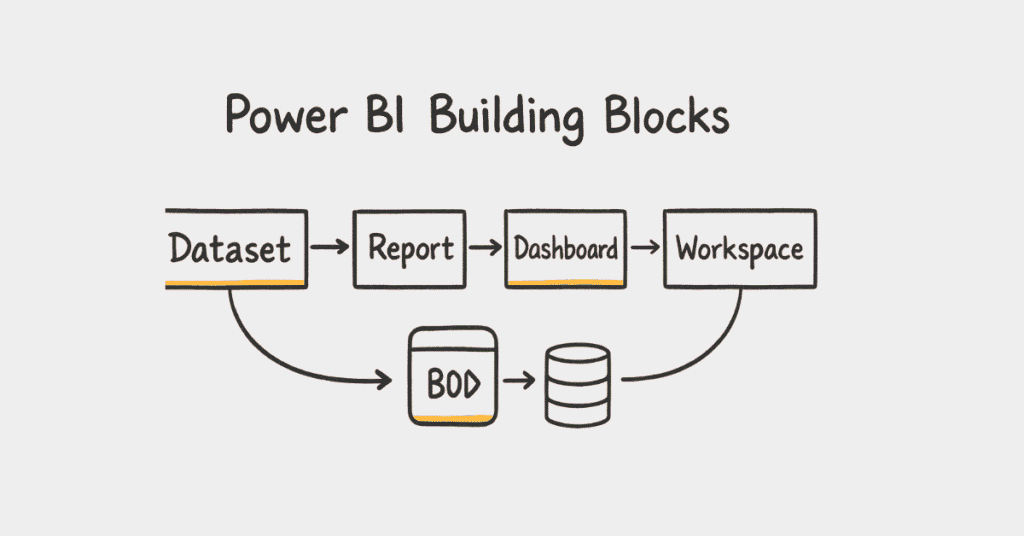
- What are the building blocks of Power BI?
The building blocks consist of Datasets (collections of data from various sources), Reports (visual representations of data), Dashboards (single-page collections of visualizations from multiple reports), Tiles (individual visualizations pinned to dashboards), and Workspaces (collaborative environments for creating and sharing content).
- Explain the difference between Power BI Desktop, Power BI Service, and Power BI Mobile.
Power BI Desktop is a Windows application used for creating reports and data models with advanced authoring capabilities. Power BI Service is the cloud-based SaaS platform for publishing, sharing, and collaborating on reports with features like scheduled refresh and access control. Power BI Mobile provides iOS, Android, and Windows mobile apps for viewing and interacting with reports on-the-go with touch-optimized interfaces.
- What is the difference between a Dataset, Report, and Dashboard?
A Dataset is the underlying data model containing tables, relationships, and measures that serve as the data source. A Report is a multi-page collection of visualizations based on a single dataset with interactive filtering capabilities. A Dashboard is a single-page canvas containing tiles from one or multiple reports, providing high-level business metrics at a glance.
- What are the different types of filters in Power BI?
Power BI supports Visual-level filters (affect only a single visualization), Page-level filters (apply to all visualizations on a specific page), and Report-level filters (affect all pages and visualizations throughout the entire report). Additionally, there are Drillthrough filters for navigating to detailed pages and Cross-filtering that allows interactions between visuals.
- What is Business Intelligence (BI)?
Business Intelligence is a technology-driven process that analyzes data and presents actionable information to help executives, managers, and workers make informed business decisions. BI encompasses data mining, process analysis, performance benchmarking, descriptive analytics, and data visualization tools.
- Why should organizations choose Power BI over other BI tools?
Power BI offers cost-effectiveness with a free Desktop version, seamless Microsoft ecosystem integration, regular monthly updates, intuitive drag-and-drop interface, extensive data source connectivity, AI-powered features like Quick Insights and Q&A, and strong community support.
- What is Power BI Service and how does it differ from Power BI Desktop?
Power BI Service is the cloud-based SaaS offering where reports are published, shared, and consumed. Unlike Desktop which is used for report authoring and development, Power BI Service focuses on collaboration, scheduled refreshes, dashboard creation, content distribution, and mobile accessibility.
- Can we use Power BI on mobile devices?
Yes, Power BI has mobile-compatible apps for Android devices, iOS devices, and Windows 10 devices. Users can download Power BI apps from Google Play, Microsoft Store, or Apple App Store for on-the-go access to reports and dashboards with touch-optimized interfaces.
- What is Power BI Report Server?
Power BI Report Server is an on-premises report server where organizations can publish Power BI reports within their own infrastructure without using the cloud. It’s suitable for organizations with strict data governance requirements, regulatory compliance needs, or those not ready for cloud adoption.
- What are the different Power BI licensing options?
Power BI offers Power BI Free (basic features for individual use), Power BI Pro (collaboration and sharing features), Power BI Premium Per User (advanced features per user), and Power BI Premium Per Capacity (dedicated cloud resources for organizations).
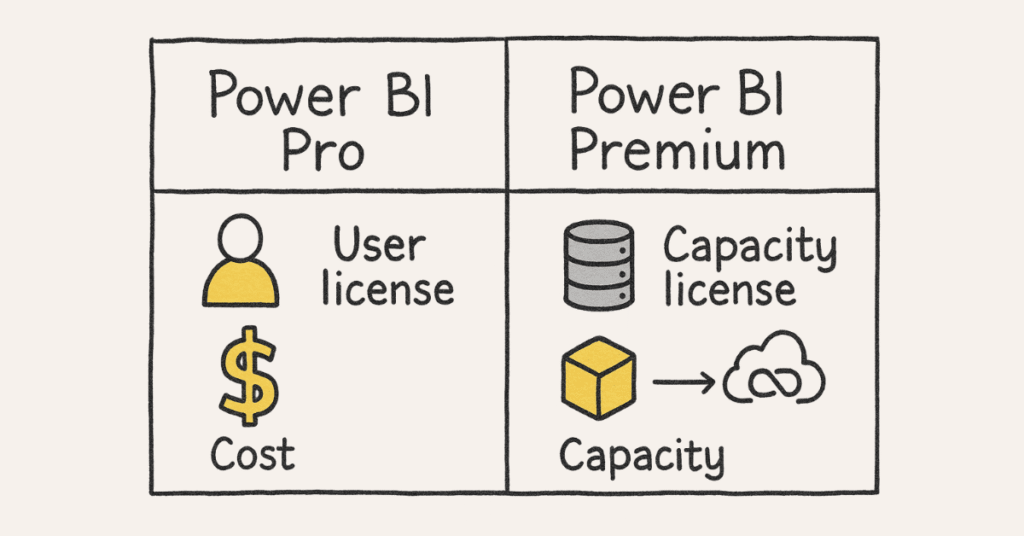
- What is the difference between Power BI Pro and Power BI Premium?
Power BI Pro is a per-user license at $9.99/month enabling content sharing and collaboration among Pro users. Power BI Premium starts at $4,995/month providing dedicated capacity, larger dataset sizes (up to 400GB), more frequent refreshes, deployment pipelines, and allows consumption by free users.
- What are workspaces in Power BI?
Workspaces are collaborative environments where teams can work together on collections of dashboards, reports, workbooks, and datasets. They provide role-based access control (Admin, Member, Contributor, Viewer), enable content organization, and support deployment pipelines.
- What is the maximum file size supported in Power BI Desktop and Service?
Power BI Desktop can handle larger files limited by system memory. Power BI Service (Pro) supports datasets up to 1GB, while Power BI Premium supports uploads up to 10GB which can be refreshed to 12GB.
- What are content packs in Power BI?
Content packs are pre-built collections of dashboards, reports, and datasets for specific services like Salesforce, Google Analytics, or industry solutions. They provide quick-start templates reducing development time and enabling faster insights.
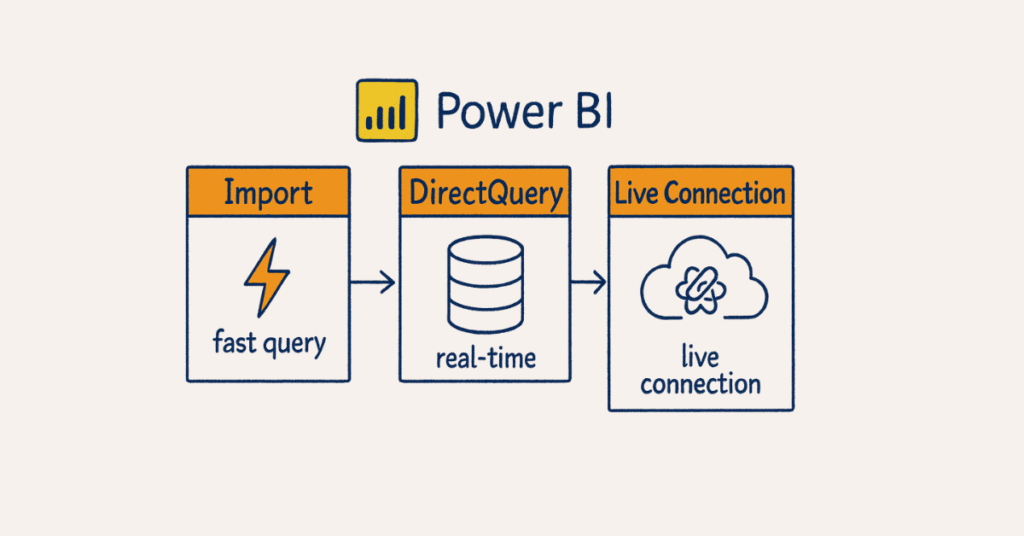
- What is the difference between Import, DirectQuery, and Live Connection?
Import mode loads data into Power BI’s in-memory engine providing fastest performance but requiring scheduled refreshes. DirectQuery sends queries directly to the data source in real-time ensuring current data but with potential performance limitations. Live Connection connects to external Analysis Services or Power BI datasets without importing data, maintaining a single source of truth.
- When should you use DirectQuery instead of Import mode?
DirectQuery is appropriate when data changes very frequently requiring real-time visibility, datasets are extremely large exceeding memory constraints, organizational policies prohibit data movement outside source systems, or when leveraging source database optimizations.
- What are the limitations of DirectQuery mode?
DirectQuery has query performance dependency on source database, limited data transformation capabilities, no support for calculated tables, some DAX functions unavailable, 1-hour timeout for queries, and limitations on complex M transformations.
- What is Composite Model in Power BI?
Composite Model combines Import and DirectQuery modes within the same dataset. It enables importing dimension tables for performance while keeping fact tables in DirectQuery for real-time data, providing balance between performance and freshness.
- What are the different views available in Power BI Desktop?
Power BI Desktop has three views: Report View (for adding visualizations and creating report pages), Data View (for viewing and working with data tables), and Model View (for managing relationships between tables and viewing schema).
- What is Power BI Embedded?
Power BI Embedded is Azure’s service enabling developers to embed Power BI visualizations and reports into custom applications. It provides white-label capabilities, allows non-Power BI users to access reports, and charges based on consumption rather than per-user licensing.
- What are Apps in Power BI?
Apps are packaged collections of dashboards and reports designed for distribution to large audiences. Apps provide simplified navigation, automatic updates when source content changes, and read-only experience for end users while simplifying permission management.
- What is Q&A feature in Power BI?
Q&A is a natural language query engine allowing users to ask questions about data using plain English. It interprets questions, generates appropriate visualizations automatically, and learns from user interactions to improve accuracy over time.
- What are Quick Insights in Power BI?
Quick Insights uses AI and machine learning algorithms to automatically analyze datasets and discover patterns, trends, outliers, and anomalies. It generates automatic visualizations highlighting interesting findings without manual exploration.
- What is Power BI Dataflows?
Dataflows are reusable ETL processes in Power BI Service that extract, transform, and load data into Azure Data Lake Storage. They enable centralized data preparation, promote reusability across multiple datasets, and support Common Data Model schemas.
- What are streaming datasets in Power BI?
Streaming datasets enable real-time data visualization by continuously pushing data to Power BI. They support three types: Push datasets (API-based data pushing), Streaming datasets (temporary data storage), and PubNub streaming (real-time messaging).
- What is Power BI Goals feature?
Goals (previously known as Metrics) enable tracking and measuring KPIs over time. Users can set targets, define check-in schedules, track progress, and share goal updates with stakeholders for performance monitoring.
- What are deployment pipelines in Power BI?
Deployment pipelines provide CI/CD capabilities with three stages: Development, Test, and Production. They enable version control, streamlined content promotion, and reduce manual deployment errors in enterprise environments.
- What is Power BI tenant?
A Power BI tenant is the organizational instance of Power BI associated with an Azure Active Directory. It provides centralized administration, security settings, capacity management, and usage monitoring across the organization.
- What are sensitivity labels in Power BI?
Sensitivity labels from Microsoft Information Protection classify and protect content based on data sensitivity levels. They enable automatic or manual classification, apply protection policies, and maintain classification when exporting data.
- What is the Power BI Admin Portal?
The Admin Portal provides centralized management for Power BI tenant settings, capacity monitoring, usage metrics, audit logs, and feature controls. Only Power BI administrators can access it for governance and compliance management.
- What are Power BI Premium Gen2 improvements?
Premium Gen2 introduced autoscale capabilities, faster query performance with improved caching, unlimited content distribution, more predictable pricing, and better multi-geo support. It also provides smoother experience during peak loads.
- What is the difference between a Power BI Workspace and App Workspace?
App Workspace is the older terminology for Workspaces in Power BI. Modern Workspaces offer improved collaboration features, flexible role assignments, Office 365 Group integration, and better content organization.
- Can we schedule automatic data refresh in Power BI?
Yes, Power BI Service allows scheduled refresh up to 8 times daily for Pro users and 48 times daily for Premium users. Users can configure refresh schedules through dataset settings specifying time zones and frequency.
- What is incremental refresh in Power BI?
Incremental refresh loads only new or changed data instead of the entire dataset, significantly reducing refresh time and resource consumption. It requires defining RangeStart and RangeEnd parameters and works with Premium or Premium Per User licenses.
- What are the benefits of incremental refresh?
Incremental refresh provides faster refresh operations, reduced network bandwidth consumption, lower source system impact, improved reliability for large datasets, and decreased memory requirements.
- What is paginated reports in Power BI?
Paginated reports are pixel-perfect, paginated documents optimized for printing or PDF export. They use RDL file format, support multi-page layouts, precise formatting control, and are ideal for operational reports like invoices and statements.
- What is SSRS and how does it relate to Power BI?
SSRS (SQL Server Reporting Services) is Microsoft’s traditional enterprise reporting platform. Power BI Report Server evolved from SSRS, and paginated reports in Power BI use SSRS technology, providing continuity for organizations migrating from SSRS.
- What is the difference between Power BI and SSRS?
Power BI is cloud-based, modern, interactive, and focuses on self-service BI with AI capabilities. SSRS is on-premises, conventional, programming-based, focuses on operational reporting, and provides pixel-perfect report output.
- What are external tools in Power BI Desktop?
External tools are third-party applications integrated into Power BI Desktop like Tabular Editor, DAX Studio, and ALM Toolkit. They provide advanced development capabilities, performance tuning, and enhanced data modeling features.
🧠 New to Power BI?
Start from scratch with our Beginner to Advanced Power BI Course featuring real dashboards.
2: Data Connectivity & Power Query (Questions 41-80)
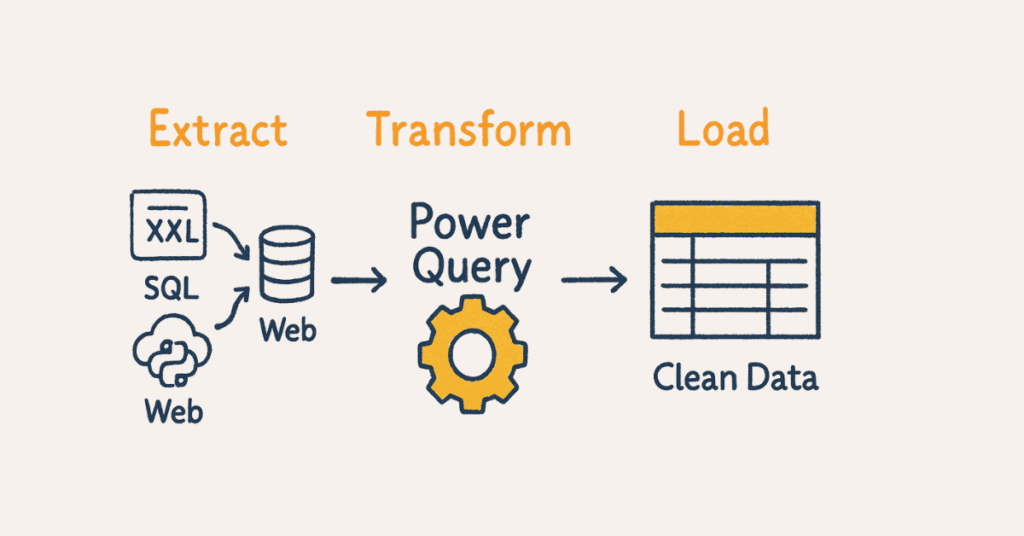
- What is Power Query and which language does it use?
Power Query is the data transformation and preparation engine in Power BI for connecting, cleaning, and shaping data. It uses M language (Power Query Formula Language), a functional, case-sensitive language for data transformations.
- What are the common data sources supported by Power BI?
Power BI connects to relational databases (SQL Server, Oracle, MySQL), cloud services (Azure, Salesforce, Google Analytics), files (Excel, CSV, JSON, XML), web sources, streaming data, and Big Data sources (Hadoop, Spark).
- What is M language in Power Query?
M is the formula language behind Power Query used for data transformations. It’s a functional, case-sensitive language that reads data transformations from inner-most to outer-most expressions.
- What are the key features of Power Query?
Power Query provides data connectivity to 150+ sources, graphical transformation interface, data profiling and quality assessment, merge and append operations, custom column creation, and M code editing for advanced scenarios.
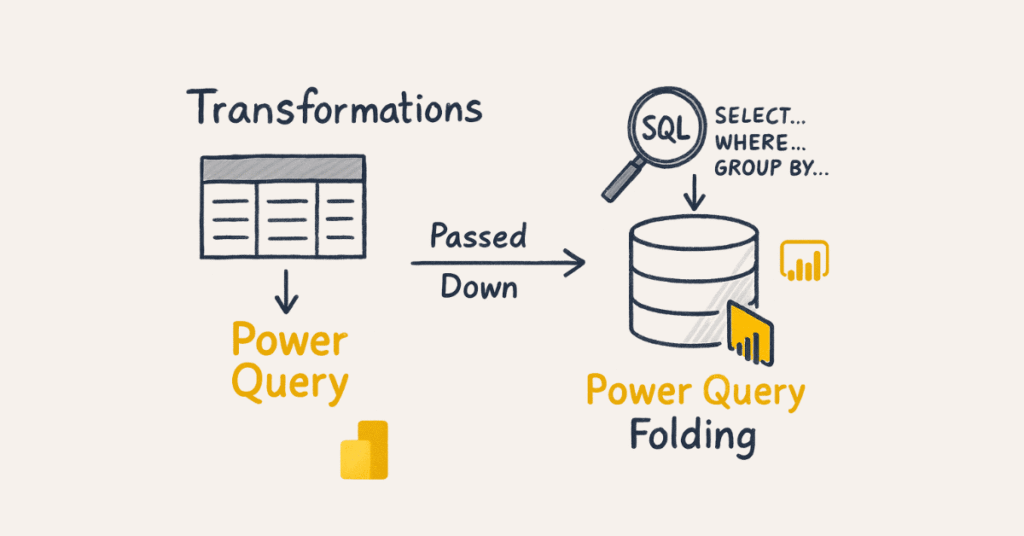
- What is Query Folding in Power Query?
Query Folding translates Power Query transformations into native SQL queries executed by the source database instead of the client machine. This improves performance by leveraging database optimization and reducing data transfer.
- What transformations support Query Folding?
Transformations supporting Query Folding include filtering rows, removing columns, renaming columns, changing data types, grouping operations, and basic joins. Complex custom functions, adding custom columns with M code, and certain merge operations may break Query Folding.
- How can you check if Query Folding is working?
Right-click on the last applied step in Query Editor and check if “View Native Query” option is available. If available, Query Folding is working; if grayed out, previous steps broke the folding.
- What are the most common data shaping techniques in Power Query?
Common techniques include removing unnecessary columns and rows, splitting and merging columns, changing data types, filtering rows, replacing values, pivoting and unpivoting data, and appending or merging queries.
- What is the difference between Merge and Append queries?
Merge combines tables horizontally based on matching columns (similar to SQL JOIN), creating wider tables. Append stacks tables vertically with similar structures (similar to SQL UNION), creating taller tables.
- What are the different join types in Power Query?
Power Query supports Left Outer join, Right Outer join, Full Outer join, Inner join, Left Anti join (rows only in left table), and Right Anti join (rows only in right table).
- How do you handle errors and null values in Power Query?
Use “Remove Errors” to eliminate problematic rows, “Replace Errors” for alternative values, filter out nulls when invalid, replace nulls with defaults when appropriate, and use conditional logic for different scenarios.
- What is data profiling in Power Query?
Data profiling analyzes data quality showing column distribution, column quality (valid, error, empty percentages), and column profile statistics. Enable it from View tab to assess data quality and identify issues.
- What are query parameters in Power Query?
Query parameters are variables storing values that can be referenced throughout queries. They enable dynamic filtering, parameterized data sources, and reusable query logic for flexible reporting.
- How do you create custom functions in Power Query?
Select a query, right-click and choose “Create Function,” or manually write M code defining parameters and logic. Functions enable code reusability and can be invoked across multiple queries.
- What is the Advanced Editor in Power Query?
Advanced Editor displays and allows editing of M code for queries. Access it from Home or View tab to view step-by-step M code, debug syntax errors, and implement advanced transformations.
- What are query dependencies in Power Query?
Query dependencies show relationships between queries where one query references another. View dependencies from the “View Query Dependencies” option to understand data flow and impact analysis.
- What is the difference between Table.AddColumn and Table.ExpandRecordColumn?
Table.AddColumn creates new columns with custom logic or calculations. Table.ExpandRecordColumn expands record-type columns into separate columns, commonly used after merging queries.
- How do you handle circular dependencies in Power Query?
Break circular dependencies by restructuring query logic, using intermediate queries, implementing parameters instead of query references, or redesigning data flow architecture.
- What is List.Generate function in M language?
List.Generate creates lists dynamically based on initial value, condition, next value, and selector functions. It’s useful for creating date tables, sequences, or iterative calculations.
- What are the performance best practices in Power Query?
Filter rows early in transformation steps, remove unnecessary columns before other operations, leverage Query Folding, avoid using Text.Combine on large datasets, use Table.Buffer sparingly, and limit complex custom functions.
- What is Table.Buffer function and when should it be used?
Table.Buffer loads entire table into memory preventing re-evaluation. Use it when referencing the same table multiple times in subsequent steps, but avoid for large tables due to memory consumption.
- How do you unpivot columns in Power Query?
Select columns to keep as identifiers, select columns to unpivot, then choose “Unpivot Columns” from Transform tab. This converts wide data format to long format suitable for analysis.
- What is the purpose of Pivot Column transformation?
Pivot Column converts long format data to wide format by rotating unique values from one column into multiple columns. It’s useful for creating cross-tabular views and summary reports.
- How do you create a date table in Power Query?
Use List.Dates to generate date range, convert to table, add calculated columns for Year, Quarter, Month, Week, Day, and mark as date table. Alternatively, use CALENDAR or CALENDARAUTO DAX functions.
- What is the difference between Power Query in Excel and Power BI?
Power BI’s Power Query supports more data sources, has better performance for large datasets, integrates with dataflows, and provides cloud-based transformation capabilities. Excel’s Power Query outputs to worksheets or data models locally.
- How do you reference other queries in Power Query?
Right-click a query and select “Reference” to create dependent query, or use query name directly in M code. Referenced queries automatically update when source changes.
- What is the difference between Reference and Duplicate queries?
Reference creates dependent query pointing to original source sharing transformation steps. Duplicate creates independent copy with its own transformation logic not linked to original.
- How do you work with JSON data in Power Query?
Connect to JSON source, Power Query recognizes structure, expand records and lists into columns, navigate nested hierarchies, and transform into tabular format.
- What are query groups in Power Query?
Query groups organize queries into folders for better management in complex models with many queries. They improve readability but don’t affect functionality or performance.
- How do you handle authentication in Power Query?
Power Query supports multiple authentication methods: Windows, Database, Microsoft Account, Organizational Account, API Key, OAuth, and Web API credentials. Configure through Data Source Settings.
- What is data privacy level in Power Query?
Privacy levels (Private, Organizational, Public) prevent unintentional data combination from different security contexts. They determine how Power Query can combine data from multiple sources.
- How do you split columns in Power Query?
Use “Split Column” with options: By Delimiter, By Number of Characters, By Positions, By Lowercase to Uppercase, or By Digit to Non-Digit. This separates data into multiple columns.
- What is conditional column in Power Query?
Conditional columns create new columns based on if-then-else logic without writing M code. Access from Add Column tab providing intuitive interface for business rules.
- How do you extract values from lists in Power Query?
Use Extract Values transformation to convert lists into delimited text strings. Alternatively, expand lists into rows or use List functions in M code.
- What is Table.Group function in M language?
Table.Group aggregates data similar to SQL GROUP BY. It groups rows by key columns and calculates aggregations like Sum, Count, Average, Min, Max on grouped data.
- How do you work with web data in Power Query?
Use “From Web” connector providing URL, handle authentication if required, navigate HTML tables or JSON/XML responses, and apply transformations. Anonymous, Windows, Web API, or Organizational authentication available.
- What are query diagnostics in Power Query?
Query Diagnostics captures detailed performance information about query execution including durations, data source queries, and resource usage. Enable from Tools menu to troubleshoot performance issues.
- How do you handle dynamic file paths in Power Query?
Create parameters for file paths, use folder connections with filtering, or programmatically construct paths using M functions. This enables flexible data source management.
- What is Table.TransformColumnTypes function?
Table.TransformColumnTypes changes data types for multiple columns simultaneously in M code. It’s equivalent to manually changing types in Query Editor but more efficient for multiple columns.
- How do you combine multiple files from a folder?
Use “From Folder” connector, filter files, select “Combine Files” which creates example transformation applied to all files. Power Query automatically generates helper queries for the pattern.
💡 Practice what you’ve learned!
Access our Power Query How-to Guides & sample datasets to sharpen your skills.
Section 3: Data Modeling (Questions 81-120)

- What is a Star Schema and why is it important?
Star Schema has a central fact table containing measurable data surrounded by dimension tables with descriptive attributes. It improves query performance, simplifies DAX calculations, reduces redundancy, and makes models intuitive.
- What is the difference between Star Schema and Snowflake Schema?
Star Schema has denormalized dimension tables directly connected to fact table. Snowflake Schema normalizes dimension tables into multiple related tables creating hierarchical structure. Star Schema offers better performance in Power BI.
- What are fact tables and dimension tables?
Fact tables contain quantitative, measurable business data like sales amounts, quantities with foreign keys to dimensions. Dimension tables contain descriptive attributes like product names, customer details, dates for analysis context.
- Explain relationship types in Power BI.
Power BI supports One-to-Many (most common connecting dimensions to facts), One-to-One (linking tables with unique identifiers), and Many-to-Many (complex relationships requiring careful implementation). Relationships have cardinality and cross-filter direction.
- What is cardinality in relationships?
Cardinality defines multiplicity between tables: One-to-One, One-to-Many, or Many-to-Many. Power BI automatically detects cardinality based on data uniqueness when creating relationships.
- What is cross-filter direction?
Cross-filter direction determines how filters flow through relationships: Single (filters flow from one side only) or Both/Bi-directional (filters flow both ways). Single direction is recommended for performance and clarity.
- Why should you avoid bi-directional relationships?
Bi-directional relationships create ambiguous filter contexts, cause unexpected results, degrade performance due to increased computational complexity, and can create circular dependencies. Use only when absolutely necessary.
- Why should you avoid Many-to-Many relationships?
Many-to-Many relationships multiply measure values incorrectly, create circular dependencies, significantly impact query performance, and complicate model understanding. When unavoidable, use bridge tables.
- What is a bridge table?
Bridge tables resolve Many-to-Many relationships by creating an intermediate table with unique combinations. They contain foreign keys from both tables establishing proper One-to-Many relationships.
- What are inactive relationships?
Inactive relationships exist in the model but don’t automatically filter data. They’re shown as dotted lines and activated using USERELATIONSHIP function in DAX when alternative filtering paths are needed.
- When would you use inactive relationships?
Use inactive relationships for role-playing dimensions (like order date vs. ship date), alternative analysis paths, or when only one active relationship is allowed between tables but multiple logical relationships exist.
- What are best practices for Power BI data modeling?
Use Star Schema, remove unnecessary columns before loading, use appropriate data types, prefer measures over calculated columns, minimize Many-to-Many and bi-directional relationships, use proper date tables, disable auto date/time, and implement incremental refresh for large datasets.
- What is a date table and why is it important?
Date tables contain continuous dates with calendar attributes (Year, Quarter, Month, Day) marked as date table for time intelligence. They enable proper date filtering, time intelligence calculations, and consistent date hierarchies.
- How do you create a date table?
Use DAX functions CALENDAR or CALENDARAUTO to generate date ranges, add calculated columns for calendar attributes, mark as date table in model view. Alternatively, create in Power Query using List.Dates.
- What is the Mark as Date Table feature?
Marking tables as date tables tells Power BI to use them for time intelligence, removes auto-generated date hierarchies, and ensures consistent date behavior. Right-click date table in model view to mark it.
- Why should you disable Auto Date/Time?
Auto Date/Time creates hidden date tables for every date column consuming memory unnecessarily, creates inconsistent hierarchies, and prevents proper time intelligence with custom date tables. Disable it in Options for better performance.
- What are hierarchies in Power BI?
Hierarchies organize related columns in drill-down order like Country > State > City or Year > Quarter > Month. They enable intuitive navigation and automatic drill-down in visuals.
- How do you optimize column data types?
Use smallest appropriate data type: integers instead of decimals when possible, shorter text lengths, date instead of datetime when time isn’t needed. Proper data types significantly reduce memory consumption.
- What is the impact of calculated columns on performance?
Calculated columns consume memory as values are stored in model, increase refresh time as they’re computed during data refresh, and add to model size. Use measures instead when possible for better performance.
- What is column cardinality and why does it matter?
Column cardinality is the number of unique values in a column. Low cardinality columns compress better, use less memory, and perform faster in filters and relationships than high cardinality columns.
- What are surrogate keys and when should you use them?
Surrogate keys are artificial unique identifiers added to tables lacking natural keys. Use them for establishing relationships, improving performance, and ensuring data integrity when natural keys are complex or change.
- What is slowly changing dimension?
Slowly changing dimensions (SCD) track historical changes in dimension attributes using Type 1 (overwrite), Type 2 (add new row with versioning), or Type 3 (add new column). They enable historical analysis and trend tracking.
- How do you implement role-playing dimensions?
Create multiple relationships between date table and fact table (one active, others inactive), use USERELATIONSHIP in measures to activate alternate relationships. Common example: Order Date vs. Ship Date.
- What is table partitioning in Power BI?
Table partitioning divides large tables into smaller segments for performance and manageability. Available in Premium capacity, it enables incremental refresh and parallel processing improving query performance.
- What are calculation groups?
Calculation groups are reusable calculation patterns applied to multiple measures reducing repetitive DAX code. They enable dynamic time intelligence, format strings, and calculation variations at query time.
- What is the purpose of hiding columns and measures?
Hiding unnecessary columns from report view reduces clutter, prevents incorrect usage, and simplifies user experience while maintaining them for relationships and calculations. Right-click and select “Hide” in model view.
- What are field parameters in Power BI?
Field parameters create dynamic axis selection allowing users to switch between measures or dimensions using slicers. They enable flexible report designs reducing report count.
- How do you implement many-to-many relationships properly?
Create bridge table with unique combinations, establish One-to-Many relationships from both original tables to bridge table, use CROSSFILTER or adjust relationship properties. Test thoroughly to ensure correct results.
- What is model size optimization?
Model size optimization reduces memory consumption through removing unnecessary columns, using appropriate data types, implementing aggregations, avoiding calculated columns, and properly configuring compression.
- What are aggregations in Power BI?
Aggregations are pre-calculated summary tables that Power BI automatically uses when appropriate, dramatically improving query performance for large datasets. They work transparently to users maintaining detail when needed.
- How do you set up aggregations?
Create aggregated table with summarized data, configure aggregation mappings in model view defining how detail table maps to aggregate table, and Power BI automatically routes queries.
- What is a composite model?
Composite models combine multiple data sources with different storage modes (Import, DirectQuery) in single dataset. They enable performance optimization by importing dimensions while keeping facts in DirectQuery.
- What are model documentation best practices?
Use clear, consistent naming conventions, add descriptions to tables, columns, and measures, document business logic and assumptions, maintain version control, and create data dictionaries.
- What is the difference between calculated tables and calculated columns?
Calculated tables create entirely new tables using DAX formulas consuming memory, useful for date tables or reference tables. Calculated columns add columns to existing tables also consuming memory.
- When should you use calculated tables?
Use calculated tables for date tables, static lookup tables, scenario analysis, or disconnected tables for parameters when data doesn’t exist in source.
- What are perspectives in Power BI?
Perspectives create customized views of data model showing subsets of tables and columns for specific user groups or purposes. They simplify complex models for different audiences while maintaining single source.
- What is the impact of string columns on performance?
String columns consume more memory than numeric types, have lower compression ratios, slower filtering and sorting, and higher cardinality impacts performance. Minimize string column use when alternatives exist.
- How do you handle circular dependencies in models?
Break circular dependencies by redesigning relationships, using measures instead of calculated columns, creating intermediate calculations, or restructuring data model logic.
- What is query performance analyzer?
Performance Analyzer in Power BI Desktop measures visual rendering time, DAX query duration, and other operations helping identify performance bottlenecks. Access from View tab to optimize reports.
- What are external tools for data modeling?
Tabular Editor provides advanced modeling capabilities, DAX Studio enables query optimization and testing, ALM Toolkit facilitates model comparison and deployment. They connect to Power BI via external tools integration.
🧩 Master Data Modeling like a Pro!
Explore our BI Roadmap for Advanced Analytics and model design techniques.
Section 4: DAX (Data Analysis Expressions) - Questions 121-170

- What is DAX and why is it important in Power BI?
DAX (Data Analysis Expressions) is a formula language used in Power BI for creating custom calculations, business logic, and data analysis. DAX enables creating calculated columns, measures, and calculated tables that extend data model capabilities beyond basic aggregations. Understanding DAX is essential for advanced analytics, time intelligence calculations, and creating dynamic reports.
- What is the difference between Calculated Columns and Measures?
Calculated Columns are computed during data refresh and stored in the data model consuming memory, evaluated row-by-row for each table row. Measures are calculated dynamically at query time based on report context (filters, slicers, visuals) and not stored in the model. Measures are preferred for aggregations and dynamic calculations due to better performance.
- Explain the CALCULATE function with examples.
CALCULATE is the most powerful DAX function that evaluates an expression in a modified filter context. It changes or adds filters to existing context enabling dynamic calculations. Example: Sales Last Year = CALCULATE([Total Sales], SAMEPERIODLASTYEAR(‘Date'[Date])) calculates sales for the previous year by modifying the date filter context.
- What is the difference between SUM and SUMX?
SUM is an aggregator function that works on a single column calculating the total of values. SUMX is an iterator function that evaluates an expression for each row of a table and then sums the results enabling row-by-row calculations. Example: SUMX(Sales, Sales[Quantity] * Sales[Price]) multiplies quantity by price for each row before summing.
- Explain the difference between DISTINCT and VALUES functions.
DISTINCT returns a unique list of values from a column excluding blanks created by invalid relationships. VALUES returns a unique list including a blank row if relationships create blank values in the filter context. VALUES is generally preferred because it respects the data model’s integrity and relationship structure.
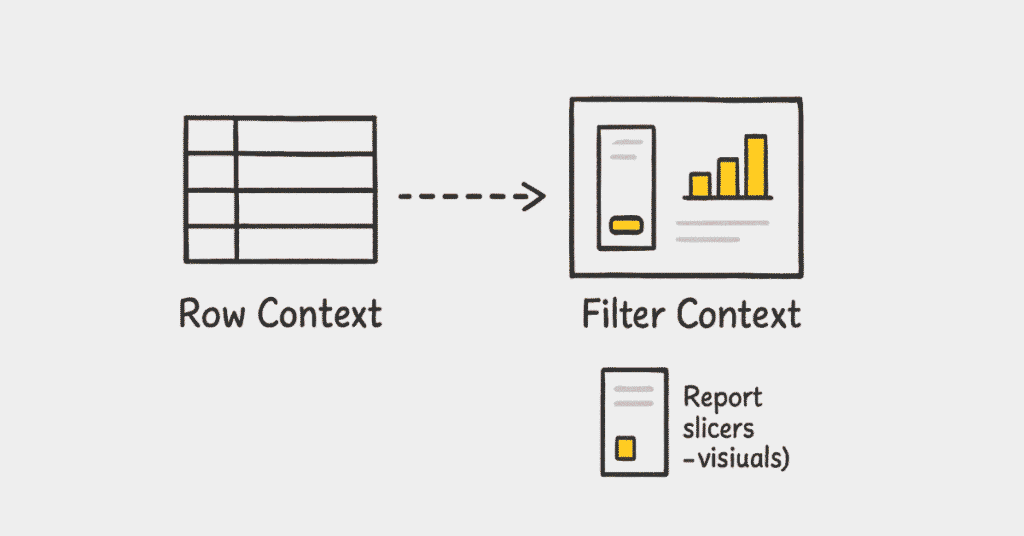
- What are Filter Context and Row Context in DAX?
Filter Context is the set of filters applied to data through slicers, report filters, visual filters, and row/column selections in visuals. Row Context exists during row-by-row evaluation in calculated columns or iterator functions like SUMX processing one row at a time. Filter Context determines which data is visible for aggregations while Row Context enables row-level calculations.
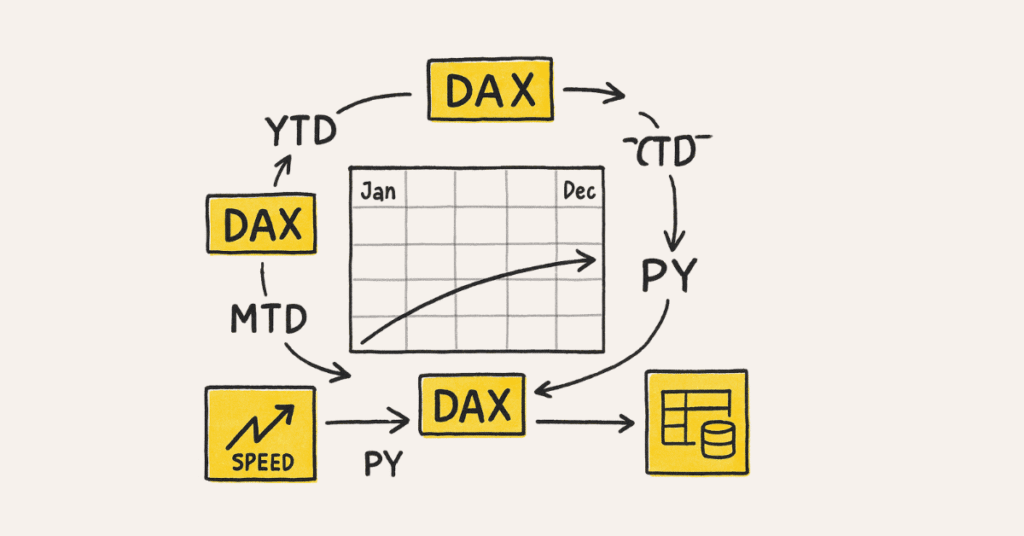
- Explain Time Intelligence functions in DAX.
Time Intelligence functions perform calculations across time periods requiring a proper date table marked as such. Common functions include SAMEPERIODLASTYEAR (previous year same period), DATEADD (shift dates by intervals), TOTALYTD/TOTALQTD/TOTALMTD (year/quarter/month to date calculations), and DATESBETWEEN (custom date ranges).
- What is the ALL function and its variants?
ALL removes all filters from specified columns or tables ignoring current filter context. ALLSELECTED removes filters while respecting user selections outside the visual, and ALLEXCEPT removes filters from all columns except specified ones. Example: Sales % of Total = DIVIDE([Total Sales], CALCULATE([Total Sales], ALL(Products))) calculates percentage contribution.
- How do you create a dynamic measure using SWITCH?
SWITCH evaluates an expression against multiple values and returns corresponding results useful for parameter-driven measures. Example:
Selected Measure = SWITCH(
SELECTEDVALUE(‘Parameter'[Metric]),
“Sales”, [Total Sales],
“Profit”, [Total Profit],
“Quantity”, [Total Quantity],
[Total Sales]
)
This creates user-selectable metrics in reports.
- What is the RELATED and RELATEDTABLE function?
RELATED retrieves a value from a related table on the “one” side of a One-to-Many relationship used in calculated columns. RELATEDTABLE returns a table of related rows from the “many” side typically used with aggregation functions. Example: Product Category = RELATED(Category[CategoryName]) in a Products table retrieves the category name.
- Explain FILTER function and its usage.
FILTER returns a table with rows that meet specified conditions used within other functions like CALCULATE. Example: High Value Sales = CALCULATE([Total Sales], FILTER(Sales, Sales[Amount] > 1000)) calculates sales for transactions above 1000. FILTER is powerful but can impact performance with large datasets.
- What is the difference between CALCULATE and CALCULATETABLE?
CALCULATE returns a scalar value (single result) after applying filters. CALCULATETABLE returns a table after applying filters useful for intermediate calculations or as input to other table functions. Both modify filter context but return different data types.
- Explain RANKX function with example.
RANKX returns the rank of a value in a list based on an expression. Example: Product Rank = RANKX(ALL(Products), [Total Sales]) ranks products by sales. Third parameter controls tie-breaking and fourth parameter sets ranking order (ascending/descending).
- What is context transition in DAX?
Context transition occurs when row context is converted to filter context automatically by CALCULATE or when measures are evaluated. This is crucial for proper measure calculations in calculated columns or iterator functions. Understanding context transition is essential for advanced DAX.
- Explain EARLIER function and its usage.
EARLIER accesses the row context from an outer evaluation level in nested iterations. Example: Running Total = CALCULATE(SUM(Sales[Amount]), FILTER(ALL(Sales), Sales[Date] <= EARLIER(Sales[Date]))) creates running totals. EARLIER is complex but powerful for row-by-row comparisons.
- What is LOOKUPVALUE function?
LOOKUPVALUE retrieves a value from a table based on search criteria similar to Excel VLOOKUP. Example: Price = LOOKUPVALUE(Products[Price], Products[ProductID], Orders[ProductID]) retrieves product price. It’s simpler than RELATED for specific lookup scenarios but less efficient for large datasets.
- Explain SUMMARIZE and SUMMARIZECOLUMNS functions.
SUMMARIZE groups data by specified columns and calculates aggregations. SUMMARIZECOLUMNS is newer, more efficient, respects relationship directions better, and is the recommended approach. Example: SUMMARIZECOLUMNS(‘Product'[Category], “Total Sales”, SUM(Sales[Amount])) creates category-level summary.
- What is the difference between COUNT, COUNTA, and COUNTROWS?
COUNT counts cells containing numbers excluding blanks and text. COUNTA counts non-blank cells including text and numbers. COUNTROWS counts rows in a table regardless of content. Choose based on data type and counting requirements.
- Explain DATESINPERIOD function.
DATESINPERIOD returns dates within a specified interval from a start date. Example: Last 90 Days Sales = CALCULATE([Total Sales], DATESINPERIOD(‘Date'[Date], MAX(‘Date'[Date]), -90, DAY)) calculates sales for last 90 days. It’s flexible for custom period calculations.
- What is SELECTEDVALUE function?
SELECTEDVALUE returns the value when only one distinct value is in the filter context, otherwise returns alternate result or blank. Example: Selected Product = SELECTEDVALUE(Products[ProductName], “Multiple Selection”) shows product name or message. It’s useful for dynamic titles and conditional logic.
- Explain USERELATIONSHIP function.
USERELATIONSHIP activates an inactive relationship within a CALCULATE context. Example: Sales by Ship Date = CALCULATE([Total Sales], USERELATIONSHIP(Sales[ShipDate], ‘Date'[Date])) uses ship date instead of order date. Essential for role-playing dimensions.
- What are variable declarations in DAX (VAR)?
VAR declares variables storing intermediate calculations improving performance and readability. Example:
Sales Analysis =
VAR CurrentSales = SUM(Sales[Amount])
VAR PriorSales = CALCULATE(SUM(Sales[Amount]), SAMEPERIODLASTYEAR(‘Date'[Date]))
RETURN DIVIDE(CurrentSales – PriorSales, PriorSales)
Variables are evaluated once reducing redundant calculations.
- Explain DIVIDE function and its advantages.
DIVIDE safely performs division handling division by zero automatically. Example: Profit Margin = DIVIDE([Total Profit], [Total Sales], 0) returns 0 instead of error when sales are zero. Third parameter specifies alternate result preventing errors.
- What is CONCATENATEX function?
CONCATENATEX iterates through a table concatenating values with specified delimiter. Example: Product List = CONCATENATEX(Products, Products[ProductName], “, “) creates comma-separated product list. Fourth parameter controls sort order.
- Explain HASONEVALUE and ISFILTERED functions.
HASONEVALUE returns TRUE when a column has exactly one distinct value in filter context. ISFILTERED returns TRUE when a column is directly filtered. Use HASONEVALUE for single selection detection and ISFILTERED for filter application detection.
- What is TREATAS function?
TREATAS applies a table as a filter on another table when no relationship exists. It treats columns as related enabling virtual relationships. Example: CALCULATE([Total Sales], TREATAS(VALUES(Product[Category]), ‘Budget'[Category])) applies product categories to budget table.
- Explain WINDOW and OFFSET functions (new in 2023).
WINDOW defines a sliding window of rows for calculations over ordered sets. OFFSET retrieves values from rows relative to current position. These functions enable advanced analytics like moving averages and cumulative calculations more efficiently.
- What is USERPPRINCIPALNAME function?
USERPRINCIPALNAME returns the email address of the currently logged-in user. It’s essential for implementing dynamic Row-Level Security. Example: [Email] = USERPRINCIPALNAME() filters data to user’s records.
- Explain GROUPBY function.
GROUPBY groups table rows by specified columns similar to SQL GROUP BY. Unlike SUMMARIZE, it doesn’t automatically add context transition. Example: GROUPBY(Sales, Sales[Category], “Total”, SUMX(CURRENTGROUP(), Sales[Amount])) groups and aggregates.
- What are iterator functions in DAX?
Iterator functions process tables row-by-row including SUMX, AVERAGEX, COUNTX, MAXX, MINX, and RANKX. They enable row-level calculations before aggregation providing flexibility for complex business logic.
- Explain TOPN function with example.
TOPN returns the top N rows from a table based on an expression. Example: Top 10 Products = TOPN(10, ALL(Products), [Total Sales], DESC) retrieves top 10 products by sales. Useful for creating Top N analyses and filtering.
- What is ISBLANK and BLANK functions?
ISBLANK checks if a value is blank returning TRUE or FALSE. BLANK returns a blank value used in conditional logic. Example: IF([Total Sales] = 0, BLANK(), [Profit Margin]) shows blank for zero sales.
- Explain CROSSFILTER function.
CROSSFILTER modifies the cross-filter direction of a relationship within CALCULATE context. Example: CALCULATE([Total Sales], CROSSFILTER(Products[ProductID], Sales[ProductID], Both)) enables bi-directional filtering temporarily. Use cautiously due to performance implications.
- What is ERROR function in DAX?
ERROR generates custom error messages in DAX calculations. Example: IF([Sales] < [Cost], ERROR(“Sales cannot be less than Cost”), [Profit]) shows custom error for invalid scenarios. Useful for data validation and error handling.
- Explain SUBSTITUTE and REPLACE functions.
SUBSTITUTE replaces occurrences of text within a string. REPLACE replaces characters at specific positions. Example: SUBSTITUTE([ProductName], “Old”, “New”) replaces text, while REPLACE([Code], 1, 3, “NEW”) replaces first 3 characters.
- What is SELECTEDMEASURE function?
SELECTEDMEASURE returns the measure currently in context useful in calculation groups. It enables dynamic measure modifications across multiple measures without repetition. Example in calculation group: Time Intelligence = CALCULATE(SELECTEDMEASURE(), SAMEPERIODLASTYEAR(‘Date'[Date])).
- Explain MEDIAN and PERCENTILE functions.
MEDIAN returns the middle value of a numeric column. PERCENTILE calculates specific percentile values. Example: MEDIAN(Sales[Amount]) finds median sales, PERCENTILE.INC(Sales[Amount], 0.9) finds 90th percentile.
- What is NATURALINNERJOIN and NATURALLEFTOUTERJOIN?
These functions perform joins based on common column names and data types. NATURALINNERJOIN performs inner join, NATURALLEFTOUTERJOIN performs left outer join automatically identifying matching columns. Less commonly used but useful for dynamic join scenarios.
- Explain FORMAT function in DAX.
FORMAT converts values to text with specified format strings. Example: FORMAT([Sales], “$#,##0.00”) formats sales as currency, FORMAT([Date], “MMMM YYYY”) formats date as “January 2025”. Essential for custom formatting in dynamic titles and labels.
- What is GENERATESERIES function?
GENERATESERIES creates a table with a single column containing sequential numbers. Example: GENERATESERIES(1, 100, 1) creates numbers 1 through 100. Useful for creating parameter tables or synthetic datasets.
- Explain PATH functions (PATH, PATHLENGTH, PATHITEM).
PATH functions work with parent-child hierarchies. PATH returns delimited hierarchy path, PATHLENGTH returns hierarchy depth, PATHITEM extracts specific level. Example: PATH(Employees[EmployeeID], Employees[ManagerID]) creates organizational hierarchy.
- What is COMBINEVALUES function?
COMBINEVALUES concatenates values with a delimiter optimized for creating composite keys. Example: COMBINEVALUES(“_”, [FirstName], [LastName]) creates unique identifier. More efficient than simple concatenation for relationship keys.
- Explain SAMPLE function.
SAMPLE returns a specified number of random rows from a table. Example: SAMPLE(100, Customers) retrieves 100 random customers. Useful for creating sample datasets or randomized selections.
- What is PRODUCTX function?
PRODUCTX multiplies values row-by-row similar to SUMX but for multiplication. Example: PRODUCTX(Sales, 1 + [GrowthRate]) calculates compound growth. Less commonly used but essential for specific mathematical operations.
- Explain ADDCOLUMNS function.
ADDCOLUMNS adds calculated columns to a table expression without modifying the original table. Example: ADDCOLUMNS(Products, “Price with Tax”, [Price] * 1.1) adds calculated column. Useful for temporary calculations in table expressions.
- What is DETAILROWS function?
DETAILROWS retrieves detail rows defined for a measure enabling drill-through to source data. Used in calculation items and advanced scenarios for creating custom detail views. Requires specific configuration in data model.
- Explain SELECTCOLUMNS function.
SELECTCOLUMNS creates a table with specific columns renamed or calculated. Example: SELECTCOLUMNS(Products, “Name”, [ProductName], “Value”, [Price] * [Quantity]) creates new table structure. Useful for reshaping tables in DAX expressions.
- What is DISTINCT and ALL combination pattern?
Combining DISTINCT with ALL creates comprehensive unique value lists ignoring filters. Example: DISTINCT(ALL(Products[Category])) returns all categories regardless of filters. Common pattern for parameter tables and unfiltered selections.
- Explain dynamic format strings in DAX.
Dynamic format strings change measure formatting based on conditions using FORMAT or by setting format string expressions. Example: FORMAT([Value], IF([Value] > 1000000, “$0.0M”, “$#,##0”)) shows millions with M suffix. Enhances report readability.
- What are common DAX performance optimization techniques?
Optimization techniques include using variables to avoid redundant calculations, preferring measures over calculated columns, avoiding complex iterators on large tables, using KEEPFILTERS for better filter management, limiting use of ALL and complex filter contexts, and leveraging SUMMARIZECOLUMNS over SUMMARIZE.
🧮 Struggling with DAX?
Practice 100+ interactive DAX Exercises & Challenges curated for Power BI Path.
Section 5: Visualizations & Report Design - Questions 171-190
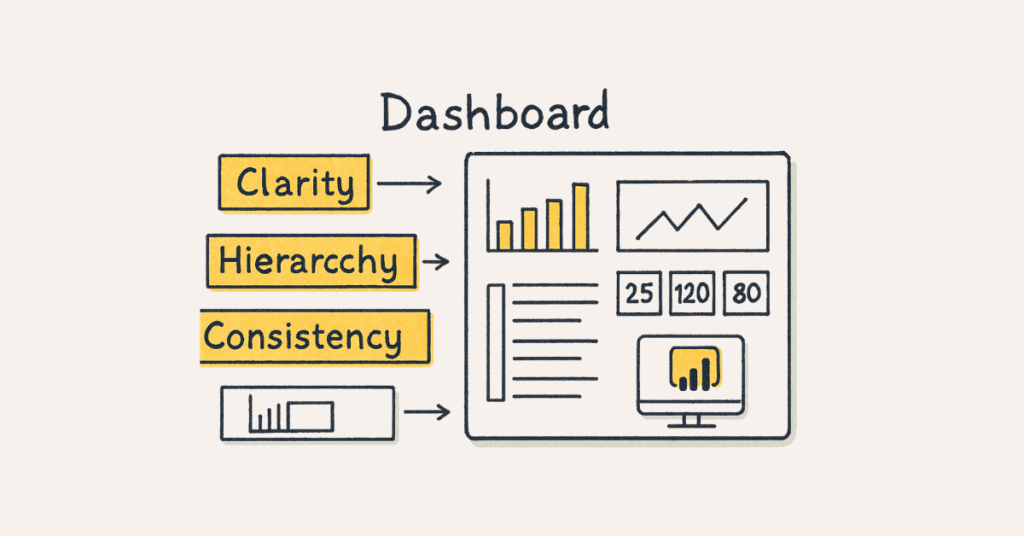
- What are the different types of visualizations in Power BI?
Power BI offers Bar and Column charts, Line and Area charts, Scatter and Bubble charts, Pie and Donut charts, Treemap, Waterfall, Funnel, Gauge, Cards and KPIs, Tables and Matrix, Maps (filled, bubble, shape), Ribbon charts, Slicers, and custom visuals from AppSource.
- What is the difference between Table and Matrix visualizations?
Table displays data in flat row format without hierarchies showing all columns at same level. Matrix displays data with rows and columns allowing drill-down hierarchies, subtotals, and cross-tabulation similar to Excel pivot tables. Matrix is more flexible for hierarchical data analysis.
- What are Custom Visuals in Power BI?
Custom Visuals are community-created or third-party visualizations from AppSource extending Power BI’s built-in visual capabilities. They include specialized charts like Sankey diagrams, word clouds, advanced scatter plots, and industry-specific visualizations. Import from AppSource, files, or create using Power BI Visuals SDK.
- What is the difference between Drill Down and Drill Through?
Drill Down navigates through hierarchies within the same visual moving from higher to lower levels of detail like Year > Quarter > Month. Drill Through navigates from one report page to another with applied filters providing detailed analysis of selected data points. Drill Down is hierarchical, Drill Through is cross-page.
- How do you implement tooltips in Power BI?
Tooltips show additional information on hover: default tooltips show field values automatically, report page tooltips use custom pages configured as tooltips providing rich contextual information with multiple visualizations. Create tooltip pages by setting page size to Tooltip and marking as tooltip page.
- What are Bookmarks and how do you use them?
Bookmarks capture current report state including filter selections, slicer positions, visual states, and sort orders. They enable storytelling through report states, create custom navigation, build button-driven interactions, and toggle between different views. Combine with buttons for interactive experiences.
- Explain what is the Q&A visual.
Q&A visual allows users to ask questions about data using natural language receiving automatic visualizations as answers. It interprets questions, generates appropriate visuals, learns from interactions to improve accuracy, and supports synonyms for better recognition. Enable in visual gallery for natural language querying.
- What are Slicers and their types?
Slicers are visual filters enabling user-driven data filtering with various types: List slicer (vertical/horizontal list), Dropdown slicer (space-saving), Between slicer (numeric range), Before/After slicer (date filtering), Relative date slicer (dynamic date ranges), and Hierarchy slicer.
- What is sync slicers feature?
Sync slicers apply filter selections across multiple report pages simultaneously. Configure from View > Sync Slicers pane specifying which pages see and sync each slicer. Improves user experience by maintaining filter consistency across pages.
- How do you create conditional formatting in visuals?
Conditional formatting applies colors, icons, or data bars based on values: background color formatting highlights cells, font color formatting emphasizes text, data bars show magnitude, and icon sets indicate status. Configure through visual formatting pane using rules or field-based conditions.
- What are small multiples in Power BI?
Small multiples create a grid of charts split by category dimensions showing same chart type for each category value. Enable from visual properties to compare patterns across categories simultaneously. Useful for comparative analysis across multiple dimensions.
- Explain the Analytics pane in visualizations.
Analytics pane adds reference elements to visuals: constant lines, min/max lines, average lines, median lines, percentile lines, trend lines, forecast lines, and symmetry shading. Enhance insights by adding statistical context to visualizations.
- What is the difference between buttons and bookmarks?
Buttons provide interactive navigation and actions: page navigation, bookmark navigation, drill through, Q&A, web URL, or back navigation. Bookmarks capture report states. Combine buttons with bookmarks for interactive storytelling and dynamic report behaviors.
- How do you implement show/hide functionality?
Create bookmarks for different visual states, add buttons with bookmark actions, and configure button visibility based on bookmark selection. Use Selection pane to control visual visibility in bookmarks enabling toggle behaviors and dynamic layouts.
- What are Key Influencers visual?
Key Influencers visual uses AI to identify factors driving selected metrics showing what influences increases or decreases. It analyzes relationships, ranks factors by influence strength, and provides explanations helping discover drivers of business metrics.
- What is Decomposition Tree visual?
Decomposition Tree enables hierarchical drill-down to analyze metric composition. It shows breakdown paths, identifies high/low contributors, and supports AI-driven automatic explanations. Useful for root cause analysis and dimension exploration.
- How do you create KPI (Key Performance Indicator) visual?
KPI visual displays metric value, goal/target value, and trend indicator. Configure with actual value measure, target value measure, and trend axis (typically date). Shows performance against targets with color-coded indicators.
- What are smart narratives in Power BI?
Smart narratives automatically generate text summaries of report insights using AI. They describe key findings, trends, and outliers in natural language adapting to filters and selections. Edit narratives to customize messaging while maintaining dynamic updates.
- How do you optimize report performance?
Optimize by reducing visual count per page, using appropriate visual types, avoiding high cardinality fields in visuals, limiting use of complex DAX in visual-level calculations, disabling auto date/time, using aggregations, and leveraging performance analyzer.
- What is the Performance Analyzer?
Performance Analyzer measures time taken by each visual to render including DAX query duration, visual display duration, and other operations. Access from View tab to identify bottlenecks, optimize slow visuals, and improve overall report performance.
🎨 Design reports that impress!
Learn UX-focused Dashboard Design Tips in our expert How-to Guides.
Section 6: Power BI Service & Security - Questions 191-210
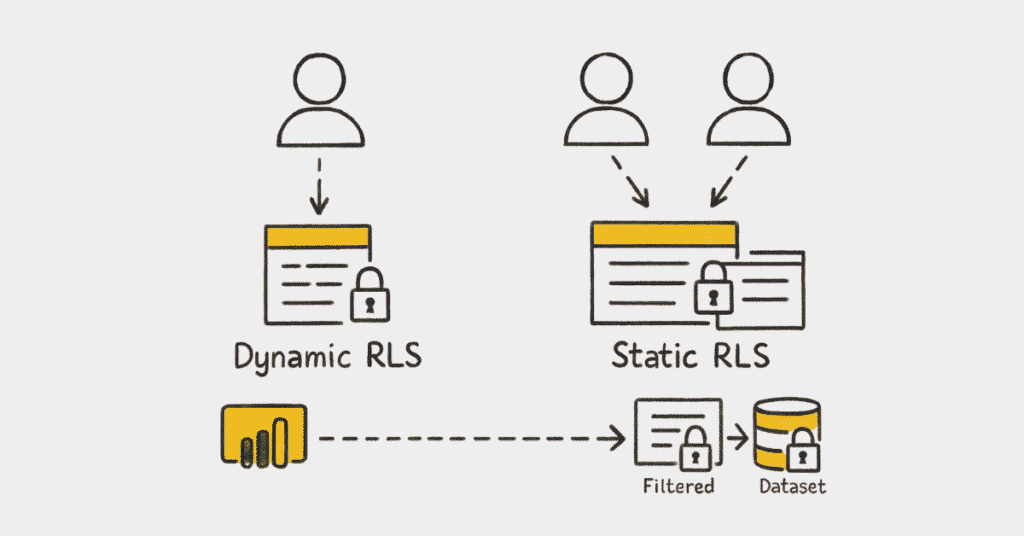
- How do you implement Row-Level Security (RLS)?
RLS restricts data access for specific users at row level: create roles in Power BI Desktop using DAX filter expressions, test roles using “View as Role” feature, publish to Service, and assign users/groups to roles. Example: [Region] = USERNAME() restricts users to their region’s data.
- What is the difference between Static and Dynamic RLS?
Static RLS has hardcoded filters for each role like [Region] = “East”. Dynamic RLS uses functions like USERPRINCIPALNAME() to filter based on logged-in user enabling automatic personalization without creating multiple roles. Dynamic RLS is more scalable and maintainable.
- How do you implement Dynamic RLS?
Create user mapping table with columns like Username and Region/Territory, relate it to data tables, create role with DAX filter [Username] = USERPRINCIPALNAME(), test using “View as Role”, and publish with user assignments. Dynamic RLS automatically filters based on current user.
- Can users belong to multiple RLS roles?
Yes, when users belong to multiple roles Power BI applies union of all filters meaning users see data permitted by any of their roles. This creates additive permissions rather than restrictive ensuring users have access to combined data sets.
- How do you test RLS in Power BI Desktop?
Use “View as” option under Modeling tab to simulate view for specific roles or specific users. This validates filters work correctly before publishing preventing security issues in production.
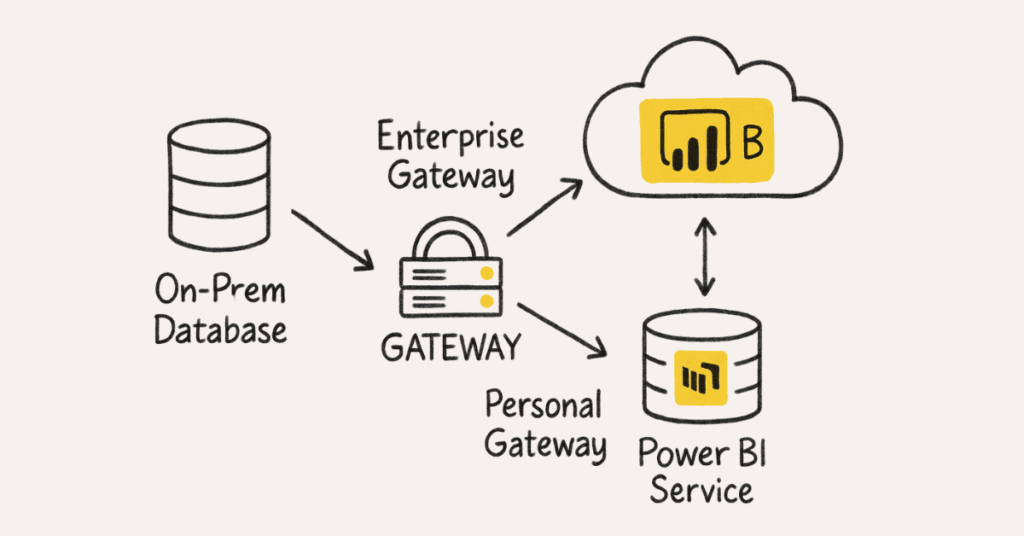
- What is the Power BI Gateway?
Power BI Gateway acts as bridge between Power BI Service and on-premises data sources enabling scheduled refresh and DirectQuery for local databases. Two modes exist: Personal Gateway (single user) and Enterprise Gateway (organizational, centrally managed).
- What is the difference between Personal and Enterprise Gateway?
Personal Gateway supports one user’s datasets with limited features suitable for individual use. Enterprise Gateway supports multiple users and datasets with centralized management, high availability, better performance, and advanced features like RLS passthrough. Enterprise Gateway is recommended for organizations.
- How do you schedule dataset refresh in Power BI Service?
Navigate to dataset settings, configure data source credentials, set refresh schedule (daily/weekly times), specify time zone, and optionally enable refresh failure notifications. Pro users get 8 daily refreshes, Premium users get 48.
- What are workspace roles in Power BI Service?
Workspace roles include Admin (full control including deletion), Member (publish, delete, share content), Contributor (publish content, no workspace settings), and Viewer (view content only). Roles control access levels and capabilities within collaborative environments.
- How do you share Power BI reports?
Share via direct sharing to individual users with email notification, publish to web (public access without authentication), embed in SharePoint or Teams, create and distribute apps, or share workspace access. Choose method based on audience and security requirements.
- What are Power BI Apps and how do they differ from workspaces?
Apps are packaged collections of dashboards and reports for distribution to large audiences with simplified navigation and read-only access. Workspaces are collaborative environments for content creation. Apps provide controlled content delivery while workspaces enable development collaboration.
- What is Power BI Mobile and its capabilities?
Power BI Mobile apps for iOS, Android, and Windows enable on-the-go report access with touch-optimized interfaces, offline viewing, barcode scanning, location-based data, annotations, alerts, and mobile layouts.
- How do you create mobile-optimized reports?
Use Phone Layout view in Power BI Desktop to arrange visuals specifically for mobile screens creating portrait-oriented layouts. Design simplified versions with fewer visuals, larger touch targets, and mobile-appropriate formatting.
- What are dataflows in Power BI?
Dataflows are reusable ETL processes in Power BI Service that extract, transform, and load data into Azure Data Lake Storage. They enable centralized data preparation, promote reusability across multiple datasets, and support Common Data Model schemas.
- What is the difference between dataflows and datasets?
Dataflows focus on data preparation and transformation storing results in Azure Data Lake for reuse across multiple datasets. Datasets are complete data models with relationships and measures used directly in reports. Dataflows enable separation of ETL from reporting.
- What are Power BI alerts?
Alerts send notifications when data thresholds are crossed on dashboard tiles for KPIs, gauges, and cards. Configure alert conditions, notification frequency, and delivery methods enabling proactive monitoring.
- How do you implement subscription in Power BI?
Subscriptions email report snapshots on schedule to users or distribution lists. Configure from report menu setting frequency, filters, and recipients enabling automated report distribution.
- What is Power BI Embedded?
Power BI Embedded enables embedding Power BI content in custom applications using capacity-based pricing rather than per-user licensing. It provides white-label capabilities for ISVs and developers integrating analytics into products.
- What are deployment pipelines?
Deployment pipelines provide CI/CD capabilities with Development, Test, and Production stages. They enable version control, streamlined content promotion, parameter rules, and reduce manual deployment errors.
- How do you monitor Power BI usage?
Use Admin Portal’s usage metrics, audit logs, and activity logs to track user access, report views, refresh history, and capacity utilization. Premium capacity metrics app provides detailed performance monitoring. Monitoring enables governance, optimization, and compliance tracking.

🔐 Level up with Enterprise BI skills!
Join our Power BI Admin & Service Masterclass for real-world deployment tips.
Section 7: Advanced Transformation and Querying Techniques
- What is the difference between Referencing and Duplicating queries in Power Query?
Referencing creates a dependent query that points to the original query sharing the same data source and transformation steps up to the reference point. Changes to the original query automatically reflect in referenced queries[attached_file:734efa26]. Duplicating creates an independent copy with its own separate transformation logic not linked to the original query. Use referencing when building on existing transformations and duplicating when creating variations that diverge significantly[attached_file:734efa26].
- What is Query Parameters in Power Query and when should you use them?
Query Parameters are variables that store values used dynamically throughout queries enabling flexible data transformations. Common use cases include filtering data based on parameter values, dynamic file paths for data sources, parameterized date ranges for incremental loads, and environment-specific connection strings[attached_file:734efa26]. Parameters are created through “Manage Parameters” option and referenced using parameter name in transformations.
- How do you create Custom Columns and Conditional Columns in Power Query?
Custom Columns use M language expressions or formulas to create calculated columns based on existing data. Access via “Add Column” > “Custom Column” and write M code like [Column1] * [Column2]. Conditional Columns provide GUI-based interface for if-then-else logic without writing code. Access via “Add Column” > “Conditional Column” and define conditions, values for true/false outcomes[attached_file:734efa26].
Power BI Optimization Techniques (Additional Details)
- What is DAX Studio and how is it used for optimization?
DAX Studio is a free external tool for writing, executing, and analyzing DAX queries with advanced features including query performance analysis, execution plan visualization, server timings breakdown, and query result export capabilities. It helps identify slow-running measures, analyze query execution details, test DAX formulas outside Power BI, and optimize complex calculations[attached_file:734efa26]. Connect to Power BI datasets through external tools integration.
- What is Report Development Best Practices Checklist?
Report development best practices include limiting visuals per page (recommended 10-15 maximum), using appropriate visual types for data being displayed, implementing consistent color schemes and formatting, optimizing DAX measures before adding to reports, disabling auto date/time hierarchy, using slicers strategically, implementing bookmarks for navigation, testing performance with Performance Analyzer, and documenting data model and measure logic[attached_file:734efa26].
- What does “Choosing Better Design” mean in Power BI optimization?
Choosing better design involves selecting optimal visual types avoiding overly complex custom visuals, structuring report pages for logical information flow, using drill-through pages instead of cluttering single page, implementing master-detail patterns with slicers, choosing Import over DirectQuery when data volume permits, designing for mobile responsiveness when needed, and considering user interaction patterns[attached_file:734efa26].
Power BI Dashboards (Expanded Coverage)
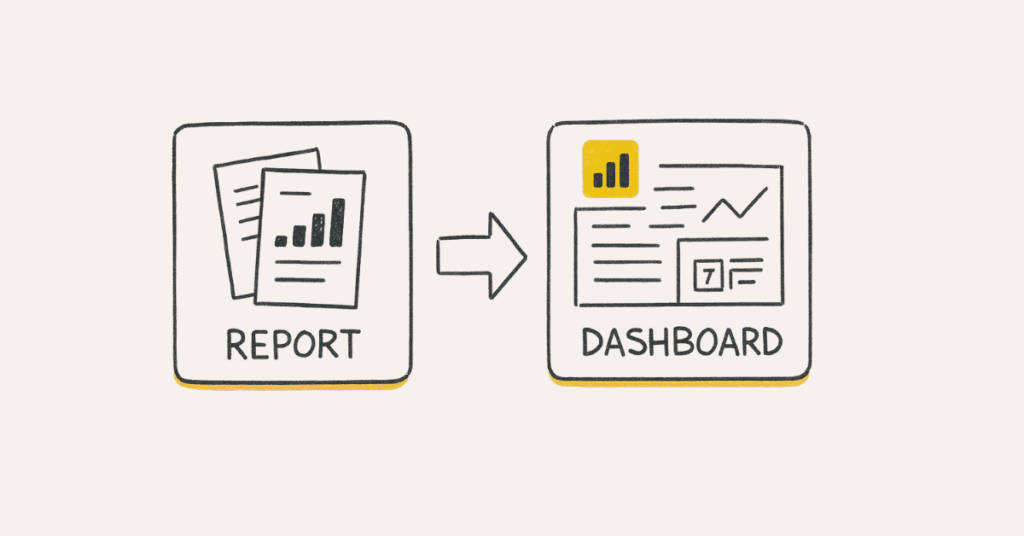
- What is the difference between Power BI Dashboards and Reports?
Reports are multi-page interactive visualizations created in Power BI Desktop with drill-down capabilities, filters, and detailed analysis from single dataset. Dashboards are single-page canvases in Power BI Service displaying tiles from multiple reports and datasets providing high-level KPI overview. Reports enable detailed exploration while dashboards provide at-a-glance executive summary[attached_file:734efa26].
- How do you create effective dashboards in Power BI?
Effective dashboard creation includes identifying key metrics and KPIs stakeholders need, selecting appropriate visualizations for each metric, pinning tiles from multiple reports to dashboard canvas, arranging tiles logically with most important metrics prominent, configuring tile details and custom links, setting up real-time tiles when needed, and sharing dashboard with appropriate audiences[attached_file:734efa26]. Keep dashboards focused avoiding information overload.
Power BI Services (Additional Details)
- How do you export data from Power BI visuals?
Export data from visuals by clicking the “More options” menu (three dots) on visual and selecting “Export data”. Options include exporting summarized data (aggregated view shown in visual) or underlying data (detailed records), choosing CSV or Excel format, and respecting RLS and filters applied. Note that export capabilities may be restricted by tenant settings or RLS implementation[attached_file:734efa26].
- How do you export Power BI reports as PowerPoint or PDF?
Export reports to PowerPoint from Power BI Service by selecting “File” > “Export to PowerPoint” creating static slides of report pages. Export to PDF via “File” > “Print to PDF” or “Export to PDF” maintaining layout and formatting. Exported files are static snapshots not maintaining interactivity or data refresh[attached_file:734efa26]. Consider page size settings for optimal export layout.
- How do you analyze Power BI reports in Excel?
Analyze in Excel feature enables connecting Excel to published Power BI datasets creating pivot tables and charts using Excel’s native tools. Access via “Analyze in Excel” option which downloads ODC connection file, open in Excel to create pivot tables against Power BI data model, and leverage Excel’s familiar interface while using Power BI data. Requires appropriate permissions and Excel version with Power Pivot support[attached_file:734efa26].
Other Important Functionality (Expanded)
- What are Advanced Filters in Power BI?
Advanced filters provide sophisticated filtering capabilities beyond basic visual-level filters including “is blank/is not blank” conditions, “contains/does not contain” text matching, “begins with/ends with” pattern matching, relative date filtering (last N days, this quarter, etc.), Top N filtering by value, and custom filter logic combining multiple conditions[attached_file:734efa26]. Access through filter pane with advanced filtering mode.
- How do slicers differ from filters in Power BI?
Slicers are visual filter controls displayed on report page allowing end users to interactively filter data with visible, user-friendly interface. Filters are configured in filter pane typically hidden from end users providing behind-the-scenes filtering with different scope levels (visual, page, report). Slicers enhance user experience and self-service capabilities while filters provide structured data filtering[attached_file:734efa26].
SQL Topics for Power BI Context
- Why is SQL knowledge important for Power BI developers?
SQL knowledge enables Power BI developers to write efficient queries for DirectQuery mode, create custom queries in Get Data for specific data extraction, understand query folding optimization, troubleshoot data source performance issues, communicate effectively with database administrators and data engineers, and optimize data preparation at source reducing Power BI processing[attached_file:734efa26]. Many enterprise Power BI implementations involve SQL Server or similar relational databases.
- What is OLTP vs OLAP in context of Power BI?
OLTP (Online Transaction Processing) systems handle day-to-day operational transactions with normalized schemas optimized for write operations[attached_file:734efa26]. OLAP (Online Analytical Processing) systems support analytical queries with denormalized schemas (star/snowflake) optimized for read-heavy reporting. Power BI typically connects to OLAP systems or data warehouses providing dimensional modeling suitable for analytics. Understanding difference helps design appropriate data models[attached_file:734efa26].
- How do SQL joins relate to Power Query merge operations?
SQL joins and Power Query merge operations have direct correspondence: INNER JOIN equals Inner merge, LEFT JOIN equals Left Outer merge, RIGHT JOIN equals Right Outer merge, and FULL OUTER JOIN equals Full Outer merge[attached_file:734efa26]. Understanding SQL joins helps configure merge operations correctly in Power Query. Power Query also supports Anti joins (rows only in left/right table) not standard in basic SQL.
- What are aggregate functions and how do they apply to both SQL and DAX?
Aggregate functions summarize multiple rows into single values: COUNT/COUNT(), SUM/SUM(), AVG/AVERAGE(), MIN/MIN(), MAX/MAX() exist in both SQL and DAX with similar functionality[attached_file:734efa26]. SQL aggregates work with GROUP BY clause while DAX measures aggregate within filter context. Understanding aggregation principles in SQL helps learn DAX aggregation patterns more easily.
- How do SQL string functions relate to DAX text functions?
SQL and DAX share similar text manipulation functions: SQL’s CONCAT() corresponds to DAX’s CONCATENATE() or & operator, SUBSTRING() maps to MID() or LEFT()/RIGHT(), REPLACE() exists in both with similar syntax, and LENGTH() corresponds to LEN()[attached_file:734efa26]. Understanding SQL string manipulation transfers to DAX text handling. DAX offers additional functions like FORMAT() for advanced text formatting.
- What is the importance of understanding data types in both SQL and Power BI?
Data types determine storage requirements, operations allowed, and performance characteristics[attached_file:734efa26]. Mismatched data types between SQL source and Power BI cause errors or implicit conversions reducing performance. Common types include integers, decimals/floats, text/varchar, dates/datetime, and booleans with corresponding types in both systems. Choosing appropriate types optimizes memory usage and query performance.
- How do SQL filtering concepts (WHERE, BETWEEN, IN, LIKE) relate to Power BI?
SQL WHERE clause corresponds to filter functions in both Power Query and DAX[attached_file:734efa26]. BETWEEN translates to range filtering in Power BI slicers or DAX conditions, IN operator maps to multiple selection filtering or DAX’s IN function, and LIKE pattern matching corresponds to text filtering with wildcards or DAX’s SEARCH()/FIND() functions. Understanding SQL filtering logic aids Power BI filter implementation.
⚙️ Optimize like a Pro!
Follow our Data Engineering Roadmap to learn performance tuning, SQL, and modeling.
2. SELF-PREPARATION PROMPTS (50 Prompts Total)
DAX Learning and Practice Prompts
- DAX Fundamentals Mastery
“I’m preparing for Power BI interviews and need to master DAX fundamentals. Explain the following concepts with practical examples: calculated columns vs measures, filter context vs row context, and context transition. After explaining each concept, provide 3 practice scenarios where I need to determine which approach to use and why. Give me feedback on my reasoning.”
- Complex DAX Formula Construction
“Generate a business scenario requiring a complex DAX measure that combines CALCULATE, FILTER, and time intelligence functions. Provide the business requirement, sample data structure, and expected output. Wait for my DAX formula attempt, then analyze it for correctness, efficiency, and suggest optimizations explaining the reasoning.”
- Time Intelligence Deep Dive
“I need to master time intelligence calculations in DAX. Explain TOTALYTD, SAMEPERIODLASTYEAR, DATEADD, and DATESINPERIOD with real-world use cases. Then create 5 progressively difficult scenarios requiring different time intelligence functions. For each scenario I solve, provide feedback on accuracy and alternative approaches.”
- Iterator Functions Practice
“Teach me when to use iterator functions (SUMX, AVERAGEX, RANKX, CONCATENATEX) vs aggregator functions (SUM, AVERAGE, etc.) in Power BI. Provide decision framework with examples. Then generate 5 scenarios where I must choose the appropriate function type and write the formula. Evaluate my choices and formulas.”
- DAX Performance Optimization
“I have a slow-performing DAX measure: [paste measure]. Analyze it for performance issues including unnecessary iterations, poor filter context usage, and redundant calculations. Provide optimized version with variables, explain why it’s faster, and teach me 5 optimization patterns I can apply to other measures.”
- Advanced DAX Patterns
“Explain these advanced DAX patterns with examples: dynamic segmentation using SWITCH, cumulative totals with EARLIER, ABC analysis with RANKX, and basket analysis with CROSSJOIN. For each pattern, create a practice problem I need to solve from scratch. Evaluate my implementation and suggest improvements.”
- DAX Error Handling and Debugging
“My DAX formula is returning unexpected results or errors: [paste formula and describe issue]. Debug it step-by-step explaining what’s wrong, why it’s happening, and how to fix it. Then teach me systematic debugging approach for DAX including using variables for intermediate results and testing filter contexts.”
- Context Transition Mastery
“Context transition is confusing me in DAX. Explain with detailed examples how row context converts to filter context in calculated columns vs measures. Provide 5 tricky scenarios where context transition causes unexpected results. For each scenario, have me predict the outcome before revealing the correct answer and explanation.”
- DAX Variable Best Practices
“Teach me when and how to use variables (VAR) in DAX for performance and readability. Show me 3 complex measures written without variables, then refactor them using variables. Have me practice refactoring 5 more complex formulas using variables while explaining my reasoning for each variable declaration.”
- Scenario-Based DAX Challenges
“Create a realistic business scenario (like e-commerce sales analysis or inventory management) with sample data structure. Provide 10 progressively complex business questions requiring DAX measures ranging from simple aggregations to advanced calculations with multiple filter contexts. Evaluate each solution I provide.”
Section 2: Power Query and Data Modeling Prompts
- Power Query M Language Fundamentals
“I’m weak in Power Query M language. Explain List, Record, and Table data types with transformation examples. Then create 5 data cleaning scenarios requiring custom M code (handling nulls, conditional columns, date transformations). Review my M code for efficiency and teach me common M functions and patterns.”
- Data Modeling Best Practices
“Explain Star Schema design principles for Power BI including fact tables, dimension tables, surrogate keys, and relationship management. Then provide a complex business scenario with 10+ tables and have me design the optimal data model. Critique my design identifying issues with performance, maintainability, or logical correctness.”
- Query Folding Optimization
“Teach me how to maximize query folding in Power Query for performance. Explain which transformations support folding and which break it. Provide 5 Power Query scenarios and have me identify where folding breaks and how to restructure transformations to maintain folding. Verify my solutions with explanations.”
- Complex Power Query Scenarios
“Generate data transformation challenges: merging multiple tables with different schemas, handling hierarchical data, dynamic column unpivoting, and error handling in bulk operations. For each challenge, provide source data structure and desired output. Review my Power Query solutions for efficiency and best practices.”
- Relationship Troubleshooting
“I have relationship issues in my Power BI model: [describe issue like circular dependencies, ambiguous relationships, or many-to-many challenges]. Diagnose the problem, explain why it occurs, provide multiple solution approaches with pros/cons, and recommend the best solution. Then quiz me on similar relationship scenarios.”
- Incremental Refresh Strategy
“Explain incremental refresh in Power BI including RangeStart and RangeEnd parameters, partitioning strategy, and refresh policies. Create a scenario with large historical data and have me design incremental refresh strategy specifying parameters, filter logic, and refresh schedule. Evaluate my approach for correctness and efficiency.”
- Data Quality Validation
“I need to ensure data quality in Power BI. Teach me techniques for validating data during load: identifying nulls, duplicates, outliers, data type mismatches, and referential integrity issues. Provide a messy dataset and have me implement quality checks in Power Query with appropriate error handling and logging.”
- Calculated Tables vs Power Query
“Explain when to use calculated tables in DAX vs data preparation in Power Query. Provide 10 scenarios and have me decide which approach is better with justification considering performance, refresh time, maintenance, and flexibility. Evaluate my decisions and explain the reasoning for optimal choices.”
Section 3: Visualization and Report Design Prompts
- Effective Dashboard Design
“I need to design an executive dashboard for [specific business scenario]. Guide me through dashboard design principles: KPI selection, visual hierarchy, color psychology, interactivity design, and mobile optimization. Review my dashboard mockup for usability, clarity, and adherence to best practices. Suggest specific improvements.”
- Custom Visual Selection
“Explain when to use custom visuals vs built-in Power BI visuals. For my use case [describe scenario], recommend 5 custom visuals from AppSource with justification. Provide guidance on evaluating custom visual performance, security, and maintenance considerations. Have me analyze 3 visuals and justify which to use.”
- Advanced Visualization Techniques
“Teach me advanced visualization techniques: small multiples for comparative analysis, drill-through pages for detail exploration, dynamic titles using measures, conditional formatting strategies, and bookmark-driven navigation. Create 5 reporting scenarios and have me select appropriate techniques with implementation approach.”
- Storytelling with Data
“I have analytical insights from data but struggle presenting them compellingly. Teach me data storytelling framework: establishing context, creating narrative flow, highlighting key insights, using visual metaphors, and designing for decision-making. Review my report story flow and provide feedback on narrative effectiveness.”
- Performance-Optimized Reports
“My Power BI report is slow. Analyze performance using these specifics: [number of visuals, data volume, DAX complexity]. Teach me report optimization techniques: reducing visual count, optimizing DAX in visual-level calculations, using aggregations, and leveraging query reduction settings. Have me implement optimizations and predict performance improvements.”
Section 4: Security and Administration Prompts
- Row-Level Security Implementation
“Explain dynamic Row-Level Security implementation for organizational hierarchy. Provide a scenario with users, regions, and manager-employee relationships. Have me design RLS strategy including DAX filters, security table structure, and role configuration. Test my design with specific user scenarios for correctness.”
- Multi-Tenant RLS Strategy
“I need to implement RLS for multi-tenant SaaS application where each client sees only their data. Design comprehensive security architecture including user mapping, role design, testing strategy, and performance considerations. Create test scenarios with edge cases and have me validate RLS configuration correctness.”
- Power BI Gateway Configuration
“Explain Power BI Gateway setup for hybrid scenarios with on-premises SQL Server and cloud Azure SQL. Walk me through installation, data source configuration, authentication options, and troubleshooting common issues. Create a scenario requiring gateway configuration and have me outline complete setup process with security considerations.”
- Workspace and App Management
“Teach me Power BI workspace governance: role assignments (Admin, Member, Contributor, Viewer), content organization strategies, app creation and distribution, and permission management at scale. Provide organizational structure with 50+ users and multiple departments. Have me design workspace architecture with access control.”
- Deployment Pipeline Strategy
“Explain CI/CD for Power BI using deployment pipelines with Dev, Test, Prod environments. Include parameter rules for environment-specific configurations, deployment best practices, and rollback strategies. Create a scenario requiring multi-environment setup and have me design deployment workflow with approval gates.”
Section 5: Mock Interview Simulation Prompts
- Technical Screening Round
“Act as a Power BI technical interviewer for a mid-level developer position. Conduct a 45-minute technical screening covering Power BI fundamentals, DAX basics, data modeling principles, and visualization concepts. Ask questions one at a time, evaluate my answers for accuracy and depth, and provide detailed assessment at the end with areas needing improvement.”
- Live DAX Coding Interview
“Simulate a live DAX coding interview. Present a business problem requiring complex measure creation involving time intelligence, filtering, and calculations. Give me 20 minutes to write the DAX formula while thinking aloud. Evaluate my approach, formula correctness, performance considerations, and communication clarity during problem-solving.”
- Data Modeling Interview
“Conduct a data modeling interview for Power BI developer role. Present a business scenario with multiple data sources requiring integration. Have me design the data model including table relationships, fact/dimension identification, handling slowly changing dimensions, and optimization strategies. Challenge my decisions with follow-up questions about alternatives.”
- Troubleshooting Scenario Interview
“Act as interviewer presenting real-world Power BI issues: slow report performance, incorrect calculations, relationship problems, or refresh failures. For each issue, have me diagnose the problem, explain root cause, propose solutions, and justify my troubleshooting methodology. Evaluate my systematic approach and technical depth.”
- Business Requirements Translation
“Present vague business requirements like ‘we need to see sales performance and trends.’ Interview me on how I would gather requirements, ask clarifying questions, propose solution architecture, design data model, select appropriate visuals, and define success metrics. Assess my requirement gathering and solution design skills.”
- Architecture Design Interview
“Conduct system architecture interview for enterprise Power BI implementation. Present a scenario with multiple departments, diverse data sources, security requirements, and performance considerations. Have me design end-to-end architecture including data flow, security model, refresh strategy, and governance framework. Challenge architectural decisions.”
Section 6: Scenario-Based Problem Solving Prompts
- Real-World Business Problem
“Create a realistic business scenario (retail sales analysis, HR analytics, financial reporting, or supply chain optimization). Provide sample data structure, business questions, and stakeholder requirements. Guide me through complete Power BI solution development from data modeling to final dashboard. Evaluate each stage of my solution.”
- Performance Bottleneck Analysis
“Present a Power BI solution with specific performance issues: slow visual rendering, long refresh times, or timeout errors. Provide dataset characteristics and current implementation details. Have me systematically diagnose bottlenecks using Performance Analyzer, optimize DAX, restructure model, and predict performance improvements with justification.”
- Data Integration Challenge
“Provide a complex data integration scenario with multiple sources (SQL Server, Excel files, APIs, SharePoint lists) having different schemas and refresh schedules. Have me design integration strategy in Power Query including error handling, incremental refresh where applicable, and data quality validation. Review my approach for robustness.”
- Migration from Excel to Power BI
“Present an Excel-based reporting system with multiple interconnected workbooks, complex formulas, and manual processes. Guide me through migration strategy to Power BI including requirements analysis, data model design, DAX equivalent of Excel formulas, and user training plan. Evaluate my migration approach and change management strategy.”
- Handling Changing Requirements
“Simulate a project where requirements change mid-development: new data sources, additional metrics, modified business logic, or restructured hierarchies. Have me adapt existing Power BI solution maintaining backward compatibility while implementing changes. Assess my flexibility, impact analysis, and change management approach.”
- Multi-Language Report Development
“Present a requirement for multi-language Power BI reports supporting English, Spanish, and French with dynamic label switching. Have me design solution architecture including translation table approach, field parameters for language selection, and testing strategy. Evaluate my internationalization approach for maintainability and scalability.”
Section 7: Advanced Technical Concept Prompts
- Aggregations Deep Dive
“Explain aggregations in Power BI for optimizing large dataset performance. Provide a scenario with billions of rows and have me design aggregation strategy: identifying aggregate tables, configuring aggregation mappings, and validating automatic routing. Test my understanding with complex query scenarios to ensure correct aggregation usage.”
- Composite Model Mastery
“Teach me composite models combining Import and DirectQuery modes. Explain use cases, configuration steps, and potential pitfalls. Create a scenario requiring composite model (importing dimensions, DirectQuery for facts) and have me design optimal storage mode configuration with justification for each table’s mode.”
- Calculation Groups Implementation
“Explain calculation groups for reusable time intelligence patterns. Walk me through creating calculation group for YTD, MTD, PY, and YoY calculations. Provide a data model and have me implement calculation group reducing measure redundancy. Verify my implementation handles all edge cases correctly.”
- Advanced RLS Scenarios
“Present complex RLS requirements: hierarchical security with manager seeing subordinate data, bi-directional filtering requirements, or role combinations with additive permissions. Have me design RLS solution handling these complexities with DAX filters, security table design, and testing strategy. Validate correctness with specific user scenarios.”
- Dataflows Architecture
“Explain Power BI dataflows for centralized ETL with reusable data preparation. Create enterprise scenario with multiple datasets sharing common dimensions. Have me design dataflow architecture: identifying shared entities, implementing computed entities, managing refresh dependencies, and leveraging dataflows across workspaces. Evaluate architecture for efficiency and reusability.”
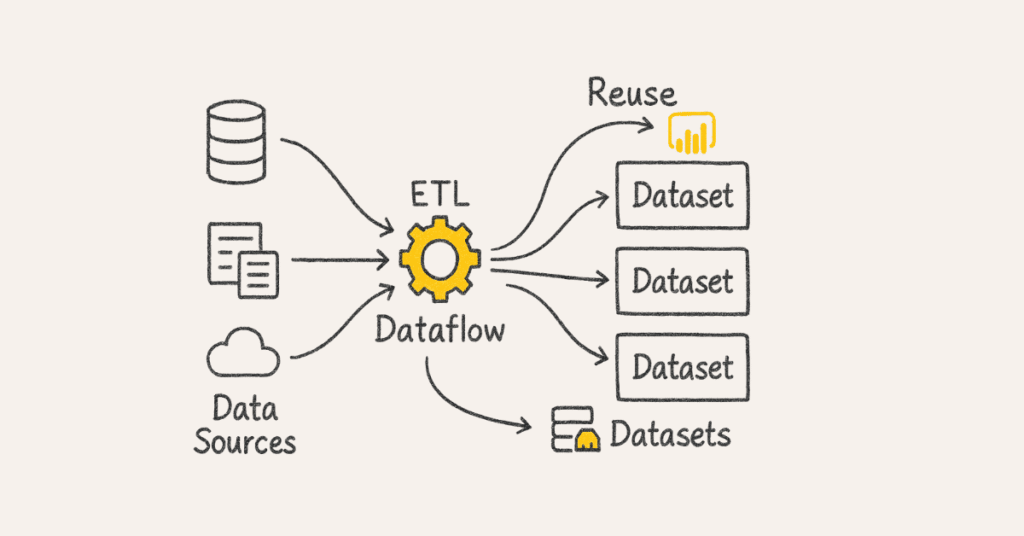
Section 8: Communication and Documentation Prompts
- Technical Documentation Creation
“I need to document my Power BI solution for knowledge transfer. Guide me through creating comprehensive documentation: data model diagram, DAX measure library with descriptions, data source documentation, refresh schedule specifications, and user guides. Review sample documentation I create for completeness and clarity.”
- Explaining Technical Concepts to Non-Technical Users
“I need to explain technical Power BI concepts (like DAX context, data modeling relationships, or refresh mechanisms) to business users. For each concept, help me create simple analogies, visual explanations, and real-world comparisons avoiding technical jargon. Practice explaining 5 concepts and evaluate my communication effectiveness.”
- Stakeholder Requirement Gathering
“Simulate a requirements gathering session where I interview business stakeholders for Power BI project. Role-play as stakeholder with vague requirements. Evaluate my questioning techniques, ability to uncover hidden requirements, proposal of visualization approaches, and requirement documentation. Provide feedback on requirement elicitation skills.”
- Presenting Insights to Executives
“I have data insights to present to executives who want quick, actionable information. Teach me executive presentation framework: starting with key takeaway, supporting with data, highlighting business impact, and recommending actions. Review my presentation structure and provide feedback on clarity, conciseness, and business focus.”
- Code Review and Knowledge Sharing
“Simulate a code review session where I present my DAX measures and data model to senior developers. Act as reviewer asking about design decisions, performance considerations, maintainability, and alternative approaches. Help me articulate my technical choices clearly and defend or revise them based on feedback.”
🤖 Practice with AI!
Access AI-Powered Prompts Path for Power BI and other BI tools.
3. Communication Skills and Behavioural Interview Preparation
Understanding the STAR Method for Power BI Roles
The STAR method structures behavioral responses into Situation (20% – setting context), Task (10% – defining responsibility), Action (60% – detailing personal contributions), and Result (10% – quantifying outcomes). For Power BI developers, emphasize technical decisions, stakeholder collaboration, and measurable business impact through data visualization and analytics solutions.
Common Behavioral Questions for Power BI Developers
- Tell me about a challenging Power BI project you completed.
Use STAR to describe a complex business intelligence implementation highlighting technical challenges overcome. Explain the business context requiring Power BI solution, define your specific role and responsibilities, detail data modeling decisions, DAX optimizations, or visualization strategies implemented, and quantify results like improved decision-making time, report adoption rates, or performance improvements. Focus on problem-solving methodology and business value delivered.
- Describe a time when you had to optimize a slow-performing Power BI report.
Showcase analytical thinking and technical expertise in performance tuning. Describe the performance issue context including report complexity and user impact, explain diagnostic approach using Performance Analyzer and DAX Studio, detail specific optimizations implemented like DAX refactoring, data model restructuring, or aggregation implementation, and present quantified performance improvements in load time or query duration. Demonstrate systematic troubleshooting methodology.
- How do you handle conflicting requirements from different stakeholders?
Emphasize stakeholder management, communication, and negotiation skills crucial for BI developers. Describe situation with competing stakeholder demands for report features or data access, explain facilitation of discussions to understand underlying business needs, detail how you proposed solutions balancing requirements or demonstrated trade-offs with prototypes, and present outcome showing stakeholder satisfaction and project success. Show diplomacy and business acumen.
- Tell me about a time you made a mistake in a Power BI solution and how you handled it.
Demonstrate accountability, problem-solving under pressure, and learning mindset. Describe the error honestly (incorrect DAX logic, relationship misconfiguration, security gap), explain immediate actions to identify scope and communicate with stakeholders, detail corrective measures including fix implementation and validation process, and emphasize preventive measures adopted like peer reviews, testing protocols, or documentation improvements. Show maturity and continuous improvement focus.
- Describe a situation where you had to learn a new Power BI feature or technique quickly.
Highlight adaptability and continuous learning essential in evolving BI landscape. Explain business need driving urgency (new calculation group requirement, composite model implementation), describe learning approach using Microsoft documentation, community forums, experimentation, detail how knowledge was applied to deliver solution, and quantify impact on project timeline or capability enhancement. Demonstrate proactive learning attitude.
- How do you ensure data accuracy and quality in your Power BI reports?
Showcase attention to detail and quality assurance mindset. Describe comprehensive validation approach including data source verification, implementing data quality checks in Power Query, validating DAX calculations against source systems or Excel, conducting UAT with business users, and establishing ongoing monitoring processes. Provide specific example where quality measures prevented or caught errors.
- Tell me about a time you had to explain complex technical concepts to non-technical stakeholders.
Highlight communication adaptability crucial for BI professionals bridging technical and business domains. Describe scenario requiring explanation of concepts like row-level security, data modeling, or DAX logic, explain approach using analogies, visual aids, or simplified demonstrations, detail stakeholder engagement techniques to ensure understanding, and present outcome showing stakeholder buy-in or educated decision-making. Demonstrate teaching ability.
- Describe a project where you collaborated with data engineers or IT teams.
Emphasize teamwork and cross-functional collaboration. Explain project requiring integration between Power BI and data warehousing or database teams, describe coordination approach for data pipeline design, refresh scheduling, or performance optimization, detail communication methods and conflict resolution when architectural differences arose, and present successful outcome demonstrating effective collaboration. Show ability to work in integrated environments.
- How do you prioritize multiple Power BI projects or enhancements with tight deadlines?
Showcase time management and prioritization frameworks. Describe situation juggling multiple stakeholder demands, explain prioritization criteria considering business impact, complexity, and dependencies, detail communication strategy for managing expectations and negotiating timelines, and present outcome showing successful delivery or stakeholder satisfaction despite constraints. Demonstrate organizational skills.
- Tell me about a time you advocated for a specific technical approach in Power BI.
Demonstrate technical leadership and persuasion abilities. Describe technical recommendation facing resistance (star schema over flat tables, Import vs DirectQuery, aggregation strategy), explain stakeholder concerns and organizational context, detail evidence presented including performance comparisons, best practice documentation, or proof of concept, and present decision outcome validated through implementation success. Show ability to influence through expertise.
Power BI-Specific Technical Communication
- Articulating Data Modeling Decisions
When explaining data model design, start with business requirements driving structure, progress through star schema rationale, relationship configurations, and optimization strategies. Use model diagrams to visualize architecture and explain “why” behind decisions connecting technical choices to performance or usability benefits. Check stakeholder understanding with questions and examples.
- Explaining DAX Logic Clearly
Break down complex DAX formulas into logical components explaining evaluation order and context modifications. Use step-by-step walkthroughs showing intermediate results from variables and describing filter context at each stage. Relate DAX behavior to familiar Excel functions when appropriate for business users.
- Presenting Performance Analysis
When discussing report performance, quantify metrics using Performance Analyzer data showing visual render times and DAX query duration. Explain optimization impact with before/after comparisons and relate performance improvements to user experience enhancements. Present technical details at appropriate depth for audience expertise level.
- Demonstrating Security Implementation
Explain Row-Level Security using role-based access scenarios with concrete examples of filtered data for different user types. Walk through DAX security filters showing how they restrict data visibility and demonstrate testing using “View as Role” validation. Address security concerns proactively showing thorough consideration.
- Handling “I Don’t Know” Situations Professionally
When facing unfamiliar Power BI features or scenarios, acknowledge knowledge gaps honestly while demonstrating problem-solving approach. Follow with related knowledge or logical methodology: “I haven’t implemented calculation groups yet, but based on understanding of context transition and my experience with similar patterns, I would approach it by…”. Show willingness to research and learn.
Non-Verbal Communication for BI Professionals
- Body Language in Technical Presentations
Maintain confident posture during dashboard demonstrations, use hand gestures to emphasize data points and trends on screen, and make eye contact with stakeholders rather than fixating on visuals. Position yourself to allow clear view of reports while maintaining engagement with audience. Energy and enthusiasm about insights improve stakeholder interest.
- Virtual Interview Best Practices
For remote Power BI interviews, ensure screen sharing works smoothly for portfolio demonstrations, position camera at eye level for natural engagement, and test audio quality for clear technical explanations. Prepare backup plans for technical difficulties and maintain professional background free of distractions. Practice screen navigation to avoid awkward fumbling during demonstrations.
- Confidence Through Preparation
Build confidence by preparing portfolio of best Power BI projects, practicing technical explanations of complex solutions, and rehearsing common scenario responses. Authentic confidence comes from genuine competence combined with preparation. Review your work critically anticipating likely questions.
Structuring Behavioral Responses for BI Roles
- Crafting Data-Focused Stories
Prepare 8-10 stories showcasing different competencies: complex data modeling, DAX optimization, stakeholder management, requirements gathering, performance tuning, security implementation, team collaboration, and learning agility. Each story should demonstrate technical expertise and business impact with quantified results. Practice telling stories concisely within 2-3 minutes.
- Quantifying Technical Impact
Strengthen responses with specific metrics showing value delivered: “reduced report load time from 45 seconds to 8 seconds,” “improved data refresh efficiency by 60%,” “enabled self-service analytics for 200+ users,” or “identified $500K savings through visual analytics”. Numbers make accomplishments tangible and demonstrate business value thinking.
- Highlighting Technical Contributions
Clearly delineate personal technical contributions from team efforts using first-person language. Instead of “we optimized the data model,” say “I redesigned the fact table relationships and implemented aggregations while my colleague focused on DAX measure refactoring”. Interviewers assess individual technical capabilities.
- Demonstrating Continuous Learning
Conclude stories with lessons learned about Power BI best practices, new features mastered, or improved approaches for future projects. For challenges or mistakes, emphasize how experience shaped better practices like implementing code reviews, establishing testing protocols, or adopting design patterns. Growth mindset is crucial in rapidly evolving BI tools.
Company-Specific Questions for BI Roles
- “Why do you want to work here as a Power BI Developer?”
Research company’s industry, data maturity, technology stack, and analytics culture. Connect personal career goals to specific opportunities: “I’m excited about your healthcare analytics focus because I’m passionate about data-driven patient outcomes, and your enterprise Power BI implementation offers opportunity to work at scale with complex data models”. Show genuine interest beyond generic responses.
- “Where do you see yourself in five years as a BI professional?”
Balance technical growth aspirations (Power BI architect, data visualization expert) with potential leadership interests (BI team lead, analytics manager). Align trajectory with company’s structure and growth: “I aim to become a Power BI subject matter expert leading complex implementations while mentoring junior developers”. Avoid suggestions of short tenure or pivot away from BI.
- “What are your salary expectations?”
Research market rates for Power BI developers based on experience level, location, and company size. Provide researched range with flexibility: “Based on my 3 years of Power BI experience and market research for this location, I’m targeting $X to $Y, though I’m open to discussion based on complete compensation package and growth opportunities”. Defer detailed negotiation until after offer when possible.
Teamwork and Collaboration Questions
- “Describe your ideal team environment for BI development.”
Highlight collaboration patterns valuable in BI teams: regular knowledge sharing sessions, peer code reviews for DAX and data models, iterative feedback from business users, cross-functional collaboration with data engineers and analysts. Reference agile methodologies or specific practices like sprint planning for analytics deliverables. Align with company’s stated cultural values.
- “How do you handle technical disagreements with team members?”
Demonstrate professional conflict resolution through data-driven discussions. Describe situation with disagreement over data modeling approach or visualization design, explain objective evaluation using performance testing or user feedback, detail collaborative exploration of alternatives with pros/cons analysis, and present outcome showing mutual respect and optimal solution. Show openness to better ideas.
- “Tell me about a time you mentored someone on Power BI.”
Highlight knowledge sharing and leadership potential. Describe mentee’s initial skill level and specific learning needs, explain customized teaching approach using paired development, code reviews, or structured tutorials, detail specific Power BI concepts taught (DAX, data modeling, best practices), and present measurable improvements in their capability or project contributions. Mentorship indicates readiness for senior roles.
- “How do you contribute to knowledge sharing in BI teams?”
Provide concrete examples: maintaining DAX measure library with documentation, conducting lunch-and-learn sessions on new Power BI features, creating best practice guidelines, contributing to internal wikis or Confluence pages, or pair programming with colleagues. Demonstrate commitment to team success beyond individual contributions. Knowledge sharing is crucial in specialized technical domains
Problem-Solving and Initiative Questions
- “Describe a time you identified and solved a BI problem proactively.”
Showcase initiative and ownership mentality. Describe identifying an issue before stakeholders noticed it (data quality problem, performance degradation, security gap), explain independent investigation and impact assessment, detail solution designed and implemented with or without team support, and present positive outcome for data accuracy, system reliability, or user experience. Proactive problem-solving distinguishes exceptional candidates.
- “How do you stay current with Power BI features and best practices?”
Demonstrate commitment to continuous learning through specific activities: following Microsoft Power BI blog and monthly feature announcements, participating in Power BI community forums, attending local user group meetings or conferences, completing online courses or certifications, experimenting with preview features, or contributing to community discussions. Mention recent features learned and application to projects.
- “Tell me about a difficult technical decision you made in Power BI.”
Illustrate decision-making process under uncertainty. Explain decision context (Import vs DirectQuery, aggregation strategy, security model design), describe information gathering including performance testing and requirement analysis, detail factors considered (performance, maintainability, scalability, user experience), present decision rationale with trade-offs acknowledged, and show validation through successful implementation. Good decision-making under constraints is critical.
Handling Stress and Setbacks
- “Describe a time when a Power BI project didn’t go as planned.”
Show resilience and adaptability when facing challenges. Describe unexpected challenge (data source access delays, scope creep, technical limitations, missed requirements), explain initial impact assessment and stakeholder communication, detail contingency measures implemented or alternative approaches pursued, present ultimate outcome or lessons learned, and emphasize proactive problem-solving. Recovery from setbacks reveals character.
- “How do you handle competing priorities from business stakeholders?”
Demonstrate prioritization frameworks and stakeholder management. Explain approach to evaluating requests based on business impact, technical complexity, and resource availability. Describe communication strategies for transparent discussions about capacity, timelines, and trade-offs. Present example showing successful priority management maintaining stakeholder satisfaction.
- “Tell me about a time you worked under tight deadline pressure.”
Balance demonstrating dedication with maintaining healthy boundaries. Explain exceptional circumstances requiring accelerated delivery (quarter-end executive reporting, urgent regulatory requirement), describe how you managed scope and stakeholder expectations realistically, detail focused execution approach and any support secured, and present successful delivery outcome. Avoid suggesting constant overwork is expected or sustainable.
Questions About Power BI Tools and Ecosystem
- “How do you approach integrating Power BI with other Microsoft tools?”
Demonstrate understanding of broader Microsoft ecosystem. Discuss experience integrating with Excel for data sources or export, embedding in SharePoint or Teams for collaboration, using Azure services for data storage or processing, leveraging Power Automate for workflow automation, or connecting to Dynamics for business applications. Show strategic thinking about tool combinations.
- “What’s your experience with Power BI administration and governance?”
For candidates with admin exposure, discuss tenant settings management, capacity monitoring, workspace governance, security policies, audit log analysis, and usage metrics tracking. Even without admin role, show awareness of governance importance: data stewardship, documentation standards, naming conventions, and security best practices. Demonstrate maturity about enterprise considerations.
- “How do you handle version control and deployment for Power BI solutions?”
Discuss deployment pipeline usage for Dev/Test/Prod environments, integration with Azure DevOps or Git for version control, documentation practices for tracking changes, testing protocols before production deployment, and rollback strategies. If less experienced, show understanding of why version control matters and willingness to learn formal processes.
- “What’s your approach to mobile-responsive Power BI reports?”
Explain phone layout design considerations: simplified visuals for smaller screens, touch-friendly interactions, optimized load times for mobile networks, and testing on actual devices. Discuss when mobile layouts are priority versus desktop-first approach. Show user experience thinking beyond technical implementation.
- “How do you handle data refresh failures and monitoring?”
Describe systematic approach to refresh monitoring: setting up failure alerts, investigating errors through refresh history and gateway logs, implementing retry logic where appropriate, documenting common issues and solutions, and communicating proactively with stakeholders during outages. Show operational responsibility and reliability focus.
Questions to Ask Interviewers
- About the Power BI Environment
Ask about current Power BI maturity: “How many reports and datasets are currently in production?” “What’s your data governance framework?” “What capacity (Pro vs Premium) are you using?” “How is Power BI integrated with your data warehouse or lake?”. These questions show strategic thinking and help assess environment complexity.
- About the BI Team Structure
Ask about team composition, collaboration patterns, and development processes: “How is the BI team structured?” “What’s the typical project lifecycle?” “How do you balance ad-hoc requests with strategic projects?” “What’s your approach to knowledge sharing and documentation?”. Understanding team dynamics helps evaluate cultural fit.
- About Technical Practices
Ask about development standards and practices: “What are your Power BI best practices or standards?” “Do you use external tools like Tabular Editor or DAX Studio?” “How do you handle testing and code review for Power BI solutions?” “What’s your approach to performance optimization?”. These questions demonstrate technical maturity and quality focus.
- About Growth and Learning
Ask about professional development: “What learning opportunities exist for Power BI skill development?” “Do you support certifications or conference attendance?” “How do you keep the team updated on new Power BI features?” “Are there opportunities to work across the analytics stack?”. Show commitment to continuous improvement.
- About Next Steps
Ask about process and timeline: “What are the next steps in the interview process?” “When can I expect to hear back?” “Is there anything else I can provide?” “What does the evaluation criteria focus on?”. Closing questions show professional communication and genuine interest.
💬 Ace your next interview round!
Follow our Career Readiness Roadmap for communication & stakeholder management.
4. ADDITIONAL PREPARATION ELEMENTS
Time Management Strategies for Interview Preparation
- Structured Preparation Timeline
For beginners with 0-1 years of Power BI experience, allocate 3-6 months dedicating 2-3 hours daily focusing on fundamentals including Power Query, basic DAX, data modeling principles, and standard visualizations. Intermediate developers with 1-3 years should dedicate 2-4 months with 1-2 hours daily on advanced topics like complex DAX patterns, optimization techniques, RLS implementation, and portfolio refinement. Experienced professionals need 1-2 months with focused practice on interview scenarios, behavioral responses, and technical communication.
- Weekly Study Plan Structure
Organize weekly preparation into themed focus areas: Week 1-2 cover data connectivity and Power Query mastery, Week 3-4 focus on data modeling and relationships, Week 5-7 dive deep into DAX fundamentals and advanced functions, Week 8-9 concentrate on visualization best practices and report design, Week 10-11 cover security, administration, and performance optimization, Week 12 dedicate to mock interviews and portfolio finalization. This progressive approach builds foundation before advancing to complex topics.
- Daily Learning Routine
Structure daily sessions with 30% theory learning (reading documentation, watching tutorials), 50% hands-on practice (building reports, writing DAX, solving challenges), and 20% reflection and documentation (notes, portfolio updates). Use Pomodoro technique with 25-minute focused intervals followed by 5-minute breaks to maintain concentration and prevent burnout. Review previous day’s learning at start of each session for retention.
- Prioritization Framework for Study Topics
Apply prioritization matrix categorizing Power BI topics: High priority/High frequency (core DAX functions, data modeling, common visuals) deserve most time, High priority/Low frequency (calculation groups, aggregations) need solid understanding but less practice time, Low priority topics (rarely-used features) understand conceptually but don’t over-invest. Align priorities with job descriptions reviewing target roles.
- Balancing Breadth and Depth
Initially develop broad understanding across all Power BI capabilities providing conversational knowledge for interviews. Then specialize deeply in 3-4 areas becoming expert-level (like advanced DAX, performance optimization, complex data modeling, or security implementation) creating distinctive competencies. This T-shaped skill approach enables general discussions while demonstrating expertise.
Portfolio Development for Power BI Roles
- Building a Strong Power BI Portfolio
Create 5-7 diverse projects showcasing different skills: sales analytics dashboard demonstrating visualizations and basic DAX, financial reporting showing complex calculations and time intelligence, operational dashboard with DirectQuery and real-time elements, HR analytics displaying RLS implementation and security, supply chain analysis featuring advanced data modeling and optimization. Each project should solve realistic business problems with clear objectives.
- Portfolio Project Best Practices
For each portfolio project, include comprehensive documentation explaining business problem, data sources and preparation, data model design with relationship diagram, key DAX measures with explanations, visualization choices and design rationale, and insights/recommendations generated. Publish to Power BI Service with public sharing enabled or create demo video walkthroughs. Professional presentation demonstrates communication skills.
- GitHub Repository for Power BI Work
Maintain GitHub repository with Power BI Desktop files (.pbix), documentation (README files), sample data or data dictionaries, DAX measure libraries organized by category, and M code snippets for reusable transformations. Include clear README with project descriptions, screenshots, and links to published reports. Version control demonstrates professional development practices.
- Creating a Personal Brand
Establish online presence through LinkedIn profile highlighting Power BI expertise with portfolio links, personal blog or Medium articles sharing Power BI tips and learnings, participation in Power BI community forums answering questions, or YouTube channel with tutorial content. Consistent content creation demonstrates passion and deep knowledge while building professional network.
- Portfolio Presentation Strategy
Prepare 5-10 minute portfolio walkthrough for interviews organizing by technical complexity or business domain. For each project, practice explaining business context, technical challenges overcome, design decisions made, and measurable impact delivered. Anticipate technical questions about implementation details and have code examples ready. Screen-share practice ensures smooth demonstration.
Technical Interview Preparation Specifics
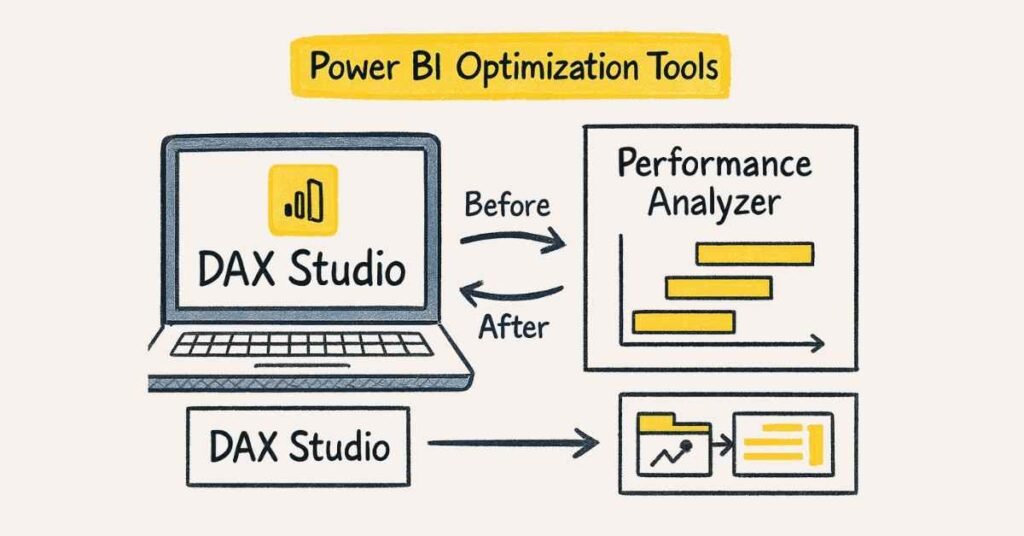
- DAX Problem-Solving Practice
Dedicate 30-40% of technical preparation to DAX mastery working through progressively difficult problems. Start with basic aggregations, advance to time intelligence calculations, practice context manipulation with CALCULATE and FILTER, master iterator functions, and tackle complex scenarios combining multiple concepts. Use platforms like DAX.do, Power BI community challenges, or create own scenarios.
- Data Modeling Scenario Practice
Practice translating business scenarios into optimal data models. Given requirements, sketch star schemas identifying fact and dimension tables, determine relationship types and cardinality, identify slowly changing dimensions, plan for hierarchies and role-playing dimensions, and document design decisions with rationale. Review Microsoft’s star schema guidance and best practices regularly.
- Performance Optimization Exercises
Create intentionally inefficient Power BI solutions then systematically optimize them. Practice identifying bottlenecks using Performance Analyzer, refactoring DAX with variables and improved logic, restructuring data models for better compression, implementing aggregations for large datasets, and measuring improvements quantitatively. Document optimization patterns for interview discussion.
- Mock Technical Interviews
Schedule mock interviews with peers, mentors, or use platforms offering AI-based interview practice. Practice screen sharing while solving problems, verbalizing thought processes clearly, handling follow-up questions under pressure, and explaining technical decisions confidently. Record sessions to identify communication weaknesses. Aim for 3-5 mock interviews before actual interviews.
- Whiteboard Conceptual Design Practice
Practice explaining Power BI concepts on whiteboard or digital canvas without software access. Sketch data model diagrams showing relationships, illustrate DAX evaluation flow with filter context propagation, draw report layout mockups with navigation patterns, or explain data flow from sources through transformations to visuals. This tests conceptual understanding beyond tool proficiency.
Managing Interview Stress and Anxiety
- Pre-Interview Technical Preparation
Week before interview, review fundamentals rather than cramming new advanced topics. Revisit your portfolio projects ensuring you can explain every aspect, practice common interview questions, review job description identifying required skills, and prepare questions for interviewer. Create confidence through preparation not last-minute panic.
- Physical and Mental Preparation
Get adequate sleep the night before maintaining regular sleep schedule for several days prior. Eat nutritious breakfast on interview day avoiding heavy foods causing sluggishness, stay hydrated with water available during interview, and exercise morning of interview to release nervous energy and boost alertness. Physical wellness supports mental performance.
- The STOP Technique for Interview Anxiety
When anxiety rises during interview, use STOP method: Stop and acknowledge nervous thoughts without judgment, Take slow deep breaths focusing on breathing rhythm, Observe physical sensations and emotions objectively, Proceed with intentional focus on the question or task. This mindfulness approach prevents anxiety spirals and restores composure.
- Reframing Technical Interviews
View interviews as professional conversations rather than interrogations reducing intimidation. Remember interviewers want candidates to succeed and typically provide supportive environment. Recognize that demonstrating problem-solving approach matters more than perfect answers. Most candidates don’t lose opportunities due to nervousness alone but due to lack of preparation.
- Controlling Controllables
Focus energy on controllable factors: thorough preparation, professional appearance, punctuality, positive attitude, and clear communication. Accept that unknown questions will appear and nervousness is normal and expected. Interviewers evaluate overall capability not perfection in every response. Let go of factors outside control like interviewer personality or company circumstances.
Virtual Interview Best Practices for Power BI Roles
- Technical Setup and Testing
Test technology 30 minutes before interview ensuring camera clarity, microphone quality, internet stability, and screen sharing functionality. Close unnecessary applications preventing notifications or performance issues, ensure Power BI Desktop loads quickly with portfolio projects ready, and have backup device available if primary fails. Test in actual interview environment not different location.
- Virtual Environment Optimization
Position camera at eye level for natural engagement, ensure proper lighting with light source in front not behind creating shadows, choose professional background free of distractions or use appropriate virtual background. Dress professionally top to bottom even though only upper body visible maintaining professional mindset. Silence phones and inform household members about interview timing.
- Screen Sharing Demonstration Preparation
Organize desktop and browser tabs before interview removing personal or confidential content. Have Power BI Desktop open with portfolio ready, relevant documentation available in organized folders, and browser tabs prepared with any supporting materials. Practice navigating between files smoothly avoiding awkward searching during interview. Close email and messaging applications preventing notifications during sharing.
- Presenting Power BI Work Virtually
When demonstrating reports, narrate actions clearly explaining what you’re clicking and why. Zoom to important visualizations ensuring interviewer can see details, pause after showing features allowing questions, and check in with interviewer confirming they can see screen properly. Speak at measured pace avoiding rushing through demonstrations.
- Handling Technical Difficulties Gracefully
If technical issues occur, stay calm communicating the problem clearly. Have phone number available to switch to audio if video fails, offer to reschedule if major issues prevent meaningful conversation, and apologize briefly without over-explaining or making excuses. Professional handling of difficulties demonstrates composure and problem-solving under pressure.
Post-Interview Follow-Up Excellence
- Thank-You Email Timing and Structure
Send personalized thank-you email within 24 hours while conversation is fresh. Use clear subject line “Thank You – [Your Name] – Power BI Developer Position” for easy identification. Express genuine gratitude for interviewer’s time, reference specific discussion points that resonated, reiterate interest in role and company, and offer to provide additional information if needed. Keep email concise under 200 words.
- Power BI Developer Thank-You Email Template
“Subject: Thank You – [Your Name] – Power BI Developer Position
Dear [Interviewer’s Name],
Thank you for taking time to discuss the Power BI Developer role at [Company] today. I enjoyed learning about your enterprise analytics initiatives, particularly the [specific project or challenge discussed].
Our conversation about [technical topic discussed, e.g., data modeling challenges or performance optimization strategies] reinforced my enthusiasm for contributing to your team. My experience with [relevant skill or project] aligns well with your needs, and I’m excited about the opportunity to [specific contribution discussed].
I’m confident my [specific technical strength] and passion for data-driven decision-making would enable me to deliver value to your BI team immediately.
Please let me know if you need additional information about my portfolio or technical background. I look forward to next steps.
Best regards,
[Your Name]
[LinkedIn Profile URL]
[Portfolio Website/GitHub]”
- Personalization and Specificity
Customize each thank-you email referencing unique aspects of conversations with different interviewers. Mention specific technical topics discussed (DAX challenges, data modeling approach, visualization strategies), projects that excited you, or company initiatives that align with your interests. Generic templates appear insincere; personalization demonstrates attentiveness and genuine engagement.
- Following Up on Portfolio or Technical Examples
If you promised to send additional portfolio examples, DAX code samples, or technical documentation, include them in thank-you email or separate follow-up within 24 hours. Organize materials professionally with clear labels, explanatory notes, and context connecting to interview discussion. Meeting commitments made during interviews demonstrates reliability and follow-through.
- Timeline Follow-Up Protocol
If interviewer didn’t mention next steps timeline, politely inquire in thank-you email: “Could you share the expected timeline for next steps in your process?”. If timeline was provided but deadline passes without communication, wait 2-3 business days after expected date before sending polite follow-up inquiry. Keep follow-up brief, professional, and understanding of potential delays.
- Handling Multiple Interviewers
Send individual thank-you emails to each interviewer rather than group messages, personalizing content based on specific interaction with each person. If you can’t identify all interviewer emails, request them from HR contact or send general email asking HR to share your thanks with the panel. Individual emails show extra effort and attention to relationship-building.
- Graceful Rejection Response
If receiving rejection, send gracious response thanking them for opportunity, expressing continued interest in future roles, and requesting feedback on areas for improvement. Professional handling maintains positive relationships for potential future opportunities. Many companies keep strong candidates in mind for other positions when handled well.
Interview Day Preparation Checklist
- Technical Materials Organization
Prepare physical or digital copies of resume with portfolio URLs prominent, list of references with contact information, questions for interviewer organized by priority, and notebook for taking notes. For virtual interviews, have backup copies of key portfolio screenshots in case live sharing fails. Organize materials allowing quick access without fumbling.
- Power BI-Specific Preparation
Ensure Power BI Desktop is updated to latest version avoiding version-related issues, verify all portfolio reports open correctly and refresh successfully, prepare to explain any technical decisions or code samples in detail, and have DAX Studio or Tabular Editor available if relevant to role. Review recent Power BI feature updates showing awareness of latest capabilities.
- Mental Preparation Routine
Review key Power BI concepts without cramming new material morning of interview. Practice positive self-talk focusing on preparation completed and strengths rather than potential weaknesses. Visualize successful interview performance and positive interactions boosting confidence. Arrive physically or virtually 10-15 minutes early settling nerves and demonstrating punctuality.
- Contingency Planning
Identify backup plans for common issues: alternative route if traffic delays in-person interviews, recruiter contact information if running late, backup device for virtual interviews, mobile hotspot if internet fails. Having contingencies reduces anxiety about uncontrollable factors. Communicate proactively if unexpected issues arise rather than going silent.
- First Impression Preparation
Plan professional attire appropriate for company culture researched beforehand. Business professional (suit) is safe default unless company is explicitly casual. Groom well, ensure neat appearance, and practice confident greeting with smile and firm handshake for in-person or warm greeting for virtual. First impressions significantly influence interviewer perception.
- During Interview Best Practices
Listen actively taking brief notes on questions and key points without breaking eye contact excessively. Ask for clarification if questions are ambiguous rather than guessing intent. Pause briefly before answering collecting thoughts ensuring coherent responses rather than rushing. If stuck, verbalize thought process showing problem-solving approach even without perfect answer.
- Post-Interview Reflection
After each interview, document questions asked for future reference, topics discussed showing interviewer priorities, areas handled well reinforcing confidence, areas needing improvement for preparation adjustment, and overall impressions helping evaluate company fit. This reflection improves performance in subsequent rounds or future interviews. Track patterns identifying consistent strengths or weaknesses.
- Learning from Interview Experiences
Analyze each interview as learning opportunity regardless of outcome. Identify knowledge gaps exposed and add to study priorities, note communication approaches that resonated well, recognize technical areas where deeper expertise would help, and adjust portfolio or resume based on questions received. Each interview makes next one stronger through experience.
Building Confidence Through Preparation
- Systematic Skill Building
Build genuine confidence through competence development not surface-level affirmations. Master fundamentals thoroughly before advancing to complex topics creating solid foundation. Practice explaining concepts until they become natural conversational topics. Confidence emerges naturally from deep understanding and preparation.
- Mock Interview Practice Value
Conduct 3-5 mock interviews with peers, mentors, or professional services simulating real pressure. Practice articulating technical concepts clearly, handling challenging questions gracefully, and demonstrating portfolio effectively. Repeated exposure to interview conditions reduces anxiety through familiarity. Request honest feedback identifying improvement areas.
- Celebrating Small Wins
Acknowledge progress throughout preparation journey maintaining motivation. Celebrate completing difficult DAX challenges, finishing portfolio projects, or receiving positive mock interview feedback. Track improvements in knowledge assessments showing tangible progress. Positive reinforcement sustains long-term preparation efforts.
- Managing Imposter Syndrome
Many Power BI developers experience imposter syndrome despite competence. Remember that no one knows everything about Power BI, interviewers expect learning gaps especially in rapidly evolving platform, and questions about unfamiliar topics are opportunities showing problem-solving approach not failures. Focus on genuine preparation and authentic representation of skills.
- Final Pre-Interview Review
Night before interview, conduct final review of portfolio ensuring all reports function properly, key technical concepts refreshed without deep studying causing stress, behavioral stories rehearsed for natural delivery, and questions for interviewer finalized. Avoid cramming new material preferring rest and mental preparation. Trust preparation completed and approach interview with confidence earned through diligent work.
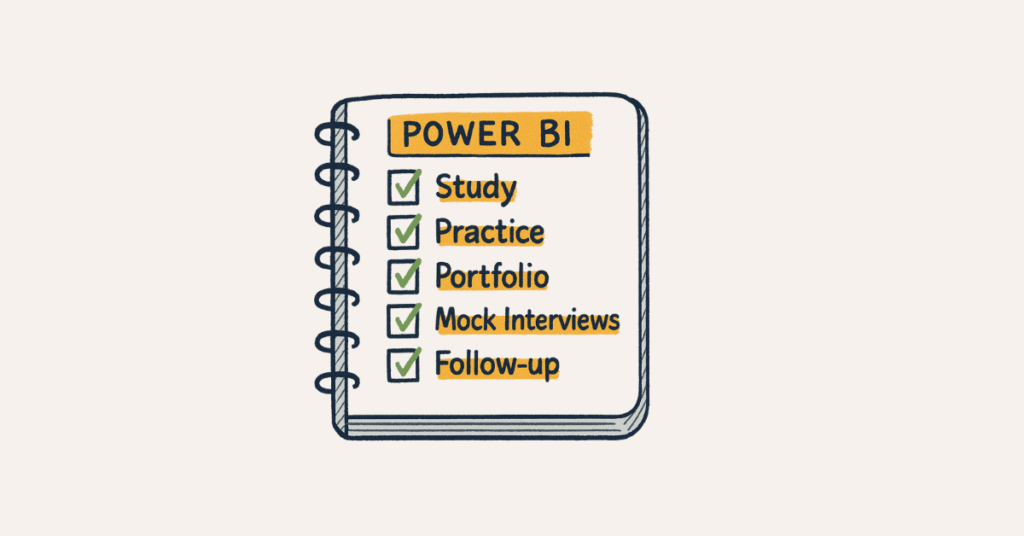
🎯 Continue your journey with Frontlines Edutech:
📘 All Resources → Practice & templates
🧭 Roadmaps → Learning paths
💡 How-to Guides → Tips & walkthroughs
🎓 Courses → Expert-led modules