
Advanced Excel With AI Interview Questions Preparation Guide
✅ Module 1: 200+ Technical Interview Questions & Answers
✅ Module 2: 50 Self-Preparation Prompts Using ChatGPT
✅ Module 3: Communication Skills and Behavioral Interview Preparation
✅ Module 4: Additional Preparation Elements (Pre-Interview, During, Post-Interview, Resume Tips, Common Mistakes)
🎯 Ready to boost your interview prep?
Explore our full collection of free learning resources designed for tech professionals
Module 1: 200+ Technical Interview Questions & Answers
- Excel Basics & Interface (Questions 1-25)
- Basic Formulas & Functions (Questions 26-55)
- Logical & Conditional Functions (Questions 56-90)
- Lookup & Reference Functions (Questions 91-120)
- Data Manipulation & Text Functions (Questions 121-145)
- Date & Time Functions (Questions 146-165)
- Data Analysis & PivotTables (Questions 166-190)
- Charts & Data Visualization (Questions 191-210)
- Prompt Engineering for Excel with ChatGPT (Questions 211-235)
- Advanced Functions & Automation (Questions 236-270)
Section A: Excel Basics & Interface (25 Questions)
Q1: What is Microsoft Excel and why is it used in companies?
Excel is a spreadsheet software where you can organize data in rows and columns, do calculations, create charts, and analyze information. Companies use it for budgeting, tracking sales, managing inventory, creating reports, and making business decisions based on data.
Q2: Explain the difference between a workbook and a worksheet.
A workbook is the entire Excel file you save on your computer. A worksheet is a single tab or page inside that workbook where you actually work with data. One workbook can have multiple worksheets.
Q3: What are rows and columns in Excel?
Rows run horizontally across the screen and are numbered (1, 2, 3…). Columns run vertically and are labeled with letters (A, B, C…). When a row and column meet, they form a cell.
Q4: What is a cell reference? Give an example.
A cell reference is the address of a cell based on its column letter and row number. For example, B5 means the cell in column B and row 5. You use cell references in formulas to tell Excel which data to work with.

Q5: What is the difference between relative and absolute cell references?
Relative reference (like A1) changes when you copy the formula to another cell. Absolute reference (like $A$1) stays fixed no matter where you copy it. Mixed reference (like $A1 or A$1) keeps either the column or row fixed.
Q6: When would you use an absolute reference in real work?
When you’re calculating tax rates, discount percentages, or conversion rates that stay the same for all rows. For example, if the tax rate is in cell B2 and you need to multiply different amounts by that same rate, you’d use $B$2.
Q7: What is the Name Box in Excel?
The Name Box is located on the left side above the spreadsheet, showing the address of the currently selected cell. You can also use it to quickly jump to a specific cell by typing its address.
Q8: What is the Formula Bar?
The Formula Bar appears below the ribbon and shows what’s inside the selected cell – either the actual data or the formula used to calculate it. You can edit cell content directly here.
Q9: How do you select an entire row or column?
Click on the row number to select the whole row, or click on the column letter to select the entire column. You can also use keyboard shortcuts: Shift+Space for rows and Ctrl+Space for columns.
Q10: What are Excel shortcuts you use most often?
Common shortcuts include Ctrl+C (copy), Ctrl+V (paste), Ctrl+Z (undo), Ctrl+S (save), Ctrl+F (find), Ctrl+Home (go to cell A1), and Ctrl+Arrow keys (jump to the edge of data).
Q11: How do you freeze panes in Excel and why is it useful?
Go to View tab, click Freeze Panes, and choose what you want to freeze. This keeps header rows or first columns visible while you scroll through large datasets, making it easier to understand what each column represents.
Q12: What file formats can Excel save files in?
Excel can save as .xlsx (standard Excel), .xls (older version), .csv (comma-separated values), .pdf (for sharing), .xlsm (with macros), and several other formats depending on how you need to share the file.
Q13: What is the difference between .xlsx and .xlsm files?
.xlsx is the regular Excel file that doesn’t contain macros. .xlsm files can save macros and automation code. If you record or write VBA code, you need to save it as .xlsm.
Q14: How do you protect a worksheet from being edited?
Go to Review tab and click Protect Sheet. You can set a password and choose what actions users can perform. This prevents accidental changes to important formulas or formatting.
Q15: What is the Quick Access Toolbar?
It’s the small toolbar at the very top left of Excel where you can add your most-used commands like Save, Undo, and New. You can customize it to include any command you use frequently.
Q16: How do you hide and unhide columns or rows?
Select the column or row, right-click, and choose Hide. To unhide, select the columns or rows on both sides, right-click, and choose Unhide. Or use Ctrl+Shift+0 for columns and Ctrl+Shift+9 for rows.

Q17: What is AutoFill and how does it save time?
AutoFill is when you drag the small square at the bottom-right corner of a cell to copy data, continue patterns, or copy formulas down. It automatically adjusts formulas and recognizes patterns like dates or number sequences.
Q18: How do you adjust column width to fit content?
Double-click the line between two column headers to auto-fit the left column. Or select columns and go to Home tab, Format, AutoFit Column Width. This ensures all content is visible.
Q19: What is conditional formatting and give one example?
Conditional formatting changes cell colors or styles based on their values. For example, you can highlight all sales above target in green and below target in red, making it instantly visible which products performed well.
Q20: How do you remove duplicate values from a dataset?
Select your data, go to Data tab, click Remove Duplicates, choose which columns to check, and Excel will delete rows that are exact duplicates, keeping only unique records.
Q21: What is Flash Fill and how does it work?
Flash Fill automatically detects patterns in your data. If you type an example of what you want in one cell and press Ctrl+E, Excel will fill the rest based on your pattern. It’s useful for splitting names or formatting text.
Q22: How do you split text in one column into multiple columns?
Select the column, go to Data tab, click Text to Columns, choose Delimited or Fixed Width, select your separator (like comma or space), and Excel will split the data across multiple columns.
Q23: What is Wrap Text and when do you use it?
Wrap Text makes long text visible within a cell by displaying it on multiple lines inside the same cell. You use it when you have lengthy descriptions and don’t want to expand the column too wide.
Q24: How do you insert a new worksheet in a workbook?
Click the + button next to existing worksheet tabs at the bottom, or right-click any tab and choose Insert, then Worksheet. You can also use the shortcut Shift+F11.
Q25: What are comments and notes in Excel?
Comments and notes let you add explanations or instructions to cells without cluttering the actual data. Comments can be threaded for collaboration, while notes are simpler and just show when you hover over the cell.

Section B: Basic Formulas & Functions (30 Questions)
Q26: What is the difference between a formula and a function?
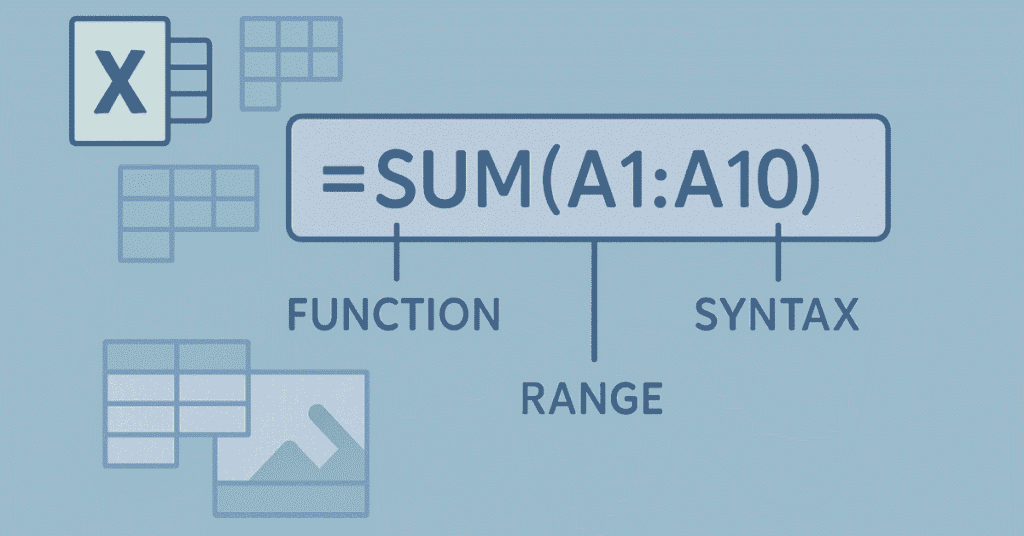
A formula is any calculation you write that starts with an equals sign. A function is a pre-built formula that Excel provides, like SUM or AVERAGE, which performs specific calculations without you having to write the entire logic.
Q27: Write a formula to add numbers in cells A1 to A10.
=SUM(A1:A10)
Q28: How do you calculate the average of numbers in cells B1 to B20?
=AVERAGE(B1:B20)
Q29: What function finds the highest value in a range?
=MAX(range) – for example, =MAX(C1:C50) finds the largest number in that range.
Q30: What function finds the lowest value?
=MIN(range) – for example, =MIN(D1:D50) returns the smallest number.
Q31: How do you count how many cells contain numbers in a range?
=COUNT(range) – this only counts cells with numeric values, ignoring text and blank cells.
Q32: What’s the difference between COUNT and COUNTA?
COUNT only counts cells with numbers. COUNTA counts all non-empty cells including text, dates, and numbers. Use COUNTA when you want to count any filled cells.
Q33: How do you count blank cells in a range?
=COUNTBLANK(range) – this tells you how many cells in the specified range are empty.
Q34: What is the TODAY function?
=TODAY() automatically inserts today’s date. It updates every time you open the file, so it’s always current. You don’t need any arguments inside the parentheses.
Q35: How do you insert the current date and time?
=NOW() gives you both the current date and time. Like TODAY, it updates automatically when you open the file.
Q36: How do you calculate someone’s age from their birthdate?
=DATEDIF(birthdate, TODAY(), “Y”) – this calculates complete years between the birth date and today. Replace birthdate with the cell reference containing the date.
Q37: What does the formula =A1+A2 do versus =SUM(A1:A2)?
Both add the values in A1 and A2, but the SUM function is better for larger ranges. If you’re adding many cells, SUM is cleaner and less error-prone than writing A1+A2+A3+A4…
Q38: How do you multiply all values in a range?
=PRODUCT(range) – for example, =PRODUCT(A1:A5) multiplies all five numbers together.
Q39: What is the ROUND function and why use it?
=ROUND(number, digits) rounds a number to a specified number of decimal places. For example, =ROUND(7.8957, 2) gives 7.90. It’s useful for cleaning up currency or percentages.
Q40: What’s the difference between ROUND, ROUNDUP, and ROUNDDOWN?
ROUND rounds to the nearest value. ROUNDUP always rounds up (away from zero). ROUNDDOWN always rounds down (toward zero). Use ROUNDUP for things like calculating packages needed.
Q41: How do you calculate a percentage in Excel?
Divide the part by the total. For example, if sales are in A1 and target is in B1, the formula is =A1/B1. Format the cell as percentage to see it as 85% instead of 0.85.
Q42: How do you calculate percentage increase between two values?
=(New Value – Old Value)/Old Value. For example, =(B2-A2)/A2 shows how much B2 increased compared to A2. Format as percentage.
Q43: What is the POWER function?
=POWER(number, power) raises a number to a power. For example, =POWER(2,3) calculates 2³ which equals 8. It’s useful for compound interest calculations.
Q44: How do you calculate square root in Excel?
=SQRT(number) – for example, =SQRT(16) returns 4. This is commonly used in statistical calculations or geometry problems.
Q45: What does the ABS function do?
=ABS(number) returns the absolute value, removing any negative sign. =ABS(-50) becomes 50. It’s useful when you only care about the magnitude, not the direction of change.
Q46: How do you find the remainder after division?
=MOD(number, divisor) – for example, =MOD(10,3) returns 1 because 10 divided by 3 equals 3 with remainder 1. Useful for identifying patterns or every nth item.
Q47: What is the INT function?
=INT(number) removes decimals and rounds down to the nearest integer. =INT(7.9) becomes 7. Different from ROUND which may round up.
Q48: How do you combine text from two cells?
=CONCATENATE(A1, ” “, B1) or simply =A1&” “&B1. Both join text together. The second method is simpler and commonly used now.
Q49: What function changes text to uppercase?
=UPPER(text) – for example, =UPPER(“hello”) returns “HELLO”. Useful for standardizing names or codes.
Q50: What function changes text to lowercase?
=LOWER(text) – for example, =LOWER(“HELLO”) returns “hello”. Often used for email addresses or data cleaning.
Q51: How do you capitalize the first letter of each word?
=PROPER(text) – for example, =PROPER(“john smith”) returns “John Smith”. Great for fixing name formatting.
Q52: How do you remove extra spaces from text?
=TRIM(text) removes leading, trailing, and excess spaces between words, leaving only single spaces. Essential for cleaning imported data.
Q53: What does the LEN function do?
=LEN(text) counts the number of characters including spaces. For example, =LEN(“Hello”) returns 5. Useful for checking if text meets length requirements.
Q54: How do you extract the first 3 characters from a cell?
=LEFT(text, 3) – for example, =LEFT(A1, 3) takes the first three characters from cell A1. Useful for extracting codes or prefixes.
Q55: How do you extract the last 4 characters?
=RIGHT(text, 4) – for example, =RIGHT(A1, 4) takes the last four characters. Commonly used for extracting year from dates in text format.
Section C: Logical & Conditional Functions (35 Questions)
Q56: What is the IF function and how does it work?
IF tests a condition and returns one value if true, another if false. Syntax: =IF(condition, value_if_true, value_if_false). For example, =IF(A1>100, “High”, “Low”) displays “High” if A1 is greater than 100.
Q57: Write an IF formula to check if a student passed (marks >= 40) or failed.
=IF(A1>=40, “Pass”, “Fail”) – where A1 contains the student’s marks.
Q58: How do you write nested IF statements?
Put one IF inside another. Example: =IF(A1>=90, “A”, IF(A1>=80, “B”, IF(A1>=70, “C”, “F”))) assigns grades based on score ranges.
Q59: What is the IFS function and how is it better than nested IF?
IFS tests multiple conditions without nesting. Syntax: =IFS(condition1, value1, condition2, value2…). It’s cleaner and easier to read than nested IFs. Example: =IFS(A1>=90,”A”, A1>=80,”B”, A1>=70,”C”, TRUE,”F”)
Q60: What does the AND function do?
AND checks if all conditions are true. =AND(A1>10, B1<50) returns TRUE only if both A1 is greater than 10 AND B1 is less than 50. Often used inside IF statements.
Q61: What does the OR function do?
OR checks if at least one condition is true. =OR(A1>100, B1>100) returns TRUE if either A1 or B1 exceeds 100. Useful when any one criteria is sufficient.
Q62: How would you use AND with IF?
=IF(AND(A1>50, B1>50), “Both Pass”, “At Least One Fails”) – this checks if both conditions are met before displaying “Both Pass.”
Q63: Give an example using OR with IF.
=IF(OR(A1=”Holiday”, A1=”Weekend”), “Off Day”, “Working Day”) – returns “Off Day” if A1 contains either “Holiday” or “Weekend.”
Q64: What is the NOT function?
NOT reverses a logical value. =NOT(A1>100) returns TRUE if A1 is NOT greater than 100. It flips TRUE to FALSE and vice versa.
Q65: What does COUNTIF do?
COUNTIF counts cells that meet a single condition. Syntax: =COUNTIF(range, criteria). Example: =COUNTIF(A1:A50, “>100”) counts how many cells in that range are greater than 100.
Q66: How do you count cells that contain specific text?
=COUNTIF(A1:A50, “Approved”) counts how many cells contain the exact word “Approved.” Use wildcards like “App*” to match partial text.
Q67: What is COUNTIFS and how is it different from COUNTIF?
COUNTIFS counts cells meeting multiple conditions. Example: =COUNTIFS(A1:A50,”>100″, B1:B50,”Approved”) counts rows where column A exceeds 100 AND column B says “Approved.”
Q68: What does SUMIF do?
SUMIF adds up numbers that meet a condition. Syntax: =SUMIF(range, criteria, sum_range). Example: =SUMIF(A1:A50, “>100”, B1:B50) sums values in B1:B50 where corresponding A values exceed 100.
Q69: Give a practical example of SUMIF.
=SUMIF(A:A, “Electronics”, B:B) sums all sales in column B where the product category in column A is “Electronics.” This helps calculate category-wise revenue.
Q70: What is SUMIFS and when do you use it?
SUMIFS sums values meeting multiple criteria. Example: =SUMIFS(C:C, A:A, “Electronics”, B:B, “>1000”) sums column C where category is Electronics AND amount exceeds 1000.
Q71: What does AVERAGEIF do?
AVERAGEIF calculates the average of cells meeting a condition. Example: =AVERAGEIF(A1:A50, “>50”, B1:B50) averages values in B where A is greater than 50.
Q72: What is AVERAGEIFS?
AVERAGEIFS calculates averages with multiple conditions. Example: =AVERAGEIFS(C:C, A:A, “North”, B:B, “Q1”) averages sales where region is North and quarter is Q1.
Q73: What is the IFERROR function?
IFERROR handles errors gracefully. Syntax: =IFERROR(formula, value_if_error). Example: =IFERROR(A1/B1, “Cannot Divide”) displays “Cannot Divide” instead of #DIV/0! error.
Q74: Why is IFERROR important in real work?
It keeps your spreadsheets clean and professional by replacing ugly error messages with meaningful text or zeros. Prevents confusion when sharing reports with managers or clients.
Q75: How do you use IFERROR with VLOOKUP?
=IFERROR(VLOOKUP(A1, Table, 2, FALSE), “Not Found”) – if the lookup fails, it shows “Not Found” instead of #N/A error.
Q76: What is the IFNA function?
IFNA specifically handles #N/A errors, which commonly occur with lookup functions. =IFNA(VLOOKUP(A1, Table, 2, FALSE), “No Match”) is cleaner than IFERROR when you only want to catch lookup failures.
Q77: How do you check if a cell is blank?
=IF(A1=””, “Empty”, “Has Data”) or =IF(ISBLANK(A1), “Empty”, “Has Data”). Both check if the cell is empty and respond accordingly.
Q78: What does the ISBLANK function do?
ISBLANK returns TRUE if a cell is completely empty, FALSE otherwise. Always use it inside IF: =IF(ISBLANK(A1), “Fill this”, “OK”)
Q79: What is the ISNUMBER function?
ISNUMBER returns TRUE if a cell contains a number, FALSE if it contains text or is empty. Useful for data validation: =IF(ISNUMBER(A1), “Valid”, “Enter Number”)
Q80: What is the ISTEXT function?
ISTEXT returns TRUE if a cell contains text. Example: =IF(ISTEXT(A1), “Text Found”, “Not Text”) helps identify cells that should contain names versus numbers.
Q81: How would you mark rows where sales exceeded target?
=IF(B2>C2, “Above Target”, “Below Target”) – where B2 is actual sales and C2 is target. Helps quickly identify which salespeople met their goals.
Q82: Write a formula to calculate bonus: 10% if sales > 100000, else 5%.
=IF(A1>100000, A10.10, A10.05) – multiplies sales by the appropriate bonus percentage based on the condition.
Q83: How do you assign letter grades based on numerical scores?
=IFS(A1>=90,”A”, A1>=80,”B”, A1>=70,”C”, A1>=60,”D”, TRUE,”F”) – checks score ranges and assigns corresponding grades.
Q84: What formula checks if a date is in the current month?
=IF(MONTH(A1)=MONTH(TODAY()), “Current Month”, “Other Month”) – compares the month of the date in A1 with today’s month.
Q85: How do you identify weekends using a formula?
=IF(OR(WEEKDAY(A1)=1, WEEKDAY(A1)=7), “Weekend”, “Weekday”) – WEEKDAY returns 1 for Sunday and 7 for Saturday.
Q86: Write a formula to check if an email contains “@” symbol.
=IF(ISNUMBER(FIND(“@”,A1)), “Valid Format”, “Invalid”) – FIND locates the @ symbol, and ISNUMBER checks if it was found.
Q87: How do you calculate late fees: $50 if more than 30 days overdue, else $0?
=IF((TODAY()-A1)>30, 50, 0) – where A1 is the due date. Calculates days difference and assigns the fee.
Q88: What formula gives different discounts based on quantity purchased?
=IFS(A1>=100, 0.20, A1>=50, 0.15, A1>=10, 0.10, TRUE, 0) – assigns 20%, 15%, or 10% discount based on quantity tiers.
Q89: How do you flag duplicate entries in a column?
=IF(COUNTIF($A$1:A1, A1)>1, “Duplicate”, “Unique”) – drag this down. It checks if the value appears more than once up to the current row.
Q90: Write a formula to calculate tax: 18% if amount > 1000, else 12%.
=IF(A1>1000, A10.18, A10.12) – applies the appropriate tax rate based on the amount threshold.
Section D: Lookup & Reference Functions (30 Questions)
Q91: What is VLOOKUP and when do you use it?
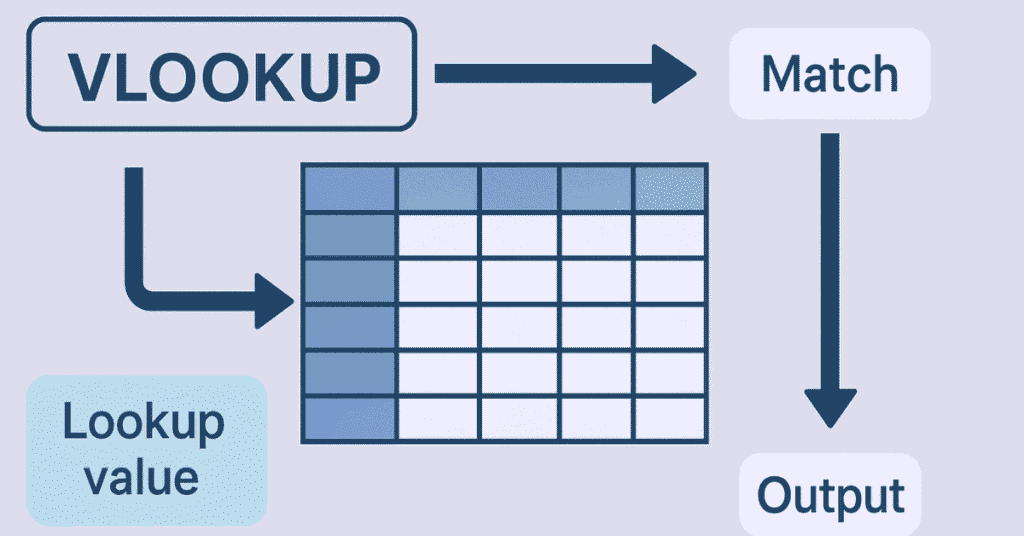
VLOOKUP searches for a value in the first column of a table and returns a value from another column in the same row. Used for finding prices, names, or any related information from a reference table.
Q92: Explain the syntax of VLOOKUP.
=VLOOKUP(lookup_value, table_array, col_index_num, [range_lookup])
- lookup_value: what you’re searching for
- table_array: where to search
- col_index_num: which column to return data from
- range_lookup: FALSE for exact match, TRUE for approximate
Q93: Write a VLOOKUP to find a product price from a price list.
=VLOOKUP(A2, PriceTable, 3, FALSE) – searches for product in A2 within PriceTable and returns the value from the 3rd column (price).
Q94: What does FALSE mean in VLOOKUP?
FALSE means exact match only. Excel will find only the exact value you’re looking for. If it doesn’t exist, it returns #N/A error. Use FALSE for most business scenarios.
Q95: What does TRUE mean in VLOOKUP?
TRUE means approximate match. Excel finds the closest value that’s less than or equal to your lookup value. The lookup column must be sorted. Used for grade brackets or tax slabs.
Q96: What is the #N/A error in VLOOKUP and how do you fix it?
#N/A means the lookup value wasn’t found in the first column of your table. Check for spelling errors, extra spaces, or ensure you’re searching the right range. Wrap in IFERROR to handle gracefully.
Q97: What are the limitations of VLOOKUP?
VLOOKUP can only look to the right (can’t return values from columns to the left of lookup column). It counts columns manually which breaks if you insert/delete columns. It’s slower with huge datasets.
Q98: What is HLOOKUP and how is it different from VLOOKUP?
HLOOKUP searches horizontally in rows instead of vertically in columns. The lookup value is in the first row, and it returns data from a specified row below. Used when data is arranged in rows instead of columns.
Q99: Write an HLOOKUP formula.
=HLOOKUP(A2, DataTable, 3, FALSE) – searches for A2 in the first row of DataTable and returns data from the 3rd row down.
Q100: What is XLOOKUP and why is it better than VLOOKUP?
XLOOKUP is more flexible: it can look left or right, doesn’t need column numbers, automatically handles errors, and works with both vertical and horizontal data. It’s the modern replacement for VLOOKUP.
Q101: Write an XLOOKUP formula.
=XLOOKUP(A2, LookupRange, ReturnRange, “Not Found”) – searches A2 in LookupRange and returns corresponding value from ReturnRange, showing “Not Found” if no match.
Q102: What is INDEX function?
INDEX returns a value from a specific position in a range. =INDEX(A1:C10, 5, 2) returns the value at the 5th row and 2nd column of the range.
Q103: What is MATCH function?
MATCH finds the position of a value within a range. =MATCH(“Apple”, A1:A10, 0) tells you which row number contains “Apple.” The 0 means exact match.
Q104: How do you combine INDEX and MATCH?
=INDEX(ReturnRange, MATCH(LookupValue, LookupRange, 0)) – MATCH finds the position, INDEX returns the value from that position. More flexible than VLOOKUP.
Q105: Why is INDEX-MATCH better than VLOOKUP?
INDEX-MATCH can look left, doesn’t break when columns are inserted, is faster with large datasets, and you can change lookup and return ranges independently.
Q106: Write INDEX-MATCH to find employee salary.
=INDEX(SalaryColumn, MATCH(EmployeeName, NameColumn, 0)) – finds the employee’s name position and returns the corresponding salary.
Q107: How do you do a two-way lookup with INDEX-MATCH?
=INDEX(DataRange, MATCH(RowValue, RowRange, 0), MATCH(ColValue, ColRange, 0)) – finds both row and column positions to return data from a table intersection.
Q108: What is the CHOOSE function?
CHOOSE returns a value from a list based on position number. =CHOOSE(2, “Red”, “Green”, “Blue”) returns “Green” (the 2nd option). Useful for dynamic selections.
Q109: Give a practical use of CHOOSE.
=CHOOSE(MONTH(A1), “Jan”, “Feb”, “Mar”, “Apr”, “May”, “Jun”, “Jul”, “Aug”, “Sep”, “Oct”, “Nov”, “Dec”) converts month numbers to month names.
Q110: What is the INDIRECT function?
INDIRECT converts text into a cell reference. =INDIRECT(“A”&ROW()) dynamically creates references. If you’re in row 5, it becomes A5. Useful for dynamic range references.
Q111: How does INDIRECT help with dynamic ranges?
=SUM(INDIRECT(A1&”:”&A10)) creates a range based on values in cells. If A1 contains “B2” and A10 contains “B50”, it sums B2:B50 dynamically.
Q112: What is the OFFSET function?
OFFSET returns a reference shifted from a starting point. =OFFSET(A1, 2, 3, 1, 1) moves 2 rows down and 3 columns right from A1. Useful for dynamic ranges that change size.
Q113: How would you use OFFSET to create a dynamic range?
=SUM(OFFSET(A1, 0, 0, COUNTA(A:A), 1)) sums all filled cells in column A regardless of how many rows have data. The range adjusts automatically.
Q114: What is the ROWS function?
=ROWS(A1:A10) returns 10, counting how many rows are in the range. Useful in formulas that need to know range size.
Q115: What is the COLUMNS function?
=COLUMNS(A1:E1) returns 5, counting how many columns are in the range. Often used with OFFSET or INDEX for dynamic calculations.
Q116: How do you find the address of a cell using a formula?
=ADDRESS(5, 3) returns “$C$5” – the cell address at row 5, column 3. Useful when building dynamic references programmatically.
Q117: What is the CELL function?
CELL returns information about a cell’s formatting, location, or content. =CELL(“address”, A1) returns the cell address. =CELL(“color”, A1) returns 1 if formatted for color.
Q118: How do you get the filename and path in Excel?
=CELL(“filename”, A1) returns the full path, filename, and sheet name of the workbook. Useful for documentation or tracking which file you’re working in.
Q119: What does the HYPERLINK function do?
HYPERLINK creates clickable links. =HYPERLINK(“www.example.com“, “Click Here”) displays “Click Here” as clickable text that opens the website.
Q120: How do you create a hyperlink to another sheet?
=HYPERLINK(“#Sheet2!A1”, “Go to Sheet2”) creates a link that jumps to cell A1 on Sheet2 when clicked.
Section E: Data Manipulation & Text Functions (25 Questions)

Q121: What is the SUBSTITUTE function?
SUBSTITUTE replaces specific text within a string. =SUBSTITUTE(A1, “old”, “new”) replaces “old” with “new” wherever it appears in cell A1.
Q122: How is SUBSTITUTE different from REPLACE?
SUBSTITUTE replaces specific text anywhere in the string. REPLACE changes text at a specific position regardless of what it says. REPLACE is position-based, SUBSTITUTE is content-based.
Q123: What does the REPLACE function do?
REPLACE changes characters at a specific location. =REPLACE(A1, 1, 3, “XXX”) replaces the first 3 characters of A1 with “XXX”, regardless of what those characters are.
Q124: How do you extract the middle portion of text?
=MID(text, start_position, number_of_characters). Example: =MID(“Hello World”, 7, 5) extracts “World” – starting at position 7, taking 5 characters.
Q125: Write a formula to extract area code from phone number “(555) 123-4567”.
=MID(A1, 2, 3) extracts the 3 digits starting from position 2, giving “555”.
Q126: How do you find if one text contains another?
=IF(ISNUMBER(FIND(“text”, A1)), “Found”, “Not Found”) or =IF(ISNUMBER(SEARCH(“text”, A1)), “Found”, “Not Found”). Both check if substring exists.
Q127: What’s the difference between FIND and SEARCH?
FIND is case-sensitive and doesn’t allow wildcards. SEARCH is case-insensitive and allows wildcards (* and ?). Use SEARCH for flexible text matching.
Q128: How do you count how many times a word appears in text?
=(LEN(A1)-LEN(SUBSTITUTE(A1,”word”,””)))/LEN(“word”) – subtracts length after removing the word, then divides by word length to get count.
Q129: How do you extract the file extension from a filename?
=RIGHT(A1, LEN(A1)-FIND(“~”, SUBSTITUTE(A1, “.”, “~”, LEN(A1)-LEN(SUBSTITUTE(A1,”.”,””))))) extracts everything after the last period.
Q130: What is the REPT function?
REPT repeats text a specified number of times. =REPT(“*”, 5) displays “*****”. Useful for creating visual bars in cells or padding text.
Q131: How do you create a simple bar chart using REPT?
=REPT(“|”, A1/10) creates bars proportional to the value in A1. If A1 is 50, it shows 5 bars. Great for quick visual dashboards.
Q132: What does the EXACT function do?
EXACT compares two text strings in a case-sensitive way. =EXACT(“Hello”, “hello”) returns FALSE because of the capital H. Useful for password or code validation.
Q133: How do you remove line breaks from text?
=SUBSTITUTE(A1, CHAR(10), ” “) replaces line breaks (character 10) with spaces. CHAR(10) represents the line break character.
Q134: What is the TEXTJOIN function?
TEXTJOIN combines text from multiple cells with a delimiter, optionally ignoring blanks. =TEXTJOIN(“, “, TRUE, A1:A5) joins cells with commas, skipping empty ones.
Q135: How is TEXTJOIN better than CONCATENATE?
TEXTJOIN can handle ranges instead of listing each cell individually, automatically adds delimiters, and can ignore empty cells. Much more efficient for joining many values.
Q136: What does the CONCAT function do?
CONCAT joins text from multiple cells or ranges without delimiters. =CONCAT(A1:A5) combines all values into one continuous string. Newer alternative to CONCATENATE.
Q137: How do you split a full name into first and last name?
First name: =LEFT(A1, FIND(” “, A1)-1)
Last name: =RIGHT(A1, LEN(A1)-FIND(” “, A1))
This assumes one space between first and last name.
Q138: How do you extract the domain from an email address?
=RIGHT(A1, LEN(A1)-FIND(“@”, A1)) extracts everything after the @ symbol. For “john@example.com” it returns “example.com“.
Q139: What formula converts text numbers to actual numbers?
=VALUE(A1) or simply multiply by 1: =A1*1. Both convert text that looks like numbers into actual numeric values Excel can calculate with.
Q140: How do you add leading zeros to numbers?
=TEXT(A1, “00000”) formats number with 5 digits, adding leading zeros. For 123, it shows 00123. Useful for ID codes or account numbers.
Q141: What is the TEXT function used for?
TEXT converts numbers to text with specific formatting. =TEXT(A1, “dd-mmm-yyyy”) converts a date number to readable format like “15-Oct-2025”. Controls how numbers display as text.
Q142: How do you format currency using TEXT function?
=TEXT(A1, “$#,##0.00”) displays number as currency with dollar sign, commas, and two decimals. Converts 1234.5 to “$1,234.50”.
Q143: How do you extract numbers from mixed text?
There’s no single built-in function, but you can use array formulas or combine multiple MID and ISNUMBER functions. Or use Find and Replace with wildcards to remove non-numbers.
Q144: What does CHAR function do?
CHAR returns the character for a given character code number. =CHAR(65) returns “A”. =CHAR(10) returns a line break. Useful for inserting special characters.
Q145: What does CODE function do?
CODE does the opposite of CHAR – it returns the numeric code of the first character. =CODE(“A”) returns 65. Useful for sorting or identifying character types.

Section F: Date & Time Functions (20 Questions)
Q146: How does Excel store dates internally?
Excel stores dates as serial numbers where 1 represents January 1, 1900. Each whole number is one day. Times are decimal fractions of a day. This allows date math to work.
Q147: How do you extract just the year from a date?
=YEAR(A1) returns the 4-digit year from a date. If A1 contains 10/15/2025, it returns 2025.
Q148: How do you extract the month number from a date?
=MONTH(A1) returns the month as a number (1-12). For October 15, 2025, it returns 10.
Q149: How do you extract the day from a date?
=DAY(A1) returns the day of the month (1-31). For October 15, 2025, it returns 15.
Q150: How do you find which day of the week a date falls on?
=WEEKDAY(A1) returns a number (1=Sunday through 7=Saturday by default). =TEXT(A1,”dddd”) returns the day name like “Monday”.
Q151: How do you create a date from year, month, and day in separate cells?
=DATE(A1, B1, C1) where A1 has year, B1 has month, C1 has day. Creates a proper date value Excel recognizes.
Q152: How do you add 30 days to a date?
=A1+30 simply adds 30 days to the date in A1. Excel handles month-end rollovers automatically.
Q153: How do you add months to a date?
=EDATE(A1, 3) adds 3 months to the date in A1. Unlike adding 30 days, this accounts for different month lengths properly.
Q154: How do you find the last day of a month?
=EOMONTH(A1, 0) returns the last day of the month containing the date in A1. =EOMONTH(A1, 1) gives the last day of the next month.
Q155: How do you calculate working days between two dates?
=NETWORKDAYS(start_date, end_date) calculates business days, excluding weekends. =NETWORKDAYS(A1, B1) tells you how many work days between the dates.
Q156: How do you add working days to a date?
=WORKDAY(start_date, days) adds the specified number of working days. =WORKDAY(A1, 10) gives you the date 10 business days after A1.
Q157: How do you calculate someone’s exact age in years, months, and days?
=DATEDIF(birthdate, TODAY(), “Y”) & ” years, ” & DATEDIF(birthdate, TODAY(), “YM”) & ” months, ” & DATEDIF(birthdate, TODAY(), “MD”) & ” days”
Q158: What is DATEDIF function?
DATEDIF calculates the difference between two dates in various units. =DATEDIF(start, end, “D”) gives days, “M” gives months, “Y” gives years. It’s undocumented but widely used.
Q159: How do you extract time from a datetime value?
=MOD(A1,1) or =A1-INT(A1) extracts just the time portion. Format the cell as time to see it properly.
Q160: How do you create a time value from hours, minutes, and seconds?
=TIME(hours, minutes, seconds). Example: =TIME(14, 30, 0) creates 2:30 PM.
Q161: How do you calculate hours between two times?
=(End_Time – Start_Time)*24 converts the decimal time difference to hours. For times on different days, include dates.
Q162: How do you extract just the hour from a time?
=HOUR(A1) returns the hour (0-23) from a time value. For 2:30 PM, it returns 14.
Q163: How do you extract minutes and seconds?
=MINUTE(A1) returns minutes (0-59). =SECOND(A1) returns seconds (0-59). Both extract components from time values.
Q164: How do you calculate the number of months between two dates?
=DATEDIF(start_date, end_date, “M”) returns complete months. Or =YEAR(end)*12+MONTH(end)-YEAR(start)*12-MONTH(start) for an alternative method.
Q165: How do you identify if a year is a leap year?
=IF(DAY(DATE(A1,2,29))=29, “Leap Year”, “Not Leap”) where A1 contains the year. Checks if February 29 exists.
Section G: Data Analysis & PivotTables (25 Questions)
Q166: What is a PivotTable?
A PivotTable is an interactive summary tool that automatically groups, counts, sums, and analyzes large datasets without formulas. You can drag and drop fields to quickly reorganize data views.
Q167: When should you use a PivotTable?
Use PivotTables when you need to summarize large amounts of data, find patterns, create different views of the same data quickly, or answer business questions like “total sales by region” or “average price by category.”
Q168: How do you create a basic PivotTable?
Select your data, go to Insert tab, click PivotTable, choose where to place it, then drag fields into Row, Column, Value, or Filter areas in the PivotTable Fields pane.
Q169: What are the four areas of a PivotTable?
Filters (filter entire report), Columns (create column headers), Rows (create row headers), and Values (numbers to calculate – sums, counts, averages).
Q170: How do you change the calculation in a PivotTable from Sum to Average?
Click on the value field, choose Value Field Settings, and change the calculation type from Sum to Average, Count, Max, Min, or other options.
Q171: What are Slicers in PivotTables?
Slicers are visual filter buttons that make it easy to filter PivotTable data by clicking options. More user-friendly than drop-down filters, showing what’s selected at a glance.
Q172: How do you add a Slicer?
Select your PivotTable, go to PivotTable Analyze tab, click Insert Slicer, check the fields you want to filter by, and click OK. Slicer buttons appear that you can click to filter.
Q173: What is a PivotChart?
A PivotChart is a visual representation of PivotTable data. It updates automatically when you change the PivotTable. Combines the analytical power of PivotTables with visual impact of charts.
Q174: How do you group dates by month or quarter in a PivotTable?
Right-click any date in the PivotTable, select Group, choose Months or Quarters. Excel automatically groups all dates accordingly, making time-based analysis easier.
Q175: How do you show values as percentages of total?
Click the value field, choose Value Field Settings, click “Show Values As” tab, select “% of Grand Total” or other percentage options like “% of Column Total.”
Q176: What is Calculated Field in PivotTables?
A Calculated Field creates a new field using formulas based on other fields in the PivotTable. For example, Profit = Revenue – Cost. Go to PivotTable Analyze > Fields, Items & Sets > Calculated Field.
Q177: How do you refresh a PivotTable when source data changes?
Right-click anywhere in the PivotTable and select Refresh, or click Refresh in the PivotTable Analyze tab. PivotTables don’t update automatically when source data changes.
Q178: What is the difference between removing a field and filtering it?
Removing a field takes it completely out of the PivotTable structure. Filtering keeps the field but temporarily hides certain values. Filtered items can be shown again easily.
Q179: How do you drill down to see detail behind a PivotTable number?
Double-click any value in the PivotTable and Excel creates a new sheet showing all the individual records that make up that summary number.
Q180: What are Row Labels and Column Labels in PivotTables?
These are the categories by which your data is organized. Row Labels create rows (like product names), Column Labels create columns (like months or regions). Values are calculated for each combination.
Q181: How do you move a PivotTable to a different location?
Click anywhere in the PivotTable, go to PivotTable Analyze tab, click Move PivotTable, choose a new location (new worksheet or existing location), and click OK.
Q182: What happens if you change the source data range after creating a PivotTable?
The PivotTable won’t automatically include new data. You need to update the source range in PivotTable Analyze > Change Data Source, or refresh if using a Table.
Q183: Why should you convert your data to a Table before creating PivotTables?
Excel Tables automatically expand when you add rows, so PivotTables based on Tables include new data when refreshed without manually changing the source range.
Q184: How do you sort a PivotTable?
Click the dropdown arrow next to Row or Column Labels and choose Sort A to Z, Sort Z to A, or More Sort Options for custom sorting by values.
Q185: How do you format all numbers in a PivotTable consistently?
Right-click on any value, select Value Field Settings, click Number Format, choose your format (currency, percentage, decimal places). This applies to all cells in that value field.

Q186: What is the Report Filter in PivotTables?
The Report Filter (Filters area) creates a dropdown above the PivotTable that filters the entire report. For example, filtering by year shows only that year’s data across all categories.
Q187: How do you show subtotals in PivotTables?
Go to Design tab, click Subtotals, choose “Show all Subtotals at Bottom of Group” or “at Top.” Or right-click a field and configure subtotals individually.
Q188: How do you create a PivotTable that updates automatically?
Convert your source data to an Excel Table (Ctrl+T), then create the PivotTable from the Table. When you add data to the Table and refresh the PivotTable, new data appears automatically.
Q189: What is GETPIVOTDATA function?
GETPIVOTDATA retrieves specific data from a PivotTable based on field names. Excel generates it automatically when you reference PivotTable cells in formulas. It adjusts when PivotTable layout changes.
Q190: How do you turn off GETPIVOTDATA?
Click anywhere in the PivotTable, go to PivotTable Analyze > PivotTable dropdown > Options > uncheck “Generate GetPivotData.” Then normal cell references work instead.
Section H: Charts & Data Visualization (20 Questions)
Q191: What are the most common chart types and when to use each?
Column/Bar charts for comparing categories, Line charts for trends over time, Pie charts for parts of a whole, Scatter plots for relationships between variables, and Combo charts for combining multiple data types.
Q192: How do you create a basic chart?
Select your data including headers, go to Insert tab, choose chart type from the Charts group. Excel creates a chart based on the data structure it detects.
Q193: What’s the difference between Column chart and Bar chart?
Column charts have vertical bars (good for time series or categories). Bar charts have horizontal bars (better when category names are long or when emphasizing ranking).
Q194: When should you use a Line chart vs Column chart?
Use Line charts for continuous data over time showing trends. Use Column charts for comparing distinct categories or discrete time periods like months or quarters.
Q195: What is a Combo chart?
A Combo chart combines two chart types (like columns and lines) to show different data series with different scales. Perfect for showing sales (columns) and profit margin (line) together.
Q196: How do you add data labels to a chart?
Click the chart, click the + icon next to it, check Data Labels. Or go to Chart Design > Add Chart Element > Data Labels > choose position.
Q197: How do you change chart colors?
Click the chart, go to Chart Design tab, click Change Colors, and choose a color scheme. Or manually format individual data series by clicking them and choosing Format Data Series.
Q198: How do you add a title to your chart?
Click the chart, click the + icon, check Chart Title. Or double-click the default title to edit it directly. Make titles descriptive so viewers understand what they’re looking at.
Q199: How do you switch rows and columns in a chart?
Click the chart, go to Chart Design tab, click Switch Row/Column. This swaps which data series forms the categories versus which forms separate lines or columns.
Q200: How do you change the chart type after creating it?
Click the chart, go to Chart Design tab, click Change Chart Type, select the new type. Useful when you realize a different chart type would communicate better.
Q201: What are chart axes and how do you format them?
Axes are the horizontal (X-axis, typically categories or time) and vertical (Y-axis, typically values) scales. Right-click an axis and choose Format Axis to adjust scale, units, or number formatting.
Q202: How do you create a dynamic chart title?
Click the chart title, type = in the formula bar, then click a cell containing the desired title text. The chart title now updates automatically when that cell changes.
Q203: What is a Sparkline?
A Sparkline is a tiny chart in a single cell showing trends without axes or labels. Perfect for showing patterns in rows of data compactly. Insert tab > Sparklines group.
Q204: When should you use a Pie chart?
When showing how parts make up a whole, you have less than 7 categories, and percentages are meaningful. Avoid pie charts when comparing many categories or when precise comparison matters.
Q205: What is better than a Pie chart for many categories?
Bar charts or column charts make comparison easier and more accurate than pie charts, especially when you have more than 5-6 categories or similar-sized segments.
Q206: How do you highlight one slice in a Pie chart?
Click the pie once to select all slices, click the specific slice again to select only that one, then drag it slightly away from the center to explode it.
Q207: What is a Scatter plot used for?
Scatter plots show relationships between two numeric variables. Each point represents one record. Used to identify correlations, patterns, or outliers in data with two measurements.
Q208: How do you add a trendline to a chart?
Click on a data series in the chart, click the + icon, check Trendline. Or right-click the series and choose Add Trendline, then select the type (linear, exponential, etc.).
Q209: What does the R-squared value on a trendline mean?
R-squared (shown when you display equation on trendline) measures how well the trendline fits the data, from 0 to 1. Values closer to 1 mean better fit and stronger relationship.
Q210: How do you create a chart that updates automatically when data changes?
Use Excel Tables for your source data, then create charts from the Table. When you add rows to the Table, the chart automatically includes new data without manual range adjustment.
🔆 Master every Excel skill with AI-powered lessons.
Learn, practice, and apply through our full professional course
Section I: Prompt Engineering for Excel with ChatGPT (25 Questions)
Q211: What is prompt engineering?
Prompt engineering is the skill of writing clear, specific instructions to AI tools like ChatGPT to get accurate and useful responses. Good prompts include context, desired format, and specific requirements.
Q212: How can ChatGPT help with Excel formulas?
You can describe what you want to calculate in plain English, and ChatGPT writes the formula. You can also paste error messages or broken formulas and ask for fixes or explanations.
Q213: Give an example prompt for creating a formula.
“Write an Excel formula to calculate the number of days between the date in cell A2 and today, but only if the status in B2 is ‘Active’, otherwise show blank.”
Q214: How do you ask ChatGPT to explain a complex formula?
“Explain this Excel formula step by step: =INDEX(B:B,MATCH(1,(A:A=E2)*(C:C=E3),0)) – what does each part do and how does it work together?”
Q215: What details should you include when asking for Excel help?
Include your Excel version, describe your data structure (what’s in which columns), explain what result you want, mention any constraints, and provide example input and desired output.
Q216: How can ChatGPT help debug formula errors?
Paste the formula and error message, describe what you expected versus what happened, share a sample of your data structure, and ask ChatGPT to identify the problem and suggest corrections.
Q217: Give a prompt for cleaning messy data.
“I have a column of phone numbers in different formats. Some have parentheses, some have dashes, some have spaces. Write Excel formulas to standardize them all to XXX-XXX-XXXX format.”
Q218: How do you ask ChatGPT for conditional formatting rules?
“Create a conditional formatting rule in Excel that highlights rows where the due date in column C is within 7 days from today and the status in column D is not ‘Complete’.”
Q219: What’s a good prompt for creating a dashboard?
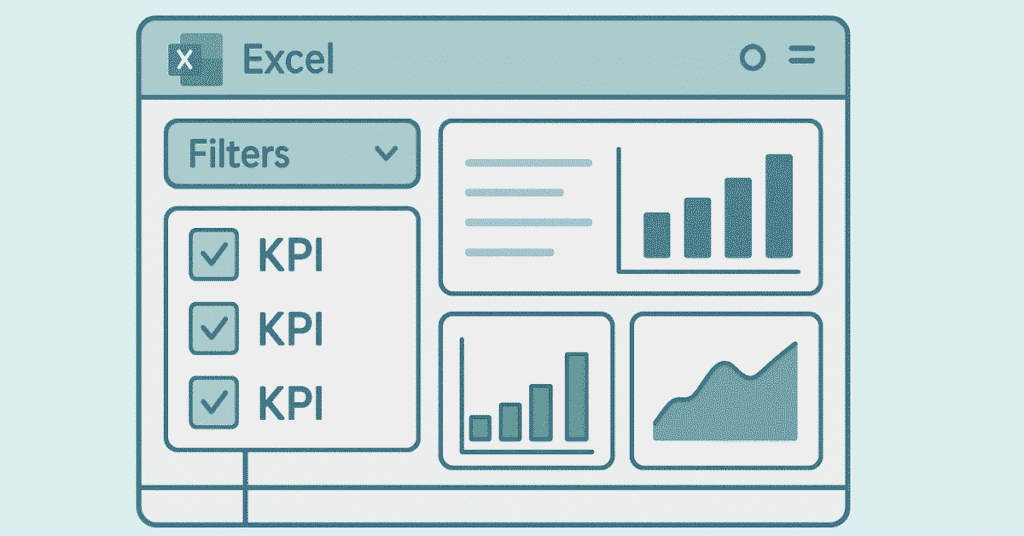
“Guide me step-by-step to create an Excel sales dashboard showing: 1) Total revenue card, 2) Monthly trend line chart, 3) Top 5 products bar chart, 4) Regional performance pie chart. My data is in columns A-F.”
Q220: How do you ask for VBA macro code?
“Write a VBA macro for Excel that loops through all rows in Sheet1, checks if column E value is greater than 100, and if so, copies the entire row to Sheet2.”
Q221: Give a prompt for PivotTable creation guidance.
“Explain how to create a PivotTable in Excel that shows total sales by product category and month, with years as a filter, and includes percentage of total for each category.”
Q222: How do you ask ChatGPT for formula optimization?
“This formula works but is very slow: [paste formula]. Can you suggest a more efficient version that gives the same result but calculates faster?”
Q223: What’s a good prompt for learning a new function?
“Explain the XLOOKUP function in Excel with 3 practical examples: 1) basic lookup, 2) lookup with error handling, 3) lookup that returns multiple columns. Use simple language.”
Q224: How do you ask for help with charts?
“I want to create a combination chart in Excel showing monthly sales as columns and profit margin percentage as a line, with two different Y-axes. Walk me through the steps.”
Q225: Give a prompt for creating data validation rules.
“Write instructions for creating an Excel data validation dropdown where the list options in column B depend on what category is selected in column A.”
Q226: How do you ask ChatGPT to explain Excel features?
“What’s the difference between Power Query and regular Excel formulas? When should I use each? Give 3 scenarios where Power Query is better.”
Q227: What’s a good prompt for formula troubleshooting?
“My VLOOKUP formula =VLOOKUP(A2,Table,3,FALSE) returns #N/A even though I can see the value exists in the table. What could be wrong and how do I fix it?”
Q228: How do you ask for shortcuts and productivity tips?
“List the top 20 Excel keyboard shortcuts that will save the most time for someone working with large datasets, financial reports, and creating presentations.”
Q229: Give a prompt for understanding error messages.
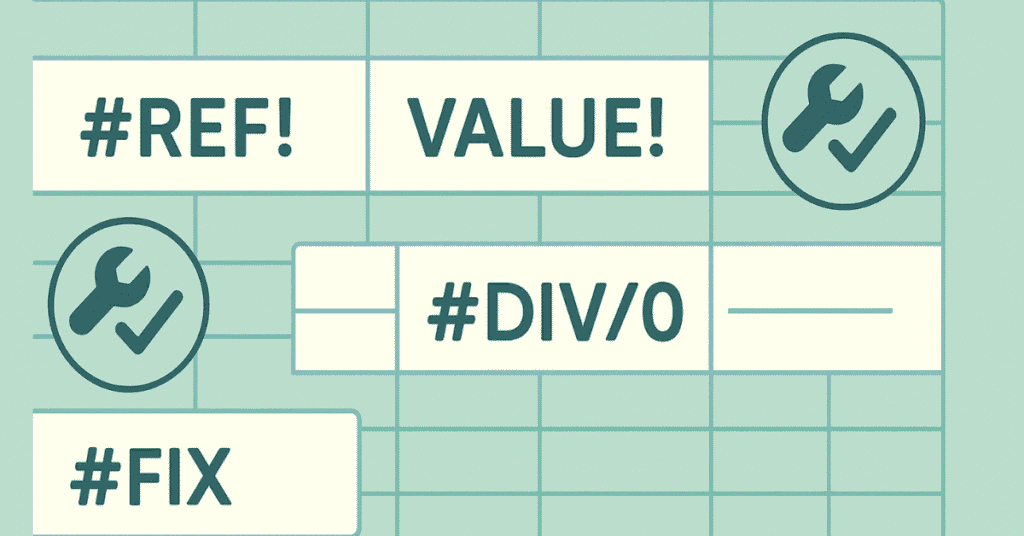
“I’m getting a #REF! error in my Excel formula. What causes this error, what are the common reasons it happens, and how do I fix it?”
Q230: How do you ask for template creation help?
“Guide me in creating an Excel expense tracker template with: automatic date entry, category dropdown, monthly summary with charts, and budget vs actual comparison.”
Q231: What’s a good prompt for learning data analysis techniques?
“Teach me how to perform basic statistical analysis in Excel on sales data: mean, median, standard deviation, and how to identify outliers. Include formulas and interpretation.”
Q232: How do you ask for best practices?
“What are the top 10 Excel best practices for organizing data to ensure it’s easy to analyze, shareable with others, and doesn’t break when new data is added?”
Q233: Give a prompt for scenario analysis guidance.
“Explain how to use Excel’s What-If Analysis tools (Goal Seek, Data Tables, Scenario Manager) with a practical example for business forecasting.”
Q234: How do you refine a prompt if the first answer isn’t quite right?
Be specific about what’s missing: “That’s close, but I need the formula to also ignore blank cells and return 0 instead of an error if no match is found.”
Q235: What’s a good prompt for comparing different approaches?
“Compare three methods to remove duplicates in Excel: Remove Duplicates feature, Advanced Filter, and formulas. List pros, cons, and when to use each method.”

Section J: Advanced Functions & Automation (30 Questions)
Q236: What is Power Query?
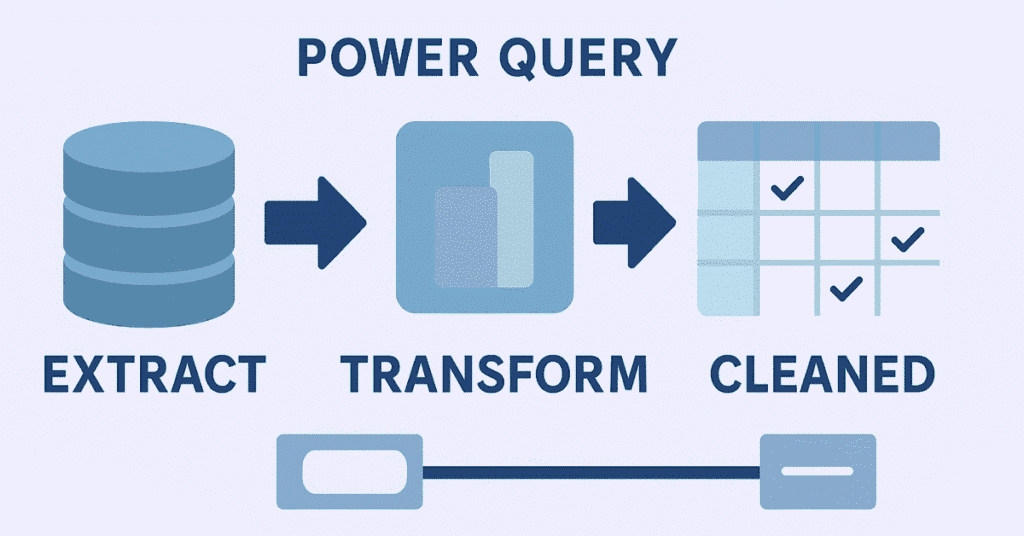
Power Query is Excel’s data transformation tool for importing, cleaning, and reshaping data from multiple sources. Changes you make are saved as repeatable steps, so you can refresh updated data automatically.
Q237: When should you use Power Query instead of formulas?
Use Power Query for: importing data from multiple files, complex data cleaning tasks, merging data from different sources, when you need to repeat the same transformation process regularly.
Q238: What is a Macro in Excel?
A macro is recorded or written automation code that performs repetitive tasks. You can record your actions and replay them with a button click, or write custom VBA code for complex automation.
Q239: How do you record a basic macro?
Go to View tab > Macros > Record Macro, give it a name, perform your actions, then click Stop Recording. The macro saves your steps and can repeat them anytime.
Q240: What is VBA?
VBA (Visual Basic for Applications) is the programming language behind Excel macros. It lets you automate complex tasks, create custom functions, build user forms, and control Excel behavior.
Q241: What’s a simple VBA code example?
Sub HelloWorld()
MsgBox “Hello World!”
End Sub
This displays a message box when run. Access VBA editor with Alt+F11.
Q242: What is the Macro Recorder’s limitation?
The Macro Recorder only captures what you do, not the logic behind it. It can’t make decisions, loop intelligently, or handle errors. For complex automation, you need to write or edit VBA code.
Q243: How do you make a macro accessible via a button?
Insert a shape or button, right-click it, choose Assign Macro, select your macro from the list. Clicking the button now runs the macro.
Q244: What is the ARRAYFORMULA concept?
Array formulas process multiple values simultaneously and can return multiple results. You enter them with Ctrl+Shift+Enter (older Excel) or they work automatically (Excel 365 with dynamic arrays).
Q245: What are Dynamic Arrays in Excel 365?
Dynamic arrays automatically spill results into neighboring cells. One formula can return multiple values that spread across cells. Functions like FILTER, SORT, and UNIQUE use this.
Q246: What does the FILTER function do?
=FILTER(array, include, [if_empty]) returns only rows that meet your criteria. For example, =FILTER(A2:C100, B2:B100>100, “None”) shows only rows where column B exceeds 100.
Q247: What does the SORT function do?
=SORT(array, [sort_index], [sort_order], [by_col]) sorts data. For example, =SORT(A2:C100, 2, -1) sorts data by the 2nd column in descending order.
Q248: What does the UNIQUE function do?
=UNIQUE(array, [by_col], [exactly_once]) returns only unique values from a range. No more manually removing duplicates – this does it dynamically with a formula.
Q249: What does the SEQUENCE function do?
=SEQUENCE(rows, [cols], [start], [step]) generates a sequence of numbers. =SEQUENCE(10) creates numbers 1 through 10 in a column. Useful for testing or creating series.
Q250: What does the RANDARRAY function do?
=RANDARRAY([rows], [cols], [min], [max], [integer]) generates random numbers filling multiple cells. =RANDARRAY(10,5,1,100,TRUE) creates a 10×5 array of random integers from 1-100.
Q251: How can ChatGPT help you write macros?
Describe what you want to automate in plain English, and ChatGPT can generate VBA code. You can also ask it to explain code you find online or debug errors in your macros.
Q252: Give an example prompt for a useful macro.
“Write VBA code that loops through column A, checks if each cell is a valid email (contains @), and highlights invalid entries in red. Add a button to run it.”
Q253: What is conditional VBA code?
VBA code that makes decisions using If-Then-Else statements, Select Case, or loops that continue while conditions are true. This makes macros smart and adaptive.
Q254: How do you protect VBA code from being viewed?
In VBA Editor, right-click your project name, choose VBAProject Properties, go to Protection tab, check “Lock project for viewing,” set a password. Others can’t see or edit your code without the password.
Q255: What is the SUMPRODUCT function?
SUMPRODUCT multiplies corresponding values in arrays and sums the results. =SUMPRODUCT(A2:A10, B2:B10) multiplies each A value by its B value, then adds all products. Great for weighted calculations.
Q256: Give a practical SUMPRODUCT example.
=SUMPRODUCT((Status=”Complete”)*(Amount)) sums amounts only where status is Complete. It acts like SUMIF but handles multiple conditions more flexibly without SUMIFS.
Q257: What is the AGGREGATE function?
AGGREGATE performs calculations (like SUM, AVERAGE, MAX) while letting you ignore errors, hidden rows, or subtotals. =AGGREGATE(9, 6, A1:A100) sums visible cells, ignoring errors and hidden rows.
Q258: What does the SUBTOTAL function do?
SUBTOTAL performs calculations that automatically exclude other SUBTOTAL results and can ignore hidden rows. =SUBTOTAL(9, A2:A100) sums the range, and if you filter data, the subtotal updates.
Q259: Why use SUBTOTAL instead of SUM in filtered data?
SUBTOTAL automatically adjusts when you filter or hide rows, showing calculations only on visible data. SUM always includes all cells even if filtered out.
Q260: What is the TRANSPOSE function?
=TRANSPOSE(array) flips data from rows to columns or vice versa. A horizontal list becomes vertical and vice versa. Useful for reformatting data without copy-pasting.
Q261: What are Name Ranges and why use them?
Named Ranges assign descriptive names to cell ranges. Instead of =SUM(A2:A100), you can write =SUM(Sales_Data). Makes formulas easier to read and maintain.
Q262: How do you create a Named Range?
Select the cells, click the Name Box (left of formula bar), type a name (no spaces), press Enter. Or use Formulas tab > Define Name for more options.
Q263: What is Data Validation?
Data Validation restricts what can be entered in cells. You can create dropdowns, allow only numbers within ranges, require dates, or use custom formulas to control input.
Q264: How do you create a dependent dropdown?
Use Named Ranges and the INDIRECT function in Data Validation. The second dropdown’s list name matches the first dropdown’s selection, creating cascading lists.
Q265: What is Goal Seek?
Goal Seek finds the input value needed to achieve a desired result. For example, “What interest rate do I need to reach $50,000 in 10 years?” Excel adjusts the rate until the result matches.
Q266: How do you use Goal Seek?
Go to Data tab > What-If Analysis > Goal Seek. Set cell (result you want), To value (your goal), By changing cell (input to adjust). Excel finds the solution.
Q267: What is Scenario Manager?
Scenario Manager saves different sets of input values as named scenarios. You can quickly switch between “Best Case,” “Worst Case,” and “Most Likely” scenarios to compare outcomes.
Q268: What is a Data Table for What-If Analysis?
Data Tables show how changing one or two variables affects calculated results. Create a table of different values and Excel fills in the resulting calculations for each combination.
Q269: What is Solver in Excel?
Solver finds optimal solutions for complex problems with multiple variables and constraints. Used for resource allocation, production planning, portfolio optimization, and scheduling problems.
Q270: How do you protect formulas but allow data entry?
Unlock data entry cells (Format Cells > Protection > uncheck Locked), then protect the sheet. Formula cells stay locked and protected while unlocked cells can be edited.
Module 2: 50 Self-Preparation Prompts Using ChatGPT
Category A: Formula Building & Problem Solving (10 Prompts)
Prompt 1: Custom Formula Creation
“I need an Excel formula that calculates employee bonuses. The logic is: If sales are above 500,000, give 15% bonus; if between 300,000 and 500,000, give 10% bonus; if between 100,000 and 300,000, give 5% bonus; below 100,000, give no bonus. Sales amount is in column B. Write the formula and explain each part.”
Prompt 2: Error Debugging Practice
“My formula =VLOOKUP(A2,Sheet2!A:D,5,FALSE) gives a #REF! error. I’m trying to look up employee names in Sheet2 and return their department. What’s wrong with this formula? Explain the error and give me the correct version.”
Prompt 3: Multi-Condition Calculation
“Create an Excel formula that counts how many products meet these conditions: Category is ‘Electronics’ in column B, Price is greater than 10,000 in column C, and Stock Status is ‘Available’ in column D. Explain which function to use and why.”
Prompt 4: Date Calculation Challenge
“Write a formula to calculate project status based on deadlines: If today’s date is more than 5 days before the deadline in column C, show ‘On Track’; if within 5 days, show ‘Due Soon’; if past deadline, show ‘Overdue’. Include color coding suggestions.”
Prompt 5: Text Manipulation Practice
“I have email addresses in column A like ‘john.smith@company.com’. Write formulas to: 1) Extract the username (john.smith), 2) Extract the domain (company.com), 3) Create a display name (John Smith) with proper capitalization. Explain each formula.”
Prompt 6: Complex Lookup Scenario
“Explain how to use INDEX-MATCH to look up employee salary from a table where employee ID is in column A and I need to return salary from column E, but the table is on a different sheet called ‘Payroll’. Also handle cases where the employee ID doesn’t exist.”
Prompt 7: Dynamic Range Formula
“Write a formula that automatically calculates the sum of this month’s sales, where dates are in column A and amounts are in column B. The formula should work next month without editing it. Explain which functions to combine.”
Prompt 8: Percentage and Growth Calculations
“Create formulas to calculate: 1) Monthly growth rate comparing current month to previous month, 2) Year-over-year growth percentage, 3) Cumulative growth from January. Data starts in cell B2 with months in column A and values in column B.”
Prompt 9: Conditional Formatting Formula
“Write a conditional formatting formula that highlights entire rows where: the due date in column D has passed, AND the status in column E is not ‘Completed’. Explain how to apply this to a range of 1000 rows.”
Prompt 10: Array Formula Practice
“Explain how to create a formula that returns the top 5 best-selling products from a list where product names are in column A and sales figures are in column B. Use dynamic array functions available in Excel 365.”
Category B: Data Analysis & PivotTable Scenarios (8 Prompts)
Prompt 11: PivotTable Design Challenge
“I have sales data with columns: Date, Region, Product, Salesperson, Quantity, Revenue. Guide me step-by-step to create a PivotTable that shows: Total revenue by region and product category, with months as column headers, and ability to filter by salesperson. Include percentage of total calculations.”
Prompt 12: Advanced PivotTable Analysis
“Explain how to create a PivotTable from my inventory data that shows: 1) Count of products per category, 2) Average price per category, 3) Total stock value per category, 4) Products below reorder level highlighted. What calculated fields do I need?”
Prompt 13: Multi-Source Data Consolidation
“I have three Excel files with sales data from three branches (same column structure). Teach me how to combine them into one master PivotTable that updates automatically when I refresh. Should I use Power Query or another method?”
Prompt 14: Time-Based Analysis
“Design a PivotTable structure for analyzing quarterly performance trends. I need to see: Revenue by quarter, Year-over-year comparison, Percentage growth, and drill-down capability to see monthly details. My data has dates in column A and revenue in column C.”
Prompt 15: Slicers and Dashboard Creation
“Guide me to build an interactive Excel dashboard using PivotTables and slicers. I want users to filter by: Year, Region, Product Category, and see updated charts for sales trends, top performers, and revenue breakdown. What’s the best approach?”
Prompt 16: Calculated Fields in PivotTables
“My PivotTable shows Sales and Cost columns. Teach me how to add: 1) Profit (Sales – Cost), 2) Profit Margin % (Profit/Sales), 3) Comparison to average profit. Explain calculated fields versus calculated items.”
Prompt 17: Grouping and Categorization
“In my PivotTable, I have individual dates but want to analyze by: Week, Month, Quarter, and Year. Also, I want to group products into categories: Budget (<1000), Mid-Range (1000-5000), Premium (>5000). How do I set this up?”
Prompt 18: PivotTable Formatting Best Practices
“What are the professional formatting techniques for PivotTables in business reports? Teach me about: Number formatting, subtotals placement, grand totals, blank row insertion, and how to make PivotTables print-friendly and presentation-ready.”
Category C: Macros & Automation (8 Prompts)
Prompt 19: Simple Macro Recording Task
“Guide me to record a macro that: 1) Filters data to show only ‘Active’ status, 2) Sorts by date descending, 3) Copies visible cells, 4) Pastes to a new sheet called ‘Active Report’, 5) Formats headers in bold. Explain when to use relative vs absolute recording.”
Prompt 20: VBA Code for Data Cleaning
“Write VBA code that loops through column B (email addresses) and checks if each cell contains ‘@’ symbol. If not, highlight the cell in red and add ‘Invalid’ in the adjacent column C. Add a message box showing how many invalid entries were found.”
Prompt 21: Automated Report Generation
“Create a VBA macro that: Takes data from ‘Raw Data’ sheet, creates a PivotTable on a new sheet called ‘Monthly Report’, applies specific formatting, adds today’s date in the header, and saves the workbook. Explain each section of the code.”
Prompt 22: Conditional Automation
“Write VBA code that asks the user to select a department from a dropdown, then filters the data sheet to show only that department’s records, creates a summary with totals, and exports it as a PDF with the department name in the filename.”
Prompt 23: Error Handling in Macros
“Improve this basic VBA code by adding proper error handling: [provide simple code]. Teach me how to handle: Division by zero, missing worksheets, protected cells, and display user-friendly error messages instead of crashes.”
Prompt 24: Repetitive Task Automation
“I manually format 50 sheets every week: Bold headers, freeze top row, adjust column widths, add borders, format numbers as currency. Write a VBA macro that applies these formats to all sheets in the workbook with one click.”
Prompt 25: Custom Function Creation
“Teach me to create a custom Excel function in VBA called ‘RemoveVowels’ that takes text from a cell and returns the text with all vowels removed. Explain how to make it available in formulas like =RemoveVowels(A1).”
Prompt 26: Button-Triggered Actions
“Show me how to create buttons in Excel that: Button 1 refreshes all PivotTables, Button 2 sorts data by date, Button 3 clears all filters, Button 4 saves the file with today’s date. Include VBA code for each button.”
Want to become an Excel + AI pro?
Follow our step-by-step learning roadmaps built by industry experts.
Category D: ChatGPT Integration & AI Assistance (8 Prompts)
Prompt 27: Explaining Complex Formulas to Others
“This formula is in my spreadsheet: =SUMPRODUCT((MONTH(A2:A100)=MONTH(TODAY()))*(B2:B100)). Write a simple explanation I can give to my manager who doesn’t know Excel well, describing what it does and why it’s useful.”
Prompt 28: Converting Manual Process to Formula
“Currently I manually check if invoice dates in column C are over 30 days old and mark them ‘Overdue’ in column D. Design an automated formula solution that does this automatically and updates daily. Explain the logic.”
Prompt 29: Formula Optimization Request
“My workbook has this formula copied down 10,000 rows: =IF(VLOOKUP(A2,Sheet2!$A2:D5000,4,0)>100,VLOOKUP(A2,Sheet2!A2:D$5000,4,0)*0.1,0). It’s very slow. Suggest a faster alternative and explain why it’s more efficient.”
Prompt 30: Learning New Excel Features
“I keep hearing about Excel’s new dynamic array functions (FILTER, SORT, UNIQUE, XLOOKUP). Explain the main benefits over traditional formulas with 5 practical examples showing when I should switch to using these new functions.”
Prompt 31: Data Visualization Guidance
“I have monthly sales data for 12 months across 5 regions. Ask ChatGPT: What’s the best chart type to show: 1) Overall trend, 2) Region comparison, 3) Market share, 4) Growth rates? Explain why each chart type works best for each purpose.”
Prompt 32: Troubleshooting Performance Issues
“My Excel file with 50,000 rows is extremely slow. It has lots of VLOOKUP formulas, conditional formatting, and links to other files. Ask ChatGPT to diagnose the likely causes and provide 10 specific solutions to speed it up.”
Prompt 33: Best Practice Validation
“I’m organizing a dataset with customer information. Ask ChatGPT: What’s the professional way to structure columns, handle dates, manage missing data, avoid errors, and ensure the file works smoothly when shared with others or imported into other systems?”
Prompt 34: Template Design Assistance
“I need to create an expense tracking template for employees. Ask ChatGPT to design the structure: What columns to include, what formulas to use, how to add validation, create monthly summaries, and make it user-friendly for non-Excel experts.”
Category E: Real-World Business Scenarios (8 Prompts)
Prompt 35: Sales Commission Calculator
“Design a commission calculation system in Excel where: Base commission is 5%, increases to 8% after 1 million in sales, and 10% after 2 million. Also include 2% bonus if target is met. Sales data is in column B, targets in column C. Create the complete formula structure.”
Prompt 36: Inventory Management Solution
“Build formulas for an inventory system that: Tracks current stock, calculates reorder points (when stock falls below 20% of maximum), flags items out of stock, calculates total inventory value, and identifies slow-moving items (no sales in 90 days).”
Prompt 37: Employee Attendance Tracker
“Create an attendance tracking system that: Marks present/absent, calculates total working days, counts leaves taken, identifies attendance below 80%, calculates monthly attendance percentage, and highlights employees with consecutive absences over 3 days.”
Prompt 38: Budget vs Actual Analysis
“Design a budget tracking sheet that compares planned vs actual spending. Include formulas for: Variance (difference), variance percentage, status indicators (over/under budget), cumulative variance, and a summary showing total budget utilization percentage.”
Prompt 39: Project Timeline Calculator
“Create formulas for project management that: Calculate working days between start and end dates, identify if projects are delayed, calculate completion percentage, show days remaining (excluding weekends), and flag projects due within 7 days.”
Prompt 40: Customer Segmentation Analysis
“Design a customer categorization system using formulas: Segment customers as VIP (purchases >100,000), Regular (10,000-100,000), or New (<10,000). Calculate lifetime value, last purchase date, and flag customers with no purchase in 6 months for follow-up.”
Prompt 41: Grade Sheet and Report Card
“Create a complete student gradebook that: Calculates total marks, percentage, assigns letter grades (A/B/C/D/F), ranks students, identifies failures (below 40%), calculates class average, and generates a pass/fail summary count.”
Prompt 42: Loan EMI Calculator
“Build a loan calculator that shows: Monthly EMI using PMT function, total interest payable, principal vs interest breakdown for each month, remaining balance after each payment, and a visual amortization schedule showing how the loan reduces over time.”
Category F: Data Import, Export & Integration (8 Prompts)
Prompt 43: CSV Data Import Cleaning
“I imported data from CSV and it’s messy: dates are in text format, numbers have currency symbols, there are blank rows, and inconsistent spacing. Guide me step-by-step to clean this data efficiently using Excel functions and features.”
Prompt 44: Multi-Sheet Data Consolidation
“I have 12 sheets (one for each month) with the same structure. Teach me how to create a master summary sheet that automatically pulls and combines data from all monthly sheets. Should I use formulas, Power Query, or VBA?”
Prompt 45: Web Data Extraction
“Explain how to import live data from a website into Excel that updates automatically. For example, pulling stock prices, currency rates, or product information. What methods are available and which is most reliable?”
Prompt 46: Database Connection
“Guide me to connect Excel to an external database (like SQL Server) to pull sales data. I want the connection to be refreshable so I can update the Excel report with latest database information without re-importing.”
Prompt 47: PDF to Excel Conversion
“I received financial data in PDF format that I need to analyze in Excel. What are the best methods to convert PDF tables to Excel? Explain the steps, potential issues with formatting, and how to clean up the imported data.”
Prompt 48: Export and Distribution Automation
“Create a solution where I can export specific sheets as separate PDF files with one click, each named by the sheet name and today’s date. Then automatically save them in a specific folder. Provide the VBA code and setup instructions.”
Prompt 49: Data Validation Across Sheets
“I need dropdown lists in Sheet1 that pull values from different ranges in Sheet2, and these lists should update automatically when Sheet2 data changes. Explain the setup using named ranges and data validation.”
Prompt 50: Power Query Transformation
“Teach me to use Power Query for: Unpivoting data (converting columns to rows), splitting columns by delimiter, filtering out blanks, removing duplicates, and merging data from two tables based on a common ID column. Explain when Power Query is better than formulas.”
How to Use These Prompts Effectively:
Before Your Interview:
- Copy each prompt into ChatGPT and work through the answers
- Practice implementing the solutions in Excel
- Try variations of each scenario with your own data
- Note down the formulas and techniques that are new to you
- Create a personal cheat sheet of key learnings
During Practice Sessions:
- Don’t just read the ChatGPT response—actually build it in Excel
- Experiment with changing parameters to understand how formulas work
- Break complex formulas into parts to understand each component
- Try to solve the problem first yourself, then use ChatGPT to verify or improve
Interview Preparation Tips:
- Pick 15-20 prompts most relevant to the job you’re applying for
- Focus on scenarios matching the industry (finance, retail, operations, etc.)
- Practice explaining your solutions in simple language
- Be ready to discuss alternative approaches and their pros/cons
- Keep sample Excel files ready demonstrating your solutions
Self-Assessment:
After working through each prompt, rate yourself:
- Can you solve it independently now? ✓
- Do you understand why this solution works? ✓
- Can you explain it to someone else? ✓
- Can you modify it for similar scenarios? ✓
Module 3: Communication Skills and Behavioral Interview Preparation
Section A: Self-Introduction & Background (10 Questions)
Q1: Tell me about yourself.
Sample Answer:
“Hello, I’m [Your Name]. I recently completed a comprehensive Advanced Excel with AI course from Frontlines Edutech where I gained hands-on experience in data analysis, automation, and business intelligence. My background includes [mention education – degree/field]. During my training, I worked on real-world projects involving financial modeling, sales analysis, and creating automated dashboards using PivotTables and macros. I’m passionate about turning raw data into actionable insights that help businesses make better decisions. I’m particularly excited about roles where I can use Excel to solve complex problems and improve operational efficiency. In my free time, I practice building different Excel solutions and explore how AI tools like ChatGPT can enhance data analysis workflows.”
Key Points to Include:
- Brief educational background
- Your Excel training and certification
- Specific skills you’ve gained
- What excites you about the role
- Keep it under 2 minutes
Q2: Why did you choose to learn Advanced Excel?
Sample Answer:
“I realized that Excel is the backbone of business operations across every industry – from finance and marketing to HR and operations. While basic Excel is common, advanced skills like automation, complex formulas, and data visualization are what truly differentiate professionals in the workplace. I wanted to move beyond just entering data to actually analyzing it, finding patterns, and creating solutions that save time. During my research, I discovered how powerful Excel can be when combined with AI tools, which motivated me to take comprehensive training. I believe strong Excel skills will make me immediately valuable to any organization and give me a solid foundation for data analytics career growth.”
Key Themes:
- Career advancement motivation
- Practical business value
- Self-improvement mindset
- Forward-thinking approach
Q3: What was your biggest learning during the Excel course?
Sample Answer:
“My biggest learning was understanding that Excel is not just about formulas – it’s about solving business problems efficiently. Initially, I thought knowing functions was enough, but through projects, I learned the importance of data organization, choosing the right tool for each task, and creating solutions that others can easily understand and use. For example, I learned when to use formulas versus PivotTables versus macros. I also discovered how AI tools like ChatGPT can dramatically speed up learning and problem-solving. But most importantly, I learned that good Excel work is about clear thinking first, then applying the technical skills. This mindset shift changed how I approach any data-related challenge.”
What This Demonstrates:
- Deep understanding beyond surface skills
- Problem-solving orientation
- Continuous learning attitude
- Business awareness
Q4: Describe a challenging Excel project you worked on.
Sample Answer:
“During my training, I worked on a sales performance dashboard project that initially seemed overwhelming. The challenge was consolidating data from three different sources, cleaning inconsistent date formats, and creating an interactive dashboard that updated automatically. I started by organizing the data properly using Power Query, then built PivotTables for different metrics like monthly trends, regional performance, and product analysis. I added slicers for easy filtering and created calculated fields for profit margins and growth percentages. The hardest part was making the formulas dynamic so they wouldn’t break when new data was added. I used Excel Tables and structured references to solve this. The final dashboard allowed users to see insights immediately without any Excel knowledge. This project taught me the importance of planning before building and thinking from the end-user’s perspective.”
Structure to Follow:
- Set the context (what & why)
- Explain the challenge
- Describe your approach
- Highlight specific skills used
- Share the outcome and learning
Q5: How do you stay updated with new Excel features?
Sample Answer:
“I follow multiple approaches to stay current. I regularly watch Excel tutorial channels on YouTube, particularly for learning about new features in Microsoft 365 like dynamic arrays and XLOOKUP. I’m part of Excel user communities where professionals share tips and solutions. I also practice with ChatGPT by asking it to explain new functions and create practice scenarios. Additionally, I subscribe to Microsoft’s Excel blog to learn about updates directly from the source. Most importantly, I dedicate time each week to experiment with features I haven’t used before, even if I don’t have an immediate need for them. I also maintain a personal knowledge base where I document solutions to problems I’ve solved, so I can refer back and improve them over time.”
Shows:
- Proactive learning approach
- Multiple learning channels
- Practical application focus
- Organized knowledge management
Q6: What are your strengths related to Excel work?
Sample Answer:
“My key strengths are attention to detail, logical problem-solving, and the ability to simplify complex data. When working with Excel, I’m very careful about data accuracy because I understand that one small error can lead to wrong business decisions. I have a systematic approach where I break down complex problems into smaller parts, solve each part, then combine them efficiently. I’m also good at explaining Excel solutions to non-technical people – I can take a complex formula and explain what it does in simple business terms. Another strength is persistence – when I encounter an error or challenge, I research multiple solutions, test different approaches, and don’t give up until I find the best answer. Finally, I’m organized in my work, using proper naming conventions, comments, and documentation so others can understand my spreadsheets.”
Key Strengths to Emphasize:
- Accuracy and precision
- Analytical thinking
- Communication ability
- Troubleshooting skills
- Collaboration and documentation
Q7: What is your weakness and how are you working on it?
Sample Answer:
“One area I’m actively improving is working with very large datasets – those with hundreds of thousands of rows. While I’m comfortable with standard data analysis, I’m still building speed and efficiency when dealing with massive files that can slow down Excel. To address this, I’m learning about optimization techniques like replacing volatile functions, using tables instead of ranges, and leveraging Power Query for heavy data transformation instead of formulas. I’m also exploring when to use Excel versus when to recommend database solutions. I practice with large sample datasets deliberately to build this skill. I’ve already seen improvement – what used to take me 30 minutes, I can now accomplish in 10 minutes using better techniques. I’m honest about my learning curve but also confident in my ability to find solutions and improve quickly.”
Good Framework:
- Acknowledge a real but manageable weakness
- Show self-awareness
- Explain concrete improvement actions
- Demonstrate progress already made
- Frame it as a learning opportunity
Q8: Where do you see yourself in 3 years?
Sample Answer:
“In three years, I see myself as a trusted data analyst who organizations rely on for accurate insights and automated reporting solutions. I want to master not just Excel, but also complementary tools like Power BI, SQL, and Python for data analysis, creating a strong foundation in the data analytics field. I’d like to be the person my team comes to when they have complex data challenges. Beyond technical skills, I want to develop business acumen – understanding how data analysis impacts revenue, costs, and strategic decisions. I also see myself mentoring junior analysts, sharing knowledge, and possibly leading small projects. Ultimately, I want to grow into a role where I’m involved in strategic decision-making, using data to solve real business problems rather than just reporting numbers. This position would be an excellent starting point toward that vision.”
Structure:
- Realistic and role-relevant goals
- Shows ambition but not unrealistic expectations
- Demonstrates growth mindset
- Connects to business value
- Links back to current opportunity
Q9: Why should we hire you?
Sample Answer:
“You should hire me because I bring a unique combination of strong technical Excel skills, business-oriented thinking, and a genuine enthusiasm for data work. I’m not just someone who knows formulas – I understand how to translate business requirements into Excel solutions that save time and provide valuable insights. I’ve completed comprehensive training covering everything from complex formulas and automation to AI-enhanced workflows. I’m a quick learner who can pick up your specific systems and processes fast. More importantly, I’m reliable and detail-oriented, which is critical when handling data that drives business decisions. I’m also a collaborative team player who can work with both technical and non-technical colleagues effectively. I’m at a stage where I’m eager to apply my skills in real-world scenarios, bring fresh perspectives, and contribute to your team’s success from day one.”
Core Messages:
- Technical competence
- Business value focus
- Cultural fit
- Learning agility
- Immediate contribution potential
Q10: Why do you want to work for our company?
Sample Answer:
[Research the company first, then customize this answer]
“I’m excited about this opportunity because [Company Name] is known for [specific aspect – innovation/market leadership/growth/culture]. I particularly admire how [mention something specific about the company – their approach to data, recent achievement, values, etc.]. From what I understand, this role involves [mention key aspects of the job], which aligns perfectly with my Excel skills and my interest in [relevant area – financial analysis/operations/marketing analytics]. I’m looking for an organization where I can grow professionally while making meaningful contributions, and [Company Name] offers exactly that environment. I’m also impressed by [mention growth opportunities, learning culture, team structure, or projects]. I believe my skills in Excel automation and data analysis would be valuable in [mention specific way you can contribute], and I’m excited about the possibility of being part of your team.”
Research Before Interview:
- Company’s industry and competitors
- Recent news or achievements
- Company values and culture
- Products or services
- The specific team you’re joining
Section B: Teamwork & Collaboration (8 Questions)
Q11: Describe a time when you worked as part of a team on a data project.
Sample Answer:
“During my Excel training, I was part of a group project where we had to create a comprehensive financial dashboard for a fictional retail company. Our team of four divided responsibilities – I handled data cleaning and building the main formulas, another teammate worked on PivotTables, one focused on charts and visualization, and the fourth person coordinated everything and created documentation. We had challenges initially because our individual sections weren’t integrating smoothly. I suggested we have a daily 15-minute standup where each person showed their progress and we discussed dependencies. This improved our coordination significantly. When I finished my formulas early, I helped the PivotTable person who was struggling with calculated fields. We delivered the project on time, and our instructor praised both the technical quality and how well-integrated the different sections were. This taught me that successful teamwork requires clear communication, flexibility to help others, and focusing on the team goal rather than just individual tasks.”
Key Elements:
- Specific situation with context
- Your role and others’ roles
- Challenge faced
- Your contribution to solution
- Positive outcome
- Learning takeaway
Q12: How do you handle disagreements with team members about the approach to solving a problem?
Sample Answer:
“I believe disagreements can actually lead to better solutions if handled constructively. When someone suggests a different approach than mine, I first make sure I fully understand their perspective by asking questions and listening carefully. Then I explain my reasoning and the advantages I see in my approach. If possible, I like to quickly test both methods with a small sample to see which works better practically. I focus on the goal we’re trying to achieve rather than being right. For example, during a project, a teammate wanted to use multiple VLOOKUP formulas while I suggested INDEX-MATCH. Instead of arguing, I showed how INDEX-MATCH would be faster with our large dataset and more flexible if columns were added later. I also acknowledged that VLOOKUP was simpler for others to understand. We ended up using INDEX-MATCH but I added clear comments explaining how it worked, addressing both concerns. The key is staying respectful, being open to learning, and prioritizing the best outcome over ego.”
Demonstrates:
- Emotional intelligence
- Open-mindedness
- Problem-solving approach
- Respect for others
- Focus on outcomes
Q13: How would you explain a complex Excel solution to a non-technical colleague?
Sample Answer:
“I use a business-first, technical-second approach. First, I explain what problem we’re solving and what result they’ll get, using their language and context. For example, instead of saying ‘I used a nested IF with VLOOKUP,’ I’d say ‘This formula automatically assigns the correct discount based on the customer type and order amount, so you don’t have to look it up manually each time.’ Then I show them the before and after – what the process was like before and how much easier it is now. If they want to understand how it works, I break it down into simple steps using analogies. I compare complex formulas to following a recipe – each ingredient serves a purpose, and they work together for the final dish. I also create simple documentation with screenshots and step-by-step instructions. Most importantly, I encourage questions and make sure they’re comfortable using the solution. My goal is always to empower them, not overwhelm them with technical jargon.”
Important Skills:
- Translation of technical to business language
- Empathy and patience
- Clear communication
- User-focused approach
- Training and support mindset
Q14: Tell me about a time when you had to help a colleague learn something in Excel.
Sample Answer:
“One of my classmates was really struggling with PivotTables during our training. While I found them intuitive, she couldn’t understand when to use rows versus columns versus values. Instead of just showing her the steps, I first asked what she wanted to analyze to understand her goal. Then I used a simple example – organizing a closet. I explained that rows are like shelves (categories like shirts, pants), columns are like sections (winter clothes, summer clothes), and values are like counting how many of each item you have. This analogy clicked for her immediately. Then I sat with her as she built her own PivotTable, letting her try first and only guiding when needed. I also created a simple one-page reference guide for her with the most common actions. A week later, she was not only comfortable with PivotTables but was helping others. This experience taught me that people learn differently, and finding the right explanation for each person is important. It also reinforced that patience and encouragement matter as much as technical knowledge.”
Shows:
- Mentoring ability
- Patience and empathy
- Creative teaching approach
- Follow-through
- Generosity with knowledge
Q15: How do you handle situations where team members are not contributing equally?
Sample Answer:
“I try to address this professionally and constructively. First, I check if there are legitimate reasons – maybe they’re stuck, unclear about expectations, or facing personal issues. I’d approach them privately and ask if everything is okay and if they need help with their part. I frame it as concern, not accusation. If it’s a skill issue, I offer to help or pair up to complete tasks together. If deadlines are at risk, I focus first on getting the work done – sometimes that means temporarily taking on more to ensure team success. However, I also believe in accountability, so if it’s a pattern of avoiding work, I’d bring it up with the team during a retrospective or, if needed, mention it to the supervisor in a factual, non-complaining way. My approach is always solution-focused – how do we get this project completed successfully and ensure everyone grows from the experience. Building a strong team culture matters more than pointing fingers.”
Key Qualities:
- Problem-solving focus
- Empathy and support
- Accountability
- Team-first mentality
- Professional conflict resolution
Q16: What role do you usually take in a team – leader, supporter, implementer?
Sample Answer:
“I’m flexible and adapt to what the team needs. I’m comfortable taking the lead when needed – organizing tasks, setting timelines, keeping everyone on track. I’m also equally comfortable being a strong contributor who executes tasks reliably and supports others. What I don’t do is sit back passively. If I see a gap, I fill it. For example, in our group projects, I often became the person who connected different parts together because I could understand both the technical Excel work and the business requirements. I’d check in with teammates, identify bottlenecks, and help wherever needed. I think the best team players aren’t stuck in one role – they do what needs to be done at any given moment. That said, I’m developing my leadership skills and would welcome opportunities to lead projects, as I believe that’s an important growth area for me. But I also value learning from experienced leaders and being part of a high-functioning team in any capacity.”
Demonstrates:
- Adaptability
- Team awareness
- Initiative
- Growth mindset
- Balanced perspective
Q17: How do you ensure your work is understandable to others who might use your Excel files?
Sample Answer:
“Documentation and clarity are part of my Excel practice. I follow several principles: First, I use clear, descriptive names for worksheets, columns, and named ranges instead of generic labels. Second, I add comments to complex formulas explaining what they do and why. Third, I use consistent formatting – same colors, fonts, and styles throughout. Fourth, I create a ‘Read Me’ or ‘Instructions’ sheet at the beginning explaining how to use the file, where to input data, what not to change, and who to contact with questions. Fifth, I protect formula cells so users can’t accidentally break them, while leaving input cells unlocked. I also add data validation with helpful error messages that guide users. Before sharing, I ask myself ‘If someone opens this file six months from now without me around, will they understand it?’ This approach has saved time and prevented errors in collaborative environments.”
Professional Practices:
- User-centric design
- Proactive communication
- Error prevention
- Sustainability thinking
- Attention to detail
Q18: Describe how you would handle receiving criticism about your Excel work from a senior colleague.
Sample Answer:
“I would view it as a valuable learning opportunity. First, I’d listen carefully without getting defensive, asking clarifying questions to fully understand their concerns. I’d thank them for the feedback because experienced colleagues often see issues or better approaches that I might have missed. Then I’d reflect on whether the criticism is about the technical approach, the presentation, or the business logic. I’d ask if they could show me their preferred method so I can learn. If I believe my approach has merit, I’d respectfully explain my reasoning, but remain open to being convinced otherwise. I’d then revise my work incorporating their feedback and share the updated version, showing I took their input seriously. I’d also note down the learning for future projects. Early in my career, I’m here to learn and grow, and constructive criticism from experienced professionals is one of the fastest ways to improve. I’d rather be corrected now and learn than keep making the same mistakes.”
Important Traits:
- Coachability
- Humility
- Learning orientation
- Professionalism
- Growth mindset
Section C: Problem-Solving & Critical Thinking (10 Questions)
Q19: Describe your process when you encounter an error in Excel that you don’t immediately know how to fix.
Sample Answer:
“I follow a systematic troubleshooting approach. First, I carefully read the error message to understand what type of error it is – #N/A, #REF!, #VALUE!, etc., as each indicates a different issue. Second, I check the formula step-by-step, verifying cell references and data types. I use the Formula Evaluate feature to see where exactly the formula breaks. Third, I test the formula on a smaller sample with known results to isolate the problem. Fourth, if I’m still stuck, I search for the specific error online or use ChatGPT to explain possible causes. I describe the exact situation, share the formula, and ask for solutions. Fifth, I try the suggested fixes one by one, understanding why each fix should work rather than just copying blindly. Finally, once resolved, I document the issue and solution in my personal knowledge base so I can solve it faster next time. This structured approach has helped me resolve complex issues efficiently and continuously build my troubleshooting skills.”
Shows:
- Structured thinking
- Resourcefulness
- Patience and persistence
- Learning documentation
- Independent problem-solving
Q20: If you’re given a dataset with 50,000 rows and asked to find insights, where would you start?
Sample Answer:
“I’d start with understanding the data before jumping into analysis. First, I’d review the column headers to understand what information we have. Second, I’d check for data quality issues – missing values, duplicates, inconsistent formatting, outliers. I’d create a quick summary using COUNT, COUNTA, and COUNTBLANK to see data completeness. Third, I’d ask clarifying questions about what insights are needed – are we looking for trends, patterns, comparisons, or specific answers? Fourth, I’d create basic statistical summaries – totals, averages, min, max for numerical columns to understand the scale and distribution. Fifth, I’d build PivotTables to explore the data from different angles – time trends, category breakdowns, performance comparisons. Sixth, I’d look for correlations – does one metric influence another? Finally, I’d visualize key findings with charts to spot patterns that numbers alone might not reveal. Throughout this process, I’d keep the business question in mind, ensuring analysis leads to actionable insights, not just interesting numbers.”
Demonstrates:
- Methodical approach
- Data quality awareness
- Business orientation
- Analytical thinking
- Communication focus
Q21: How would you prioritize multiple Excel tasks with the same deadline?
Sample Answer:
“I’d use a combination of urgency, importance, and dependencies to prioritize. First, I’d clarify expectations with the requestor – are all tasks truly equally urgent, or can some be delivered a few hours later? Second, I’d assess impact – which tasks, if delayed, would block others’ work or affect critical business decisions? Those go first. Third, I’d estimate how long each task realistically takes. Sometimes a task seems big but can be done in 15 minutes, while another looks simple but needs hours. Fourth, I’d check for dependencies – if Task B needs data from Task A, that determines sequence. Fifth, I’d batch similar tasks for efficiency – if multiple reports need the same data preparation, I’d do that once. Sixth, I’d communicate proactively – if I genuinely can’t complete everything by the deadline, I’d inform stakeholders immediately with a revised timeline rather than missing deadlines silently. Finally, I’d focus on delivering working solutions even if not perfect, then improve if time allows. Perfect is the enemy of done when deadlines are tight.”
Key Skills:
- Time management
- Strategic thinking
- Communication
- Realistic assessment
- Stakeholder management
Q22: Tell me about a time when you had to learn something new quickly to complete a task.
Sample Answer:
“During our training project, I needed to create a macro for automated report generation, but we hadn’t covered VBA in depth yet. The deadline was three days away. I couldn’t wait for formal training, so I took initiative to learn independently. First, I used ChatGPT to get a basic understanding of VBA syntax and structure relevant to my specific need. Second, I watched focused YouTube tutorials on Excel macro recording and VBA editing. Third, I found a similar example online and studied how it worked, then adapted it to my requirements. Fourth, I tested extensively with small datasets before running on real data. Fifth, I added error handling to prevent crashes. I also documented my code with comments so I could understand it later. I managed to deliver the working macro on time, and it saved hours of manual work. This experience taught me that I can learn new technologies quickly when needed, and that combining multiple learning resources accelerates the process. It also boosted my confidence in tackling unfamiliar technical challenges.”
Shows:
- Initiative
- Learning agility
- Resourcefulness
- Deadline management
- Technical adaptability
Q23: How would you approach building an Excel solution for a problem you’ve never encountered before?
Sample Answer:
“I’d break it down systematically. First, I’d thoroughly understand the problem by asking questions – what’s the desired outcome, what data is available, what constraints exist, who will use this solution? Second, I’d research whether this is a common problem with existing solutions. Why reinvent the wheel if proven approaches exist? I’d search online, ask ChatGPT, or consult Excel communities. Third, I’d sketch out the logic on paper before touching Excel – what steps are needed, what calculations, what conditions. Fourth, I’d build a simple prototype with a small dataset to test if my approach works. Fifth, I’d iterate and improve, adding complexity gradually rather than trying to build everything at once. Sixth, I’d test with edge cases – what if data is missing, what if there are duplicates, what if numbers are negative? Finally, I’d add user-friendly elements like instructions, error messages, and formatting. Throughout, I’d document my thinking and get feedback from potential users early to ensure I’m solving the right problem the right way.”
Demonstrates:
- Analytical approach
- Research skills
- Iterative development
- Risk management
- User focus
Q24: What would you do if a senior manager asked you to analyze data in a way you believe is incorrect or misleading?
Sample Answer:
“This is a situation where professional integrity matters. I would respectfully raise my concerns privately and professionally. I’d say something like, ‘I want to make sure we’re presenting the most accurate picture. I’m concerned that analyzing it this way might not show [specific issue], and here’s why.’ I’d explain my reasoning with specific examples showing how the requested approach could be misleading. I’d also suggest an alternative approach that achieves their goal while maintaining accuracy. I’d frame it as wanting to protect them from potential criticism or bad decisions based on flawed analysis. However, I’d also be open to learning – perhaps there’s context or business reasoning I don’t understand. If after discussion they still want to proceed with their approach, I’d do it but would document my concerns and consider adding clarifying notes or caveats to the report. Ultimately, data integrity is non-negotiable for me, and I believe most managers appreciate employees who think critically and speak up constructively rather than blindly executing.”
Shows:
- Ethical standards
- Professional courage
- Respectful communication
- Business awareness
- Problem-solving approach
Q25: How do you decide between building a complex formula versus using a simpler manual approach?
Sample Answer:
“I consider several factors before deciding. First, frequency – if this is a one-time task, a simple manual approach might be faster than building a complex formula. But if it’s repetitive, automation saves time long-term. Second, error risk – manual work increases error probability, especially with large datasets. Formulas ensure consistency. Third, scalability – will this dataset grow? If yes, formulas handle growth better. Fourth, user skill level – if non-technical users need to maintain this, simpler approaches might be better even if less elegant. Fifth, time available – under tight deadlines, I might choose the approach I can complete quickly rather than the theoretically best one. Sixth, future maintenance – complex formulas can become hard to update later. I also consider whether I should document complex formulas extensively or keep things simpler for maintainability. My general principle is to use the simplest solution that reliably solves the problem and can scale appropriately. Complexity for its own sake doesn’t add value.”
Demonstrates:
- Pragmatic thinking
- Cost-benefit analysis
- User empathy
- Long-term thinking
- Balanced judgment
Q26: Describe a situation where you had to work with incomplete or messy data.
Sample Answer:
“In one of our practice projects, we received sales data that was poorly formatted – dates were in multiple formats, product names had inconsistent spelling, there were duplicate entries, and several columns had missing values. Rather than complaining, I saw it as a realistic scenario since real-world data is often messy. I started by creating a copy of the original data for backup. Then I systematically addressed each issue. For dates, I used the DATEVALUE function and Text to Columns to standardize formats. For inconsistent product names, I created a reference list of correct spellings and used Find & Replace carefully, then verified with COUNTIF. For duplicates, I used the Remove Duplicates feature after identifying which columns constituted a true duplicate. For missing values, I analyzed whether they could be inferred from other data, or if they truly had to be blank – I didn’t just assume. I documented all cleaning steps so the process could be repeated with new data. This experience taught me that data cleaning is often 60-70% of analytics work, and patience with this phase ensures accurate results later.”
Shows:
- Real-world awareness
- Systematic approach
- Attention to detail
- Documentation habits
- Professional maturity
Q27: How would you explain why your Excel solution is better than a colleague’s alternative approach?
Sample Answer:
“I’d focus on objective criteria rather than personal preference. I’d compare the approaches based on: accuracy – which produces correct results in all scenarios including edge cases; efficiency – which is faster to build and faster to calculate; scalability – which handles growing datasets better; maintainability – which is easier for others to understand and update; flexibility – which adapts better to changing requirements; and error-resistance – which is less likely to break. I’d demonstrate with actual examples rather than just claiming superiority. For instance, ‘My INDEX-MATCH approach allows looking up values to the left and doesn’t break if we insert columns, while VLOOKUP has these limitations. Here, let me show you.’ I’d also acknowledge advantages of their approach if any exist. The goal isn’t to prove I’m smarter, but to identify the genuinely better solution for this specific situation. I’d invite them to test both approaches together and see which performs better. This collaborative comparison often leads to an even better third option combining strengths of both original ideas.”
Demonstrates:
- Analytical thinking
- Objective evaluation
- Collaborative attitude
- Practical focus
- Professional maturity
Q28: What would you do if you discovered an error in a report you already submitted?
Sample Answer:
“I would address it immediately and transparently. First, I’d verify the error is real and understand its scope – how significant is it, what data is affected, what decisions might have been based on the incorrect report. Second, I’d inform my supervisor or the report recipient right away, being direct and honest: ‘I discovered an error in the report I submitted yesterday. Here’s what’s wrong and what the correct information is.’ I’d take responsibility without making excuses. Third, I’d quickly provide a corrected version with the error highlighted so they can see exactly what changed. Fourth, I’d analyze how the error happened to prevent recurrence – was it a formula mistake, data issue, or process gap? Fifth, I’d implement a check to catch similar errors in the future, like adding verification formulas or building in validation steps. Everyone makes mistakes, especially when learning, but the difference between average and excellent employees is how they handle errors. Addressing them quickly and learning from them shows integrity and professionalism. Trying to hide or minimize errors only makes things worse.”
Shows:
- Integrity
- Accountability
- Communication
- Problem-solving
- Learning orientation
Section D: Work Ethics & Professional Attitude (10 Questions)
Q29: How do you ensure accuracy in your Excel work?
Sample Answer:
“Accuracy is my top priority because I know business decisions depend on correct data. I follow several practices consistently. First, I double-check data sources before starting any analysis. Second, I use data validation to prevent incorrect entries from the start. Third, I build verification formulas – for example, if I’m summarizing data, I create a check that compares my summary totals to the original data totals. Fourth, I test formulas with known results to ensure they’re calculating correctly. Fifth, I review my work with fresh eyes after a break, as I often spot mistakes I initially missed. Sixth, I ask someone else to review critical reports before submission. Seventh, I protect formula cells to prevent accidental changes. Eighth, I document assumptions and methodology so others can validate my approach. Finally, I don’t rush – taking a few extra minutes to verify is always worth it compared to the cost of errors. Quality over speed is my principle, though I also respect deadlines by working efficiently.”
Key Practices:
- Verification systems
- Peer review
- Data validation
- Testing methodology
- Time management balance
Q30: Tell me about a time when you had to meet a tight deadline.
Sample Answer:
“During our training, we had a comprehensive project due in 48 hours that typically took a week. The project required data cleaning, analysis, PivotTables, charts, and a final presentation. I knew I needed to be strategic. First, I created a detailed plan breaking down tasks by hour, identifying what was essential versus nice-to-have. Second, I focused on the core requirements that would earn most marks, postponing cosmetic improvements. Third, I eliminated distractions – turned off social media, found a quiet workspace, set focused work blocks with short breaks. Fourth, I leveraged what I already knew rather than learning new techniques during crunch time. Fifth, I asked clarifying questions early to avoid rework. Sixth, I did the hardest parts when my energy was highest. I delivered the project 2 hours before the deadline with all requirements met. The presentation wasn’t as polished as I’d hoped, but the analysis was solid. This taught me that effective deadline management is about smart prioritization, focused execution, and knowing when ‘good enough’ is actually good enough.”
Shows:
- Planning skills
- Prioritization ability
- Focus and discipline
- Realistic assessment
- Results orientation
Q31: How do you handle repetitive or boring tasks?
Sample Answer:
“I see repetitive tasks as opportunities for improvement rather than just boring chores. My first instinct is to ask, ‘Can this be automated?’ Often repetitive tasks can be streamlined with Excel features like macros, formulas, or keyboard shortcuts. Even saving 30 seconds on a task done 20 times daily adds up significantly. When automation isn’t possible, I maintain quality by creating checklists to ensure consistency despite monotony. I also batch similar tasks together for efficiency and use techniques like music or timed challenges to maintain energy. I remind myself that every task has purpose – even data entry contributes to larger business goals. Additionally, I view repetitive tasks as practice that builds speed and muscle memory. What takes 10 minutes today might take 5 minutes after doing it regularly. Finally, I proactively suggest process improvements to supervisors if I notice inefficiencies. Rather than silently suffering through boring work, I try to make it better for everyone.”
Demonstrates:
- Improvement mindset
- Positive attitude
- Process thinking
- Initiative
- Professionalism
Q32: What would you do if you didn’t understand a task assigned to you?
Sample Answer:
“I would ask for clarification immediately rather than wasting time going in the wrong direction. I’d prepare specific questions showing I’ve thought about the task rather than just saying ‘I don’t understand.’ For example, I’d ask, ‘Just to confirm, you want me to compare this month’s sales against last year’s same month, grouped by product category, correct?’ This shows I’m engaged and thinking, not just confused. I’d also ask about priorities – ‘What’s most important here – speed, detail level, or specific format?’ I’d inquire about available resources – ‘Is there a previous report I can use as a reference?’ If the task involves technical skills I’m not confident about, I’d be honest: ‘I haven’t used this specific function before, but I can learn it. Do you have a deadline that would accommodate that?’ Most managers appreciate employees who ask smart questions upfront rather than delivering the wrong output later. If they’re not available, I’d check documentation or ask knowledgeable colleagues, always keeping the supervisor informed of my approach.”
Shows:
- Proactive communication
- Critical thinking
- Honesty
- Resourcefulness
- Professionalism
Q33: How do you manage stress when handling multiple urgent requests?
Sample Answer:
“I stay calm by focusing on what I can control. First, I acknowledge that stress is normal when things are urgent and that short-term pressure can actually enhance focus. Second, I prioritize ruthlessly – I can’t do everything simultaneously, so I determine what’s truly most urgent and tackle that first. Third, I communicate transparently with stakeholders about realistic timelines rather than promising what I can’t deliver. Fourth, I break large tasks into smaller steps, which makes them less overwhelming. Fifth, I eliminate multitasking during high-pressure times because it actually slows me down. I focus fully on one task until it’s done or reached a logical pause point. Sixth, I take brief movement breaks every hour to maintain mental clarity. Finally, I maintain perspective – while work is important, urgency in most cases doesn’t mean life-or-death. After the crisis passes, I review what happened and how processes could be improved to prevent constant firefighting. Sustainable performance comes from managing energy, not just time.”
Demonstrates:
- Emotional regulation
- Practical strategies
- Communication skills
- Self-awareness
- Long-term thinking
Q34: Describe your ideal work environment.
Sample Answer:
“My ideal environment has several elements. First, clear expectations – I work best when I understand what success looks like and how my work contributes to larger goals. Second, access to learning – whether through mentorship, training, or challenging projects that stretch my skills. Third, collaborative culture where asking questions and sharing knowledge is encouraged, not seen as weakness. Fourth, constructive feedback – I want to know what I’m doing well and where I can improve, not just silence followed by surprises. Fifth, some autonomy in how I approach tasks – I appreciate guidance on what needs to be done but freedom in determining the how. Sixth, reasonable workload balance – I don’t mind occasional crunch times, but not constant emergency mode. Finally, recognition for good work doesn’t have to be monetary, but acknowledgment matters. That said, I’m adaptable and understand that real workplaces aren’t perfect. I focus on what I can control – my attitude, work quality, and relationships – rather than expecting ideal conditions.”
Shows:
- Self-awareness
- Reasonable expectations
- Growth orientation
- Adaptability
- Maturity
Q35: How do you handle confidential data?
Sample Answer:
“I treat confidentiality with utmost seriousness because data breaches can have serious legal and business consequences. I follow several strict practices. First, I only access data I’m authorized to see and have legitimate business need for. Second, I never discuss confidential information outside proper contexts, even casually. Third, I secure files with passwords when they contain sensitive information and share passwords through secure channels separately from files. Fourth, I’m careful about physical security – not leaving confidential data visible on my screen when stepping away, not printing sensitive information unnecessarily. Fifth, I follow company policies on data handling, retention, and disposal. Sixth, I’m cautious with emails – double-checking recipients before sending confidential information. Seventh, I never take confidential data home or copy it to personal devices without explicit permission. If I’m ever uncertain about whether something is confidential or how to handle it, I ask rather than assume. Building trust around data handling is fundamental to professional credibility.”
Shows:
- Ethical awareness
- Policy compliance
- Risk awareness
- Professionalism
- Trustworthiness
Q36: What motivates you to do your best work?
Sample Answer:
“Several things motivate me deeply. First, seeing my work make a real difference – knowing that an analysis I did helped make a better business decision or a dashboard I created saves hours of manual work gives me genuine satisfaction. Second, learning and improvement – I’m motivated by becoming better at what I do, mastering new techniques, and solving problems I couldn’t solve before. Third, quality pride – I feel good delivering work I’m proud of, where I know I’ve been thorough and accurate. Fourth, team success – when my contribution helps the team achieve goals, that’s rewarding. Fifth, recognition – while not my primary driver, knowing that my work is valued and appreciated does motivate me to maintain high standards. Sixth, challenges – routine work is fine, but tackling difficult problems that stretch my abilities is especially energizing. I’m internally motivated rather than needing constant external push. I set personal standards and take satisfaction in meeting them, which I think makes me reliable and consistent in performance.”
Shows:
- Intrinsic motivation
- Growth mindset
- Team orientation
- Professional pride
- Self-driven nature
Q37: How would you respond if asked to do something outside your job description?
Sample Answer:
“My first reaction would be positive and willing, especially early in my career. I’d see it as an opportunity to learn new skills and demonstrate flexibility. I’d say something like, ‘I’m happy to help. I haven’t done this before, but I’m willing to learn. Could you provide some guidance or resources to get started?’ However, I’d also consider context. If it’s occasional and reasonable, I’d do it gladly. If it’s becoming regular and preventing me from doing my actual job well, I’d have a respectful conversation: ‘I’m glad I can help with various tasks, but I want to make sure I’m still meeting expectations for my primary responsibilities. Can we discuss priorities?’ I’d also be honest about capability – if something requires skills far beyond my level and there’s risk involved, I’d say so rather than fail quietly. The key is being helpful and flexible while also maintaining professional boundaries and ensuring quality work. Most employers value employees who are willing to pitch in, but also respect those who communicate thoughtfully about workload balance.”
Demonstrates:
- Flexibility
- Willingness to learn
- Boundary awareness
- Professional communication
- Balanced judgment
Q38: What would you do if you noticed a colleague making a significant mistake?
Sample Answer:
“I would address it privately and supportively. First, I’d make sure I’m correct about the mistake – sometimes what looks wrong might have context I don’t understand. Once confident, I’d approach my colleague privately and say something like, ‘Hey, I noticed something in the report that might be an issue. The formula in column D looks like it might be calculating incorrectly. Can we take a quick look together?’ I’d frame it as helping rather than criticizing. If it’s indeed a mistake, I’d offer to help fix it if needed. If they seem defensive, I’d back off but ensure the issue gets addressed – perhaps mentioning it to a supervisor if it’s critical and not corrected. I wouldn’t announce the mistake publicly or use it to make myself look good. We all make mistakes, and I’d want colleagues to extend the same courtesy to me. The goal is protecting work quality and helping the team, not embarrassing anyone. Building a culture where people feel safe admitting and correcting mistakes benefits everyone.”
Shows:
- Tact and diplomacy
- Team support
- Professional courage
- Collaborative approach
- Emotional intelligence
Section E: Industry & Career Awareness (7 Questions)
Q39: Which industries or departments use Excel most extensively?
Sample Answer:
“Excel is truly universal, but some areas are particularly Excel-intensive. Finance and accounting departments use it extensively for budgeting, financial modeling, forecasting, and financial statement analysis. Banking and investment firms use it for risk analysis, portfolio management, and valuation models. Sales and marketing teams use it for pipeline management, campaign tracking, ROI analysis, and customer segmentation. Operations and supply chain departments use it for inventory management, production planning, and logistics optimization. HR departments use it for headcount planning, compensation analysis, and performance tracking. Consulting firms use Excel heavily for client analysis and presentations. Retail uses it for sales analysis, pricing strategies, and demand forecasting. Even healthcare uses Excel for patient data analysis, resource allocation, and billing. Essentially, any role involving data, numbers, or analysis will require Excel. That’s why I believe strong Excel skills open doors across virtually every industry and career path, making it one of the most valuable and versatile skills to develop.”
Shows:
- Industry awareness
- Broad perspective
- Career understanding
- Practical knowledge
Q40: How do you see AI changing Excel work in the future?
Sample Answer:
“AI is already transforming how we work with Excel and will continue to do so. Tools like ChatGPT can now write formulas from plain English descriptions, debug errors, and suggest optimization. Excel itself is adding AI features like Ideas that automatically finds insights and patterns. In the future, I expect AI will handle more routine data cleaning, identify outliers automatically, suggest best visualization types for data, and even generate entire reports from raw data with minimal human input. However, I don’t see AI replacing Excel professionals – instead it will elevate our work. We’ll spend less time on mechanical formula writing and more time on strategic thinking, asking the right questions, interpreting results, and making recommendations. The human skills that will matter most are business understanding, critical thinking, knowing what analysis to request, and communicating insights effectively. That’s why I’m learning both Excel fundamentals and how to leverage AI tools – together they make me far more productive than either alone. The future belongs to professionals who can combine technical skills with AI assistance and business judgment.”
Shows:
- Forward thinking
- Adaptability
- Balanced perspective
- Continuous learning approach
- Strategic thinking
Q41: What other skills complement Excel for a data-focused career?
Sample Answer:
“Excel is a great foundation, but several complementary skills expand career opportunities. First, data visualization tools like Power BI or Tableau take insights beyond Excel’s capabilities for interactive dashboards. Second, SQL for working with databases – eventually data becomes too large for Excel and lives in databases. Third, basic statistics to understand proper analysis methods and avoid misinterpreting data. Fourth, domain knowledge in your industry – understanding the business context makes analysis meaningful. Fifth, communication and storytelling – the ability to present insights clearly to non-technical audiences. Sixth, Python or R for advanced analytics and automation beyond Excel’s limits. Seventh, business process understanding – knowing how departments work and what problems they face. Eighth, project management skills as you take on larger analytical initiatives. Finally, critical thinking – the ability to question data, identify biases, and think about what’s missing. My plan is to master Excel first, then progressively add these complementary skills to build a complete analytical toolkit.”
Shows:
- Career planning
- Learning roadmap
- Holistic thinking
- Growth mindset
- Professional development awareness
Q42: Why is Excel still relevant when so many specialized tools exist?
Sample Answer:
“Excel remains incredibly relevant for several reasons. First, it’s universal – almost every company uses Excel, and almost everyone has basic familiarity with it, making collaboration easy. Second, it’s flexible – you can use it for dozens of different purposes without specialized training for each. Third, it’s accessible – you don’t need IT approval or special software to start working. Fourth, it’s quick for ad-hoc analysis – specialized tools often require more setup time. Fifth, it’s a stepping stone – skills learned in Excel transfer to other tools. Sixth, it integrates well – you can pull data from databases, export to PowerPoint, share easily. Seventh, it’s continuously evolving – Microsoft keeps adding powerful features like Power Query and dynamic arrays. Finally, it’s economical – companies already have licenses. While specialized tools like Tableau or SQL are better for specific tasks, Excel’s combination of accessibility, flexibility, and power makes it the Swiss Army knife of business tools. Rather than Excel versus other tools, smart professionals use Excel and other tools together.”
Shows:
- Practical business understanding
- Balanced perspective
- Tool awareness
- Strategic thinking
Q43: What do you know about our industry and how Excel is used here?
[Research the specific company’s industry before interview – customize this answer]
Sample Answer Template:
“From my research, I understand that [Industry] relies heavily on Excel for [specific uses]. For example, [mention 2-3 specific applications relevant to that industry]. I’ve read that common challenges in your industry include [mention relevant challenge], and I believe Excel can address this through [specific solution]. I’m particularly interested in how [Company Name] uses data for [specific business function you know about]. I’m excited to learn the specific Excel workflows and reporting requirements in your organization and contribute to improving them. I also understand that [Industry] is facing [relevant trend or challenge], and I see opportunities to use Excel skills in [specific way] to support the business. While I’m still building industry expertise, my strong Excel foundation allows me to quickly adapt to industry-specific applications and add value from the start.”
Research Before Interview:
- Industry-specific Excel applications
- Common reports in that industry
- Industry trends and challenges
- How the company uses data
- Competitors and market position
Q44: Where do you see the data analytics field heading?
Sample Answer:
“Data analytics is becoming more central to business strategy across all industries. Several trends are emerging. First, democratization – analytics tools are becoming more user-friendly, enabling non-technical people to work with data directly. Second, real-time analysis – businesses want insights instantly, not days later. Third, predictive analytics – moving beyond ‘what happened’ to ‘what will happen’ and ‘what should we do.’ Fourth, AI integration – automated insight generation and natural language queries. Fifth, data ethics and privacy – growing focus on responsible data use. Sixth, integration of diverse data sources – combining traditional data with social media, IoT sensors, and other new sources. Seventh, storytelling emphasis – technical skills alone aren’t enough; communicating insights matters equally. For someone starting like me, this means building a strong foundation in tools like Excel while staying curious about emerging technologies, developing business acumen, and practicing clear communication. The field is exciting because it’s constantly evolving, offering continuous learning opportunities.”
Shows:
- Industry awareness
- Future orientation
- Continuous learning mindset
- Balanced skill development
- Professional maturity
Q45: How would Excel skills help you even in a non-analyst role?
Sample Answer:
“Excel skills are valuable across virtually any professional role. In marketing, you’d analyze campaign performance, track budgets, and segment customers. In sales, you’d manage pipelines, forecast revenue, and track commissions. In HR, you’d analyze headcount, plan recruiting, and evaluate compensation. In operations, you’d optimize schedules, track inventory, and measure efficiency. In project management, you’d track timelines, manage resources, and report status. Even in creative roles, you might analyze engagement data or manage project budgets. Excel fundamentally helps you organize information, analyze data to make better decisions, automate repetitive tasks, and communicate insights clearly. These needs exist in every role. Additionally, Excel proficiency signals broader capabilities – attention to detail, logical thinking, problem-solving, and technical aptitude. It’s a differentiator that makes you more valuable regardless of job title. That’s why I view Excel not just as a technical skill but as a fundamental professional competency that enhances whatever career path I pursue.”
Shows:
- Broad perspective
- Transferable skills awareness
- Career flexibility
- Strategic thinking
Section F: Questions You Should Ask the Interviewer
Asking thoughtful questions shows genuine interest and helps you evaluate if the role is right for you. Here are categories with examples:
About the Role:
- What would a typical day or week look like in this position?
- What Excel tasks would I be doing most frequently?
- What types of reports or analyses would I be responsible for?
- What tools and software, besides Excel, does the team use?
- How much of the role is independent work versus collaboration?
About Learning and Growth:
- What training or learning opportunities are available?
- Is there mentorship or pairing with experienced team members?
- How does the company support professional development?
- What skills should I focus on developing in the first 6 months?
- What does career progression look like from this role?
About Success Measurement:
- How will my performance be evaluated?
- What does success look like in this role after 3 months? 6 months?
- What are the most important priorities for this position?
- What challenges is the team currently facing that this role would help address?
About Team and Culture:
- Can you tell me about the team I’d be working with?
- How does the team collaborate and communicate?
- What do you enjoy most about working here?
- How would you describe the company culture?
About Next Steps:
- What are the next steps in the interview process?
- When can I expect to hear about the decision?
- Is there anything else I can provide to help with your decision?
 Enhance your professional presence and ace
your next interview with our expert-backed How-To Guides.
Module 4: Additional Preparation Elements
Section A: Pre-Interview Preparation Checklist
Research & Company Understanding
- Company Research Essentials
Before any interview, spend at least 2-3 hours researching:
- Company Overview: What products/services do they offer? Who are their customers? What’s their mission and values?
- Industry Position: Who are the competitors? What’s unique about this company? Recent news or achievements?
- Financial Health: Is the company growing, stable, or struggling? (Check news, LinkedIn, Glassdoor)
- Culture Indicators: Read employee reviews on Glassdoor. Check their social media presence. Notice their communication style.
- Excel Use Cases: Based on the industry, what Excel tasks would be common? What problems might they need solved?
Action Items:
- Visit company website and read the About Us section thoroughly
- Search “[Company Name] news” for recent developments
- Check their LinkedIn company page for updates and culture
- Read job description 5+ times, highlighting key requirements
- Prepare 2-3 specific reasons why you want to work there
- Role-Specific Preparation : Understand exactly what the job entails:
- Day-to-Day Tasks: What will you actually be doing daily?
- Key Deliverables: What reports, analyses, or outputs are expected?
- Stakeholders: Who will you work with? Who will you report to?
- Tools & Systems: What software beyond Excel will you use?
- Success Metrics: How will they measure if you’re doing well?
Action Items:
- List the top 5 technical skills mentioned in the job description
- Practice those specific skills with mock exercises
- Prepare examples from your training that match job requirements
- Identify potential questions they might ask based on requirements
- Prepare questions about unclear aspects of the role
- Portfolio Preparation : Bring tangible evidence of your skills:
What to Include:
- 2-3 Excel files showcasing your best work (cleaned, professional, well-documented)
- A PivotTable dashboard example showing data visualization skills
- A complex formula example with clear explanation
- Before/After examples showing data transformation or automation
- Your certificate from Frontlines Edutech training
Portfolio Guidelines:
- Use sample/dummy data, never confidential information
- Ensure all files open without errors and are virus-free
- Create a one-page summary explaining each sample
- Save files in compatible format (Excel 2016 or later)
- Have both digital (laptop/USB) and printed versions if possible
Sample Portfolio Structure:
- Sales Dashboard: Interactive PivotTable with slicers showing quarterly trends
- Automated Report: Macro-enabled workbook demonstrating automation skills
- Complex Formula Solution: Nested formulas solving business logic problem
- Data Cleaning Project: Before/after showing messy to clean data transformation
- Chart Gallery: 3-4 professional charts showing different visualization techniques
- Technical Setup
If Virtual Interview:
- Test your internet connection, camera, and microphone 24 hours before
- Use a laptop/desktop, not phone
- Ensure good lighting (face should be clearly visible)
- Choose a clean, professional background or use virtual background
- Close all unnecessary applications and browser tabs
- Have Excel open with practice files ready in case they ask for screen share
- Keep phone on silent, notifications turned off
- Have a backup plan (phone hotspot if WiFi fails)
If In-Person Interview:
- Know the exact location and travel time (add 30 minutes buffer)
- Carry printed resume copies (3-4)
- Bring a notepad and working pen
- Carry your portfolio on USB drive and laptop if possible
- Dress professionally (formal business attire is safest)
- Carry water bottle and tissues
Mental & Physical Preparation
- The Night Before
- Review your notes and key formulas one last time
- Prepare and lay out your clothes
- Get at least 7 hours of sleep (don’t stay up cramming)
- Set 2 alarms with different sounds
- Prepare breakfast/snacks so you’re not hungry
- Review your self-introduction out loud 2-3 times
- Visualize the interview going well (mental rehearsal works)
- The Morning Of
- Wake up 2-3 hours before the interview (not rushing)
- Eat a proper meal (protein + complex carbs for sustained energy)
- Do light physical activity (10-minute walk or stretching reduces nervousness)
- Arrive 15 minutes early (in-person) or log in 10 minutes early (virtual)
- Use the restroom before the interview starts
- Take 5 deep breaths before entering/starting
Section B: During the Interview - Best Practices
First Impressions (First 2 Minutes)
Body Language:
- Smile genuinely when meeting the interviewer
- Make eye contact (70% of the time, not constant staring)
- Firm handshake if in-person (not crushing, not limp)
- Sit upright with good posture (confident but relaxed)
- Keep hands visible, use natural gestures when speaking
- Don’t cross arms (appears defensive)
- Nod occasionally when they speak (shows engagement)
Verbal Communication:
- Greet professionally: “Good morning/afternoon, thank you for this opportunity”
- Use their name if you know it: “Nice to meet you, Mr./Ms. [Name]”
- Speak clearly at moderate pace (nervousness makes people rush)
- Vary your tone to show enthusiasm (avoid monotone)
- Wait for them to indicate where to sit
- Express gratitude for their time
Answering Questions Effectively
The STAR Method for Behavioral Questions:
- Situation: Set the context briefly
- Task: Explain what needed to be done
- Action: Describe specifically what YOU did
- Result: Share the outcome and what you learned
Example:
Question: “Tell me about a time you had to learn something quickly.”
Poor Answer: “I’m a fast learner and I can pick up new things easily.”
STAR Answer:
- S: “During our Excel training project, I needed to create automated reports using VBA macros, which we hadn’t covered deeply yet.”
- T: “The deadline was three days away, and my team was depending on this automation to complete the project.”
- A: “I used ChatGPT to learn VBA basics, watched targeted YouTube tutorials, found similar examples online, and practiced with small test code before implementing. I also documented my code thoroughly.”
- R: “I delivered the working macro on deadline, it saved 2 hours of manual work daily, and I gained confidence in learning new technical skills independently.”
General Answering Guidelines:
Do:
- Take 2-3 seconds to think before answering (shows thoughtfulness)
- Answer the question asked, not the question you wish they’d asked
- Be concise but complete (aim for 1-2 minute answers for most questions)
- Use specific examples over general statements
- Show enthusiasm through tone and body language
- Admit when you don’t know something, followed by how you’d find out
- End with a check-in: “Does that answer your question?”
Don’t:
- Ramble or give unnecessarily long answers
- Speak negatively about previous teachers, institutions, or colleagues
- Lie or exaggerate (they can verify and it damages trust)
- Use filler words excessively (“um,” “like,” “you know”)
- Interrupt the interviewer
- Check your phone or watch repeatedly
- Bring up salary/benefits in first round (wait for them to raise it)
Handling Difficult Questions
“What is your expected salary?”
- Early Career Approach: “I’m flexible and open to a fair offer based on the role’s responsibilities and industry standards. Could you share the budgeted range for this position?”
- If Pressed: “Based on my research for entry-level Excel analyst roles in [city], I understand the range is typically [X-Y]. I’m looking for something within that range, but the learning opportunity and growth potential are equally important to me.”
“What is your biggest weakness?”
- Choose a real but manageable weakness (not “I’m a perfectionist”)
- Show self-awareness and improvement actions
- Frame as a learning opportunity
- Example: “I sometimes focus so much on accuracy that I can be slower than necessary on low-stakes tasks. I’m learning to better assess when ‘good enough’ is actually good enough, versus when precision is critical.”
“Why should we hire you over other candidates?”
- Don’t compare yourself to unknown others
- Focus on your unique combination of skills, attitude, and potential
- Example: “I can’t speak to other candidates, but I can tell you what I offer: strong technical Excel skills from comprehensive training, genuine enthusiasm for data analysis, a learning mindset that means I’ll continuously improve, and reliability in delivering accurate work. I’m at a stage where I’m eager to apply my skills and grow with a company rather than just collecting a paycheck.”
“Where do you see yourself in 5 years?”
- Show ambition but not unrealistic expectations
- Connect to the company’s potential path
Example: “I see myself as an Excel and data analysis expert who’s become a go-to resource for complex problems. I’d like to expand into complementary tools like Power BI or SQL and potentially mentor junior analysts. Most importantly, I want to be in an organization where I’ve grown with the company and taken on increasing responsibilities based on proven performance.”
Technical Interview Situations
Live Excel Test:
Some interviews include practical Excel tests. Here’s how to handle them:
Preparation:
- Practice building reports and analyses under time pressure
- Know your keyboard shortcuts cold
- Be comfortable navigating Excel with people watching
During the Test:
- Read instructions completely before starting
- Ask clarifying questions if anything is unclear
- Think out loud – explain your approach as you work
- Start with the core requirement, add refinements if time permits
- Check your work before submitting
- If you get stuck, explain your thought process: “I’m trying to calculate X by doing Y, but encountering Z error. Let me try this alternative approach…”
Common Test Scenarios:
- Data cleaning: Remove duplicates, fix formatting, handle missing values
- Analysis task: Create summary with PivotTable or formulas
- Lookup problem: Use VLOOKUP or INDEX-MATCH to merge data
- Dashboard creation: Build visual report with charts and key metrics
- Automation: Record a simple macro or write a formula for repetitive task
Reading the Interviewer
Positive Signs:
- Smiling and nodding while you speak
- Taking notes on your answers
- Asking follow-up questions (shows interest)
- Discussing next steps or team members you’d work with
- Interviewing you longer than scheduled time
- Sharing challenges and asking how you’d approach them
Neutral/Negative Signs:
- Short, curt responses
- Frequently checking phone or watch
- Not making eye contact
- Rushing through questions
- Ending interview early
Important: Don’t overthink body language during the interview. Stay focused on giving your best answers regardless of perceived signals. Some interviewers naturally have less expressive demeanor.
Section C: After the Interview
Immediate Post-Interview Actions
- Thank You Email (Within 24 Hours) : Send a brief, professional thank you email:
Template:
Subject: Thank You – [Position Name] Interview
Dear [Interviewer Name],
Thank you for taking the time to speak with me today about the [Position Title] role at [Company Name]. I enjoyed learning more about [specific aspect discussed – the team’s projects, the company’s approach to data analysis, etc.].
Our conversation reinforced my enthusiasm for this opportunity. I’m particularly excited about [specific aspect of the role or company that genuinely interests you], and I’m confident that my Excel skills and eagerness to learn would make me a valuable addition to your team.
The [specific project/challenge they mentioned] sounds fascinating, and I’ve been thinking about how [brief relevant insight or approach] could be applied.
Please don’t hesitate to reach out if you need any additional information. I look forward to hearing about the next steps in the process.
Thank you again for your consideration.
Best regards,
[Your Name]
[Your Phone Number]
[Your Email]
Key Points:
- Keep it brief (3-4 short paragraphs)
- Personalize with specific details from your conversation
- Reiterate interest without sounding desperate
- Professional tone but warm
- Proofread carefully (errors here are especially damaging)
- Self-Reflection
While the interview is fresh, document:
- Questions you were asked
- Questions you struggled with
- Topics you wish you’d explained better
- What went well
- What you’d do differently next time
- Follow-up actions needed
This reflection improves future interviews even if you don’t get this position.
- Follow-Up Timeline
- Days 1-3: Send thank you email, continue job searching (don’t wait)
- After one week: If they said “we’ll let you know in a week” and you haven’t heard, it’s okay to send a polite follow-up
- After two weeks: If no response and you’re still interested, send one final follow-up expressing continued interest
- After that: Move on mentally while remaining open if they contact you later
Follow-Up Email Template:
Subject: Following Up – [Position Name] Application
Dear [Interviewer Name],
I wanted to follow up on my interview on [date] for the [Position Title] role. I remain very interested in this opportunity and joining [Company Name].
If there’s any additional information I can provide to assist in your decision-making process, please let me know.
I understand hiring decisions take time, and I appreciate your consideration.
Best regards,
[Your Name]
Handling Different Outcomes
If You Get the Offer:
- Express enthusiasm but ask for 24-48 hours to review if needed
- Get the offer in writing before resigning elsewhere
- Clarify: salary, benefits, start date, job title, reporting structure
- Negotiate professionally if appropriate (but as fresher, focus on learning opportunity)
- Once decided, inform other interviewers that you’ve accepted another offer
If You’re Rejected:
- Respond professionally with grace
- Thank them for the opportunity
- Ask for feedback (many won’t provide it, but sometimes you get valuable insights)
- Stay connected on LinkedIn (today’s rejection might be tomorrow’s opportunity)
- Use rejection as learning experience, not personal failure
Rejection Response Template:
Subject: Thank You – [Position Name]
Dear [Interviewer Name],
Thank you for informing me of your decision regarding the [Position Title] role. While I’m disappointed, I appreciate the time you invested in considering my application and meeting with me.
I enjoyed learning about [Company Name] and remain impressed by [something specific about the company]. If there are opportunities in the future that might be a good fit for my skills, I would welcome the chance to reconnect.
If you have any feedback on my interview or qualifications that might help me in my professional development, I would greatly appreciate hearing it.
Thank you again, and I wish you and the team continued success.
Best regards,
[Your Name]
Why This Matters: Professional, gracious responses to rejection leave the door open for future opportunities and strengthen your reputation.
✍️Complete your interview preparation journey
skill-building to final Guide readiness all in one place
Section D: Common Interview Mistakes to Avoid
Before the Interview
 Not researching the company
- Arriving late or unprepared
- Bringing multiple friends/family members to the interview location
- Forgetting copies of resume or portfolio
- Wearing inappropriate clothing (too casual, strong perfume, messy appearance)
During the Interview
- Speaking negatively about past experiences, teachers, or institutions
- Lying or exaggerating skills (you’ll be caught eventually)
- Being too modest (downplaying your accomplishments)
- Using phone during the interview
- Talking too much or too little (balance is key)
- Not asking any questions (appears disinterested)
- Asking only about salary, benefits, holidays (appears unmotivated)
- Interrupting the interviewer
- Showing desperation (“I’ll do anything,” “I really need this job”)
- Being arrogant or overconfident
- Providing vague, general answers instead of specific examples
- Not admitting when you don’t know something
After the Interview
- Not sending thank you email
- Harassing with multiple follow-ups
- Responding emotionally to rejection
- Accepting offer without clarifying details
- Burning bridges by disappearing or being rude
Section E: Excel-Specific Interview Scenarios
Scenario 1: The Practical Test
Situation: “Here’s a dataset. Clean it and create a summary report in 30 minutes.”
Approach:
- First 2 minutes: Scan the data, understand structure, identify issues
- Next 5 minutes: Data cleaning (remove duplicates, fix formats, handle blanks)
- Next 15 minutes: Build analysis (PivotTable or formulas based on requirements)
- Next 5 minutes: Add charts/formatting for clarity
- Last 3 minutes: Review, check for errors, ensure professional appearance
Pro Tips:
- Save frequently (Ctrl+S)
- Create a copy of original data before cleaning
- Use keyboard shortcuts for speed
- Add a summary sheet explaining what you did
- If running out of time, focus on core requirements over polishing
Scenario 2: The Formula Challenge
Situation: “Look at this formula and explain what it does: =SUMIFS($D$2:$D$100,$B$2:$B$100,”>=”&EOMONTH(TODAY(),-1)+1,$B$2:$B$100,”<=”&EOMONTH(TODAY(),0))“
Approach:
- Don’t panic – break it down piece by piece
- Identify the function: SUMIFS
- Explain each argument:
- Sum range: Column D, rows 2-100
- First criteria range: Column B dates
- First criteria: Greater than or equal to first day of current month
- Second criteria range: Same column B
- Second criteria: Less than or equal to last day of current month
- Conclusion: “This formula sums values in column D for dates in column B that fall within the current month.”
If You Don’t Know:
“I can see this is a SUMIFS function working with date criteria. I’m not immediately familiar with the exact EOMONTH function logic, but I can tell it’s filtering for specific date ranges. Could you give me a moment to work through it, or may I ask a clarifying question about what specific dates it’s targeting?”
Scenario 3: The Design Question
Situation: “How would you design a sales tracking dashboard for our team?”
Approach:
- Ask clarifying questions first:
- What metrics are most important to track?
- Who will use this dashboard?
- How often does data update?
- What decisions will be made based on this?
- Outline your approach:
- Data organization (proper table structure)
- Key metrics (sales by period, by region, by product, vs targets)
- Visualization choices (trends = line charts, comparisons = bar charts)
- Interactivity (slicers for filtering)
- Automation (refresh with one click)
- Demonstrate thinking:
- “I’d use PivotTables for flexibility…”
- “I’d add conditional formatting to highlight targets missed…”
- “I’d protect formula cells so users can’t accidentally break it…
Scenario 4: The Troubleshooting Test
Situation: “This spreadsheet is slow and crashing. What would you check?”
Systematic Response:
- File size: Is it unusually large? Too many formulas or embedded objects?
- Volatile functions: Overuse of NOW(), TODAY(), OFFSET(), INDIRECT()?
- Calculation mode: Set to automatic with complex formulas?
- Array formulas: Unnecessarily large ranges?
- Formatting: Excessive conditional formatting rules?
- External links: Broken links to other files?
- Data volume: Too many rows for Excel’s capabilities (suggest alternative)?
“I’d start by checking the file size and reviewing formulas for volatile functions or inefficient structures. I’d also check if calculation mode is automatic and whether switching to manual with controlled recalculation would help. If the data volume exceeds Excel’s practical limits, I might suggest Power Query or database solutions.”
Section F: Mindset & Confidence Building
Overcoming Interview Anxiety
Normal nervousness is expected and even helpful – it keeps you alert. But excessive anxiety hurts performance.
Techniques to Manage Nervousness:
- Reframe Your Thinking
- Instead of: “They’re judging whether I’m good enough”
- Think: “We’re both exploring if this is a good mutual fit”
- Physical Techniques
- Box Breathing: Inhale 4 counts, hold 4 counts, exhale 4 counts, hold 4 counts. Repeat 5 times before interview
- Power Posing: Stand in a confident pose (hands on hips, chest out) for 2 minutes before interview – research shows this actually affects confidence hormones
- Progressive Muscle Relaxation: Tense and release muscle groups from toes to head
- Mental Preparation
- Visualization: Mentally rehearse the interview going well
- Positive Self-Talk: Replace “I’ll probably mess up” with “I’m prepared and capable”
- Focus on What You Can Control: Your preparation, attitude, effort – not their decision
- Perspective
- This is one opportunity, not your only opportunity
- Interviews are skills that improve with practice
- Even if rejected, you gain valuable experience
- The worst realistic outcome is you continue your job search
Building Genuine Confidence
Confidence comes from preparation, not positive thinking alone.
30-Day Confidence Building Plan:
Week 1: Foundation
- Practice top 20 Excel formulas until they’re automatic
- Record yourself answering common interview questions
- Create your portfolio samples
Week 2: Technical Depth
- Build 5 different types of reports from scratch
- Practice explaining complex formulas simply
- Troubleshoot 10 deliberately broken Excel files
Week 3: Communication
- Practice self-introduction until it sounds natural
- Prepare STAR stories for 5 behavioral questions
- Do mock interviews with friends or family
Week 4: Polish
- Research 5-10 target companies thoroughly
- Update resume and LinkedIn profile
- Conduct one practice interview in interview clothes
- Prepare thoughtful questions for interviewers
By interview day, you’ll have earned genuine confidence through preparation.
Section G: Long-Term Interview Success Strategy
Treating Job Search Like a Project
Organization System:
Create a tracking spreadsheet with columns:
- Company Name
- Position Title
- Date Applied
- Application Status (Applied, Interview Scheduled, Interviewed, Offered, Rejected)
- Interview Date & Time
- Interviewer Names
- Key Points Discussed
- Follow-Up Date
- Notes & Learnings
Weekly Goals:
- Apply to X positions (start with 5-10 weekly)
- Research Y companies thoroughly (3-5 weekly)
- Practice Z interview questions (10-15 weekly)
- Network with N people (2-3 weekly via LinkedIn)
Continuous Improvement
After Every Interview:
- What question did I handle best?
- What question did I struggle with?
- What would I do differently?
- What new question did I encounter?
- How can I improve my answer?
Monthly Review:
- What patterns am I noticing in interviews?
- What skills am I asked about most?
- Where do I need more practice?
- What’s working in my approach?
- What do I need to change?
Learning from Rejection
Rejection is data, not judgment of your worth.
Extract Learning:
- If rejected early (before interview): Resume or application needs improvement
- If rejected after phone screen: Communication or initial presentation needs work
- If rejected after technical test: Specific Excel skills need strengthening
- If rejected after final interview: Fit, experience level, or soft skills might be the factor
Action Steps:
- Ask for specific feedback (many won’t give it, but some will)
- Identify skill gaps and address them
- Refine your approach based on patterns
- Keep applying – it’s often a numbers game initially
Remember: Even highly qualified candidates get rejected frequently. Persistence and continuous improvement are what lead to success.
Section H: Final Preparation Checklist
The Week Before
Technical Preparation:
 Review all Excel functions from course
- Practice building 2-3 reports from scratch
- Test all portfolio files (no errors)
- Prepare specific examples for common questions
- Review course projects and be ready to discuss them
Research & Planning:
- Research company thoroughly (3+ hours)
- Understand role requirements deeply
- Prepare 5-7 questions to ask interviewer
- Know exact interview location/link and timing
- Plan outfit and test if virtual
Mental Preparation:
- Practice self-introduction until natural
- Review STAR method answers
- Visualize interview success
- Prepare anxiety management techniques
- Get adequate sleep all week
The Day Before
- Review notes one final time
- Prepare and lay out all materials
- Charge devices fully
- Test tech setup if virtual
- Confirm interview time and location
- Plan arrival/login timing
- Practice self-introduction aloud
- Early to bed (8 hours sleep target)
The Day Of
Morning:
- Wake up 2-3 hours before interview
- Eat proper breakfast
- Light physical activity
- Final tech check if virtual
- Review 3 key points about company
- Practice self-introduction once more
Just Before:
- Arrive/log in early
- Use restroom
- 5 deep breaths
- Smile (it affects your voice even virtually)
- Remind yourself: “I’m prepared and capable”
Section I: Salary Negotiation Basics for Freshers
When to Discuss Salary
Don’t bring it up first – wait for the employer to raise the topic, usually after they’ve decided they want you.
When They Ask Your Expectations:
- Best Response: “I’m flexible and open to a fair offer based on the role’s responsibilities and industry standards. Could you share the budgeted range for this position?”
- If Pressed: “Based on my research, I understand entry-level Excel analyst positions in [location] typically range from [X to Y]. I’m looking for something within that range, but I’m also prioritizing the learning opportunity and growth potential.”
Research Before Negotiating
Know the Market:
- Check Glassdoor, PayScale, LinkedIn Salary for similar roles in your location
- Ask or alumni in similar roles
- Consider: location, company size, industry, your skills
Typical Entry-Level Excel/Data Analyst Ranges in India (2025):
- Startups: ₹2.5-4 LPA
- Mid-size companies: ₹3-5 LPA
- Large corporations: ₹4-6 LPA
- IT/Consulting: ₹4-7 LPA
These are general ranges – actual offers vary significantly.
Negotiation Strategy for Freshers
Limited negotiation leverage as fresher, but you can still approach professionally:
If the Offer is Fair:
“Thank you for the offer. I’m very excited about this opportunity. The salary is in line with my research and expectations. I’d like to accept.”
If the Offer is Low but You Want the Job:
“I’m very excited about this role and confident I can add significant value. Based on my research and the Excel skills I bring, I was expecting something slightly higher, around [X]. Is there flexibility in the offer?”
If They Can’t Budge on Salary:
“I understand. Are there other aspects we could discuss, such as performance review timeline, professional development opportunities, or certification support?”
What Freshers Can Negotiate Besides Salary
- Start date (if you need time to wrap up other commitments)
- Work from home flexibility (if applicable)
- Training and certification support
- Performance review timing (earlier review for raise opportunity)
- Job title (sometimes flexible)
What NOT to Negotiate as Fresher:
- Don’t make demands or give ultimatums
- Don’t negotiate when you have no other offers and need the job
- Don’t negotiate on already-generous offers
- Don’t bring up personal financial needs as justification
Accepting an Offer Professionally
Get It in Writing First:
- Ensure you have formal offer letter with all details
- Review carefully: salary, benefits, start date, job title, reporting structure
- Ask questions about anything unclear
- Take 24-48 hours to review if needed (but not weeks)
Acceptance Email Template:
Subject: Offer Acceptance – [Position Title]
Dear [Hiring Manager Name],
I am delighted to formally accept your offer for the [Position Title] position at [Company Name]. Thank you for this wonderful opportunity.
I confirm my understanding of the position details:
– Position: [Title]
– Start Date: [Date]
– Salary: [Amount]
– Reporting to: [Manager Name]
I’m excited to join the team and contribute to [specific aspect of company/team mission]. Please let me know the next steps and any paperwork or preparations needed before my start date.
Thank you again for your confidence in me.
Best regards,
[Your Name]
[Phone]
[Email]
Section J: Final Words of Encouragement
Remember These Truths
- Interviews Are a Skill
Like Excel, interviewing improves with practice. Your first few might feel awkward – that’s completely normal. Each interview makes you better at the next one. - Rejection Is Not Personal
Companies reject for many reasons unrelated to you: internal candidates, budget changes, overqualified/underqualified, personality fit, timing. Don’t take it as judgment of your worth. - One “Yes” Is All You Need
You’re not trying to get every job – just the right one. Ten rejections don’t matter if the eleventh is your perfect opportunity. - Your Frontlines Edutech Training Is Valuable
You’ve invested time and effort in building real skills. The Excel knowledge you’ve gained is practical and immediately applicable. Trust in what you’ve learned. - Attitude Differentiates
Many candidates have similar technical skills. What separates you is enthusiasm, learning mindset, professionalism, and reliability. Let those qualities shine through. - Preparation Builds Confidence
Confidence isn’t about pretending you know everything. It’s about knowing you’ve prepared thoroughly and can handle challenges that arise. - Your Career Is Long
This first role is a starting point, not your entire career. Focus on getting your foot in the door, learning rapidly, and building from there.
Your Action Plan
This Week:
- Complete preparation checklist
- Apply to 5-10 relevant positions
- Practice self-introduction daily
- Create/polish portfolio samples
Every Day Until You Land the Job:
- Apply to new positions
- Practice interview questions
- Read about companies
- Connect with people on LinkedIn
- Maintain positive mindset
After Each Interview:
- Send thank you email
- Document learnings
- Improve based on experience
- Keep moving forward
Final Checklist Summary
Technical Readiness:
- Can explain all major Excel functions clearly
- Can build PivotTables and charts confidently
- Can write nested formulas for business logic
- Understand when to use different Excel tools
- Can troubleshoot common errors
- Have working portfolio samples
Communication Readiness:
- Self-introduction is polished and natural
- Prepared STAR stories for behavioral questions
- Can explain technical concepts simply
- Have thoughtful questions for interviewers
- Know how to handle difficult questions
Professional Readiness:
- Resume is error-free and well-formatted
- LinkedIn profile is complete and professional
- Have researched target companies
- Know market salary ranges
- Prepared professional appearance
- Have references ready if asked
Mental Readiness:
- Anxiety management techniques practiced
- Positive mindset maintained
- Realistic expectations set
- Prepared for both success and setbacks
- Committed to the process
You Are Ready
You’ve completed comprehensive training in Advanced Excel. You’ve worked through technical questions, practiced with ChatGPT prompts, prepared for behavioral questions, and learned professional best practices.
Trust your preparation.
Believe in your abilities.
Show your enthusiasm.
Learn from every experience.
Your Excel career journey starts now. Go forward with confidence, knowing you have the skills, knowledge, and preparation to succeed.
From all of us at Frontlines Edutech, we believe in you and wish you tremendous success in your interviews and career ahead!