
Graphic Design Interview Preparation Guide 2026
Table of Contents
Part 1: Introduction & 30-Day Study Plan
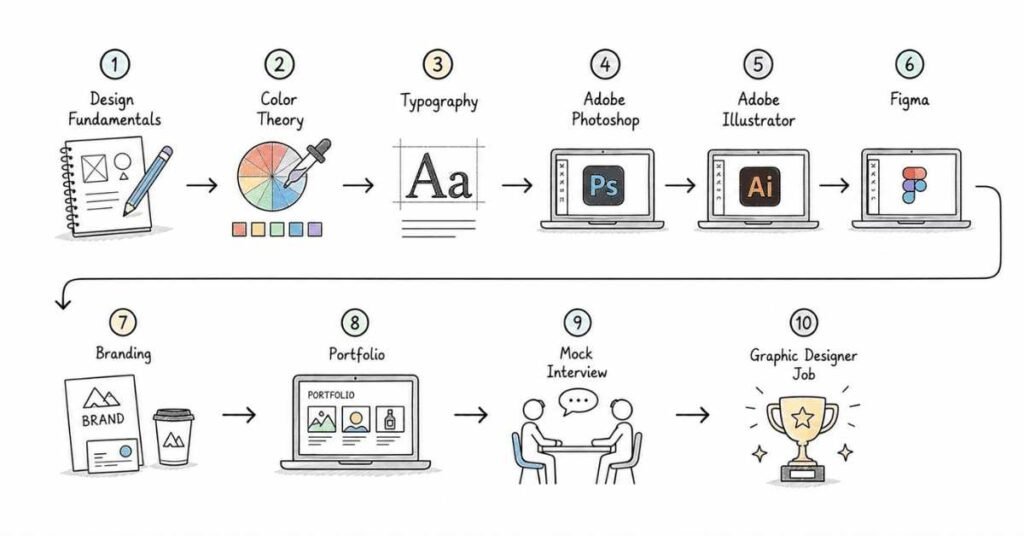
This first part sets the direction for graphic design interview preparation. It explains what design interviews test, what hiring managers look for in portfolios, and how to build a practical 30-day plan that improves both creative confidence and interview readiness.
What this guide covers
This guide is designed to prepare you for graphic design interviews in a structured, layered way. It starts with design fundamentals and moves into typography, layout, software skills, branding, portfolio review, collaboration, behavioral questions, and career strategy.
The goal is not just to help you name tools or define terms, but to help you explain how and why you make design decisions. Interviewers usually care as much about your thinking process as they do about your final visuals.
Who this guide is for
This guide is useful if you are:
- A fresher preparing for your first graphic design interview.
- A design student building a career portfolio.
- A candidate moving from freelance work into a full-time design role.
- A marketer or content creator who wants stronger visual design skills.
- A working professional preparing for branding, social media, digital, or UI-adjacent design roles.
The structure is meant to help both beginners and experienced designers build confidence step by step. It gives you a clear path from fundamentals to interview execution.
What graphic design is and why it matters
Graphic design is the process of communicating ideas visually using typography, imagery, color, layout, and composition. It is used to create visuals that are not only attractive but also clear, purposeful, and aligned with a brand or message.
Graphic design matters because businesses rely on visual communication everywhere. From social media posts and ads to brand identities and website visuals, design helps people understand, trust, and remember a message.
A simple way to think about graphic design is this: it turns ideas into visual communication. Good design is not just decoration; it solves communication problems.
Where graphic design fits in real work
In real companies, graphic design is used for branding, marketing campaigns, social media creatives, website banners, presentation decks, packaging, print materials, and product visuals. Common tasks include:
- Designing social media graphics and ad creatives.
- Creating brand assets such as logos and identity systems.
- Designing posters, brochures, flyers, and presentation slides.
- Preparing web and app visuals.
- Working with content, marketing, and product teams.
- Adapting designs for different platforms and formats.
This is why graphic design interviews test more than software knowledge. Interviewers often want to see whether you can think visually, solve communication problems, and adapt designs for business goals.
Common graphic design roles
Graphic design interviews vary depending on the role. Common role types include:
- Graphic Designer: general design work across brand and marketing assets.
- Visual Designer: strong focus on aesthetics, composition, and digital visuals.
- Brand Designer: identity systems, logos, and brand consistency.
- Social Media Designer: fast-turnaround creative assets for marketing channels.
- Marketing Designer: campaign creatives, banners, ads, and promotions.
- UI/UX-adjacent Designer: interface design, layout systems, and user-focused visuals.
- Motion Graphic Designer: animation, transitions, and dynamic visual content.
Understanding the role early helps you focus your preparation. A brand design interview may focus more on identity systems, while a social media design interview may focus on speed, consistency, and campaign adaptation.
Common interview process
A typical graphic design interview process often includes:
- Recruiter or HR screening.
- Portfolio review.
- Design skills assessment or creative task.
- Discussion of design process and project decisions.
- Tool and technical round.
- Feedback and collaboration questions.
- Behavioral or hiring manager round.
In many interviews, the portfolio is the centerpiece. You may be asked to walk through a project, explain your choices, and describe how you handled feedback or constraints.
Core skill areas interviewers usually check
Most graphic design interviews evaluate some combination of:
- Visual communication.
- Design principles.
- Typography and layout.
- Color usage and composition.
- Software proficiency.
- Brand consistency.
- Creative thinking and problem solving.
- Portfolio presentation.
- Feedback handling.
- Collaboration and communication.
These areas appear repeatedly because they reflect real design work. If you are comfortable with these topics, you can handle most interview rounds with confidence.
Why portfolio matters so much
A portfolio is often the most important part of a graphic design interview. It shows not only what you made, but also how you think, how you solve problems, and how you present your work.
A strong portfolio does not need to be huge. It needs to show range, clarity, and a clear design process. Interviewers usually prefer a few strong projects over many weak or unfinished ones.
How to think in graphic design interviews
A strong design answer usually follows this structure:
- Explain the project brief or problem.
- Describe your target audience or goal.
- Mention the design approach or concept.
- Explain your layout, typography, color, and composition choices.
- Show the final result and impact.
- Mention feedback, iteration, or what you learned.
For example, if asked about a poster design, do not just describe the final artwork. Explain the purpose of the poster, the audience, the visual hierarchy, the color logic, and how you arrived at the final version. That kind of reasoning is what interviewers look for.
30-day study plan
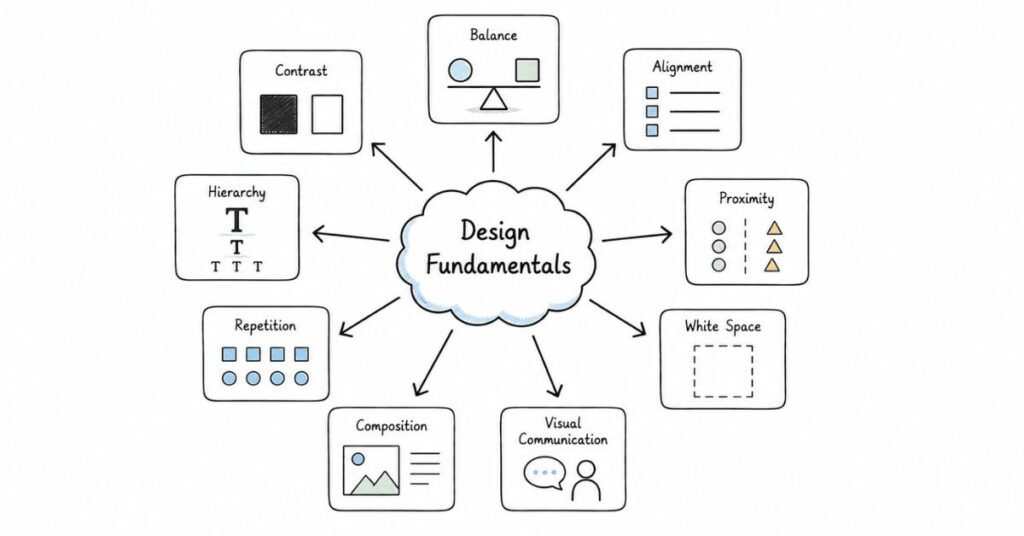
A practical 30-day graphic design study plan looks like this:
Week 1: Design fundamentals and visual thinking
Focus on design principles, composition, balance, contrast, hierarchy, alignment, proximity, repetition, and visual clarity. Review basic terminology and begin analyzing good and bad design examples.
Week 2: Typography, color, and layout
Study typography basics, font pairing, readability, color theory, contrast, spacing, grids, margins, and visual structure. Practice recreating simple layouts and understanding why they work.
Week 3: Tools, software, and project practice
Work on Adobe Photoshop, Illustrator, InDesign, Figma, or other relevant tools. Create sample social media creatives, posters, banners, or branding mockups and refine your workflow.
Week 4: Portfolio, presentation, and mock interviews
Finalize portfolio selection, prepare project case studies, practice explaining your design decisions, and rehearse common interview questions. Spend time on feedback handling, confidence, and personal presentation.
Daily study routine
A practical daily routine looks like this:
- 45 minutes of design theory revision.
- 60 minutes of tool practice or portfolio work.
- 30 minutes of project review or visual analysis.
- 15 minutes of notes, references, or mock interview practice.
If you are a fresher, do not skip spoken explanation practice. Many candidates can design quietly but struggle to explain their choices clearly during interviews.
Salary expectations in India
Graphic design salary expectations vary widely depending on role type, portfolio strength, software skills, industry, and city. Entry-level roles in agencies, startups, and marketing teams often start modestly, while designers with stronger branding, digital, motion, or UI-adjacent skills can command better compensation.
A practical approach is to treat salary numbers as directional context rather than guaranteed outcomes. In interviews, portfolio quality, clarity of communication, and versatility often matter as much as years of experience.
How to prepare effectively
The best way to prepare for graphic design interviews is to build from fundamentals to portfolio storytelling. Start with design principles, then move into tools, then refine your project presentations and mock interview answers.
You should also practice speaking about your work out loud. In many interviews, the explanation matters almost as much as the final visual.
The best way to prepare for SQL interviews is to build from simple to complex. Start with basic querying, then move to grouping, joins, and subqueries, and only after that spend serious time on window functions and optimization.
You should also practice explaining your logic out loud. In many interviews, the explanation matters almost as much as the final query.
Revision focus
Revise what graphic design is, where it is used, the common design role types, the usual interview format, the key skill areas, and the 30-day study plan before moving to design fundamentals.
Part 2: Design Fundamentals & Core Concepts — Questions 1–40
This part builds the foundation for the rest of the graphic design guide. It covers the most important concepts interviewers expect you to understand before you discuss tools, branding, or portfolio work.
Questions 1–40
1) What is graphic design?
Graphic design is the visual communication of ideas using typography, images, color, shape, and layout. It is used to make messages clear, attractive, and effective.
2) Why is graphic design important?
Graphic design is important because it helps people understand information quickly. It also influences how a brand, product, or message is perceived.
3) What is visual communication?
Visual communication is the use of images and design elements to convey information or ideas. In graphic design, it is the core purpose behind most creative work.
4) What are the main elements of design?
The main elements of design include line, shape, color, texture, space, form, and typography. These are the building blocks used to create visual compositions.
5) What are the principles of design?
The principles of design are the rules or guidelines that help organize visual elements effectively. Common principles include balance, contrast, alignment, hierarchy, proximity, repetition, and rhythm.
6) What is balance in design?
Balance refers to how visual weight is distributed in a layout. It can be symmetrical, asymmetrical, or radial depending on the composition.
7) Why is balance important?
Balance creates stability and makes a design feel comfortable to view. Without it, a layout can feel cluttered or visually awkward.
8) What is contrast in design?
Contrast is the difference between visual elements such as size, color, shape, or weight. It helps important elements stand out.
9) Why is contrast useful?
Contrast improves readability and draws attention to key information. It also creates visual interest in a composition.
10) What is alignment?
Alignment is the arrangement of elements so they line up in a clean and intentional way. It helps create order and structure in a design.
11) Why is alignment important?
Alignment makes a layout look professional and organized. It helps the viewer scan the content more easily.
12) What is hierarchy in design?
Hierarchy is the arrangement of elements according to importance. It tells the viewer what to notice first, second, and third.
13) How is hierarchy created?
Hierarchy is created through size, weight, color, spacing, and placement. Designers use it to guide the viewer’s eye through the composition.
14) What is proximity in design?
Proximity means placing related elements close together. It helps show relationships and improves organization.
15) Why is proximity important?
It helps the viewer understand which content belongs together. Good proximity makes a layout easier to read.
16) What is repetition in design?
Repetition means using the same or similar visual elements repeatedly. It creates consistency and strengthens the design system.
17) Why is repetition useful?
Repetition helps unify a design and gives it a sense of rhythm. It also supports brand consistency.
18) What is rhythm in design?
Rhythm is the visual flow created by repeating elements in a pattern. It gives movement and continuity to a design.
19) What is white space?
White space, or negative space, is the empty area around and between design elements. It does not have to be white; it simply means unused space.
20) Why is white space important?
White space improves readability and prevents clutter. It also helps important content stand out.
21) What is a composition in design?
Composition is the arrangement of visual elements within a space. It determines how the final design looks and feels overall.
22) Why is composition important?
A strong composition makes a design clear, balanced, and visually engaging. It affects both aesthetics and communication.
23) What is a layout?
A layout is the way text, images, and other elements are arranged on a page or screen. It provides structure to the design.
24) What is symmetry in design?
Symmetry means both sides of a design are visually similar or balanced. It often creates a formal and stable look.
25) What is asymmetry in design?
Asymmetry means the sides are different but still visually balanced. It often creates a more dynamic and modern feel.
26) What is scalability in design?
Scalability means a design should work well at different sizes and across different formats. For example, a logo should look clear on a business card and a billboard.
27) Why is scalability important?
Because designs are often reused across multiple media. A scalable design is more practical and versatile.
28) What is consistency in design?
Consistency means using the same style, spacing, colors, and visual rules across a design or brand. It helps create a unified experience.
29) Why is consistency important?
It makes the design feel intentional and professional. It also helps build brand recognition.
30) What is simplicity in design?
Simplicity means removing unnecessary elements so the main message is clear. It does not mean boring; it means focused.
31) Why is simplicity important?
Simple designs are usually easier to understand and more effective. They reduce confusion and improve clarity.
32) What is the difference between art and design?
Art is often created for expression, while design is created to solve a communication problem. In graphic design, purpose and clarity matter more than personal expression alone.
33) What is the difference between graphic design and illustration?
Graphic design focuses on communication and layout, while illustration focuses more on drawing and visual storytelling. They can work together, but they are not the same thing.
34) What is a mood board?
A mood board is a collection of images, colors, textures, and references that express a creative direction. Designers use it to define a visual style before starting a project.
35) Why are mood boards useful?
They help align the designer and client on the intended look and feel. They also reduce confusion before the design work begins.
36) What is a concept in design?
A concept is the main idea or creative direction behind a design. It guides the visual choices made throughout the project.
37) Why is concept development important?
It gives the design a clear purpose and meaning. Without a concept, visuals may look attractive but feel empty or disconnected.
38) What is a target audience?
A target audience is the specific group of people a design is made for. Their age, interests, behavior, and expectations influence design choices.
39) Why does audience matter in design?
Because effective design depends on who is viewing it. A design for children, for example, will look very different from one for a corporate audience.
40) What is a strong answer for design fundamentals questions?
A strong answer explains the concept clearly and connects it to practical design work. Interviewers like answers that show both understanding and real visual thinking.
Revision focus
Revise the elements of design, the principles of design, balance, contrast, alignment, hierarchy, proximity, repetition, white space, composition, and the difference between art and design before moving to color theory, typography, and layout.
Part 3: Color Theory, Typography & Layout — Questions 41–80
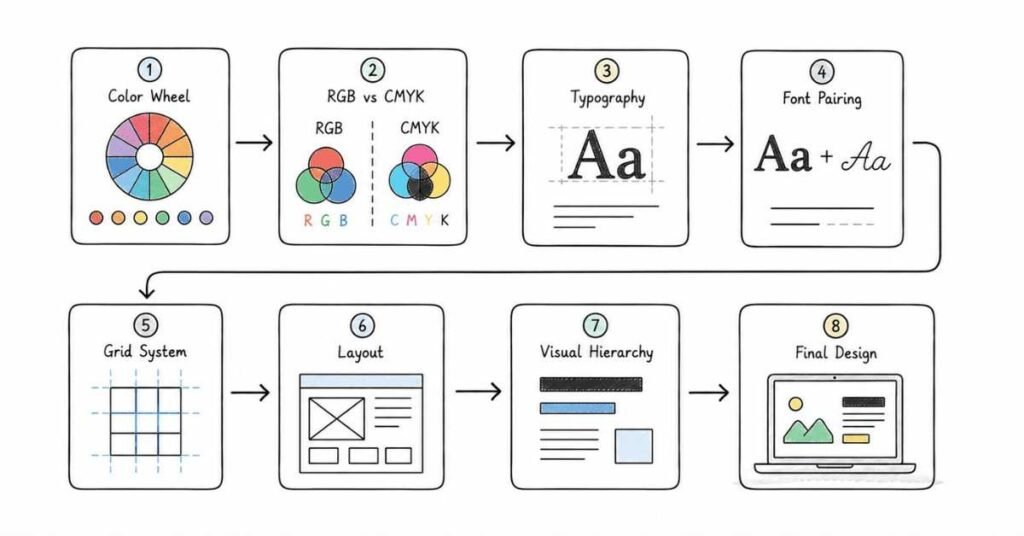
This part covers the visual tools that shape how a design feels, reads, and communicates. It focuses on color, type, spacing, grids, and layout decisions that interviewers often expect designers to explain clearly.
Questions 41–80
41) What is color theory?
Color theory is the study of how colors interact and how they affect visual perception and emotion. Designers use it to choose color combinations that are attractive and effective.
42) Why is color theory important in graphic design?
Color theory is important because color influences mood, readability, and brand identity. It helps designers make intentional visual choices instead of guessing.
43) What are primary colors?
Primary colors are the basic colors that are used to create other colors in a system. In digital design, the primary model is usually based on light; in print, it is based on ink.
44) What are complementary colors?
Complementary colors are colors that sit opposite each other on the color wheel. They create strong contrast and make elements stand out.
45) What are analogous colors?
Analogous colors are colors that sit next to each other on the color wheel. They create harmony and a more unified look.
46) What are warm colors?
Warm colors include reds, oranges, and yellows. They often feel energetic, active, or attention-grabbing.
47) What are cool colors?
Cool colors include blues, greens, and purples. They often feel calm, professional, or refreshing.
48) What is color harmony?
Color harmony means choosing colors that work well together visually. It helps make a design feel balanced and pleasant.
49) What is color contrast?
Color contrast is the difference between two colors, especially in brightness or tone. It is important for visibility and readability.
50) Why is contrast important for text?
Because text must be easy to read against its background. Poor contrast can make a design hard to use and visually weak.
51) What is the RGB color model?
RGB stands for red, green, and blue. It is used for digital screens and light-based color display.
52) What is the CMYK color model?
CMYK stands for cyan, magenta, yellow, and black. It is used for print design because it reflects ink-based color mixing.
53) What is a hex code?
A hex code is a six-character code used to define a specific digital color. Designers use it often in web and UI design.
54) What is typography?
Typography is the art and technique of arranging type. It includes font choice, spacing, size, alignment, and readability.
55) Why is typography important?
Typography affects how content looks and how easily it can be read. It also gives a design personality and tone.
56) What is a font?
A font is a specific design of typeface in a particular weight or style. For example, bold and regular versions may belong to the same font family.
57) What is a typeface?
A typeface is the overall design family of letters and characters. A font is one variation within that family.
58) What is the difference between serif and sans serif fonts?
Serif fonts have small decorative strokes at the ends of letters, while sans serif fonts do not. Serif fonts often feel traditional, while sans serif fonts often feel clean and modern.
59) What is font pairing?
Font pairing is the practice of combining two or more fonts that work well together. A strong pairing creates contrast while staying visually consistent.
60) Why is font pairing important?
Because using too many unrelated fonts can make a design look messy. Good pairing improves clarity and style.
61) What is kerning?
Kerning is the spacing between individual letters. It is used to improve the visual balance of text.
62) What is tracking?
Tracking is the spacing across a whole block of text. It affects the overall feel and readability of the type.
63) What is leading?
Leading is the space between lines of text. Proper leading makes text easier to read.
64) What is readability?
Readability is how easy it is to read text in a design. It depends on size, spacing, contrast, and type choice.
65) What is legibility?
Legibility is how easily individual letters and words can be recognized. It focuses more on the form of the text itself.
66) What is hierarchy in typography?
Typography hierarchy is the use of size, weight, and style to show which text is most important. It helps guide the viewer through the content.
67) What is alignment in typography?
Alignment refers to how text lines up in relation to the page or other elements. Common alignments include left, right, center, and justified.
68) What is a grid in design?
A grid is a structure of lines or columns used to organize content. It helps keep layouts clean and aligned.
69) Why are grids important?
Grids create consistency and balance. They make it easier to place text and images in an orderly way.
70) What is a margin?
A margin is the empty space around the outside of a layout. It prevents content from feeling crowded near the edges.
71) What is padding?
Padding is the space inside an element or container, between its content and its border. It helps create breathing room.
72) What is a column layout?
A column layout divides a page into vertical sections. It is commonly used in magazines, websites, and brochures.
73) What is visual rhythm?
Visual rhythm is the repetition or flow created by repeated spacing, shapes, or elements. It helps a design feel smooth and organized.
74) What is balance between text and image?
It is the relationship between written content and visuals in a composition. A good balance supports clarity without making the layout feel empty or overloaded.
75) What is a responsive layout?
A responsive layout adapts to different screen sizes and devices. It is essential in modern digital and web design.
76) Why is responsive design important?
Because users view content on many different devices. A good design must remain usable and attractive everywhere.
77) What is whitespace used for in typography and layout?
Whitespace improves readability, separation, and focus. It helps the layout feel less crowded and more professional.
78) What is a visual hierarchy in a poster or social media post?
It is the order in which the viewer notices elements. A strong hierarchy usually starts with the headline, then the key visual, then supporting text.
79) What is a common typography mistake?
A common mistake is using too many font styles or sizes without structure. Another mistake is poor spacing that reduces readability.
80) What is a strong answer for color, typography, and layout questions?
A strong answer explains the design choice and connects it to readability, brand tone, or audience needs. Interviewers want to see that your decisions are intentional, not random.
Revision focus
Revise color theory, RGB versus CMYK, hex codes, typography basics, serif versus sans serif, kerning, tracking, leading, grids, margins, whitespace, and responsive layout before moving to tools and software.
Part 4: Design Tools, Software & File Formats — Questions 81–120
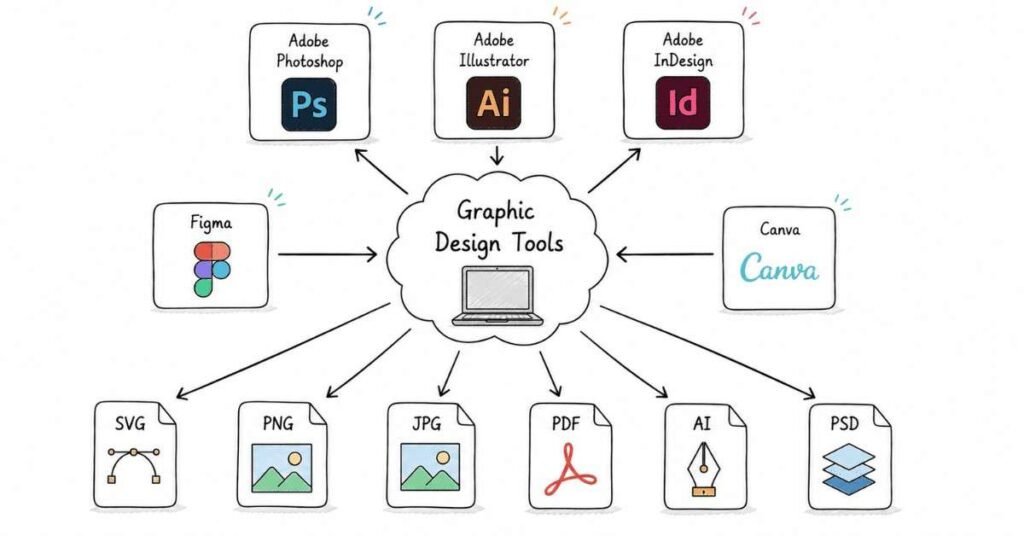
This part covers the software, formats, and technical workflow that graphic design interviewers often ask about. It focuses on the tools you use to create, edit, export, and deliver design work in real projects.
Questions 81–120
81) What are the most common tools used in graphic design?
Common tools include Adobe Photoshop, Adobe Illustrator, Adobe InDesign, Figma, Canva, CorelDRAW, and sometimes After Effects for motion-related work. The exact tools depend on the role and type of design work.
82) What is Adobe Photoshop used for?
Photoshop is used for image editing, photo manipulation, raster-based design, and creating digital visuals. It is especially useful for posters, banners, social media graphics, and image retouching.
83) What is Adobe Illustrator used for?
Illustrator is used for vector-based design. It is commonly used for logos, icons, illustrations, and scalable brand assets.
84) What is Adobe InDesign used for?
InDesign is used for page layout and multi-page documents such as brochures, magazines, books, and PDFs. It is ideal for print-focused layout work.
85) What is Figma used for?
Figma is used for interface design, collaborative design, prototyping, and layout work. It is especially popular in UI/UX and digital product design.
86) What is Canva used for?
Canva is used for fast, template-based design creation. It is often used for social media graphics, presentations, and simple marketing visuals.
87) What is the difference between raster and vector graphics?
Raster graphics are made of pixels and can lose quality when enlarged. Vector graphics are made of paths and can scale without losing quality.
88) When should you use raster graphics?
Use raster graphics for photos, textures, and detailed image editing. Photoshop is commonly used for raster work.
89) When should you use vector graphics?
Use vector graphics for logos, icons, illustrations, and any design that must scale cleanly. Illustrator is commonly used for vector work.
90) What is resolution in design?
Resolution refers to the amount of detail in an image, usually measured in pixels or DPI. Higher resolution generally means clearer output.
91) Why does resolution matter?
Because low-resolution images can appear blurry or pixelated. This is especially important in print and large-format design.
92) What is DPI?
DPI stands for dots per inch. It is commonly used in print-related design to describe output quality.
93) What is PPI?
PPI stands for pixels per inch. It is commonly used for digital image resolution.
94) What is a file format?
A file format is the type of file used to save or export a design. Different formats are used for editing, web use, or print delivery.
95) What is the difference between JPG and PNG?
JPG is commonly used for photographs and smaller file sizes, while PNG supports transparency and is often used for graphics with clean edges.
96) What is SVG?
SVG is a vector-based file format used mainly for web graphics. It scales well and is useful for icons and logos.
97) What is PDF used for in design?
PDF is used for sharing and printing final design files. It preserves layout and formatting across devices.
98) What is AI in design file formats?
AI is the native file format for Adobe Illustrator. It is used to store editable vector artwork.
99) What is PSD?
PSD is the native file format for Adobe Photoshop. It keeps layers and edits editable.
100) What is a layered file?
A layered file keeps design elements on separate layers. This makes editing, organizing, and adjusting easier.
101) Why are layers important?
Layers allow designers to work non-destructively and make changes without affecting the entire file. They are a core part of professional workflow.
102) What is a mockup?
A mockup is a visual presentation of a design in a realistic context. It helps show how the final design may look in real life.
103) Why are mockups useful?
They help clients and interviewers visualize the design more clearly. They also make portfolio presentations more professional.
104) What is a template?
A template is a pre-designed layout that can be reused and customized. It helps save time and maintain consistency.
105) Why are templates useful?
They speed up work and provide structure. However, good designers still customize templates to fit the brand or brief.
106) What is export in design software?
Export means saving a file in a format suitable for sharing, printing, or publishing. It is the final step before delivery.
107) Why is export format important?
Because the wrong export settings can reduce quality or create compatibility issues. Designers must choose the right format for the use case.
108) What is a bleed in print design?
Bleed is the extra area beyond the trim edge of a page. It prevents white edges from appearing after cutting.
109) Why is bleed important?
It ensures the printed design looks clean after trimming. It is a standard print production requirement.
110) What is a trim area?
The trim area is the final cut boundary of a printed design. It defines the final size of the finished piece.
111) What is a safe area?
A safe area is the part of the layout where important content should stay to avoid being cut off. It helps protect text and logos during printing.
112) What is a moodboard file or reference board?
It is a collection of visual references used to communicate style and direction. It helps guide the design process before production begins.
113) What is a prototype?
A prototype is an interactive or test version of a design. It is used to show how something may function or feel before final delivery.
114) What is a design system?
A design system is a set of reusable visual and UI rules, components, and standards. It helps keep design work consistent across a product or brand.
115) What is version control in design workflow?
Version control means keeping track of file changes over time. It helps avoid losing work and makes collaboration easier.
116) Why is organization important in design files?
Because messy files slow down work and create confusion. Good folder structure, naming, and layer organization improve efficiency.
117) What is a common workflow for a design project?
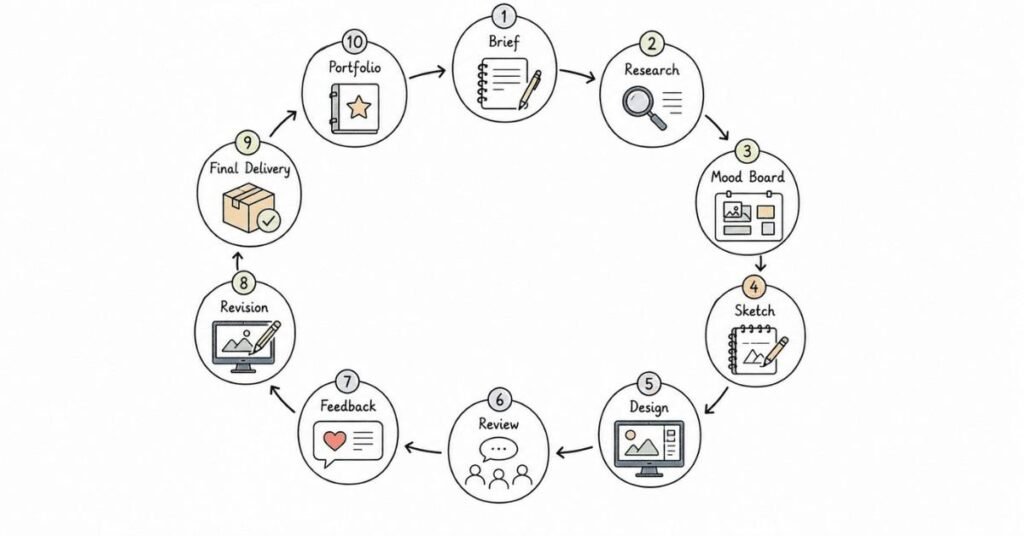
A common workflow is brief, research, concepting, sketching, design execution, revision, export, and delivery. This sequence helps keep the project organized.
118) What is collaboration in design tools?
Collaboration means multiple people can review, comment, or work on a design together. Tools like Figma make this especially easy.
119) What is a common software mistake in interviews?
A common mistake is naming tools without explaining how you used them. Interviewers want to know your practical workflow, not only the software list.
120) What is a strong answer for tool and file-format questions?
A strong answer explains which tool you used, why you used it, and what output you delivered. That shows both technical ability and real project understanding.
Revision focus
Revise Photoshop versus Illustrator, Figma, InDesign, raster versus vector, JPG versus PNG versus SVG, PSD and AI files, resolution, DPI, bleed, safe area, and export workflow before moving to branding and visual identity.
Part 5: Branding, Visual Identity & Marketing Design — Questions 121–160
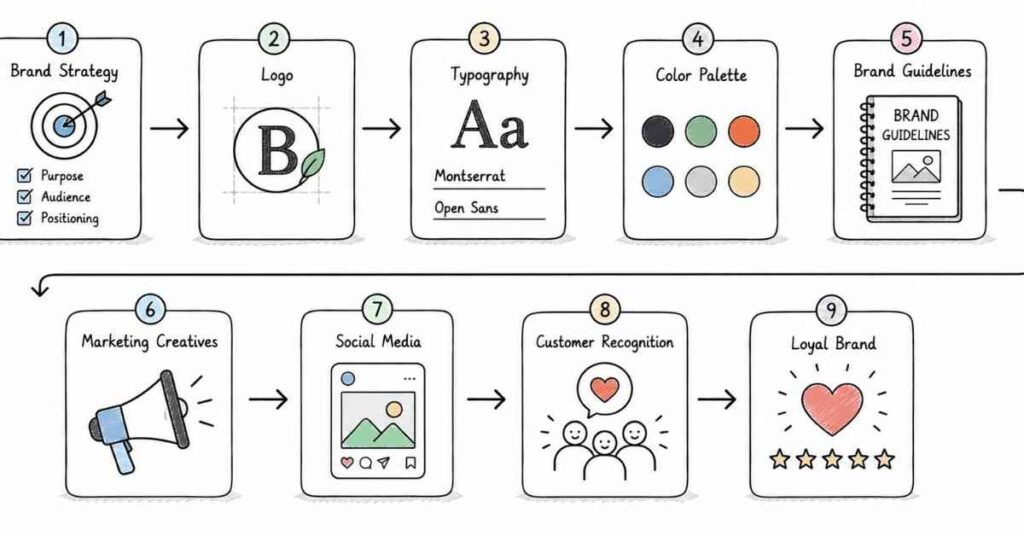
This part covers the kind of design work that interviewers often expect in brand, marketing, and social media roles. It focuses on how you build consistency, communicate identity, and adapt designs for campaigns and business goals.
Questions 121–160
121) What is branding?
Branding is the process of creating a distinct identity for a company, product, or service. It includes visual and non-visual elements that shape how people perceive the brand.
122) What is visual identity?
Visual identity is the set of visual elements that represent a brand. It includes the logo, colors, typography, imagery style, and overall design system.
123) What is the difference between branding and visual identity?
Branding is the broader perception and personality of the brand, while visual identity is the visual expression of that brand. Visual identity is one part of branding.
124) Why is brand consistency important?
Brand consistency helps people recognize and trust a brand. Repeating the same visual style across platforms makes the brand feel professional and memorable.
125) What is a brand guideline?
A brand guideline is a document that explains how a brand should look and be used. It usually includes logo rules, colors, typography, imagery, and layout standards.
126) Why are brand guidelines useful?
They ensure that different designers and teams create consistent work. They reduce confusion and keep the brand identity unified.
127) What is a logo?
A logo is a visual symbol or wordmark that identifies a brand. It is often the most recognizable part of a brand identity.
128) What makes a good logo?
A good logo is simple, memorable, versatile, and appropriate for the brand. It should work across different sizes and formats.
129) What is a wordmark?
A wordmark is a logo made primarily from text. It relies on typography to represent the brand name.
130) What is an icon or symbol in branding?
An icon or symbol is a graphic mark that represents the brand without using full text. It can be used alone or alongside a wordmark.
131) What is brand voice in design?
Brand voice is the personality and tone communicated through visual and written content. It shapes how the audience experiences the brand.
132) How do visuals support brand voice?
Color, typography, imagery, and layout all help express whether a brand feels formal, playful, premium, modern, or friendly. Design choices should match the brand personality.
133) What is a brand asset?
A brand asset is any visual or design element used to represent the brand. This can include logos, icons, social media templates, and presentation decks.
134) What is a marketing creative?
A marketing creative is a design made for promotion or campaign use. It may be used in ads, social media, email, landing pages, or offline marketing.
135) Why is marketing design different from general design?
Marketing design is often built to drive a specific action such as clicks, sign-ups, awareness, or engagement. It must balance creativity with performance goals.
136) What is a campaign visual?
A campaign visual is a design created for a specific marketing campaign. It usually follows a theme, goal, or message.
137) What is the role of hierarchy in marketing design?
Hierarchy helps the viewer quickly see the headline, offer, call to action, and supporting message. It is essential in ads and promotional content.
138) What is a call to action?
A call to action, or CTA, is the instruction that tells the audience what to do next. Examples include “Buy Now,” “Learn More,” or “Sign Up.”
139) Why is CTA design important?
Because the CTA often drives the actual result of the creative. It must be visible, clear, and aligned with the campaign goal.
140) What is social media design?
Social media design is the creation of visuals for platforms like Instagram, Facebook, LinkedIn, and X. It often needs to be fast, adaptable, and brand-consistent.
141) Why is social media design challenging?
Because it has to work across multiple sizes, formats, and attention spans. It also needs to be visually strong enough to stand out quickly.
142) What is an ad creative?
An ad creative is a visual asset designed for paid promotion. It often needs to communicate a message fast and clearly.
143) What makes an effective ad creative?
An effective ad creative has a clear message, strong hierarchy, relevant imagery, and a visible CTA. It should match the target audience and campaign objective.
144) What is a thumbnail design?
A thumbnail design is a small visual used to represent larger content such as a video or article. It must attract attention and communicate the topic quickly.
145) Why are thumbnails important?
Because they strongly affect click-through behavior. A good thumbnail can increase visibility and engagement.
146) What is a flyer or poster design?
A flyer or poster is a print or digital communication piece used to promote an event, offer, or message. It usually relies on strong hierarchy and concise text.
147) What is packaging design?
Packaging design is the visual and structural design of product packaging. It combines branding, functionality, and shelf appeal.
148) Why is packaging design important?
Because packaging often influences purchase decisions. It also communicates brand quality and product information.
149) What is brand mood or tone?
Brand mood is the emotional feeling a design creates. It may feel premium, energetic, playful, calm, or corporate depending on the visual choices.
150) How does color affect brand perception?
Color influences mood and recognition. Different colors can make a brand feel more trustworthy, youthful, premium, or creative.
151) How does typography affect brand perception?
Typography influences personality and tone. A serif font may feel classic, while a bold sans serif may feel modern and strong.
152) How does imagery affect branding?
Imagery helps shape how the audience emotionally connects with the brand. Consistent image style makes the brand feel more unified.
153) What is brand storytelling in design?
Brand storytelling is the use of visuals to communicate the brand’s message, values, or journey. It helps make the brand more relatable and memorable.
154) What is a design refresh?
A design refresh is a partial update to a brand’s visual style. It improves the look without completely changing the identity.
155) What is a rebrand?
A rebrand is a major change to a brand’s identity, positioning, or visual system. It may involve a new logo, color palette, and design direction.
156) What is the difference between a refresh and a rebrand?
A refresh updates existing elements, while a rebrand creates a new identity or significantly changes the old one. The scope of change is the main difference.
157) What is consistency across platforms?
It means keeping the same brand style across print, social media, web, and other channels. This builds recognition and trust.
158) Why do interviewers ask about branding?
Because many design jobs require more than visual skill. Interviewers want to know whether you can support a brand strategically and consistently.
159) What is a common branding mistake?
A common mistake is making designs that look attractive but do not match the brand personality. Another mistake is inconsistency across different assets.
160) What is a strong answer for branding questions?
A strong answer explains how your design supports the brand message, audience, and business goal. It should connect visual choices to identity and consistency.
Revision focus
Revise branding, visual identity, logos, brand guidelines, marketing creatives, CTAs, social media design, packaging design, brand consistency, and the difference between refresh and rebrand before moving to UX/UI basics and web design.
Part 6: UX/UI Basics, Web Design & Responsive Design — Questions 161–200
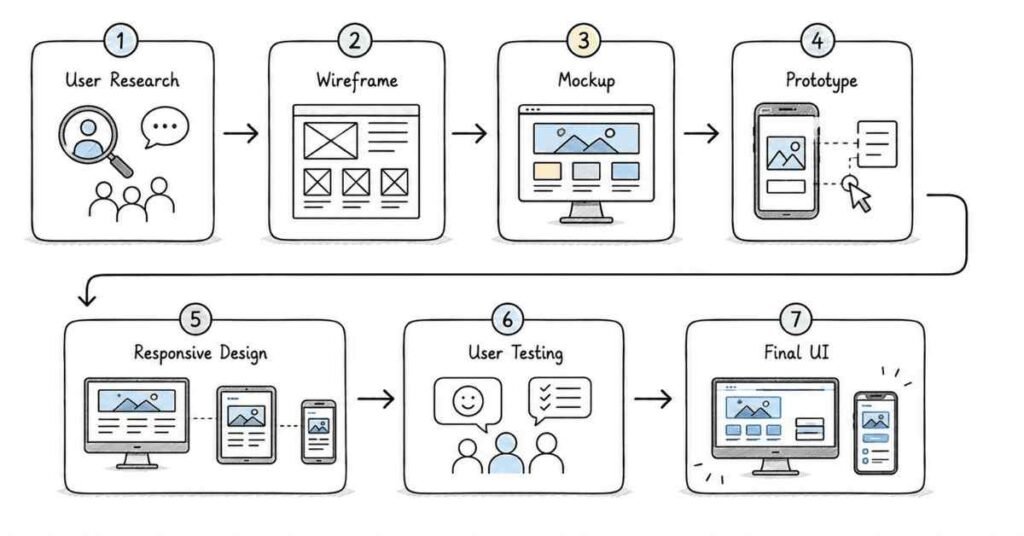
This part covers the design ideas that connect graphic design with digital product work. It focuses on layout for screens, user experience basics, responsive behavior, and how designers think about web and app visuals.
Questions 161–200
161) What is UX design?
UX design, or user experience design, is the process of creating products that are easy, useful, and pleasant to use. It focuses on how a person feels while interacting with a product.
162) What is UI design?
UI design, or user interface design, is the visual design of digital interfaces. It focuses on screens, buttons, spacing, color, icons, and interactive elements.
163) What is the difference between UX and UI?
UX focuses on the overall experience and usability, while UI focuses on the visual appearance and interaction layer. They are related but not the same.
164) Why should graphic designers understand UX/UI basics?
Because many design roles now involve digital screens, apps, websites, and interactive content. Even if you are not a full UX designer, understanding UX/UI makes your work more practical.
165) What is web design?
Web design is the process of designing websites for clarity, usability, and visual appeal. It includes layout, structure, content presentation, and responsiveness.
166) What is responsive design?
Responsive design means a layout adapts to different screen sizes and devices. A responsive website or design should work well on mobile, tablet, and desktop.
167) Why is responsive design important?
Because users view content on many devices. A design that only works on one screen size is not practical in real digital environments.
168) What is mobile-first design?
Mobile-first design means designing for smaller screens first and then scaling up to larger screens. It helps keep content focused and usable.
169) What is a wireframe?
A wireframe is a simple visual outline of a page or screen. It shows structure and placement without detailed styling.
170) Why are wireframes useful?
They help plan layout and hierarchy before final design work begins. This saves time and makes feedback easier.
171) What is a mockup in UI design?
A mockup is a more detailed visual representation of a screen. It shows the final look, including color, typography, and spacing.
172) What is a prototype?
A prototype is a clickable or interactive version of a design. It helps test how a screen or flow might work before development.
173) What is a user flow?
A user flow shows the steps a person takes to complete a task in a product. It helps designers understand the journey from start to finish.
174) Why are user flows important?
They help ensure the design supports the user’s goal. They also reduce friction and confusion.
175) What is a navigation menu?
A navigation menu helps users move through a website or app. It is one of the most important parts of digital usability.
176) What makes navigation clear?
Simple structure, familiar labels, and logical grouping make navigation easier to understand. Users should not have to guess where to click.
177) What is an icon in UI design?
An icon is a small visual symbol used to represent an action, object, or concept. Icons help save space and improve quick recognition.
178) Why are icons important?
They support communication and usability. In digital design, icons often help users act faster.
179) What is an input field?
An input field is a space where users type information, such as a name, email, or password. It is a common part of forms and interfaces.
180) What is usability?
Usability refers to how easy and efficient a product is to use. A usable design reduces effort and confusion.
181) What is accessibility in design?
Accessibility means designing so that more people can use and understand the content, including people with disabilities. It is an important part of inclusive design.
182) Why is accessibility important?
Because good design should work for as many people as possible. Accessible design improves real-world usability.
183) What is visual hierarchy in web design?
It is the order in which users notice content on a page. Good hierarchy helps users scan pages quickly and understand what matters most.
184) What is a hero section?
A hero section is the large top area of a website or landing page. It usually contains the main message, supporting text, and a call to action.
185) Why is the hero section important?
Because it is often the first thing users see. It needs to communicate value quickly.
186) What is a landing page?
A landing page is a focused web page designed around one goal, such as sign-ups or purchases. It is often used in marketing campaigns.
187) Why are landing pages important?
They reduce distraction and guide users toward a specific action. They are common in digital marketing and conversion-focused design.
188) What is a call-to-action button?
It is a button that prompts the user to take an action. Good CTA buttons are clear, visible, and easy to understand.
189) What is whitespace in digital design?
Whitespace is the empty space around content and interface elements. It improves clarity and focus.
190) Why is whitespace important in web design?
Because crowded layouts are harder to use. Whitespace improves scanability and perceived quality.
191) What is a grid system in web design?
A grid system is a structured framework used to align elements on a page. It helps create consistency and balance.
192) Why do designers use grids?
Grids support layout order and make responsive design easier. They are especially useful for websites and digital interfaces.
193) What is a breakpoint in responsive design?
A breakpoint is a screen width where the layout changes to better fit the device. It helps the design adapt across sizes.
194) What is a common responsive design mistake?
A common mistake is designing only for desktop and not checking smaller screens. Another mistake is using text or images that do not scale well.
195) What is a style guide in digital design?
A style guide is a document that defines visual rules for a product or brand. It may include colors, spacing, typography, buttons, and components.
196) Why are style guides useful?
They help keep digital products consistent across screens and teams. They also make future design work faster.
197) What is a common UX/UI interview topic for graphic designers?
Interviewers often ask how you balance beauty with usability. They want to know whether you can design visuals that also work for users.
198) What is a common digital design mistake?
A common mistake is creating something visually attractive but difficult to use. Good digital design should support both style and function.
199) What is a strong answer for UX/UI questions?
A strong answer explains the user goal, the layout choice, and how the design supports clarity and interaction. Interviewers like practical thinking more than jargon.
200) Why are UX/UI basics useful for graphic designers?
Because modern design work often happens on screens, not just in print. Understanding UX/UI helps graphic designers create more relevant and effective work.
Revision focus
Revise UX versus UI, web design basics, responsive design, wireframes, mockups, prototypes, user flows, accessibility, hero sections, landing pages, grids, and breakpoints before moving to portfolio review and critique handling.
Part 7: Portfolio Review, Case Studies & Critique Handling — Questions 201–240
This part covers one of the most important areas in a graphic design interview: how you present your work. A strong portfolio is not just a collection of visuals; it is a story about your thinking, process, and decision-making.
Questions 201–240
201) What is a portfolio in graphic design?
A portfolio is a curated collection of your best design work. It shows your style, skill level, and creative process to employers or clients.
202) Why is a portfolio important?
It is important because it gives interviewers proof of your ability. In design roles, a portfolio often matters more than just a resume.
203) What should a good design portfolio include?
A good portfolio should include strong projects, clear visuals, brief explanations, and evidence of process. It should show both finished work and how you approached the design.
204) How many projects should be in a portfolio?
Quality matters more than quantity. A small number of strong, relevant projects is usually better than a large number of weak or repetitive ones.
205) What is a case study in design?
A case study explains the story behind a project. It usually includes the problem, process, design decisions, and final outcome.
206) Why are case studies useful?
They help interviewers understand how you think, not just what you made. A good case study makes your portfolio more credible.
207) What should a design case study include?
It should include the brief, your role, research, concept, process, tools used, final design, and outcome. It can also include feedback or iterations.
208) What is the design brief?
The brief is the project requirement or problem statement. It explains what needed to be designed and why.
209) Why is the brief important?
Because it sets the direction for the project. Interviewers want to know whether you can design based on a real objective.
210) What is process in a case study?
Process is the step-by-step path you followed to solve the design problem. It may include research, sketches, concepts, revisions, and final execution.
211) Why should you show process in a portfolio?
Because it proves that your work is intentional. It also shows how you think through problems and handle changes.
212) What is a final design?
The final design is the completed visual output delivered for the project. It is the result of your concept and execution work.
213) Why should you explain design decisions?
Because interviewers want to understand the reasoning behind your choices. Good designers can justify why they used a certain color, font, layout, or style.
214) What is a portfolio walkthrough?
A portfolio walkthrough is when you explain your work project by project in an interview. You describe the problem, your process, and the final outcome.
215) How should you present a portfolio walkthrough?
Keep it structured, concise, and focused on the role you are applying for. Start with the most relevant project first.
216) What is a common portfolio mistake?
A common mistake is showing too many pieces without explaining them. Another mistake is including work that does not reflect your best level.
217) What is a strong project story?
A strong project story explains what the challenge was, what you did, why you made those choices, and what the result was. It should feel clear and professional.
218) What is iteration in design?
Iteration means improving a design through repeated changes and feedback. It is a normal part of the design process.
219) Why is iteration important?
Because the first version is rarely the best version. Iteration helps refine the work and improve quality.
220) What is feedback in a design process?
Feedback is the response you get from a client, manager, or teammate about your work. It helps you improve the design.
221) Why is feedback important?
It helps identify problems, improve clarity, and align the design with the goal. Good designers do not take feedback personally; they use it to improve.
222) How should you handle critique?
Listen carefully, ask clarifying questions, and separate personal preference from project goals. Then revise the work based on useful input.
223) What is constructive criticism?
Constructive criticism is feedback meant to improve the work, not just point out flaws. It is one of the most valuable parts of the design process.
224) Why do interviewers ask about critique?
Because design work always involves feedback and revision. They want to know whether you can respond professionally and collaborate well.
225) What is a design iteration after critique?
It is the updated version of the work based on feedback. It shows that you can adapt and refine your ideas.
226) What is a portfolio platform?
A portfolio platform is the website or medium where you present your work. It could be Behance, a personal website, Notion, PDF, or another format.
227) Why does portfolio presentation matter?
Because presentation affects how your work is perceived. A clear and organized portfolio makes a stronger impression.
228) What is the difference between an online portfolio and a PDF portfolio?
An online portfolio is easy to share and update, while a PDF portfolio is useful for interviews and offline viewing. Many designers use both.
229) What is a strong portfolio headline?
A strong portfolio headline quickly tells people your role and style. It should be clear, concise, and relevant to the jobs you want.
230) What is a common presentation mistake during portfolio reviews?
A common mistake is talking too much about tools and too little about thinking. Interviewers care more about your process and decisions.
231) How should you choose projects for a portfolio?
Choose projects that match the type of role you want and show different strengths. Include work that demonstrates quality, variety, and relevance.
232) Why is relevance important in project selection?
Because employers want to see work similar to what the role requires. A brand design role should emphasize identity work, while a marketing role should show campaign creatives.
233) What is a personal project in design?
A personal project is a self-initiated piece created without a client brief. It can still show creativity, process, and design thinking.
234) Are personal projects useful in interviews?
Yes, especially for freshers or candidates with limited client work. They show initiative and help fill portfolio gaps.
235) What is a common personal project mistake?
A common mistake is making something visually impressive but lacking purpose. A strong personal project should still have a problem and a solution.
236) What is a portfolio red flag?
A red flag is when work looks inconsistent, unsupported by explanation, or clearly copied. Interviewers may question the authenticity or depth of the work.
237) Why do designers need to talk about limitations?
Because every project has constraints like time, tools, client feedback, or brand rules. Discussing limitations shows realism and maturity.
238) What is a strong answer for portfolio review questions?
A strong answer explains the project context, your role, the creative process, and the impact. It should sound confident but honest.
239) Why should you be honest about your contribution?
Because interviewers often ask follow-up questions. If you claim work you did not do, it can become obvious during the discussion.
240) What makes a portfolio interview successful?
A successful portfolio interview happens when your work is clear, relevant, and well explained. Confidence, structure, and honest storytelling matter just as much as the visuals.
Revision focus
Revise portfolio structure, case studies, brief analysis, process explanation, iteration, feedback handling, critique response, and how to present your best projects clearly before moving to design process, collaboration, and problem solving.
Part 8: Design Process, Collaboration & Problem Solving — Questions 241–280
This part covers how you work, not just what you make. Interviewers often want to know how you handle briefs, respond to feedback, work with teams, and solve creative problems in real projects.
Questions 241–280
241) What is a design process?
A design process is the sequence of steps a designer follows to complete a project. It often includes understanding the brief, research, ideation, execution, review, and delivery.
242) Why is a design process important?
It keeps work organized and intentional. A clear process helps you make better decisions and explain your work in interviews.
243) What is the first step in a design process?
The first step is understanding the brief or problem. You need to know the goal, audience, constraints, and deliverables before designing.
244) Why is brief understanding important?
Because a design can only succeed if it solves the right problem. Many mistakes happen when the brief is not clearly understood.
245) What is research in design?
Research is the process of gathering information before creating the design. It may include studying the brand, audience, competitors, trends, or references.
246) Why is research useful?
It helps you make informed design choices instead of guessing. Good research leads to stronger and more relevant outcomes.
247) What is ideation?
Ideation is the stage where you generate ideas and possible visual directions. It may include sketching, mood boards, or rough concepts.
248) Why is ideation important?
Because it helps you explore multiple solutions before committing to one. This often leads to better final work.
249) What is a concept sketch?
A concept sketch is a rough drawing or visual draft of an idea. It helps test composition and structure before full execution.
250) Why are sketches useful?
They let you explore ideas quickly and cheaply. They also make it easier to compare options.
251) What is execution in design?
Execution is the stage where you turn the concept into a finished design. It includes layout, typography, color, imagery, and refinement.
252) Why is execution important?
Because even a strong idea can fail if poorly executed. Good execution makes the concept clear and professional.
253) What is revision in design?
Revision means improving the design based on feedback or self-review. It is a normal and necessary part of the workflow.
254) Why is revision important?
It helps the final design become more accurate, polished, and aligned with the goal. Most good work goes through several revisions.
255) What is collaboration in design?
Collaboration means working with others such as marketers, developers, writers, product teams, or clients. It is common in most real design jobs.
256) Why is collaboration important?
Because design rarely happens in isolation. Good collaboration helps align the design with business needs and team expectations.
257) What is cross-functional collaboration?
Cross-functional collaboration means working with people from different departments. For example, a designer may work with marketing, content, product, and development teams.
258) Why do interviewers ask about collaboration?
Because designers often need to communicate ideas clearly and adapt to team feedback. They want to know whether you can work well with others.
259) What is a design handoff?
A design handoff is the transfer of final design files, specs, or assets to another team, often developers or production staff. It is an important step in digital projects.
260) Why is a clean handoff important?
It reduces confusion and helps other teams implement the design correctly. Good handoffs save time and prevent errors.
261) What is a design constraint?
A design constraint is a limitation such as time, brand rules, budget, size, or platform requirements. Constraints are common in real projects.
262) Why are constraints important to mention?
Because they show how you solved problems realistically. Interviewers want to see that you can work within limits.
263) What is creative problem solving?
Creative problem solving is the ability to find design solutions for communication or visual challenges. It is one of the most important design skills.
264) Why is creative problem solving important?
Because every brief has some kind of challenge. Strong designers do not just decorate; they solve problems visually.
265) What is a design challenge example?
A design challenge might be making a small ad creative stand out, improving readability in a layout, or adapting a brand across different formats. These are common real-world issues.
266) How do you handle unclear requirements?
You ask questions, clarify the goal, and define assumptions before starting. This prevents wasted effort and confusion later.
267) Why is clarification important?
Because vague instructions can lead to wrong outcomes. Good designers reduce ambiguity early.
268) What is prioritization in design work?
Prioritization means deciding which tasks or details matter most first. It helps you manage deadlines and focus on the highest-value work.
269) Why is prioritization important?
Because design projects often involve many moving parts. Prioritizing helps you stay efficient and deliver on time.
270) What is time management in design?
Time management is the ability to plan and complete work within deadlines. It is essential in both agency and in-house environments.
271) Why is time management important?
Because design work often needs to move quickly, especially in marketing and social media roles. Good time management keeps the process smooth.
272) What is creative consistency?
Creative consistency means keeping the same visual logic throughout a project or brand. It helps the work feel unified.
273) Why is consistency important in collaboration?
Because different people may contribute to the same project. Consistency ensures the final output still feels like one coherent system.
274) What is a feedback loop?
A feedback loop is the repeated cycle of review and improvement. It is a natural part of design and teamwork.
275) Why is a feedback loop useful?
It helps improve the work step by step and keeps stakeholders involved. It also reduces the chance of major last-minute changes.
276) What is a common teamwork mistake?
A common mistake is designing in isolation without checking with the team. Another mistake is not explaining the reasoning behind your choices.
277) What is a strong answer for process questions?
A strong answer walks the interviewer through your workflow clearly and honestly. It should show structure, adaptability, and teamwork.
278) What is a strong answer for problem-solving questions?
A strong answer explains the problem, your approach, the action you took, and the result. That shows practical thinking and design maturity.
279) Why do interviewers care about process?
Because strong design work is not only about visuals. They want to know whether you can manage a real project from start to finish.
280) What makes a designer reliable in a team?
Reliability comes from clear communication, on-time delivery, good judgment, and openness to feedback. These traits matter as much as visual skill in professional settings.
Revision focus
Revise the design process, research, ideation, execution, revision, collaboration, handoff, constraints, time management, and creative problem solving before moving to the final career strategy section.
Part 9: Behavioral, Resume, LinkedIn & Career Strategy — Graphic Design Interview Preparation Guide
This final part focuses on presenting yourself well for graphic design roles, not just showing attractive work. A strong design candidate needs to explain projects clearly, present a focused portfolio, handle feedback well, and position their resume and LinkedIn profile around relevant creative skills and business impact.
STAR method
The STAR method means answering behavioral questions with:
- Situation.
- Task.
- Action.
- Result.
This works especially well for graphic design interviews because many behavioral questions are really trying to understand how you handled feedback, project briefs, revisions, missed deadlines, brand constraints, collaboration issues, or creative challenges.
Use this graphic-design-friendly STAR approach:
- Situation: A campaign brief, branding request, design revision, client challenge, or project deadline.
- Task: What you were responsible for.
- Action: What you researched, designed, revised, presented, or coordinated.
- Result: What improved, what was delivered, what was approved, or what you learned.
Example:
Situation: A social media campaign needed a fresh visual direction, but the first round of creatives did not perform well internally with the marketing team.
Task: The goal was to redesign the creatives so they matched the campaign message more clearly and felt more aligned with the brand.
Action: The visual hierarchy was reworked, typography was simplified, CTA placement was improved, and the color contrast was adjusted to make the key message stand out faster.
Result: The revised creatives were approved, the campaign moved forward on time, and the final assets communicated the message much more clearly.
20 behavioral questions
Below are 20 common behavioral questions with answer direction.
- Tell me about yourself.
Framework: background → design skills → role target. - Why do you want to work as a graphic designer?
Framework: interest in visual communication → design problem solving → long-term fit. - Tell me about a project you are proud of.
Framework: brief → design approach → your contribution → result. - Describe a time you handled difficult feedback.
Framework: feedback → response → improvement → outcome. - Tell me about a time you had to work under a tight deadline.
Framework: pressure → prioritization → execution → result. - Describe a time you changed your design after feedback.
Framework: original direction → critique → revision → outcome. - Tell me about a time you worked with a brand guideline.
Framework: brand need → consistency approach → design output. - Describe a time you had unclear requirements.
Framework: ambiguity → clarification → execution. - Tell me about a mistake you made in a design project.
Framework: mistake → ownership → correction → lesson. - Describe a disagreement with a client or teammate about design.
Framework: disagreement → reasoning → collaboration → resolution. - Tell me about a time you improved a design through iteration.
Framework: first version → issue → revisions → final result. - Describe a time you worked across teams.
Framework: coordination → communication → output. - Tell me about a time you had to learn a tool quickly.
Framework: skill gap → learning → application. - Describe a time you managed multiple design requests at once.
Framework: workload → prioritization → delivery. - Tell me about a time you created a design for a difficult audience or platform.
Framework: challenge → design decision → result. - Describe a time you had to defend a design decision.
Framework: choice → reasoning → response. - Tell me about a time a design did not work as expected.
Framework: issue → diagnosis → improvement. - Describe a time you balanced creativity with business goals.
Framework: creative idea → business need → compromise → result. - Why should we hire you for this graphic design role?
Framework: design fundamentals + tool skill + portfolio thinking + reliability. - Where do you see yourself in 3 years?
Framework: deeper creative ownership + stronger portfolio + broader design impact.
Keep answers specific and realistic. For freshers, academic projects, internships, freelance work, or self-initiated portfolio pieces are acceptable if they are explained honestly.
50 AI self-preparation prompts
Use these prompts with an AI assistant or for self-practice.
- Ask me graphic design behavioral questions one by one.
- Evaluate my “Tell me about yourself” answer for a graphic designer role.
- Rewrite my introduction for a graphic designer role.
- Rewrite my introduction for a brand designer role.
- Conduct a mock HR interview for a graphic design role.
- Conduct a mock portfolio interview for a graphic designer.
- Ask me design fundamentals questions one by one.
- Ask me typography interview questions.
- Ask me color theory interview questions.
- Ask me branding interview questions.
- Ask me layout and composition interview questions.
- Ask me Photoshop and Illustrator interview questions.
- Ask me Figma and digital design interview questions.
- Ask me portfolio presentation questions.
- Turn my design project into a STAR answer.
- Improve my graphic design resume bullet points.
- Convert my freelance work into stronger resume language.
- Create a 30-second graphic designer elevator pitch.
- Create a 60-second brand designer elevator pitch.
- Ask follow-up questions after every answer I give.
- Score my answers for clarity and confidence.
- Find weak spots in my graphic design interview preparation.
- Simulate a portfolio walkthrough round.
- Simulate a brand design interview.
- Simulate a social media design interview.
- Simulate a design critique round.
- Simulate a creative task discussion round.
- Improve my LinkedIn headline for graphic design roles.
- Improve my LinkedIn About section for creative roles.
- Ask me why I chose design.
- Ask me how I handle feedback.
- Ask me how I present my portfolio in an interview.
- Ask me how I explain typography choices.
- Ask me how I explain color choices.
- Help me explain a branding project clearly.
- Help me explain a poster or campaign design clearly.
- Make my design interview answers sound more natural.
- Shorten my long answers into interview-ready versions.
- Help me answer “What is your weakness?” for a design role.
- Help me answer “Why this company?” for a creative role.
- Create 20 likely HR questions for graphic design freshers.
- Create 20 likely portfolio questions for graphic designers.
- Cross-examine my portfolio like an interviewer.
- Check whether my project claims sound realistic.
- Turn my college design project into an industry-style case study summary.
- Build a 7-day graphic design mock interview plan.
- Create a thank-you email after a graphic design interview.
- Create a recruiter outreach message for design roles.
- Create a no-response follow-up after 5 days.
- Create a final revision checklist from my weak graphic design areas.
Resume optimization
ATS-focused resume guidance for graphic design roles usually rewards exact skill and tool names rather than vague statements like “creative designer” or “worked on visuals.” Your resume should reflect the kind of design role you want, whether that is branding, social media, marketing design, visual design, or UI-adjacent work.
Use this structure:
- Name and contact details.
- Resume headline.
- 3–4 line summary.
- Technical skills.
- Experience or projects.
- Education.
- Certifications.
- Portfolio or Behance/Dribbble/personal website link.
Useful keywords to include naturally:
- Graphic Design, Visual Design, Branding, Visual Identity, Typography, Layout, Composition, Color Theory, Adobe Photoshop, Adobe Illustrator, Adobe InDesign, Figma, Canva, Social Media Design, Marketing Creatives, Print Design, Digital Design, Brand Guidelines, Portfolio, Mockups, UI Basics, Web Banners, Presentation Design, Packaging Design.
Current resume advice also favors showing real usage context instead of just listing tools. That means explaining what was designed, for whom, and with what result.
Better bullet style:
- Designed social media creatives, banners, and campaign assets aligned with brand guidelines and marketing goals.
- Created logo concepts, brand identity elements, and visual templates for digital and print use.
- Developed marketing visuals using Photoshop, Illustrator, and Canva for promotions, launches, and engagement campaigns.
- Built clean layouts using typography, hierarchy, and composition principles for posters, presentations, and branded materials.
- Collaborated with marketing and content teams to create creatives for multiple platforms and campaign formats.
- Prepared editable design files, exports, and mockups for stakeholder review and final delivery.
- Adapted designs across Instagram, LinkedIn, web banners, and print-ready formats while maintaining consistency.
- Revised creative assets based on feedback and improved final outputs through multiple iterations.
Avoid these mistakes:
- Writing only “worked on graphic design projects.”
- Listing design software without showing actual usage.
- Claiming branding experience without portfolio evidence.
- Including too many weak or unrelated projects.
- Skipping portfolio links for creative roles.
Resume summary example
For fresher:
“Entry-level graphic designer with strong foundations in design principles, typography, color theory, composition, branding basics, and digital creative production. Hands-on project experience using Photoshop, Illustrator, Canva, and Figma to create social media assets, brand visuals, and marketing creatives. Seeking an opportunity to contribute to visual communication and grow in branding, digital design, and portfolio-driven creative work.”
For experienced candidate:
“Graphic designer with experience creating branding, digital marketing creatives, and visual content across social, web, and print formats. Comfortable with end-to-end design workflows including concept development, layout, revision, and final asset delivery using tools such as Photoshop, Illustrator, InDesign, and Figma. Interested in roles that combine strong visual thinking with brand consistency, creative problem solving, and cross-functional collaboration.”
LinkedIn profile optimization
For graphic design roles, your LinkedIn profile should quickly show your design identity, software stack, and portfolio depth. Recruiters usually scan your headline, About section, recent work, and portfolio links before deciding whether to contact you.
Use these upgrades:
- Headline: include role target plus design keywords.
- About: 3 short paragraphs with background, tools, and role focus.
- Experience: use action-based, design-specific bullets.
- Featured: add Behance, portfolio, Instagram work samples, or case study links if available.
- Skills: list tools, design areas, and relevant visual strengths.
- URL: customize it.
- Open to Work: enable it if relevant.
Headline examples:
- General design: Graphic Designer | Branding, Social Media Creatives, Photoshop, Illustrator, Figma
- Fresher: Aspiring Graphic Designer | Visual Design, Typography, Branding Basics, Adobe Creative Suite
- Experienced: Visual Designer | Branding, Marketing Creatives, Social Media Design, Adobe CC, Figma
About section template:
“I create visual designs that help brands communicate clearly and consistently across digital and print formats. My core strengths include typography, layout, color, composition, branding support, and creative asset production using tools such as Photoshop, Illustrator, InDesign, Canva, and Figma.
My projects and experience include social media design, marketing creatives, presentation visuals, brand-aligned assets, and portfolio-based design work. I am especially interested in roles where visual communication, design systems, and creative problem solving come together.
I am currently targeting opportunities in graphic design, visual design, branding, and digital creative roles where I can contribute to high-quality, purposeful design work.”
Project and portfolio strategy
Projects are extremely important for graphic design candidates because they give interviewers something concrete to evaluate. A strong design project does not have to be large, but it should show concept, execution, and visual thinking.
Strong project categories:
- Brand identity project.
- Social media campaign creatives.
- Poster or event campaign design.
- Presentation or pitch deck design.
- E-commerce banner and promotional creatives.
- Packaging design concept.
- Magazine or brochure layout project.
- Portfolio redesign project.
- Landing page or hero-section design.
- YouTube thumbnail or content branding kit.
For each project, prepare these six points:
- Problem statement.
- Audience or purpose.
- Visual direction.
- Tools used.
- Your contribution.
- Final result and learning.
Example explanation:
“I created a brand identity concept for a fictional wellness brand. The project included logo exploration, color palette selection, typography choices, and branded social media templates. I used Illustrator for the identity elements and Photoshop for mockups, and I focused on creating a calm, premium visual style that would work consistently across digital applications.”
Salary guidance in India
Graphic design salaries in India vary widely based on industry, city, portfolio quality, tool strength, and role specialization. Freshers may begin in agency, startup, social media, or in-house design roles, while stronger branding, motion, UI, or digital campaign skills can improve compensation over time.
A practical planning range is:
- Fresher: ₹2.5–5 LPA.
- 1–3 years: ₹4–8 LPA.
- 3–6 years: ₹7–15 LPA.
- Senior / specialized roles: ₹12–25+ LPA depending on portfolio depth and specialization.
Use salary discussions carefully and base expectations on your actual portfolio, versatility, and business relevance. In design hiring, strong work samples can influence compensation more than titles alone.
Sample line:
“Based on my design skills, portfolio quality, and the current market range for similar roles in India, I am looking for a fair opportunity in the range of X to Y LPA, while also considering the role scope, team, and long-term growth.”
Thank-you and follow-up emails
Thank-you email template
Subject: Thank you Graphic Designer interview
Hello [Interviewer Name],
Thank you for taking the time to speak with me today regarding the Graphic Designer role. I enjoyed our discussion, especially the conversation around [branding / portfolio / campaign creatives / typography / visual direction].
The role aligns strongly with my background in visual design, branding, and creative problem solving, and I would be excited about the opportunity to contribute.
Thank you again for your time and consideration.
Best regards,
[Your Name]
[Phone Number]
[Email]
Follow-up email after 4–7 days
Subject: Follow-up on Graphic Designer interview
Hello [Interviewer Name],
I hope you are doing well. I wanted to follow up on the interview process for the Graphic Designer position. I remain very interested in the role and wanted to check whether there are any updates regarding the next steps.
Thank you for your time and consideration.
Best regards,
[Your Name]
Final 30-day checklist
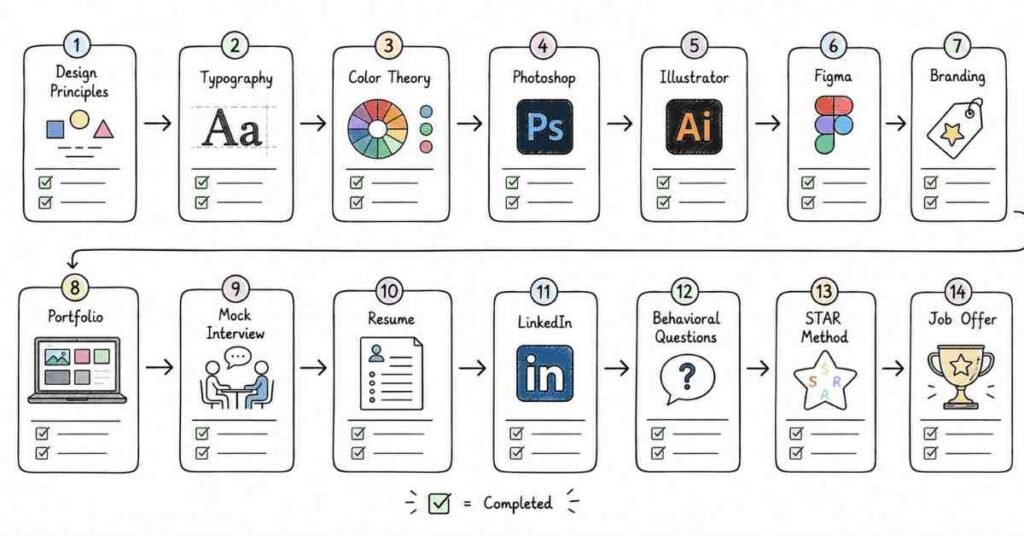
Week 1
- Revise design principles, composition, balance, contrast, and hierarchy.
- Practice explaining basic design concepts aloud.
- Finalize 2 portfolio project stories.
- Update resume summary and skills.
Week 2
- Revise typography, color theory, layout, and brand consistency.
- Practice portfolio walkthroughs daily.
- Strengthen one branding or marketing design project explanation.
- Update LinkedIn headline and About section.
Week 3
- Revise tools, file formats, UX/UI basics, and responsive design concepts.
- Practice tool-related interview questions.
- Prepare answers around Photoshop, Illustrator, Figma, and workflow choices.
- Practice handling critique and revision questions.
Week 4
- Revise portfolio case studies, design process, collaboration, and behavioral answers using STAR.
- Do full mock interviews: HR, portfolio round, design fundamentals, and creative discussion round.
- Review salary range and recruiter communication.
- Apply consistently and track responses.
Final 3 days
- Review only your condensed notes and project summaries.
- Practice concise spoken answers.
- Keep resume, portfolio links, sample work, and documents ready.
- Focus on clarity, calmness, and consistency.
Revision focus
Revise behavioral answers, portfolio storytelling, resume wording, LinkedIn positioning, project explanations, salary discussion, and follow-up email templates before your final interview rounds.